Custom Labels in Google Shopping: How to Use Them for Bid Segmentation (2026 Guide)
Custom labels are one of the most underused levers in Google Shopping. While most advertisers compete on the same bids across their entire catalog, smart merchants use custom labels to segment by margin, seasonality, and performance — bidding high only where it pays off.
This guide covers exactly how to set up custom labels, which segmentation strategies deliver the most impact, and how to manage them efficiently when your catalog changes.
What Are Custom Labels in Google Shopping?
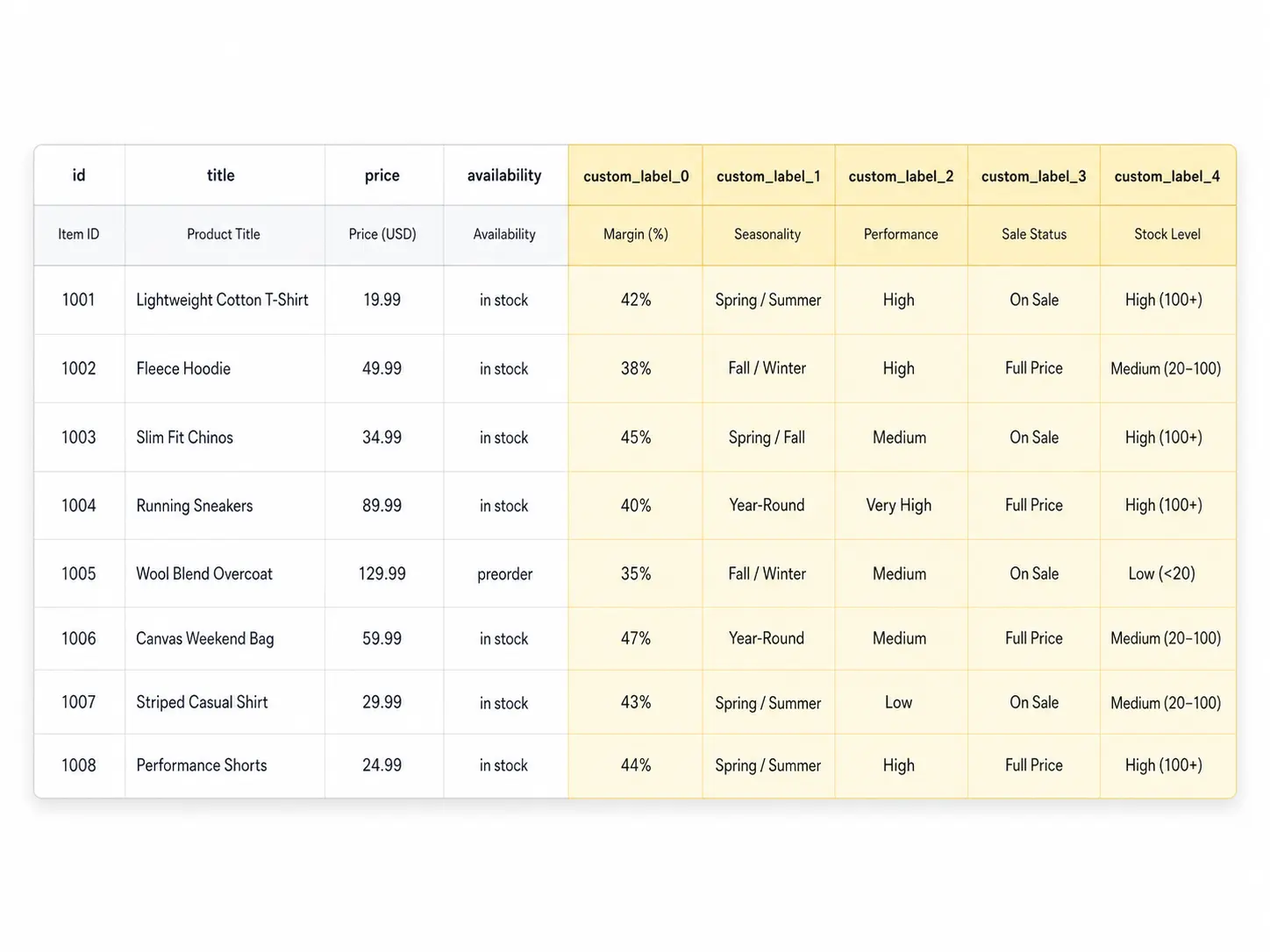
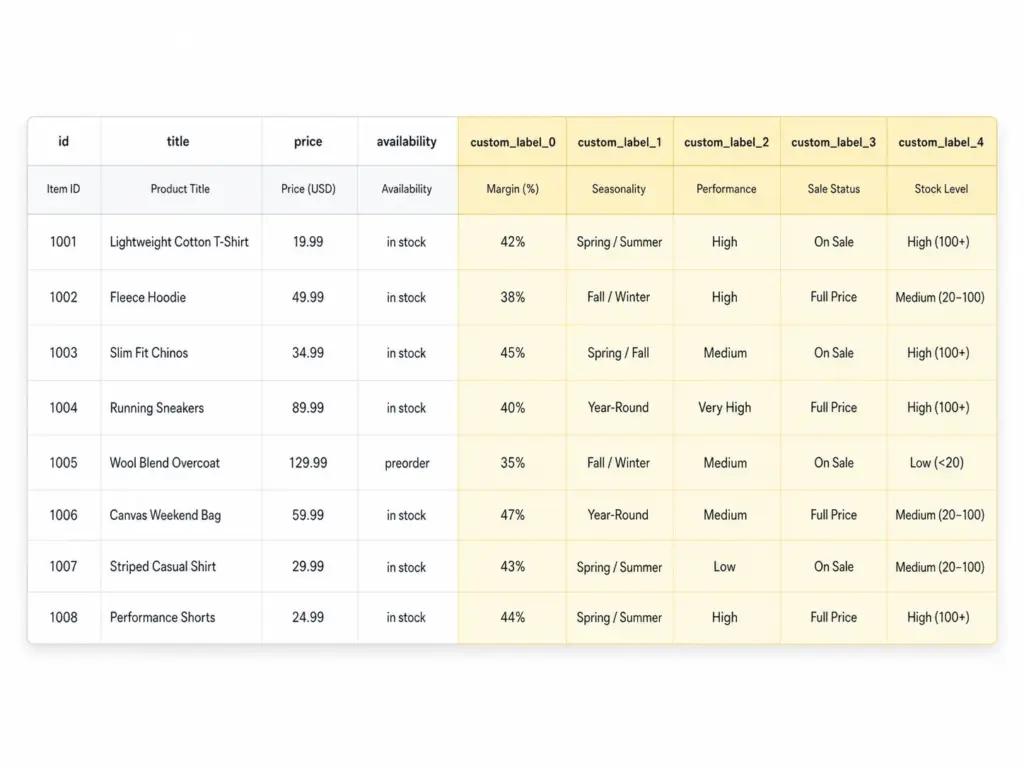
Custom labels (custom_label_0 through custom_label_4) are five optional attributes in your Google Shopping feed that you define yourself. Google does not use them for matching or relevance — they exist purely for your campaign segmentation inside Google Ads.
Each label accepts a free-text value up to 100 characters. You assign values in your product feed, then use those values to create product groups inside your Shopping campaigns and set different bids per group. Learn how labels fit into the broader feed structure in the Google Shopping Feed Guide.
The 5 Custom Labels and How to Use Each One
| Label | Recommended Use | Example Values |
|---|---|---|
| custom_label_0 | Margin tier | high-margin, mid-margin, low-margin |
| custom_label_1 | Seasonality | evergreen, summer-2026, clearance |
| custom_label_2 | Performance bucket | top-performer, new-product, slow-mover |
| custom_label_3 | Sale / promotion status | on-sale, full-price, bundle |
| custom_label_4 | Stock level | in-stock, low-stock, backorder |
You do not need to use all five. Start with margin (custom_label_0) — it produces the highest ROI impact immediately because it stops you spending high bids on products where the margin does not support it.
Strategy 1: Bid Segmentation by Margin
This is the most valuable custom label strategy for most ecommerce businesses. The idea is simple: assign every product a margin tier, then bid proportionally to that margin.
How to implement it
- Calculate gross margin % for each SKU (or product group)
- Define three to four tiers: for example, high (>50%), mid (25–50%), low (<25%)
- Assign the appropriate
custom_label_0value in your feed for every product - In Google Ads, create separate product groups for each margin tier
- Set target ROAS or manual CPC bids proportionally — high-margin products get 2–3× the bid of low-margin ones
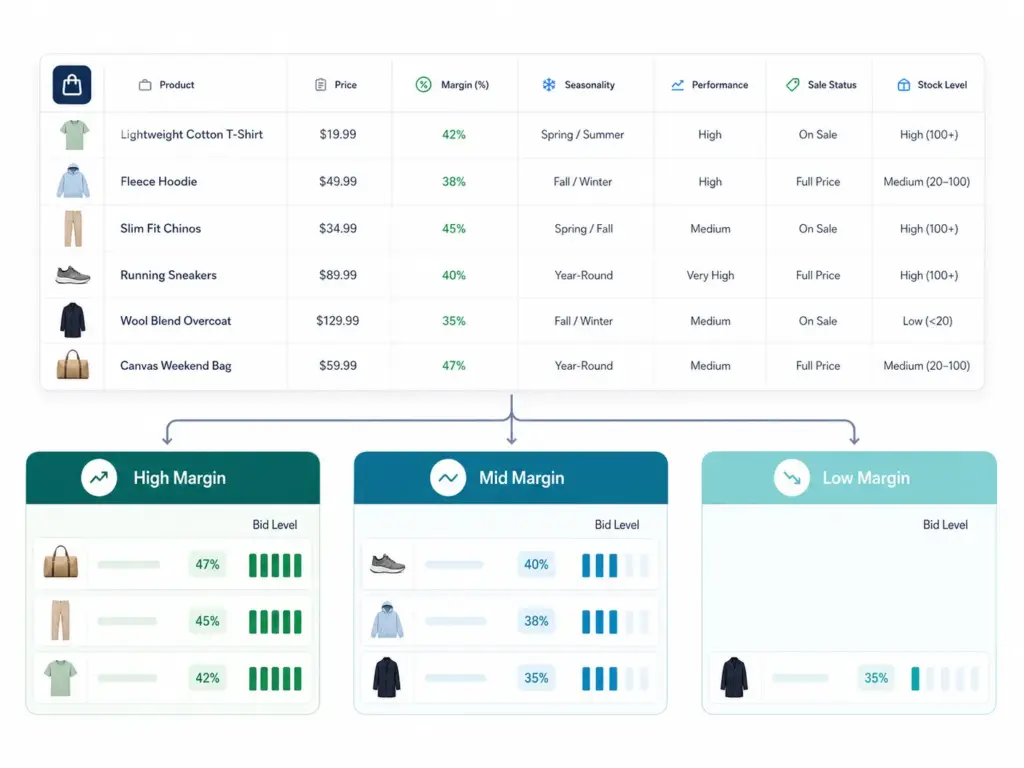
If you manage your feed through a PIM or feed tool, add a calculated column that assigns the label value based on a margin formula. This keeps labels current as costs change without manual intervention.
Strategy 2: Seasonality Labels
Seasonality labels let you ramp bids up on products entering peak demand and pull them back on products going off-season — without touching your campaign architecture.
- evergreen — products with consistent year-round demand. Steady bids.
- peak-season — products entering high-demand period. Increase bids 30–60%.
- clearance — end-of-season or excess stock. Lower bids but keep running to clear inventory.
- pre-launch — new products with no performance history. Conservative bids, monitor CTR closely.
The key advantage: you update the feed label and the bid segmentation follows automatically. No manual bid changes product by product.
Strategy 3: Performance Segmentation
After 30 days of Shopping data, classify products by their actual performance and bid accordingly.
- top-performer — ROAS above target, consistent conversions. Bid aggressively.
- new-product — less than 30 days data. Moderate bid until you have enough signal.
- slow-mover — impressions but no conversions after 30+ days. Investigate before committing budget.
- suppress — products you want to exclude from Shopping entirely. Set bid to £0.01.
Review and update performance labels monthly. A new-product that converts well should graduate to top-performer within 30–45 days.
How to Add Custom Labels to Your Feed
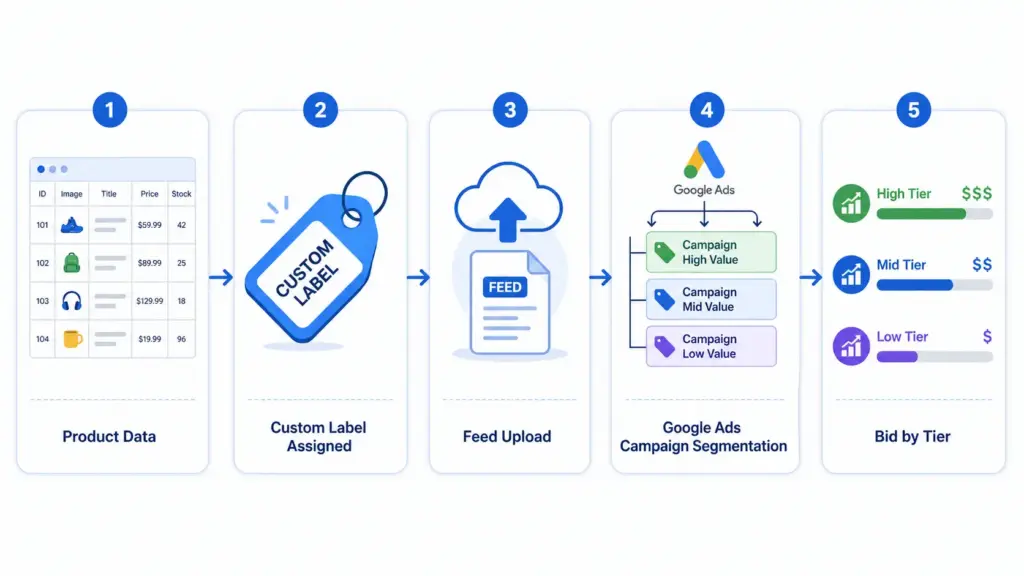
Option A: Directly in your product feed file
Add columns named custom_label_0, custom_label_1 etc. to your feed spreadsheet or data source. Assign values per row. Upload the updated feed to Google Merchant Center.
Option B: Using a supplemental feed
If you cannot modify your primary feed directly, use a supplemental feed containing just the ID column and your custom label columns. Merchant Center merges supplemental data onto matching product IDs. This is useful when your primary feed is managed by a platform you do not control directly.
Option C: Rules in Merchant Center
Under Products → Feeds → Feed Rules in Google Merchant Center, you can set conditional rules that assign custom label values based on other attributes — for example, assigning "clearance" to all products with a sale_price more than 30% below regular price. No feed editing required.
For apparel catalogs with multiple variants, reviewing how apparel-specific feed attributes interact with your labels is worthwhile before setting up segmentation.
Common Custom Label Mistakes
- Using custom labels for relevance signals — Google ignores label values for matching. They are campaign management tools only.
- Inconsistent values — "High Margin", "high-margin", and "HIGH MARGIN" are three different values in Google Ads. Pick a format and stick to it.
- Forgetting to update labels when conditions change — A clearance product that returns to full price still carries the clearance label and its low bid.
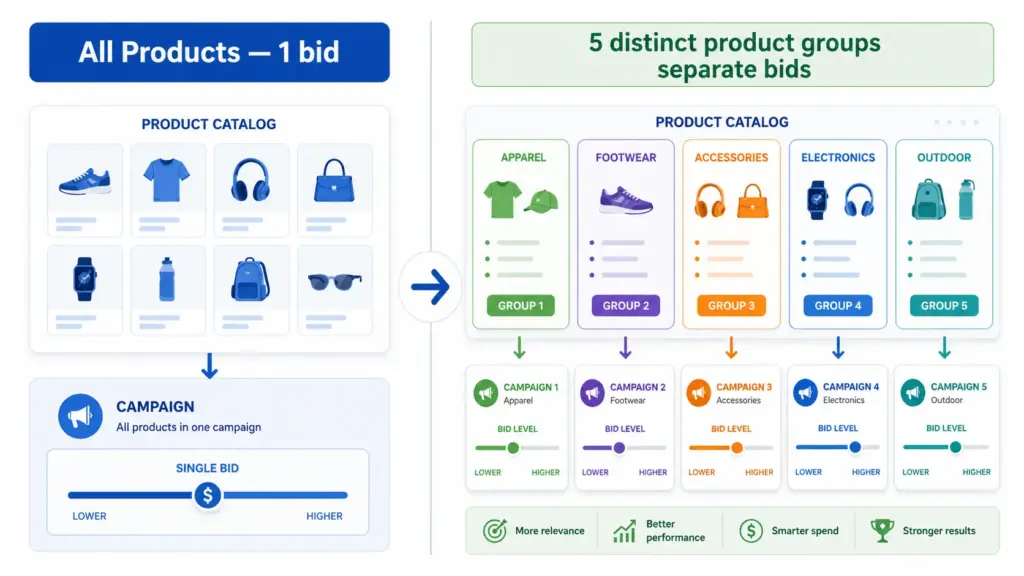
- Setting up labels but not creating separate product groups — Labels do nothing if all products sit in the same "All Products" group with one bid.
What to Do Next
Start with one label. Margin is the highest-impact first label for most stores. Assign high / mid / low to every product, create three product groups, and set bids proportionally. Run for 30 days and compare ROAS by tier.
Before setting up labels, run your feed through the GTIN Validator to confirm your product identifiers are clean — label segmentation on a feed with GTIN errors will still underperform at any bid level.
For teams managing large catalogs across multiple channels, maintaining custom label logic inside a PIM means labels update automatically when product data changes rather than requiring manual feed edits every time margins or seasons shift. Try the Google Shopping Feed Generator or explore the LynkPIM free plan to manage this at scale.
Frequently Asked Questions
What are custom labels in Google Shopping?
Custom labels (custom_label_0 through custom_label_4) are five optional feed attributes you define yourself. Google uses them purely for campaign segmentation in Google Ads — not for product matching or relevance. Each accepts a free-text value up to 100 characters.
How many custom labels can you use in Google Shopping?
You can use up to five custom labels per product. You do not need to use all five — start with one, typically margin tier (custom_label_0), and expand once that segmentation is delivering clear ROAS differences between groups.
Do custom labels affect Google Shopping relevance or matching?
No. Custom labels are invisible to Google's matching algorithm. Relevance is determined by your title, description, and google_product_category. Labels exist solely for you to create separate bid groups — they have zero influence on which queries your products appear for.
What is the best first custom label to set up?
Margin tier (custom_label_0) produces the fastest ROI impact for most stores. Assign high, mid, and low values to every product, create three product groups in Google Ads, and set bids proportionally. Run for 30 days and compare ROAS by tier before adding further labels.
Can I add custom labels without editing my main product feed?
Yes. Use a supplemental feed containing just the product ID and custom label columns, or set up Feed Rules in Google Merchant Center to assign label values conditionally based on existing attributes — for example, assigning "clearance" to all products where sale price is more than 30% below regular price. No primary feed editing required.
Leave a Reply