Tag: Google Shopping

  • How to Automate Your Google Shopping Feed Updates (2026 Guide)

    How to Automate Your Google Shopping Feed Updates (2026 Guide)

    How to Automate Your Google Shopping Feed Updates (2026 Guide)

    Manual Google Shopping feed management is one of the highest-risk activities in ecommerce operations. Every time a price changes, a product goes out of stock, or a promotion goes live — and the feed is not updated within 24 hours — you risk price mismatch disapprovals that remove products from Shopping entirely. Full automation eliminates this risk.

    This guide covers every automation method available in 2026, when to use each, and how to set them up correctly.
    Why Manual Feed Updates Fail

    Manual feed management fails not because teams are careless but because the speed of change in ecommerce catalogs outpaces human update cycles. Prices change for flash sales. Stock depletes. New products launch. Promotions end. Any one of these events — if not reflected in the feed within 24 hours — creates a price mismatch or availability mismatch that Merchant Center catches during its next crawl.

    The solution is not faster manual processes. It is removing humans from the update loop entirely for routine data changes. For the context on how feeds connect to your product data source, see the PIM to Google Shopping Integration guide.

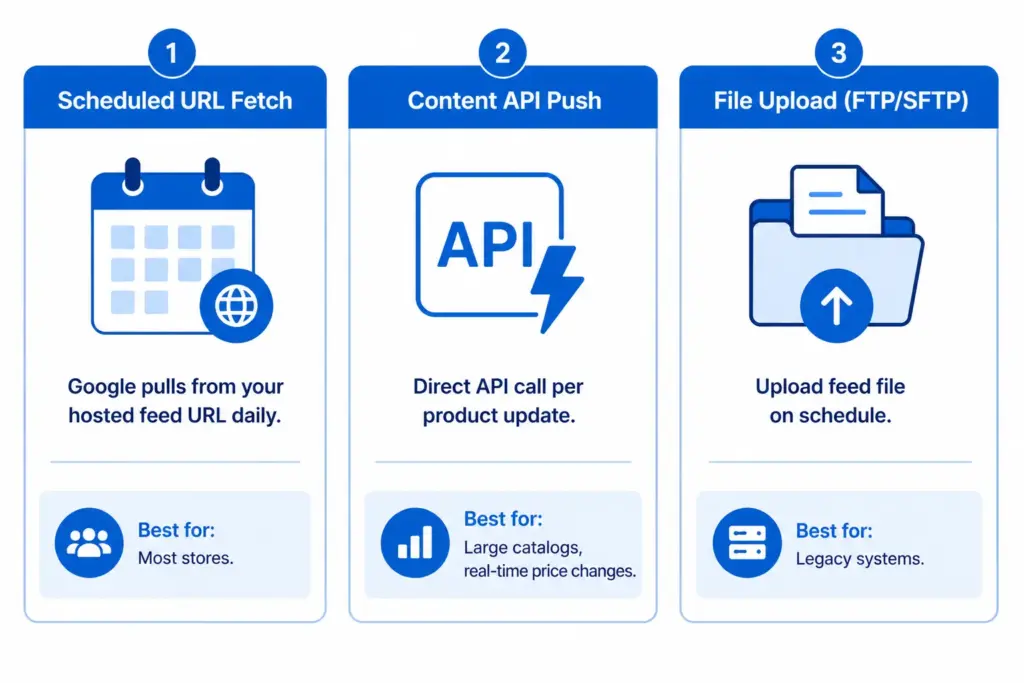
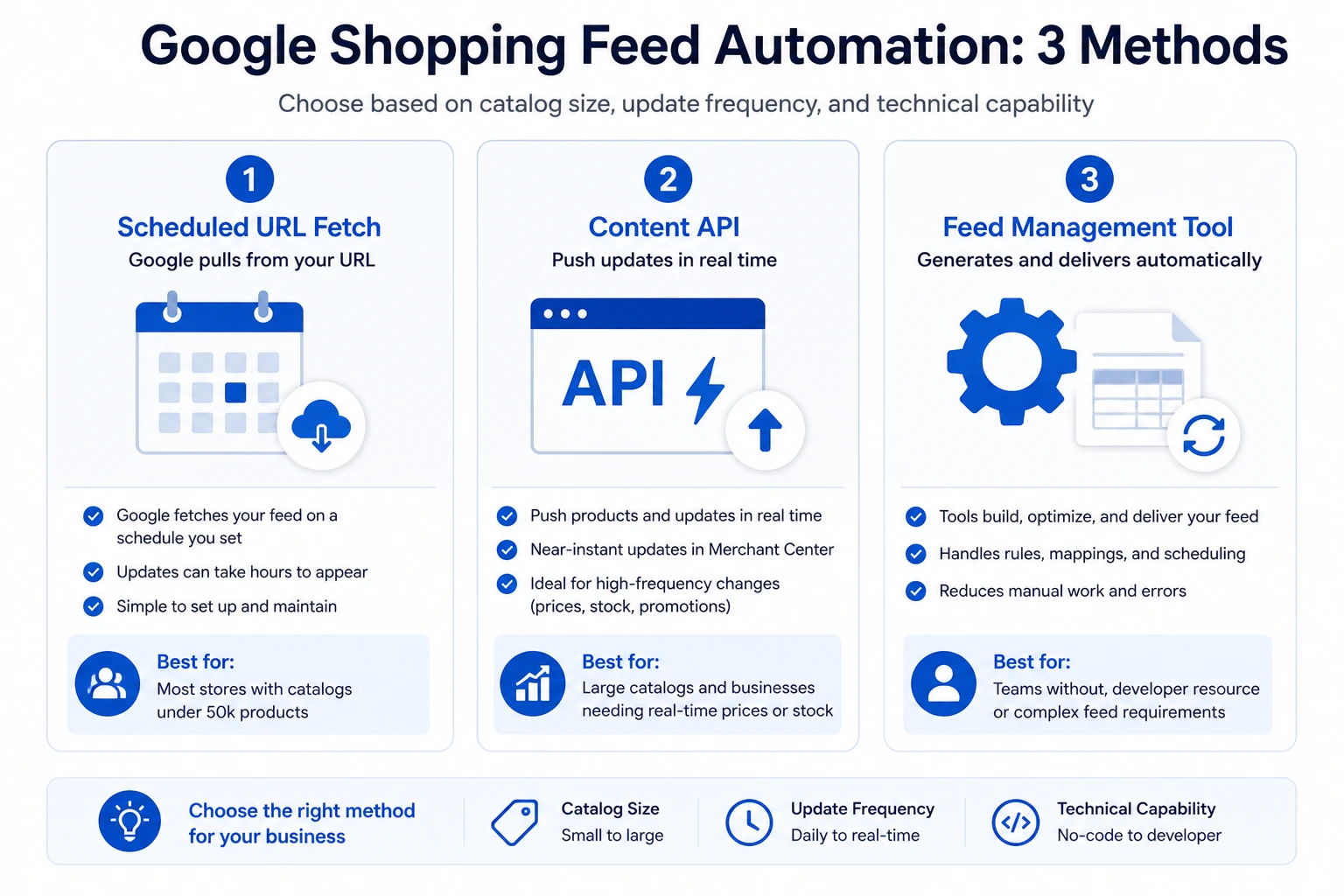
    Method 1: Scheduled URL Fetch (Recommended for Most Stores)

    Your system generates a feed file at a stable URL. Google Merchant Center fetches that URL on a schedule you configure — daily, twice daily, or more frequently. Every fetch pulls a fresh copy of your full product data.

    How to set it up

    1. In Merchant Center, go to Products → Feeds → [your primary feed] → Settings
    2. Under Fetch Schedule, set the frequency to Daily at minimum
    3. Set the fetch time to a low-traffic period — typically 2:00–4:00 AM in your primary market timezone
    4. For stores with frequent promotions or high stock turnover, set to Twice daily
    5. Save and trigger a manual fetch to confirm the URL is accessible and the feed processes without errors

    Best for: Most ecommerce stores. Works with any platform that can generate a feed file at a stable URL — Shopify, WooCommerce, Magento, custom platforms.

    Limitation: The whole feed updates at once on a schedule. If a product goes out of stock at 10am and your next fetch is at 2am, the product will show as in stock in Shopping for 16 hours. For stores with fast-moving inventory, this window creates availability mismatch risk.

    Method 2: Google Content API (Real-Time Updates)

    The Content API allows your system to push product updates to Merchant Center immediately when a product changes — no waiting for a scheduled fetch. A price change in your platform can trigger an API call that updates the product in Merchant Center within minutes.

    When to use the Content API

    • Catalogs over 50,000 products where full-feed fetches become slow or resource-heavy
    • Stores with real-time pricing (dynamic pricing, live stock-based pricing)
    • High-velocity inventory where products sell out within hours
    • Stores running multiple daily promotions that change prices frequently

    Content API setup requirements

    The Content API requires developer resource to implement — it is not a no-code option. Your platform needs to be configured to send API calls to Merchant Center when product data changes. Google’s Content API documentation is the reference for implementation. The Feed Generator handles API delivery without custom development for most store configurations.

    Method 3: Feed Management Tool (No-Code Automation)

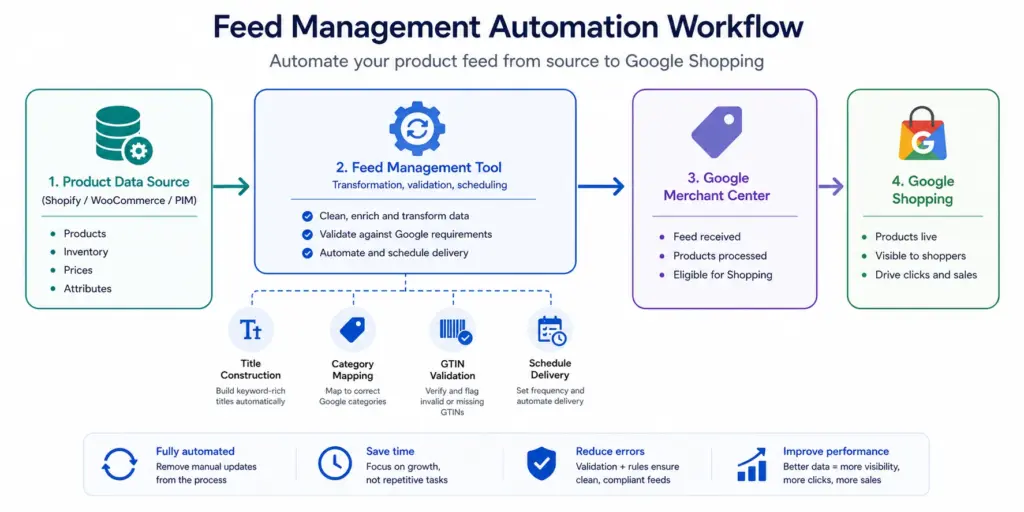
    Feed management tools sit between your product data source and Merchant Center. They pull product data from your platform or PIM, apply transformation rules (title construction, category mapping, attribute normalisation), generate the feed file, and deliver it to Merchant Center on schedule — with no manual steps after initial setup.

    Best for: Teams without developer resource, stores managing feeds across multiple channels (Google + Amazon + Facebook), and catalogs where feed transformation logic is complex enough that maintaining it manually is impractical.
    Separating Price/Availability from Content Updates

    Not all feed data needs to update at the same frequency. Treating your feed as a single monolithic file that updates everything at once is inefficient and sometimes counterproductive.

    Data TypeUpdate FrequencyDelivery Method
    Price, sale_price, availabilityDaily minimum — twice daily for promotionsPrimary feed or price-only supplemental feed
    New productsSame day as launchSupplemental feed or Content API push
    Titles, descriptionsWeeklyPrimary feed
    ImagesOn changePrimary feed
    Custom labelsWeekly or monthlyCustom label supplemental feed

    Using a supplemental feed for price and availability updates is a practical option for stores whose primary feed platform cannot be updated on a daily schedule. See the Supplemental Feeds guide for setup details.

    Setting Up Merchant Center Alerts

    Automation without monitoring is incomplete. Feed automation can fail — URLs become inaccessible, file formats break, authentication tokens expire. Set up Merchant Center email alerts so processing failures are caught within hours, not days.

    1. In Merchant Center, go to Settings → Email Preferences
    2. Enable alerts for: Feed processing errors, Product disapprovals (daily digest), Account warnings
    3. Add a shared team email address (not just a personal one) so alerts are seen even when you are out of office

    For full automation of feed generation, delivery, and monitoring from one place — including price validation before submission — the Google Shopping Feed Generator handles all three without custom development. Start with the LynkPIM free plan.

    Frequently Asked Questions

    How often should Google Shopping feeds update?

    Price and availability fields should update at minimum daily. Stores with frequent promotions or fast-moving inventory should update twice daily. Product content fields (titles, descriptions, images) can update weekly — these change infrequently and do not cause disapprovals if slightly delayed. The critical rule: your feed price must match your landing page price at all times.

    What is the difference between Scheduled URL Fetch and the Content API?

    Scheduled URL Fetch pulls a complete feed file from a hosted URL on a schedule — best for catalogs under 50,000 products with predictable update patterns. The Content API allows your system to push individual product updates to Merchant Center in real time as products change — better for large catalogs, real-time prices, or stores with unpredictable inventory movements.

    What happens if my Google Shopping feed fails to update?

    If your feed fails to fetch for more than 30 days, Google may deactivate it and your products stop appearing in Shopping. Shorter delays cause price mismatch disapprovals when your site prices change but your feed does not update. Set up Merchant Center email alerts for feed processing errors so failures are caught within hours, not days.
  • How Product Data Quality Affects Your Google Shopping ROAS

    How Product Data Quality Affects Your Google Shopping ROAS

    How Product Data Quality Affects Your Google Shopping ROAS

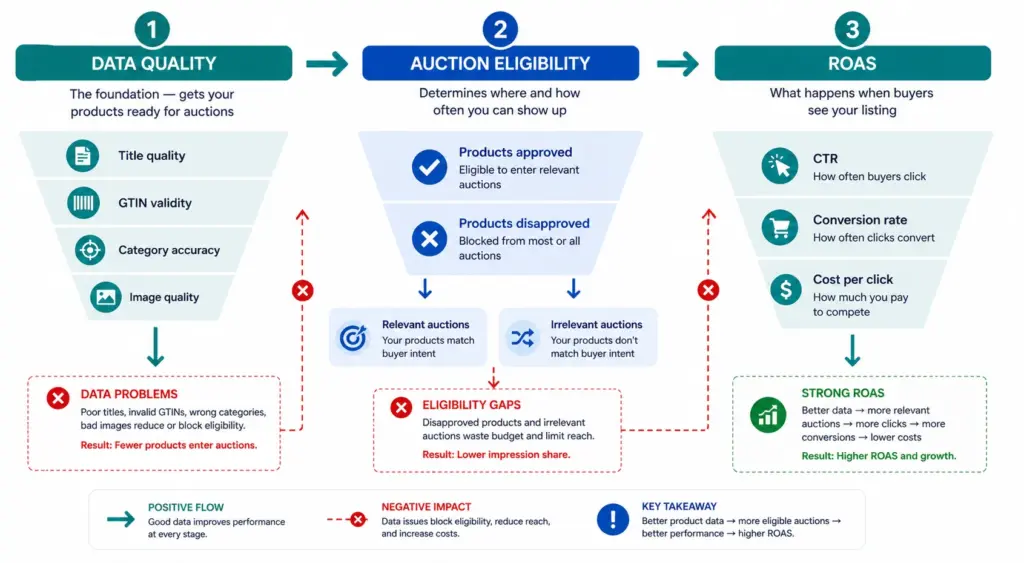
    Most Google Shopping ROAS discussions focus on bids, bidding strategies, and campaign structure. These matter. But for stores with data quality problems, no bidding strategy can overcome a feed where products are disapproved, titles are vague, categories are wrong, or GTINs are invalid. Product data quality affects ROAS before a single auction is entered.

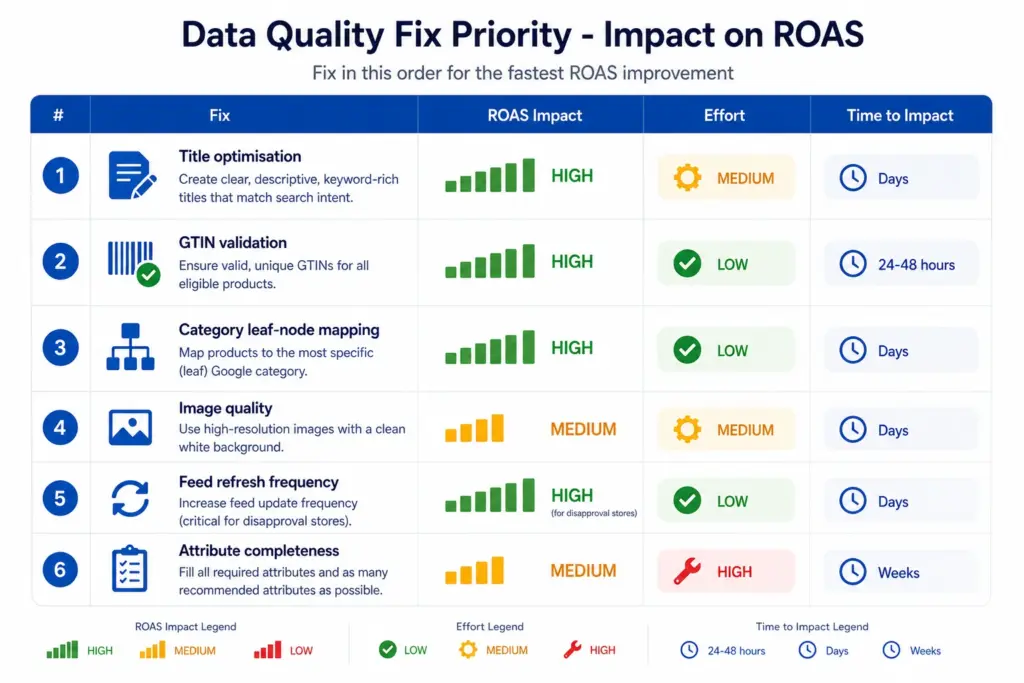
    This article covers the six data quality factors with the biggest direct ROAS impact, ranked by how much they cost you and how quickly they can be fixed.

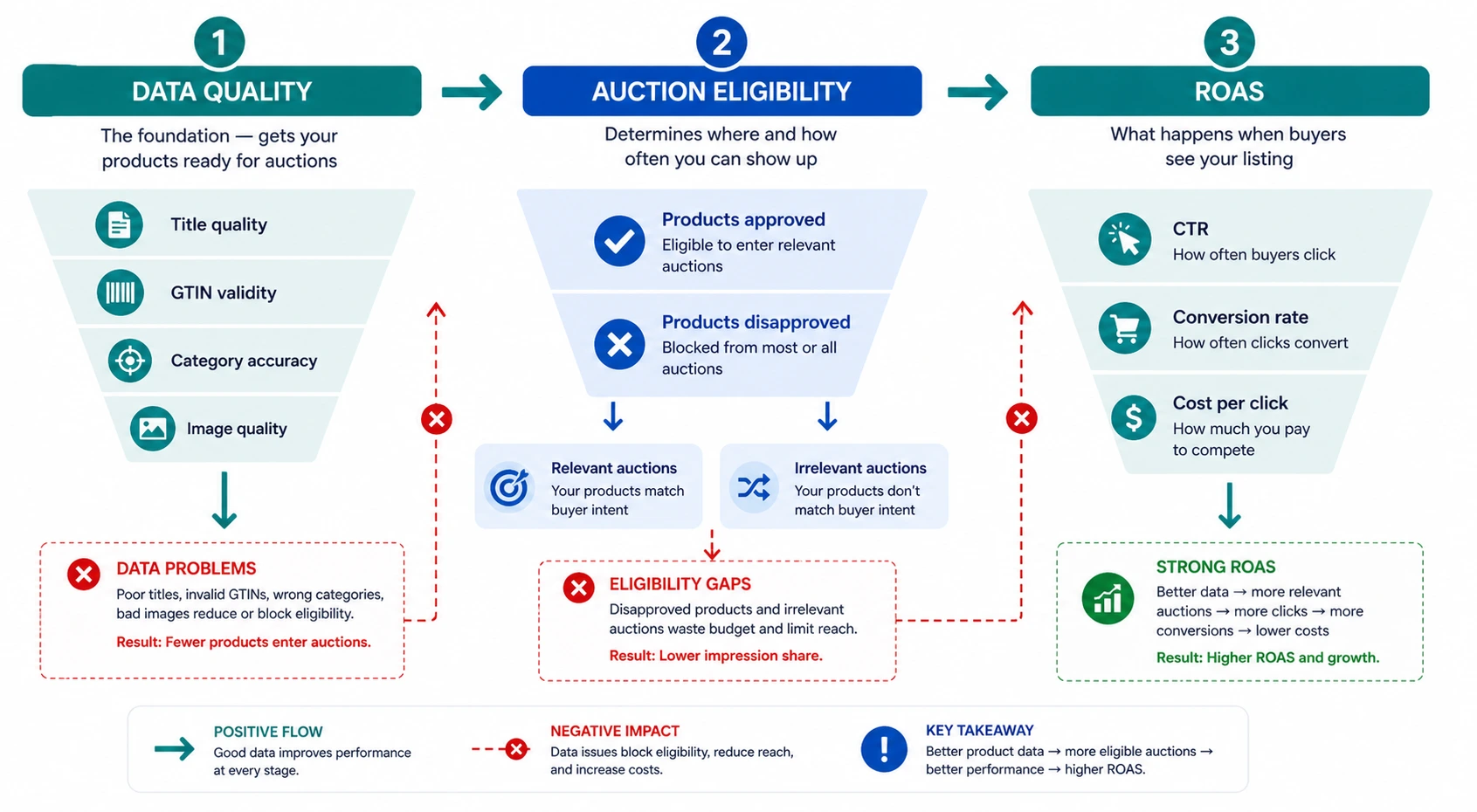
    How Product Data Affects ROAS — The Mechanism

    Product data quality affects ROAS through three distinct mechanisms. Understanding which applies to which data problem helps you prioritise fixes correctly.

    • Auction eligibility: Disapproved products do not enter any auctions. Products with “Limited performance” warnings enter fewer auctions and at lower positions. GTIN errors and policy violations cause this.
    • Auction relevance: Your title and google_product_category determine which search queries your products are matched to. Vague titles and broad categories match your products to irrelevant queries — you spend budget on traffic that does not convert.
    • Click-to-conversion rate: Image quality, title specificity, and price competitiveness all affect whether a click becomes a purchase. This is the layer that most data quality guides ignore but where significant ROAS gains are available.

    Factor 1: Product Titles — The Highest-Impact Fix

    Google uses your product title as the primary signal for matching your product to search queries. A vague title matches fewer queries. A specific, well-structured title matches more relevant queries at higher relevance scores — meaning better positions at lower CPCs.

    The ROAS impact of title quality is larger than most stores expect because it affects both sides of the equation: the cost of each click (auction position) and the value of each click (title specificity means higher buyer intent).

    Title TypeQueries MatchedTypical CTRTypical Conversion Rate
    “Men’s Jacket”Broad, low-intent0.8–1.2%Low — wrong intent mix
    “Columbia Rain Jacket Men Navy L”Specific, high-intent3.5–5.2%High — buyer knows what they want

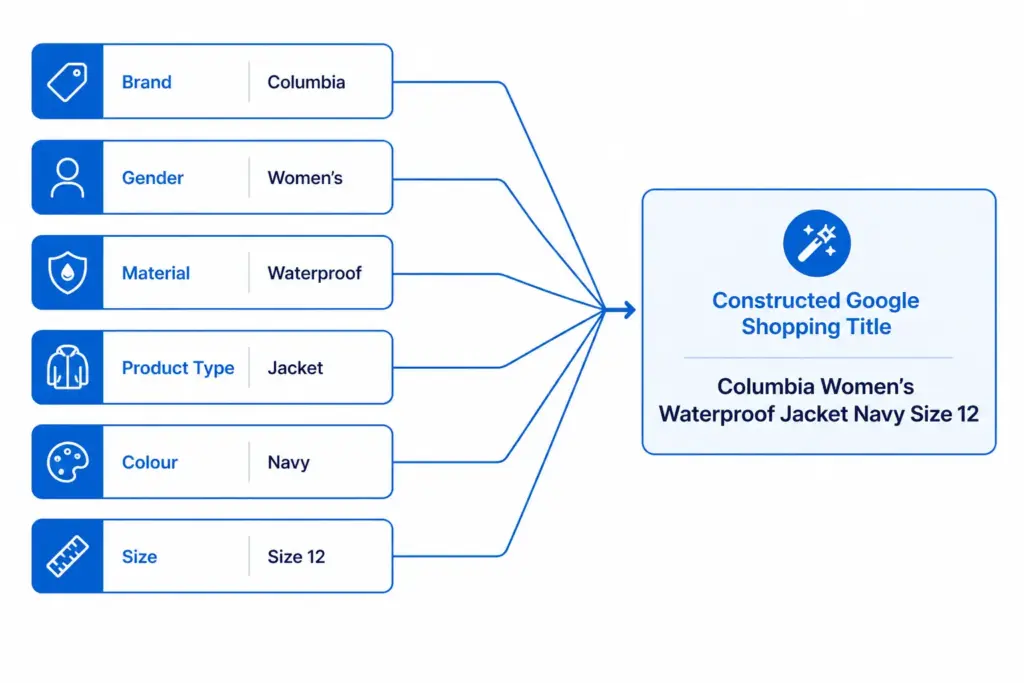
    Title formula: Brand + Gender/Age + Material + Product Type + Colour + Size for apparel. Brand + Key Spec + Product Type + Model for electronics. Check every title against this formula using the Feed Audit Checklist.

    Factor 2: GTINs — The Eligibility Gate

    Products without valid GTINs receive a “Limited performance” status in Google Merchant Center. This is not a warning you can safely ignore. Limited performance means:

    • Reduced auction eligibility — the product enters fewer auctions than it would with a valid GTIN
    • Lower relevance scores — Google cannot cross-reference the product against its product knowledge graph
    • No eligibility for Shopping promotions or special ad formats that require GTIN verification

    For branded products, fixing invalid GTINs directly restores auction eligibility. For custom or handmade products that genuinely have no manufacturer GTIN, set identifier_exists = FALSE — this removes the warning without fabricating a GTIN.

    Factor 3: Google Product Category — The Auction Pool Problem

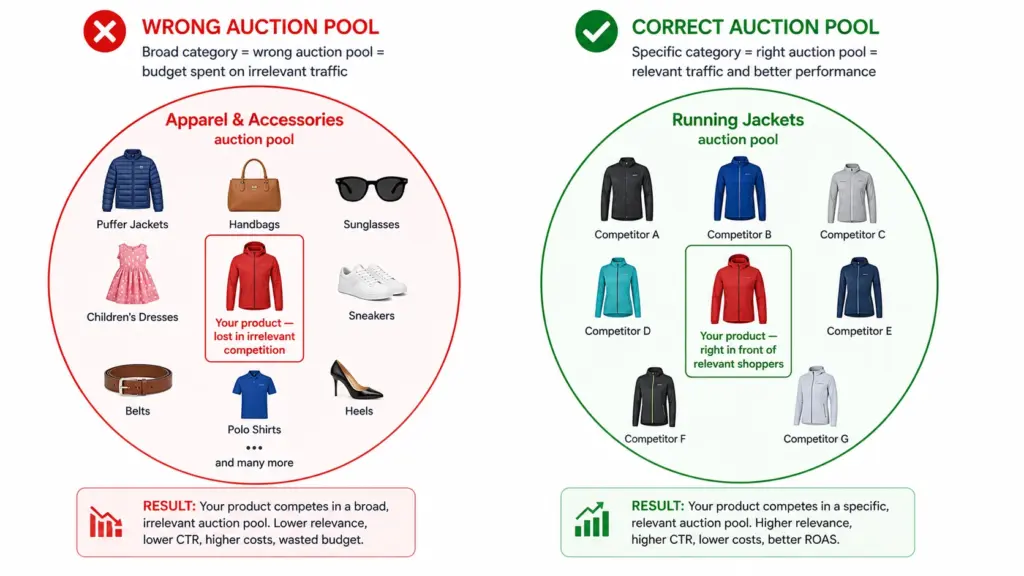
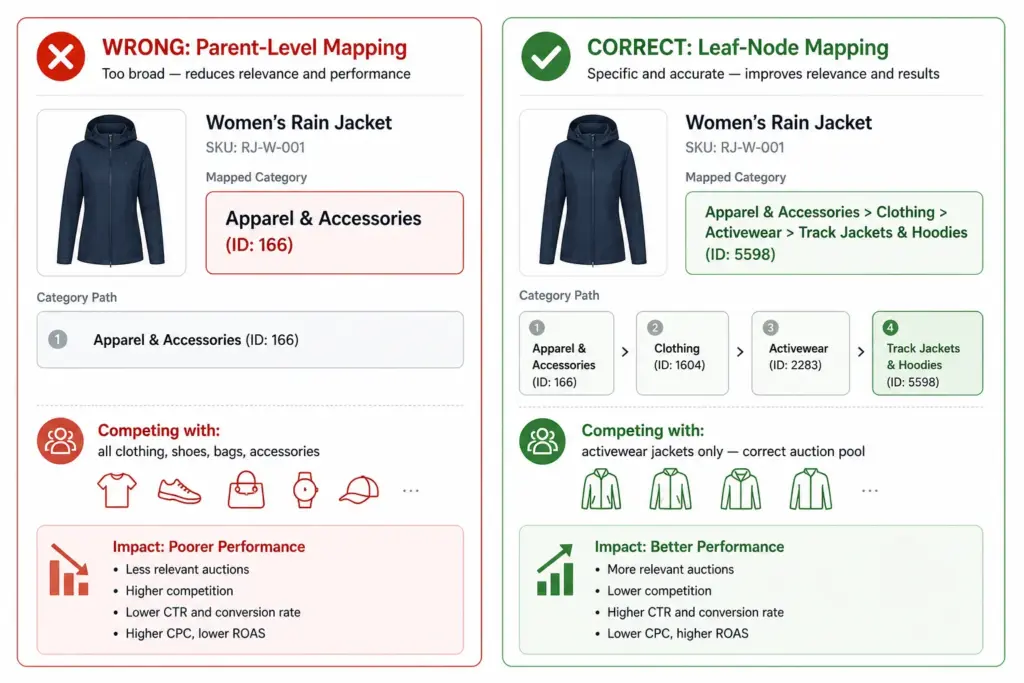
    An incorrect or overly broad google_product_category puts your product in the wrong auction pool. A running jacket in “Apparel & Accessories” competes against handbags, sunglasses, and children’s clothing — all irrelevant to your buyer. Your bids are wasted on impressions that will not convert because the query intent does not match.

    Fixing category mapping to leaf-node IDs is a one-time task per subcategory. Once mapped correctly in your feed, it applies to all products in that subcategory automatically. Full guide at Google Product Category Taxonomy.

    Factor 4: Image Quality — The CTR Multiplier

    In Google Shopping, the product image is the first thing a buyer sees. It is the primary visual decision trigger before the title or price are read. Image quality directly affects CTR, and CTR directly affects ROAS.

    • White background images consistently outperform lifestyle images for CTR in Shopping results for most product categories
    • Higher resolution images (800×800px+) render better in Shopping and reduce the pixelation that signals low-quality product listings
    • Multiple images via additional_image_link (up to 10) improve performance — Google can show different angles in different contexts
    • Colour-specific images for variants — a buyer filtering for navy gets shown the navy product, not a different colour from the same style

    Factor 5: Price and Availability Freshness

    A price mismatch disapproval removes a product from Shopping entirely — zero impressions, zero clicks, zero revenue until fixed. For stores that run frequent promotions or have fast-moving stock, stale feed data is a constant ROAS drain because it creates disapprovals that take 24–48 hours to resolve.

    The fix is structural: daily minimum feed updates, twice-daily during promotion periods, and using sale_price + sale_price_effective_date for promotions rather than changing the base price field. This prevents price mismatch disapprovals at the source.

    Factor 6: Attribute Completeness — The Long Tail Opportunity

    Products with complete optional attributes — colour, size, material, pattern, age_group, gender — match against more specific long-tail search queries. A buyer searching “navy size 12 waterproof running jacket women” only finds your product if all five of those attributes are present in your feed.

    Long-tail queries typically convert at higher rates than broad queries because they indicate more specific buying intent. Every missing optional attribute is a set of high-intent queries your product is invisible for. Run an attribute completeness audit using the Completeness Checker to identify which products are missing which attributes at scale.

    Priority Order — Where to Start

    1. Fix disapprovals first — any disapproved product is earning zero. Check Merchant Center Diagnostics before anything else. See the Fix Disapprovals guide.
    2. Optimise titles — highest impact on relevant traffic. Apply the title formula to your top 20% of products by revenue first.
    3. Validate GTINs — restore “Limited performance” products to full auction eligibility.
    4. Fix category mapping — move all products from parent categories to leaf nodes.
    5. Set up daily feed refresh — prevent price mismatch disapprovals from recurring.
    6. Complete optional attributes — unlock long-tail query matching for all products.

    Use the Catalog Health Score to benchmark your current data quality across all six factors and get a prioritised fix list specific to your catalog. For ongoing feed management that prevents these issues at source, explore the LynkPIM free plan.

    Frequently Asked Questions

    Does product data quality affect Google Shopping ROAS?

    Yes, directly — through three mechanisms: auction eligibility (disapproved products don’t appear at all), auction relevance (vague titles and broad categories match wrong queries), and click-to-conversion rate (image quality and title specificity determine whether clicks convert). All three affect ROAS before any bidding decision is made.

    Which product data fix has the biggest impact on Google Shopping ROAS?

    Title optimisation typically delivers the biggest immediate ROAS improvement for most stores. A specific, well-structured title matches more relevant search queries, improves auction relevance, increases CTR, and attracts higher-intent buyers. Apply the formula: Brand + Gender/Age + Material + Product Type + Colour + Size for apparel; Brand + Key Spec + Product Type for electronics.

    How does a missing GTIN affect Google Shopping performance?

    Products without valid GTINs receive “Limited performance” status — reduced auction eligibility, fewer impressions, and lower positions than identical products with valid GTINs. For branded products, fixing invalid GTINs directly restores full auction eligibility. For custom products with no manufacturer GTIN, set identifier_exists = FALSE to remove the warning.

  • Google Product Category vs Your Internal Taxonomy: What’s the Difference?

    Google Product Category vs Your Internal Taxonomy: What’s the Difference?

    Google Product Category vs Your Internal Taxonomy: What’s the Difference?

    Two taxonomies. One product. This is the reality of modern ecommerce — every product needs to live somewhere in your internal catalog structure, and simultaneously needs to be classified in Google’s own taxonomy for Shopping performance. These two systems serve completely different purposes and should never be confused for each other.

    Your Internal Taxonomy — What It’s For

    Your internal product taxonomy is the classification system you design for your own business. It reflects how your team organises products, how your customers browse your site, and how your buying and merchandising teams think about the catalog.

    It uses your naming conventions. “Outerwear” might be at Level 2 in your taxonomy. “Men’s Rain Jackets” might be your Level 3 subcategory. These names work for your team because they reflect how you buy, stock, and sell these products.

    Your internal taxonomy also drives your site navigation, search filters, and internal reporting. It is designed for humans — your buyers, your customers, and your ecommerce team. For a full guide on building it correctly, see What Is Product Taxonomy and How to Build a Product Taxonomy From Scratch.

    Google’s Product Category Taxonomy — What It’s For

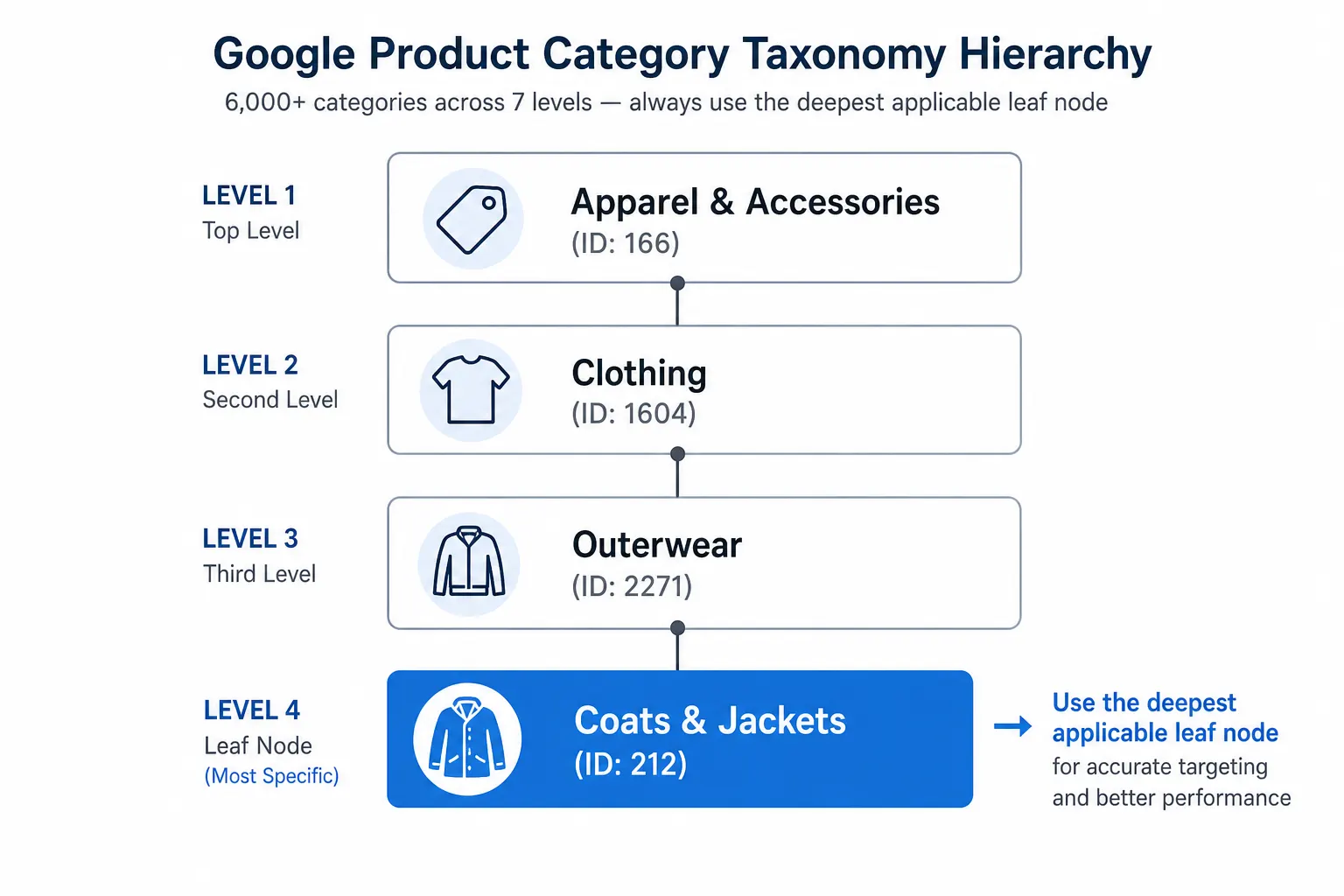
    Google’s product category taxonomy is a fixed, hierarchical classification system that Google uses to understand what your product is. It has over 6,000 categories across up to 7 levels, maintained by Google and updated periodically.

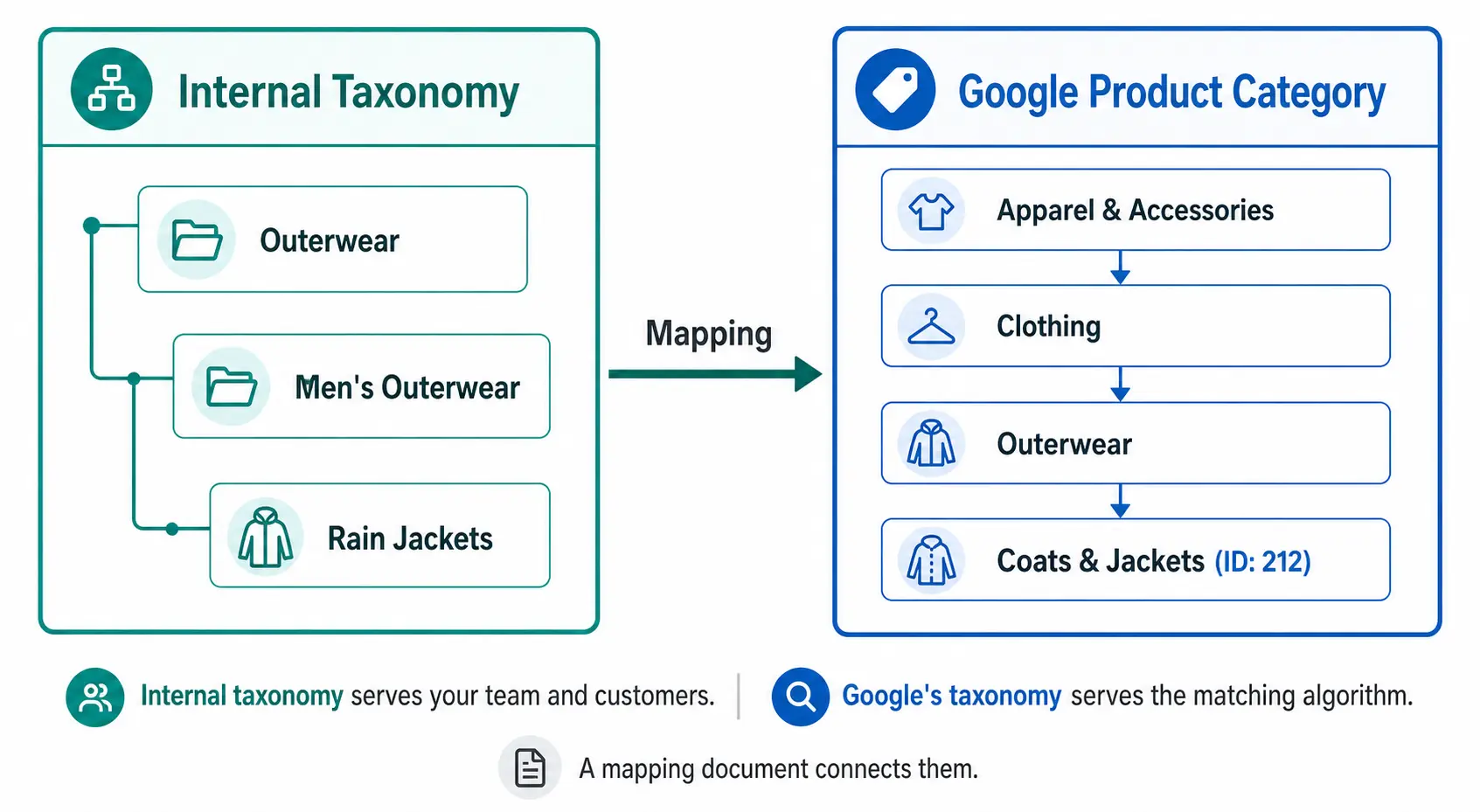
    It is designed for Google’s matching algorithm — not for humans. When you assign a product to “Apparel & Accessories > Clothing > Outerwear > Coats & Jackets” (ID: 212), you are telling Google’s algorithm which auction pool this product belongs in, which additional attribute requirements apply, and how to match it to buyer search queries.

    You do not modify it. You map your products to it. The full taxonomy ID list is available publicly and should be used as a reference, not a foundation for your own catalog structure. Full details in the Google Product Category Taxonomy guide.

    The Key Differences

    Internal TaxonomyGoogle Product Category
    Who designs itYouGoogle
    Who it servesYour team and customersGoogle’s matching algorithm
    Naming conventionYour own namingGoogle’s fixed naming
    How deep3–4 levels typicalUp to 7 levels, 6,000+ nodes
    Where it livesYour PIM / platform / spreadsheetThe google_product_category feed field
    What it powersNavigation, filters, internal ops, reportingShopping auction relevance, attribute requirements, tax rules
    How often it changesWhen your catalog evolves1–2 times per year by Google
    Can you modify itYes — it’s yoursNo — you only map to it

    Why You Need Both — and Why They’re Different

    A common mistake is trying to build an internal taxonomy that mirrors Google’s. This creates several problems:

    • Google’s naming doesn’t match customer language — “Coats & Jackets” is fine for an algorithm but might not reflect how your buyers describe products on your site
    • Google’s structure doesn’t match your business — your business may organise products by season, by brand, by collection, or by customer segment in ways that don’t correspond to Google’s classification
    • Google updates break your internal structure — if your navigation and filters are built on Google’s taxonomy, every Google taxonomy update requires changes to your site

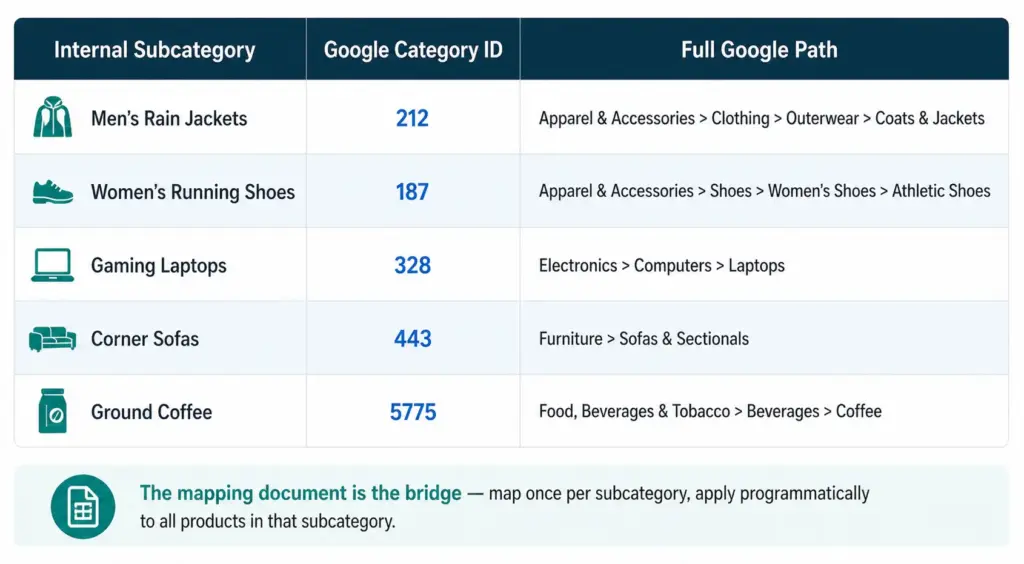
    Your internal taxonomy should be built for your customers and your team. Google’s taxonomy should be mapped to from your internal taxonomy — a separate, maintained mapping document that connects your subcategories to the correct Google category IDs.

    How to Build the Mapping Document

    The mapping document is a simple table: your internal subcategory name on the left, the corresponding Google category ID on the right. This is the only connection you need between your taxonomy and Google’s.

    1. List every subcategory in your internal taxonomy
    2. For each subcategory, search Google’s taxonomy file for the most specific matching leaf node
    3. Record the numeric ID — not the text path string
    4. Apply the ID to all products in that subcategory programmatically — not product by product
    5. Review annually when Google publishes taxonomy updates

    This approach means a taxonomy change on Google’s side only requires updating the mapping document, not restructuring your internal taxonomy, your site navigation, or your product records.

    The product_type Field — the Third Layer

    Google Shopping feeds support a third category-related field: product_type. Unlike google_product_category, this is a free-form field you control completely.

    Use product_type to include your internal taxonomy path in the feed — for example, “Outerwear > Men’s Outerwear > Rain Jackets”. This value does not affect Google’s matching algorithm but it does appear as a segmentation option in Google Ads, letting you create Shopping campaigns and bid strategies based on your own category structure rather than Google’s.

    This means you can have all three in your feed simultaneously:

    • google_product_category: 212 (tells Google what the product is)
    • product_type: Outerwear > Men’s Outerwear > Rain Jackets (your internal naming for campaign segmentation)
    • Internal taxonomy: stored in your PIM, driving your site and your team’s workflow

    Check the Flat vs Hierarchical Taxonomy guide to ensure your internal structure is appropriately deep before building your mapping document. Take the PIM Readiness Score to see how well your current product data governance supports this dual-taxonomy approach.

    Frequently Asked Questions

    Do I need both an internal taxonomy and Google product categories?

    Yes. Your internal taxonomy serves your team and customers using your naming conventions. Google’s taxonomy serves their matching algorithm using their naming conventions. You need both, connected by a mapping document that translates your subcategory names to Google category IDs.

    Should I build my internal taxonomy to match Google’s?

    No. Build your internal taxonomy for how your team and customers think about your products. Keep the mapping to Google’s taxonomy in a separate document. If you build your internal structure to mirror Google’s, you tie your site navigation and team workflows to a taxonomy you don’t control — and every Google update risks breaking something in your catalog.

    What is the product_type field and how does it relate to my internal taxonomy?

    The product_type field is a free-form field in your Google Shopping feed where you include your own internal category path. It does not affect Google matching but enables campaign segmentation in Google Ads based on your own taxonomy naming. It is the bridge between your internal taxonomy and your Google Shopping campaigns.

    How often does Google’s taxonomy change and how does that affect my internal taxonomy?

    Google updates its taxonomy 1–2 times per year. These changes do not affect your internal taxonomy at all — they only affect the mapping document. Using numeric IDs in your feed (not text path strings) means most updates have zero impact on your feed, since IDs remain valid even when Google renames a category path.

  • Google Product Category Taxonomy: The Complete 2026 Guide

    Google Product Category Taxonomy: The Complete 2026 Guide

    Google Product Category Taxonomy: The Complete 2026 Guide

    Google’s product category taxonomy is one of the most impactful — and most misused — attributes in Google Shopping feeds. Every product in your feed needs a google_product_category value. Get it right and your products appear in the correct auctions for relevant searches. Get it wrong and you are competing for irrelevant traffic at the wrong price.

    This guide covers how Google’s taxonomy works, how to find the right category for any product, and the most common mapping mistakes costing stores auction performance.

    What Is Google’s Product Category Taxonomy?

    Google’s product taxonomy is a hierarchical classification system with over 6,000 categories across up to 7 levels of depth. Every product sold through Google Shopping must be classified within this taxonomy using the google_product_category feed attribute.

    Unlike your own internal product taxonomy — which you design for your team and customers — Google’s taxonomy is fixed. You do not modify it. You map your products to it. The full taxonomy file is publicly available and updated periodically. Understanding how it relates to your own internal category structure is covered in detail in the Google Product Category vs Internal Taxonomy guide.

    How google_product_category Affects Shopping Performance

    The category value you assign determines which auction pool your product enters. Google uses it to:

    • Match products to relevant search queries — a product in the correct leaf-node category is matched to more specific searches
    • Set category-specific requirements — some categories (apparel, alcohol, healthcare) have additional required attributes that only apply once Google knows your product’s category
    • Power Shopping filters — the filter options available to buyers on Shopping results pages are partly driven by the category the product is in
    • Determine tax and shipping rules — in some markets, tax treatment is category-dependent

    The difference between a parent category and a leaf node is significant. A product mapped to “Apparel & Accessories” (ID: 166) enters a much broader auction pool than the same product mapped to “Apparel & Accessories > Clothing > Outerwear > Coats & Jackets” (ID: 212). The leaf-node product appears for more specific queries at lower CPCs and with higher relevance scores.

    The taxonomy Attribute: ID vs Text String

    Google accepts google_product_category in two formats:

    • Numeric ID: 212 — the unique identifier for that category node. Stable across taxonomy updates.
    • Full path string: Apparel & Accessories > Clothing > Outerwear > Coats & Jackets — human-readable but can break if Google renames any node in the path.

    Use the numeric ID. If Google restructures a category path or renames a node, the numeric ID continues to resolve correctly. The text path string will return an error or be ignored if the exact wording changes.

    How to Find the Right Category ID

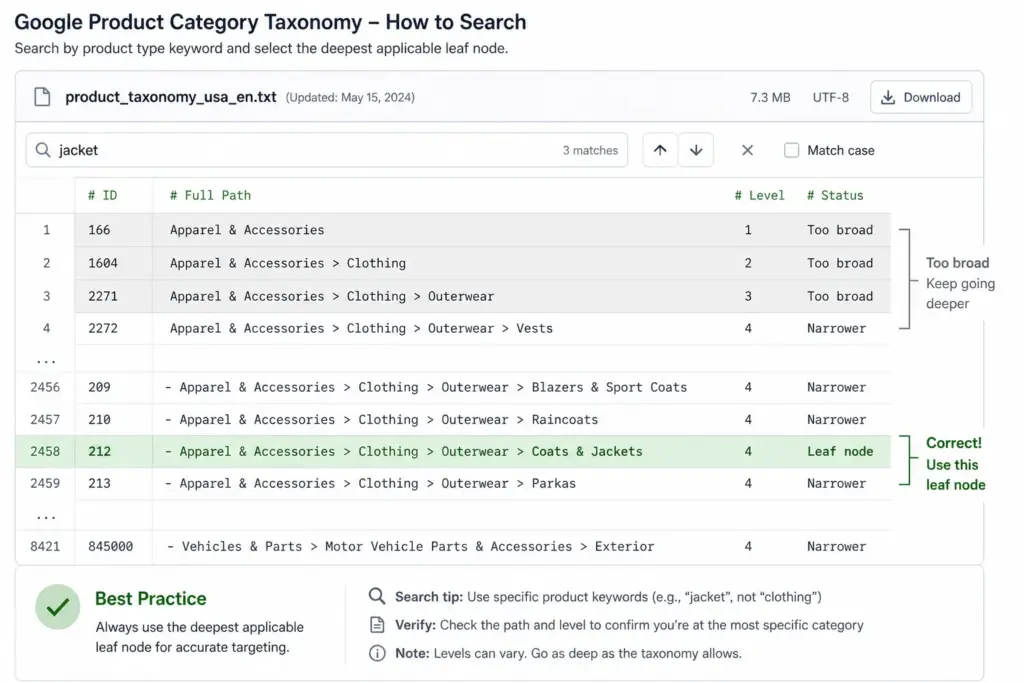
    1. Download the official taxonomy file from google.com/basepages/producttype/taxonomy-with-ids.en-GB.txt
    2. Open it in a spreadsheet or text editor. Each row shows: ID - Full Path
    3. Search (Ctrl+F) for the most specific term describing your product — e.g. “Rain Jacket”, “Sofa”, “NVMe SSD”
    4. Review all matching rows and select the most specific leaf node that accurately describes your product
    5. Record both the ID and the full path — use the ID in your feed, keep the path in your mapping document for human reference

    Most Common google_product_category Mistakes

    MistakeImpactFix
    Using a parent category instead of leaf nodeReduced relevance, wrong auction poolAlways map to the deepest available level
    Using text path instead of numeric IDBreaks when Google renames categoriesSwitch to numeric IDs in your feed
    One category for all productsAll products compete in wrong auctionsMap per subcategory, not per store
    Mapping manually per productInconsistency, errors at scaleMap subcategory → GPC once, apply programmatically
    Never updating after taxonomy changesStale mappings, possible errorsReview taxonomy file annually

    Category Mapping by Industry — Quick Reference

    Product TypeGoogle Category IDFull Path
    Women’s running jacket5598Apparel & Accessories > Clothing > Activewear > Track Jackets & Hoodies
    Men’s leather Oxford shoes187Apparel & Accessories > Shoes > Men’s Shoes > Oxfords
    Gaming laptop328Electronics > Computers > Laptops
    True wireless earbuds3989Electronics > Audio > Headphones > In-Ear Headphones
    3-seater sofa443Furniture > Sofas & Sectionals
    King duvet set569Home & Garden > Linens & Bedding > Duvet Covers
    Ground coffee5775Food, Beverages & Tobacco > Beverages > Coffee
    NVMe SSD1723Electronics > Computers > Computer Components > Hard Drives & Storage > Solid State Drives

    product_type vs google_product_category — What’s the Difference?

    These two attributes are frequently confused. They serve completely different purposes:

    • google_product_category — uses Google’s fixed taxonomy. Affects auction relevance, Shopping matching, and category-specific attribute requirements. Required.
    • product_type — a free-form field you define using your own category naming. Does not affect Google matching. Can be used for campaign segmentation in Google Ads (similar to custom labels). Optional but recommended.

    Both can coexist in the same feed. Use google_product_category to tell Google what your product is. Use product_type to reflect your own internal category naming for campaign management purposes.

    For how to build and maintain your internal taxonomy alongside Google’s, see What Is Product Taxonomy and How to Build a Product Taxonomy From Scratch. To generate a correctly structured feed with category mapping applied, use the Google Shopping Feed Generator.

    Frequently Asked Questions

    Is google_product_category required in Google Shopping feeds?

    Yes, it is required for all products. Products submitted without it may still appear but Google auto-assigns a category — almost always a broad parent level that will underperform compared to the correct leaf-node mapping.

    Should I use the numeric ID or the text string?

    Use the numeric ID. It is stable across taxonomy updates — if Google renames or restructures a category path, the ID continues to resolve correctly. The text path string can break silently if Google changes the exact wording of any node.

    What happens if I use the wrong google_product_category?

    Wrong or overly broad categories reduce Shopping relevance — your products appear for fewer relevant queries and compete in incorrect auction pools. A jacket in “Apparel & Accessories” (parent) is in a completely different and far broader auction than the same jacket in “Apparel & Accessories > Clothing > Outerwear > Coats & Jackets” (leaf node).

    How often does Google update its product taxonomy?

    Typically 1–2 times per year. Numeric IDs remain valid across updates but text path strings may become outdated. Review the taxonomy file annually and after major Google Merchant Center announcements.

    What is the difference between google_product_category and product_type?

    google_product_category uses Google’s fixed taxonomy and directly affects auction relevance and matching. product_type is a free-form field you define using your own naming — it does not affect Google matching but can be used for campaign segmentation in Google Ads similar to custom labels.

  • Supplemental Feeds in Google Merchant Center: What They Are and When to Use Them

    Supplemental Feeds in Google Merchant Center: What They Are and When to Use Them

    Supplemental Feeds in Google Merchant Center: What They Are and When to Use Them

    Most Google Shopping guides focus on primary feeds — the main data source that contains all your product information. Supplemental feeds are less discussed but solve a very specific and common problem: what do you do when you need to add or change attributes in your feed without being able to modify your primary data source?

    This guide covers exactly what supplemental feeds are, the most valuable use cases, and how to set one up correctly.

    What Is a Supplemental Feed?

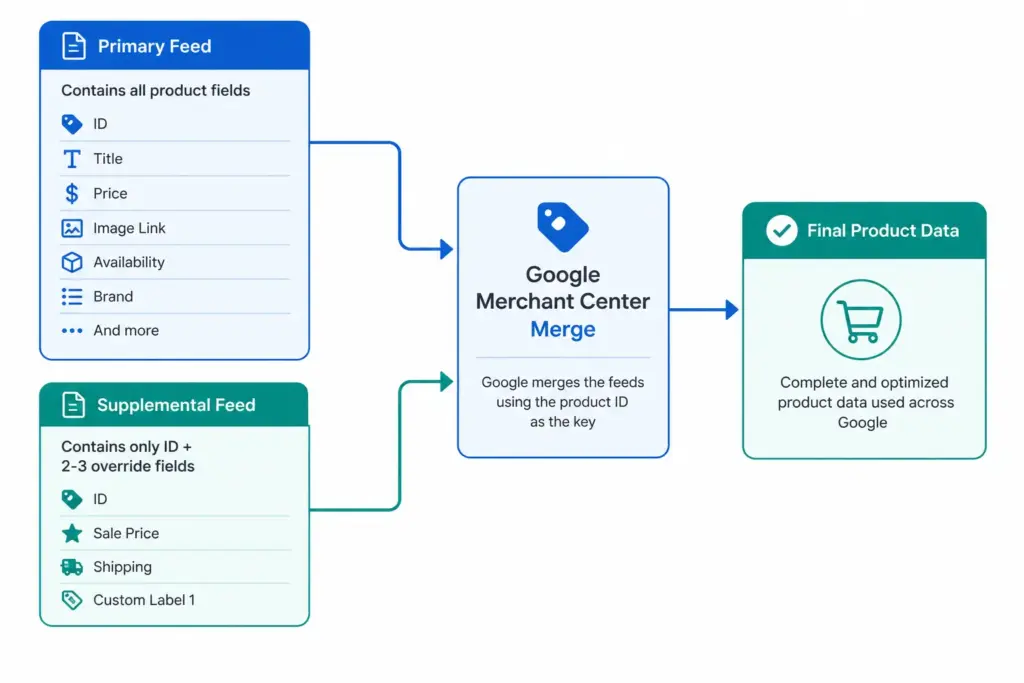
    A supplemental feed is a secondary data source in Google Merchant Center that adds or overrides specific product attributes on top of an existing primary feed. It does not replace the primary feed — it merges with it, using the product ID as the matching key.

    You can have multiple supplemental feeds attached to one primary feed. Each supplemental feed only needs to contain the product ID column and the specific attributes you want to add or change.

    For foundational context on how primary feeds work, the Google Shopping Feed Guide covers the complete attribute set before you layer supplemental data on top.

    Primary Feed vs Supplemental Feed — Key Differences

    Primary FeedSupplemental Feed
    ContainsAll required product attributesOnly attributes being added or overridden
    Required?Yes — at least one requiredNo — optional
    Can stand alone?YesNo — must link to a primary feed
    Update frequencyDaily minimum for price/availabilityDepends on use case
    Override behaviourBase dataOverwrites primary feed value for the same attribute
    Multiple allowed?Yes (one per target country/language)Yes — multiple supplemental feeds per primary

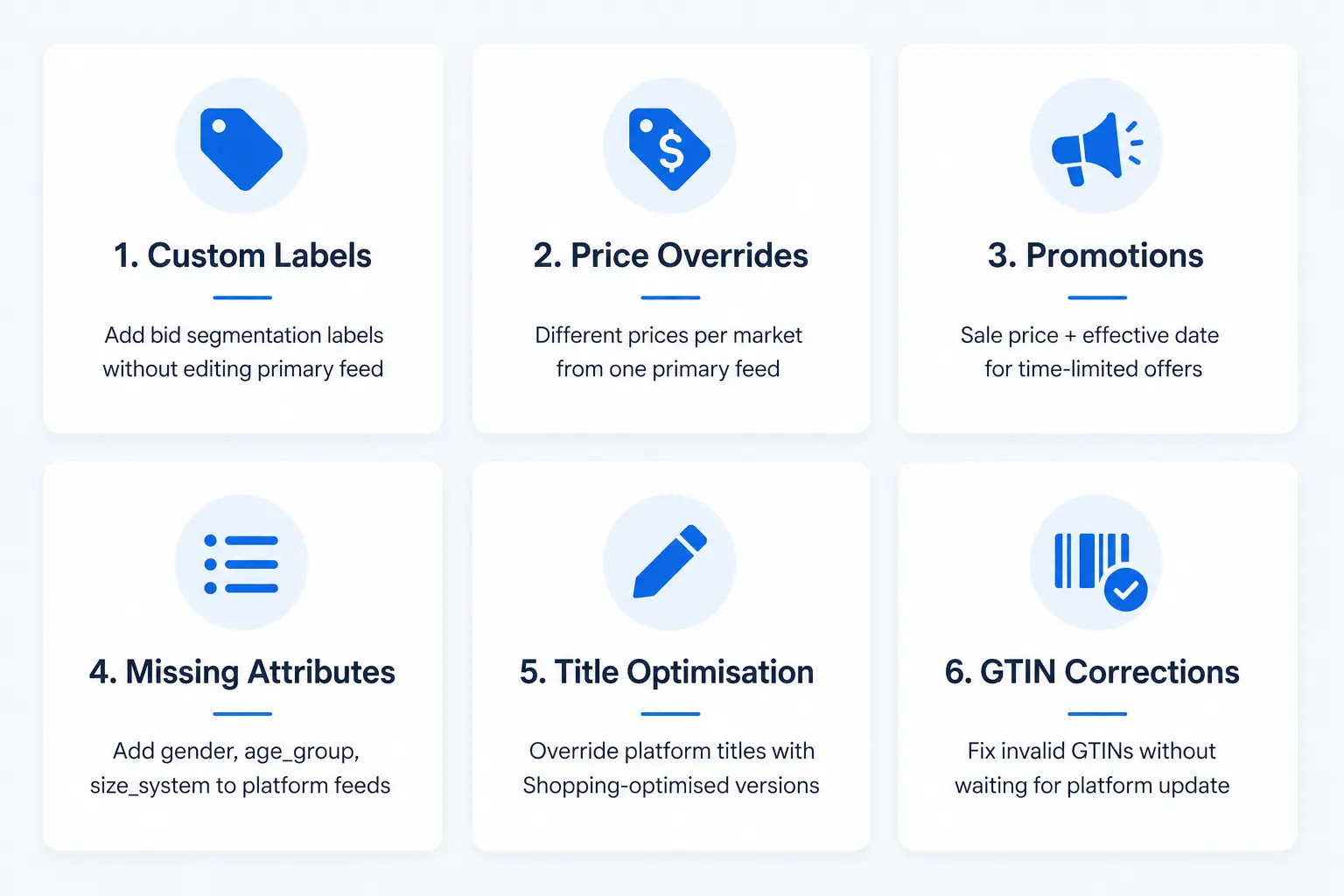
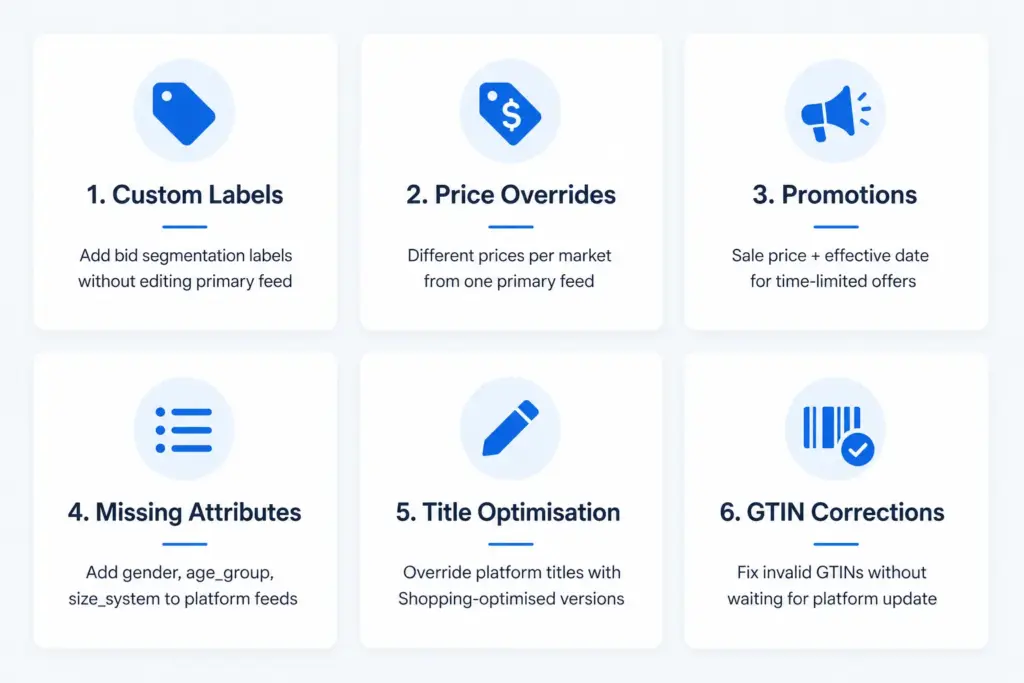
    The 6 Most Valuable Supplemental Feed Use Cases

    1. Adding Custom Labels Without Editing Your Primary Feed

    This is the most common supplemental feed use case. You want to add custom_label_0 through custom_label_4 values for bid segmentation, but your primary feed is generated by your ecommerce platform and you cannot add columns to it.

    Solution: Create a supplemental feed in Google Sheets with two columns — id and custom_label_0. Assign label values per product. Merchant Center merges the labels onto matching product IDs from your primary feed. No primary feed changes required. For the full custom labels strategy, see the Custom Labels guide.

    2. Price Overrides for Specific Markets

    If you run the same primary feed across multiple target countries but need different prices per market, a supplemental feed per market containing id and price allows you to override prices without duplicating your entire primary feed.

    3. Promotion and Sale Price Management

    When you run a time-limited promotion, rather than modifying your primary feed, create a supplemental feed containing id, sale_price, and sale_price_effective_date. Upload it for the promotion period and remove or update it when the promotion ends. Cleaner than modifying your primary feed and easier to manage as a scheduled operation.

    4. Adding Missing Attributes to Platform-Generated Feeds

    Ecommerce platforms like Shopify and WooCommerce generate basic Shopping feeds, but often omit attributes like age_group, gender, size_system, or product_type. A supplemental feed lets you add these without switching your primary feed source or installing additional plugins.

    5. Title and Description Optimisation

    If your primary feed generates product titles from your ecommerce platform’s product names (which are written for website display, not Shopping), a supplemental feed can override the title field with Shopping-optimised versions — without changing your website product names.

    6. Correcting GTIN Issues on Specific Products

    If a subset of your products has invalid or missing GTINs in your primary feed, you can supply correct GTIN values via supplemental feed while you fix the underlying data issue in your PIM or platform. First validate your GTINs with the GTIN Validator to confirm which ones need correcting.

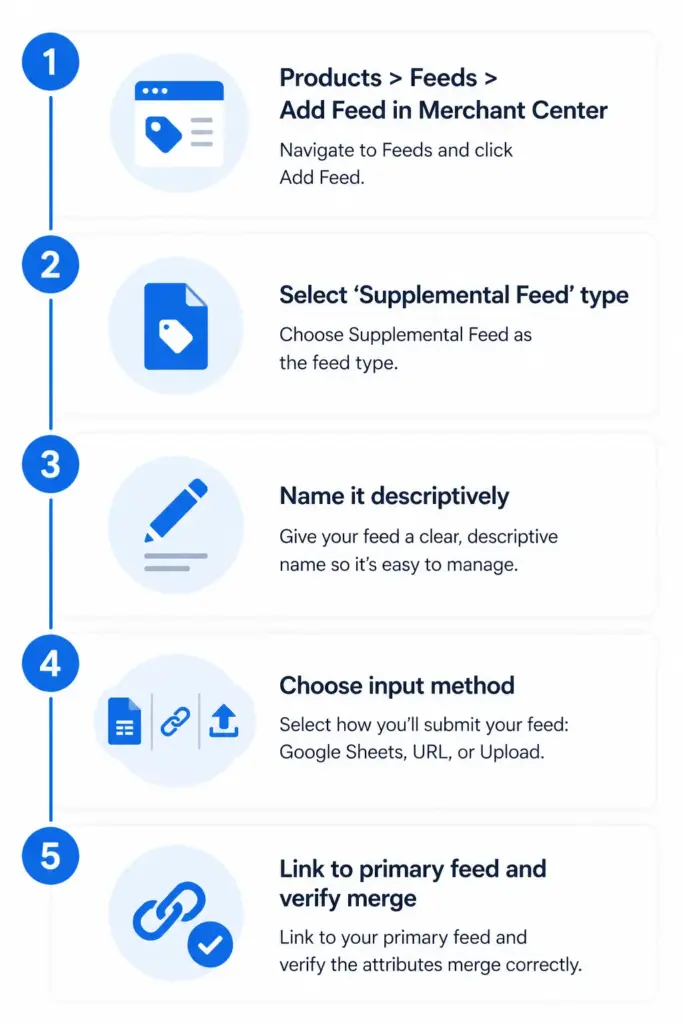
    How to Set Up a Supplemental Feed in Merchant Center

    1. In Google Merchant Center, go to Products → Feeds → + (Add Feed)
    2. Select Supplemental feed as the feed type
    3. Give it a descriptive name — e.g. “Custom Labels — Margin Tier” or “Promotion Sale Prices May 2026”
    4. Choose input method: Google Sheets (easiest for manual management), scheduled fetch from a URL, or file upload
    5. Select which primary feed this supplemental feed applies to
    6. Build your feed file — include only id column plus the attributes you are adding or overriding
    7. Submit and verify — check individual product pages in Merchant Center to confirm supplemental attributes are applied

    Supplemental Feed Rules and Limitations

    • Supplemental feeds cannot add products — only modify or supplement existing products from the primary feed
    • If a supplemental feed supplies the same attribute as the primary feed, the supplemental value wins
    • There is no limit on the number of supplemental feeds per primary feed, but keep them organised with clear naming conventions
    • Supplemental feeds must use the same product IDs as the primary feed — mismatched IDs result in no merge
    • Google Sheets supplemental feeds update when you edit the sheet — useful for quick manual changes during promotions

    For stores managing supplemental feed logic across multiple channels and markets, keeping these overrides centralised in a PIM rather than scattered across multiple Merchant Center supplemental feed files is significantly easier to maintain. See how the PIM to Google Shopping integration handles this at scale, or try the Feed Generator to build and manage your feeds from one place.

    Frequently Asked Questions

    Can a supplemental feed add new products to Google Shopping?

    No. Supplemental feeds can only modify or add attributes to products that already exist in your primary feed. New products must first be included in the primary feed before a supplemental feed can reference them.

    What happens if supplemental and primary feeds supply the same attribute?

    The supplemental feed value overwrites the primary feed value for that attribute on all matching products. This is the intended behaviour — it is how supplemental feeds override titles, prices, or other fields you cannot change in your primary source.

    How many supplemental feeds can I have in Merchant Center?

    There is no published hard limit. In practice, keep supplemental feeds organised with descriptive names — “Custom Labels March 2026”, “Sale Prices Bank Holiday” — and consolidate overlapping feeds where possible. Multiple supplemental feeds affecting the same products in contradictory ways can be difficult to troubleshoot.

    Can I use a Google Sheet as a supplemental feed?

    Yes. Google Sheets is one of the supported input methods for supplemental feeds in Merchant Center. It is the easiest option for manually managed data like custom labels or promotion prices — edits to the sheet reflect in the feed without requiring any file export or upload step.

    What is the minimum a supplemental feed needs to contain?

    At minimum the id column (matching product IDs from your primary feed) plus at least one additional attribute you are adding or overriding. A file with only IDs and no additional attributes will merge successfully but have no visible effect on your product data.

  • PIM to Google Shopping: How to Connect Your Product Data

    PIM to Google Shopping: How to Connect Your Product Data

    PIM to Google Shopping: How to Connect Your Product Data

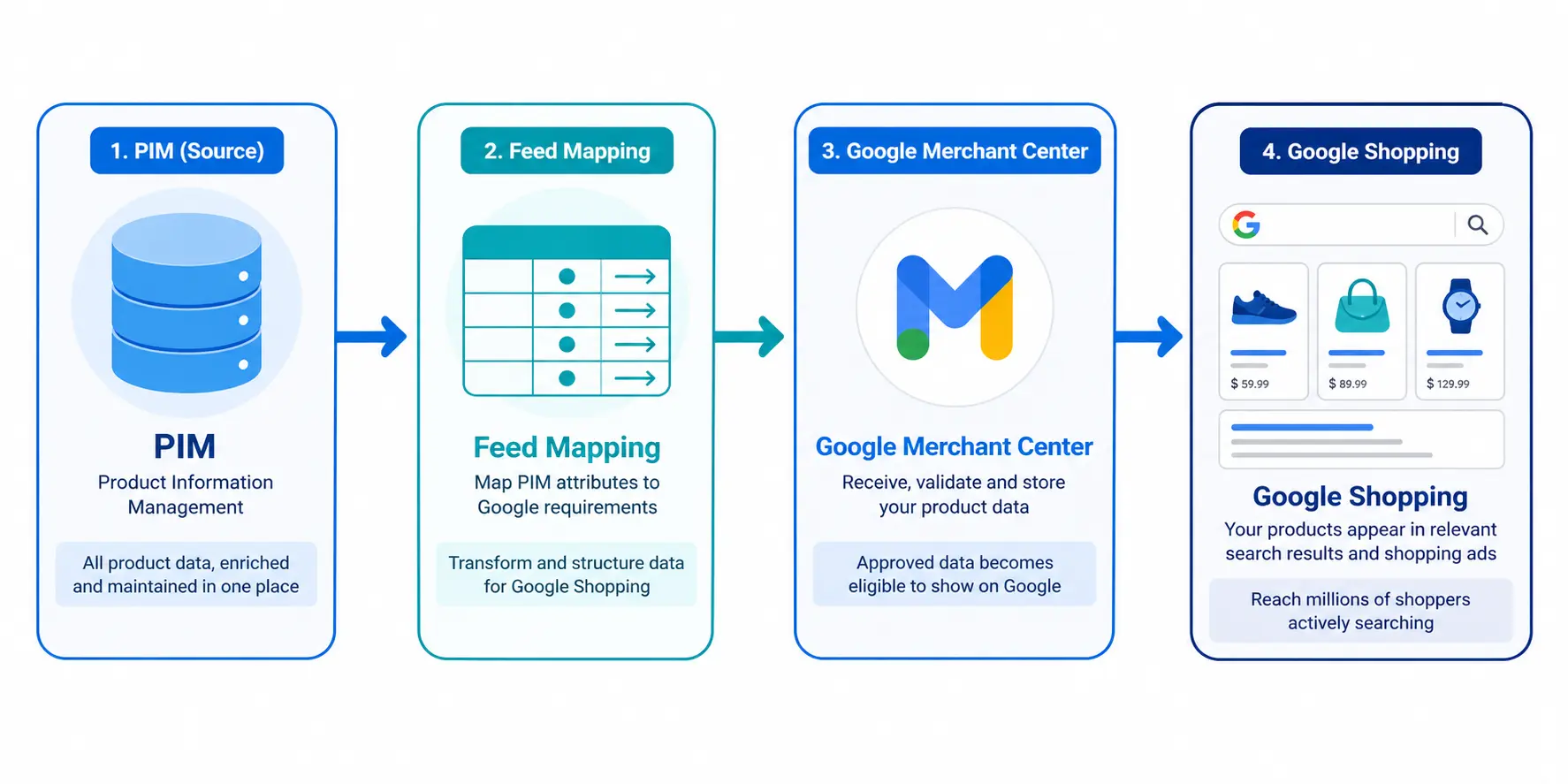
    Managing product data in a PIM and managing a Google Shopping feed are often treated as two separate problems. They are not. Your PIM is the source of truth. Google Shopping is a channel that consumes that truth. The connection between them determines whether your Shopping feed performs or constantly breaks.

    This guide covers how to build that connection correctly — from attribute mapping to feed delivery to ongoing automation.

    Why PIM-to-Shopping Connections Break

    Most PIM-to-Shopping problems come from one of three sources:

    • Attribute mismatch: Your PIM stores data under different field names than Google expects. “Product Name” in your PIM needs to become a correctly structured “title” in the feed — not just passed through as-is.
    • Missing transformation logic: Google requires assembled values like a constructed title or formatted price. If your PIM passes raw values without transformation rules, the feed output is incomplete.
    • Stale feed delivery: Prices and stock change constantly. A feed that updates weekly generates price mismatch disapprovals every time your site runs a sale or a product goes out of stock.

    For a full reference on what Google Shopping feeds require before you start mapping, the Google Shopping Feed Guide covers every required and recommended attribute.

    Step 1: Build Your Attribute Mapping Document

    Before writing a single line of integration code or configuring any connector, build a mapping document. This is a simple table: left column is your PIM field name, right column is the Google Shopping attribute it maps to.

    PIM FieldGoogle Shopping AttributeTransformation Required?
    Product ID / SKUidNo — pass through directly
    Product NametitleYes — assemble from Brand + Attributes + Type
    Long DescriptiondescriptionOptional — strip HTML tags
    Product URLlinkNo — pass through directly
    Primary Image URLimage_linkNo — ensure 800×800px minimum
    Retail PricepriceFormat as 29.99 GBP
    Sale Pricesale_priceInclude sale_price_effective_date
    Stock StatusavailabilityMap: In Stock → in stock, Out of Stock → out of stock
    EAN / BarcodegtinValidate format before passing
    ManufacturerbrandNo — pass through directly
    Google Category IDgoogle_product_categoryMust be leaf-node ID, not text string
    ColourcolorNormalise to human-readable value
    SizesizeAdd size_system attribute separately
    Parent SKUitem_group_idApply to all variants of same style

    Step 2: Set Up Title Construction in Your PIM

    The product title is the single most impactful attribute in a Google Shopping feed. A PIM-to-Shopping integration that just passes your PIM product name to Google as a title is almost always wrong — PIM product names are written for internal use, not for search query matching.

    Define a title construction formula in your PIM and generate the Shopping title programmatically from individual attribute fields:

    Formula: Brand + Gender + Material + Product Type + Colour + Size

    Store this as a channel-specific field in your PIM — a generated “Google Shopping Title” field that is separate from your internal product name and your website title. This allows you to optimise each independently.

    Step 3: Handle Channel-Specific Content

    One of the core advantages of a PIM over a spreadsheet is channel-specific content management. Your Google Shopping description, title, and certain attributes should differ from your website content and your Amazon content.

    • Google Shopping title: Optimised for search query matching — include all key attributes
    • Website title: Optimised for readability and brand tone — may be shorter or styled differently
    • Amazon title: Follows Amazon’s own title requirements — different format again
    • Description: Google Shopping descriptions are indexed but rarely shown. Focus on keyword density. Website descriptions should read naturally for humans.

    Without channel-specific fields in your PIM, teams either use the same content everywhere (suboptimal) or maintain separate spreadsheets per channel (which defeats the purpose of having a PIM).

    Step 4: Choose Your Feed Delivery Method

    Option A: Scheduled URL Fetch (recommended for most stores)

    Your PIM generates a feed file (XML or TSV) at a hosted URL. You register this URL in Google Merchant Center and set a fetch schedule — Google pulls a fresh copy at your specified frequency. Daily is the minimum; twice daily is better for stores with frequent price or stock changes.

    Option B: Google Content API

    Your PIM pushes product data directly to Google via the Content API, updating individual products as they change rather than uploading the full catalog on a schedule. This is the right approach for catalogs over 50,000 SKUs or stores with real-time price changes that cannot wait for a daily feed cycle.

    Option C: Manual or FTP file upload

    Export a feed file from your PIM and upload it to Merchant Center on a schedule via FTP/SFTP. Slower and more manual than option A, but workable for smaller catalogs with infrequent changes. Not recommended if your prices or stock change daily.

    The Google Shopping Feed Generator handles feed file generation and delivery setup without custom development. For supplemental feed use cases — like adding custom labels without modifying your primary feed — see the Supplemental Feeds guide.

    Step 5: Set Up Feed Refresh Frequency

    Feed freshness is one of the most common causes of Shopping disapprovals for stores that have otherwise clean feeds. Google requires that your feed reflects current prices and availability. When your site runs a flash sale or a product goes out of stock, your feed must update to match.

    • Price and availability: Update at minimum daily. Twice daily for stores with frequent promotions.
    • Product content (titles, descriptions, images): Weekly updates are sufficient — these rarely change.
    • New products: Submit immediately on launch via supplemental feed or Content API, rather than waiting for the next full feed cycle.

    Step 6: Validate and Monitor

    After your first feed submission, go directly to Merchant Center Diagnostics. It shows exactly which products are disapproved, which have warnings, and what attribute is causing each issue. Work through disapprovals first — these products are not appearing in Shopping at all. Then address warnings — these products appear but with limited performance.

    Run GTINs through the GTIN Validator before submission — invalid GTINs are the most common single cause of mass disapprovals on first feed submissions.

    Set up email alerts in Merchant Center for feed processing errors so you are notified when a feed fetch fails rather than discovering it a week later when performance drops.

    Ready to streamline your PIM-to-Shopping workflow? Check where your current product data setup stands with the PIM Readiness Score — free, 5 minutes. Or start building and exporting feeds directly with the Feed Generator tool.

    Frequently Asked Questions

    Can I connect any PIM to Google Shopping?

    Yes. Any PIM that can export a structured data file (XML, TSV, CSV) or call an API can be connected to Google Shopping. The key requirement is that your PIM can map its internal field names to Google’s required feed attributes and apply transformation rules where needed — particularly for title construction and value normalisation.

    How often should my Google Shopping feed update?

    At minimum daily for price and availability fields. Stores with frequent promotions or high-velocity stock changes should update twice daily. Product content fields like titles, descriptions, and images can update weekly — these change infrequently enough that daily updates add overhead without benefit.

    What is the difference between a primary feed and a supplemental feed?

    A primary feed contains all core product data. A supplemental feed adds or overrides specific attributes on top of the primary feed without replacing it. Supplemental feeds are useful for adding custom labels, overriding prices for specific markets, or adding attributes you cannot modify in your primary data source. Full details in the Supplemental Feeds guide.

    Do I need a developer to connect my PIM to Google Shopping?

    Not necessarily. If your PIM has a built-in Google Shopping connector or can export a correctly formatted feed file, no development is required. The LynkPIM Feed Generator handles feed generation and hosted delivery without custom development — no coding required.

    What happens if my PIM product titles are not optimised for Google Shopping?

    Unoptimised titles reduce Shopping relevance — your products appear in fewer auctions and at lower positions than competitors with complete titles. Google matches your title against search queries, so a title like “Men’s Jacket” loses every specific query to a competitor with “Columbia Waterproof Rain Jacket Men Navy Size L”. Title optimisation is the single highest-impact feed improvement for most stores.

  • Google Shopping vs Facebook Catalogue: Which Is Right for Your Store?

    Google Shopping vs Facebook Catalogue: Which Is Right for Your Store?

    Google Shopping vs Facebook Catalogue: Which Is Right for Your Store?

    Google Shopping and Facebook Catalogue both use product feeds to serve ads automatically at scale. That similarity leads many ecommerce teams to treat them as interchangeable. They are not. They serve fundamentally different buyer intent levels, require different product data, and deliver different results depending on what your store sells and where your buyers are in the purchase journey.

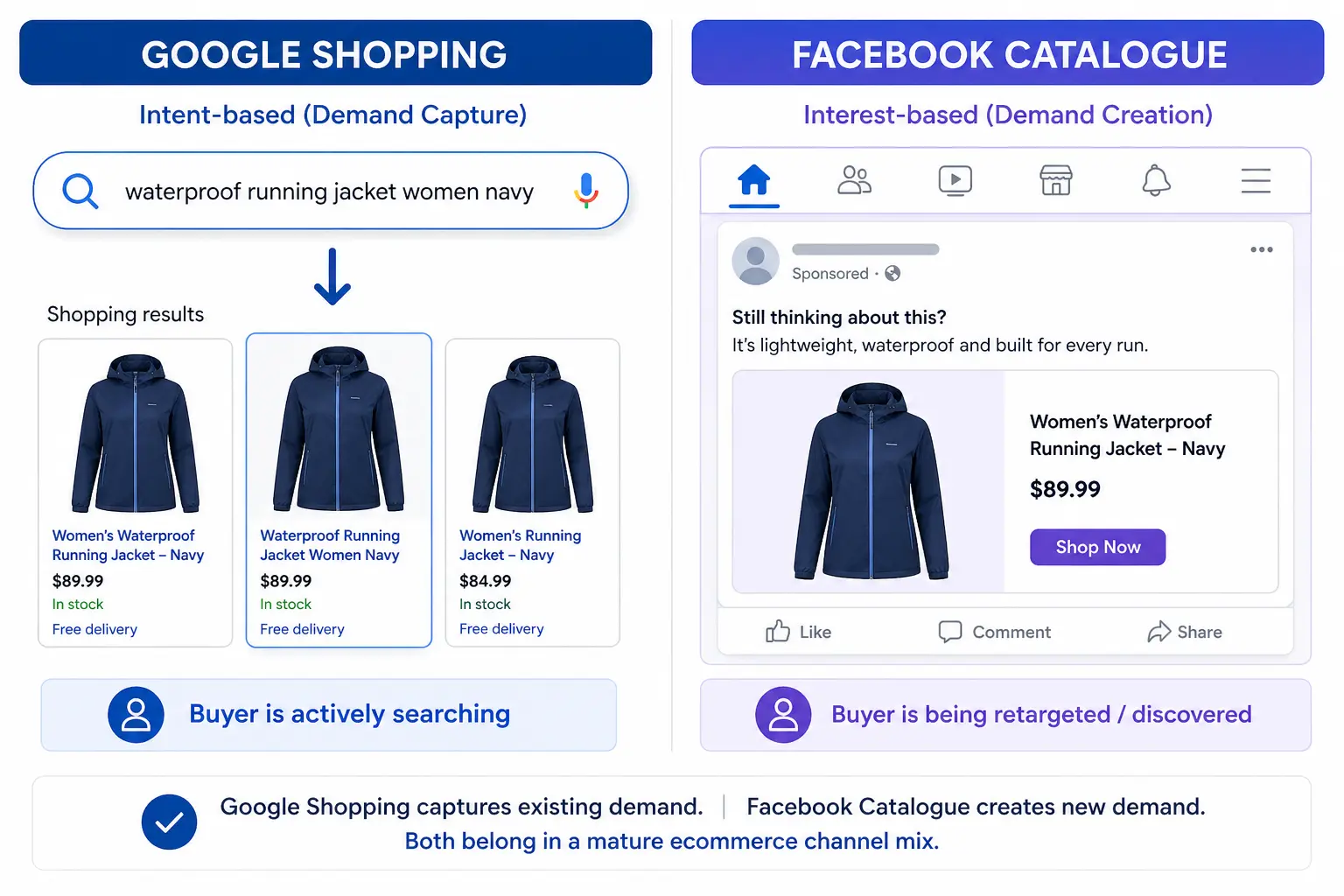
    The Core Difference: Intent vs Interest

    The most important distinction between these two channels is the buyer’s state of mind when they see your product.

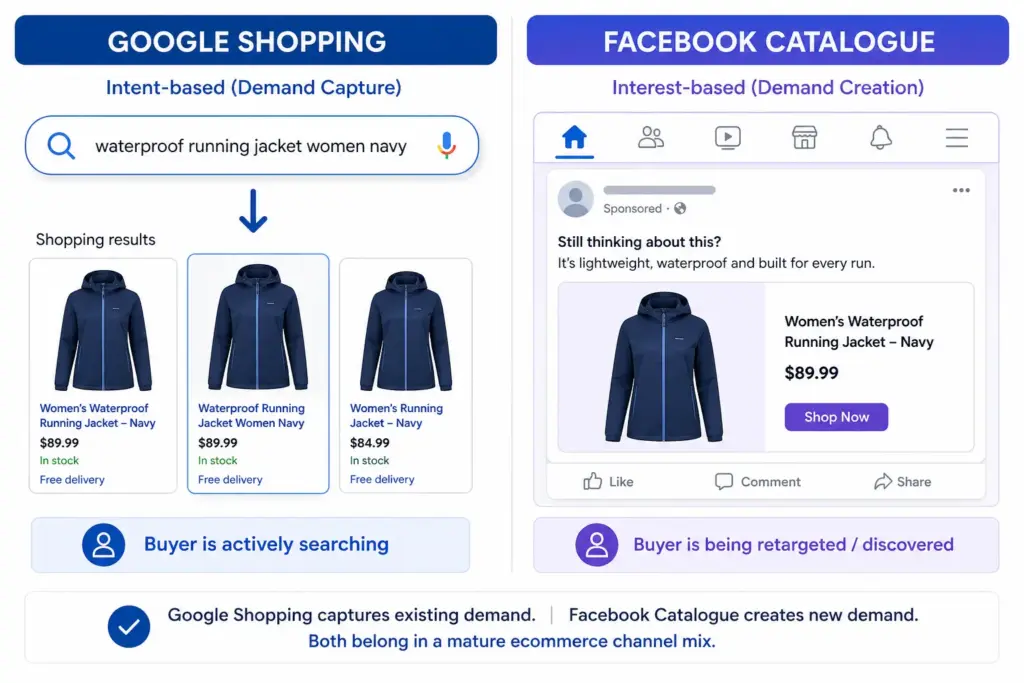
    • Google Shopping: The buyer has typed a search query. They are actively looking for a product. Your ad appears because your product data matched their search. This is high-intent, lower-funnel — the buyer already knows what they want.
    • Facebook Catalogue: The buyer has not searched for anything. Meta is showing your product based on their interests, demographics, or because they previously visited your site (retargeting). This is interest-based or behavioural, higher-funnel — you are reaching people who might want your product.

    This distinction drives everything else — the ROAS you can expect, the product data that matters most, the creative requirements, and which products perform best on each channel.

    Head-to-Head Comparison

    Google ShoppingFacebook Catalogue
    Buyer intentHigh — actively searchingLow to medium — browsing or retargeted
    Funnel stageLower funnel (consideration / purchase)Upper to mid funnel (awareness / retargeting)
    TargetingKeyword/query matchingAudience-based (interests, demographics, retargeting)
    Feed formatTSV/XML → Google Merchant CenterCSV/TSV/XML → Meta Business Manager
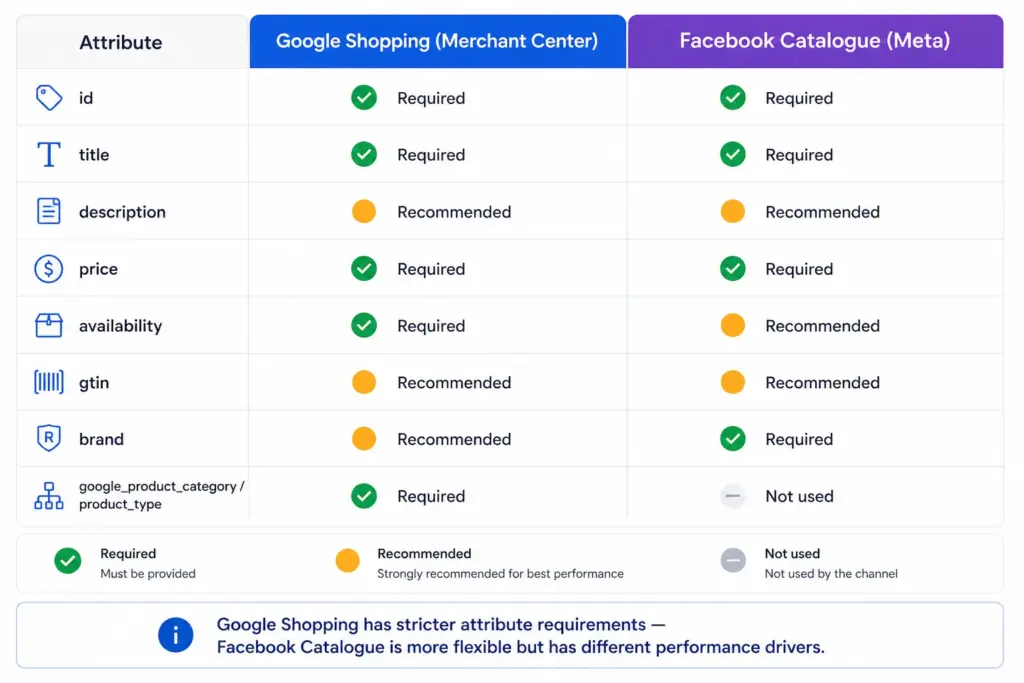
    Required attributesStrict — GTIN, brand, google_product_category, imageFlexible — id, title, description, link, image_link, price, availability
    GTIN required?Yes (for branded products)Recommended but not required
    Title importanceCritical — matched against search queriesHigh — shown in ad unit but not query-matched
    Image requirementsWhite background preferred, 800×800px minLifestyle images perform well, 600×600px min
    Typical ROASHigher for branded/specific searchesHigher for retargeting, lower for prospecting
    Best forProducts with active search demandVisually appealing products, retargeting, new audience discovery

    Feed Requirements: What’s Different

    Google Shopping feed (Merchant Center)

    Google has strict required attribute rules. Missing or incorrect attributes result in product disapprovals. The most important attributes for performance are title (matched against search queries), google_product_category (determines auction relevance), gtin (required for branded products), and image_link (white background, 800×800px minimum). Full requirements in the Google Shopping Feed Guide.

    Facebook Catalogue feed (Meta Business Manager)

    Facebook’s minimum requirements are simpler: id, title, description, availability, condition, price, link, image_link. Field names differ from Google — Facebook uses availability values of “in stock” / “out of stock” (no underscore, unlike Google’s in_stock).

    For Facebook Catalogue, the description field and image_link are the highest-impact attributes for ad performance. Facebook shows these prominently in Dynamic Product Ads — unlike Google where the description is rarely displayed to the buyer.

    Which Products Perform Better on Each Channel

    Google Shopping works best for:

    • Products with clear, searchable names — “Nike Air Max 270”, “stainless steel French press 1 litre”
    • Products solving a specific problem — “waterproof hiking boots women wide fit”
    • High-consideration purchases where buyers research before buying
    • Branded products where buyers are searching for the brand specifically

    Facebook Catalogue works best for:

    • Visually appealing products where the image sells the product — clothing, home decor, jewellery, food
    • Retargeting — showing products to visitors who viewed but did not buy
    • New product discovery for audiences who match your buyer profile
    • Lower consideration purchases with strong impulse appeal
    • Products that don’t have high search volume but have strong visual appeal

    Should You Use Both?

    Yes, for most ecommerce stores. Google Shopping and Facebook Catalogue are complementary — they cover different parts of the buyer journey. Google captures buyers who are already searching. Facebook reaches buyers before they start searching, and retargets those who didn’t convert from Google.

    The practical challenge is maintaining two separate feed formats from one product data source. Managing Google and Facebook feeds from a single PIM means your titles, descriptions, images, and pricing are consistent across both channels without duplicate maintenance effort. The Multi-Channel Feed Optimizer handles both feed formats from one place, as does the LynkPIM free plan.

    Frequently Asked Questions

    What is the main difference between Google Shopping and Facebook Catalogue?

    Google Shopping shows products to people actively searching for them — high intent, lower funnel. Facebook Catalogue shows products to people based on interests, behaviour, and retargeting — interest-based, higher funnel. Both use product feeds but serve different stages of the buyer journey.

    Do Google Shopping and Facebook Catalogue use the same product feed?

    No. They use different feed formats with different required attributes and different field names. Google Shopping uses TSV or XML submitted to Google Merchant Center. Facebook Catalogue uses CSV, TSV, or XML submitted to Meta Business Manager. Managing both from a single source of truth prevents inconsistencies.

    Which is better for ecommerce — Google Shopping or Facebook Catalogue?

    Both serve different purposes and most successful ecommerce stores use both. Google Shopping captures existing demand — buyers already searching. Facebook Catalogue creates demand — reaching buyers who fit your target profile but haven’t started searching yet. If you can only run one, Google Shopping typically delivers higher immediate ROAS because of the intent signal.

    Does Facebook Catalogue require GTINs?

    Facebook does not require GTINs for catalogue products but strongly recommends them. Products with GTINs benefit from Meta’s product matching capabilities which can improve Dynamic Ad performance. The gtin field is recommended but not mandatory — unlike Google Shopping where GTINs are required for branded products.

  • How to Fix Disapproved Products in Google Merchant Center (2026 Guide)

    How to Fix Disapproved Products in Google Merchant Center (2026 Guide)

    How to Fix Disapproved Products in Google Merchant Center (2026 Guide)

    A disapproved product in Google Merchant Center is completely invisible in Google Shopping — it does not appear in any auction, regardless of your bid. Every disapproval is lost revenue until it is fixed. This guide covers the most common disapproval reasons in 2026, how to diagnose them in Merchant Center Diagnostics, and how to fix each one.

    Step 1: Find Your Disapprovals in Merchant Center Diagnostics

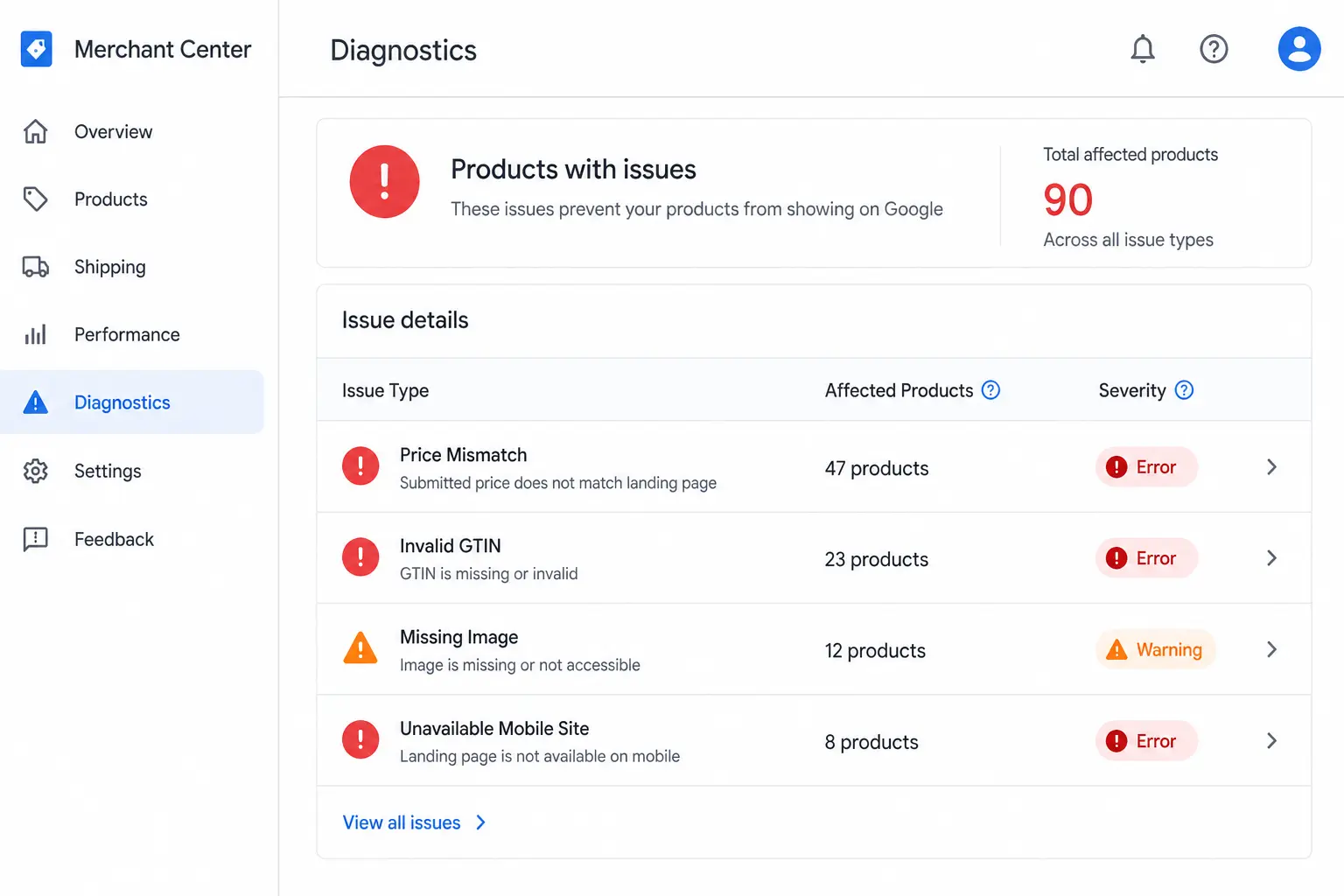
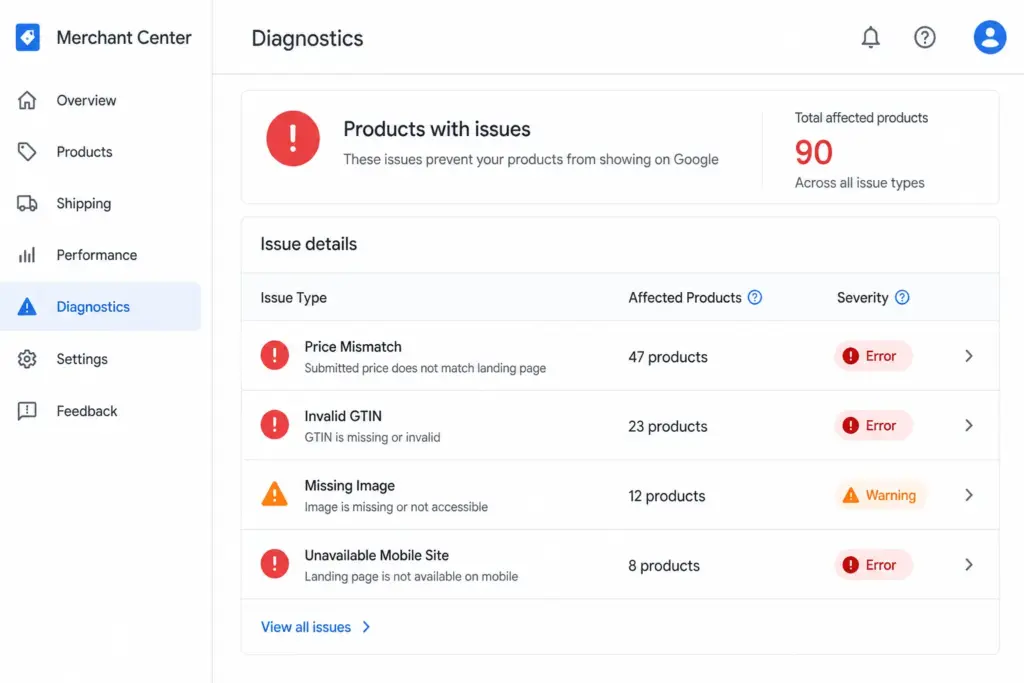
    Every disapproval and warning in your Merchant Center account is visible in one place: Products → Diagnostics. This is your starting point for every feed fix. Do not attempt to diagnose issues from inside your feed file — always check Diagnostics first.

    The Diagnostics tab shows:

    • Every active issue grouped by type
    • The number of products affected by each issue
    • The severity — Error (disapproved) vs Warning (limited performance)
    • A link to see exactly which products are affected

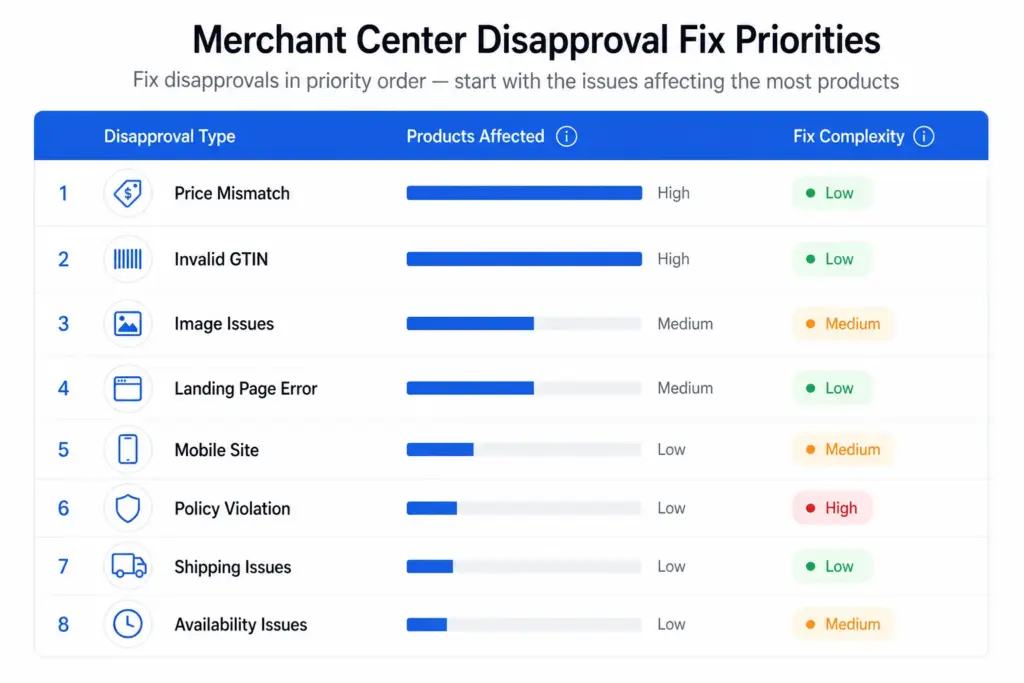
    Fix errors first — these products are completely absent from Shopping. Warnings are second priority — these products appear but underperform. For a complete reference on feed attribute requirements before you fix, see the Google Shopping Feed Guide.

    The 8 Most Common Disapproval Reasons and How to Fix Each

    1. Price Mismatch

    What it means: The price in your feed does not match the price on the product landing page. Google crawls your landing pages and compares them against your feed. Even a 1p discrepancy triggers a disapproval.

    Common causes: Flash sales or promotions that updated the website price but not the feed. Manual feed updates that were delayed. Currency or tax display differences between feed and page.

    Fix: Update your feed to match the current landing page price. Set your feed to fetch at least daily — twice daily during promotion periods. Use sale_price and sale_price_effective_date attributes for promotions rather than changing the price field.

    2. Invalid or Missing GTIN

    What it means: Your product has an invalid GTIN (wrong check digit, wrong length, test/placeholder value) or is missing a GTIN that should exist.

    Fix: Validate all GTINs before submitting using the GTIN Validator. For custom or handmade products with no GTIN, set identifier_exists to FALSE — do not leave the GTIN field blank. Full GTIN requirements are covered in the GTIN compliance guide.

    3. Image Not Meeting Requirements

    What it means: Your product image is too small (below 100×100px for non-apparel, 250×250px for apparel), contains a watermark or promotional text, uses a placeholder image, or shows a white square instead of the product.

    Fix: Replace with a clean product image — minimum 800×800px recommended. No overlays, no text, no borders. Image must show the actual product, not a lifestyle image for Shopping ads (lifestyle can be used as additional images via additional_image_link).

    4. Landing Page Not Working

    What it means: Google cannot crawl your landing page — it returns a 404, requires login, redirects to a different product, or loads incorrectly on mobile.

    Fix: Verify the link URL in your feed returns a 200 status, loads correctly on mobile, and matches the specific product (not a category page or homepage). If the product has been deleted, remove it from your feed.

    5. Unavailable Mobile Site

    What it means: Google’s mobile crawler cannot access your landing page. Often caused by a separate mobile site (m.yoursite.com) returning errors, or a responsive site that breaks on mobile crawler user agent strings.

    Fix: Test your landing page URLs using Google’s Mobile-Friendly Test. Ensure your server is not blocking Googlebot-Image or mobile crawler user agents. If you have a separate mobile domain, ensure it is live and returning 200s.

    6. Mismatched Value (Price, Availability, Condition)

    What it means: A feed attribute value does not match what Google finds on the landing page — most commonly availability (feed says “in stock”, page says “out of stock”) or condition (feed says “new”, page indicates “refurbished”).

    Fix: Ensure availability updates in your feed match real-time stock status on your site. Set up automated feed updates triggered by stock changes rather than scheduled batch updates.

    7. Prohibited or Restricted Content

    What it means: Your product falls into a Google Shopping policy-restricted category — alcohol, pharmaceuticals, adult products, gambling products — without the required account-level policy compliance setup.

    Fix: Review Google Merchant Center’s shopping policies for restricted verticals. Apply for restricted product programme access if eligible. Some categories are prohibited entirely and cannot be fixed.

    8. Incorrect Tax or Shipping Setup

    What it means: Your Merchant Center account does not have tax and shipping configured for the target country, or your shipping settings conflict with what is shown on the landing page.

    Fix: Go to Merchant Center → Settings → Shipping and Tax. Configure shipping settings for every country you are targeting. Ensure stated delivery times match what is shown at checkout on your site.

    How to Prevent Disapprovals Recurring

    • Daily feed updates minimum — price and availability changes must propagate to your feed within 24 hours
    • Validate GTINs before submission — run every GTIN through the GTIN Validator before uploading a new feed
    • Set up Merchant Center email alerts — Merchant Center can email you when feed processing errors occur. Turn this on under Settings → Notifications
    • Monitor Diagnostics weekly — new disapprovals can appear when Google re-crawls your landing pages and finds discrepancies
    • Use sale_price for promotions — never change your regular price field for a promotion. Use sale_price + sale_price_effective_date so the price reverts automatically

    For teams managing large catalogs where feed errors appear regularly, the root cause is almost always data quality at the source — inconsistent pricing, stale stock status, or GTIN errors that need fixing in your product data before they reach the feed. The Feed Generator and LynkPIM free plan help you manage feed quality upstream before issues reach Merchant Center.

    Frequently Asked Questions

    How long does it take for Google to approve products after fixing a disapproval?

    Data-related disapprovals (price mismatch, missing attributes) are typically resolved within 24–48 hours of submitting the corrected feed. Policy-related disapprovals that require a manual review request typically take 1–3 business days after submitting the review request in Merchant Center Diagnostics.

    What is the difference between a disapproved product and a product with limited performance?

    A disapproved product is not shown in Google Shopping at all — it has been rejected and will not appear in any auction. A product with limited performance is shown but with reduced visibility and auction eligibility, typically due to missing recommended attributes like GTIN or brand. Fix disapprovals first — they represent complete loss of visibility.

    What is the most common reason products are disapproved in Merchant Center?

    Price mismatch — where the price in the feed does not match the price on the landing page — is the most common data-related disapproval cause for most ecommerce stores. Invalid or missing GTINs are the second most common. Both are entirely preventable with daily feed updates and GTIN validation before submission.

    Can I request a review after fixing a policy disapproval?

    Yes. After fixing the issue that caused a policy disapproval, go to Products > Diagnostics in Merchant Center and use the Request Review button for the relevant issue. Google will review your account and products within 1–3 business days. Do not request review before fixing the underlying issue — repeated reviews without resolution can escalate the restriction.

  • Custom Labels in Google Shopping: How to Use Them for Bid Segmentation (2026 Guide)

    Custom Labels in Google Shopping: How to Use Them for Bid Segmentation (2026 Guide)

    Custom Labels in Google Shopping: How to Use Them for Bid Segmentation (2026 Guide)

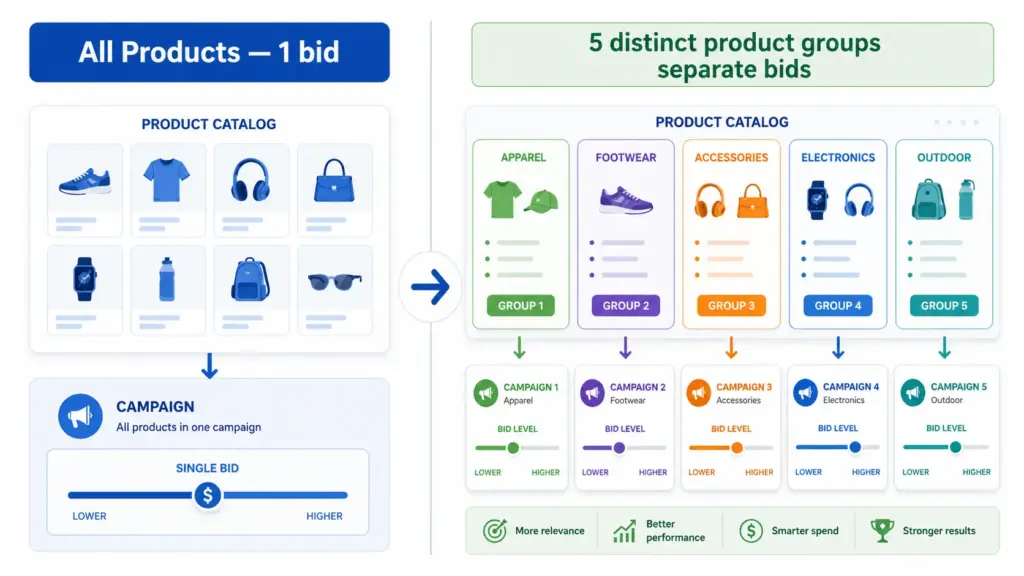
    Custom labels are one of the most underused levers in Google Shopping. While most advertisers compete on the same bids across their entire catalog, smart merchants use custom labels to segment by margin, seasonality, and performance — bidding high only where it pays off.

    This guide covers exactly how to set up custom labels, which segmentation strategies deliver the most impact, and how to manage them efficiently when your catalog changes.

    What Are Custom Labels in Google Shopping?

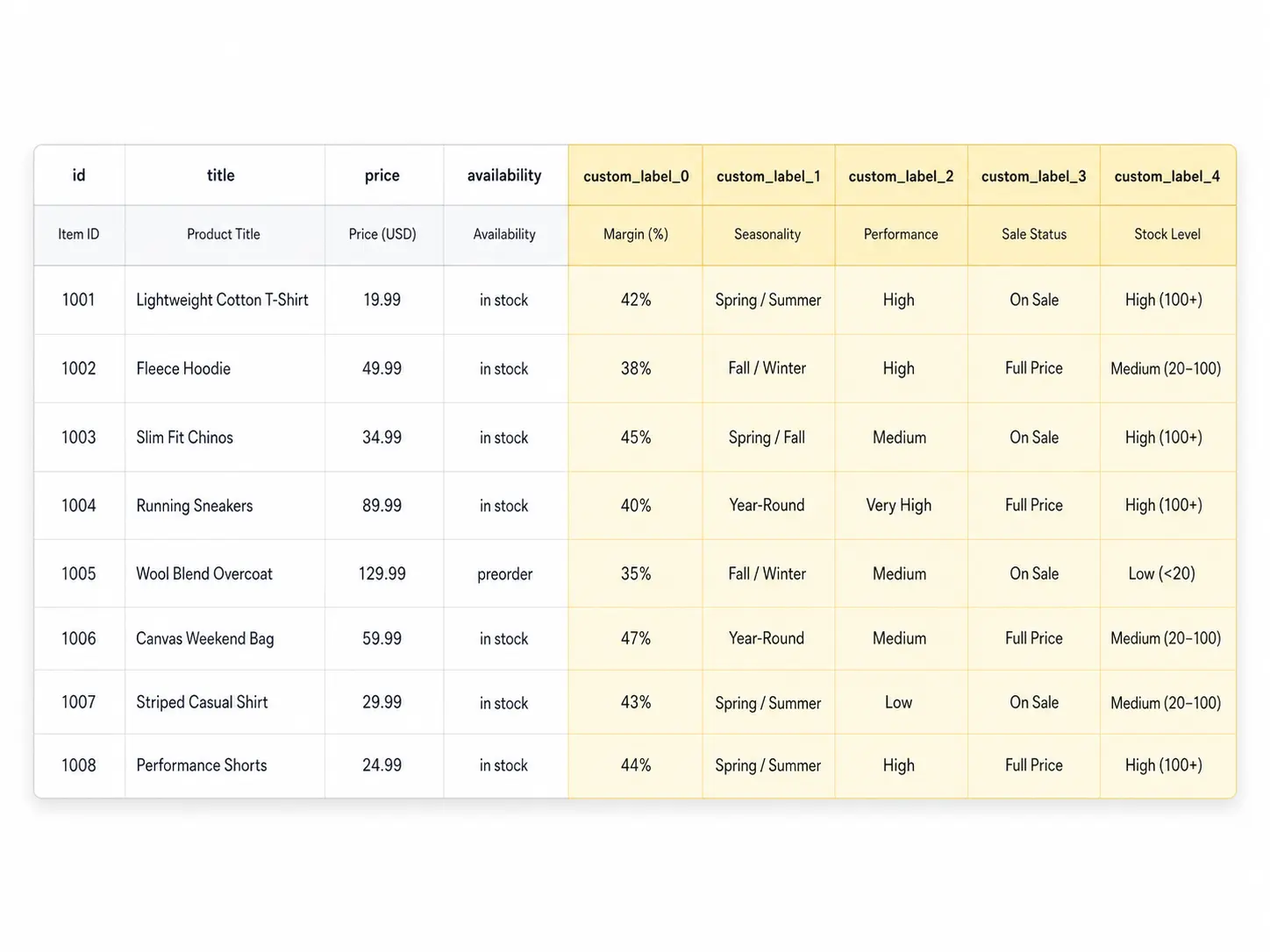
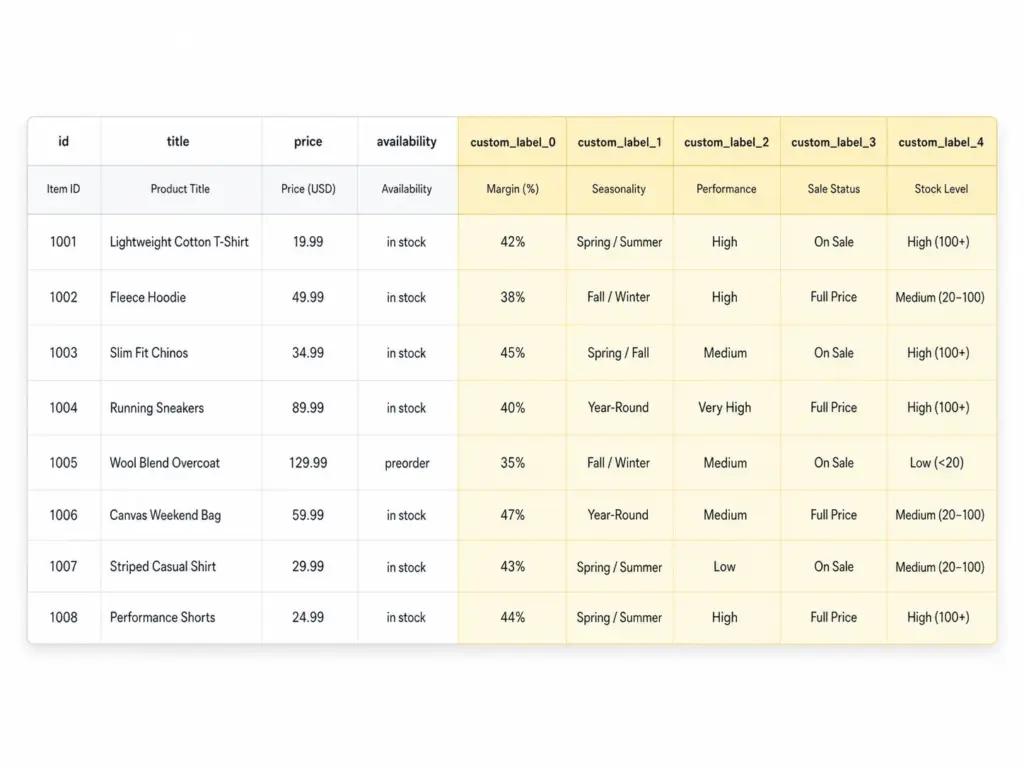
    Custom labels (custom_label_0 through custom_label_4) are five optional attributes in your Google Shopping feed that you define yourself. Google does not use them for matching or relevance — they exist purely for your campaign segmentation inside Google Ads.

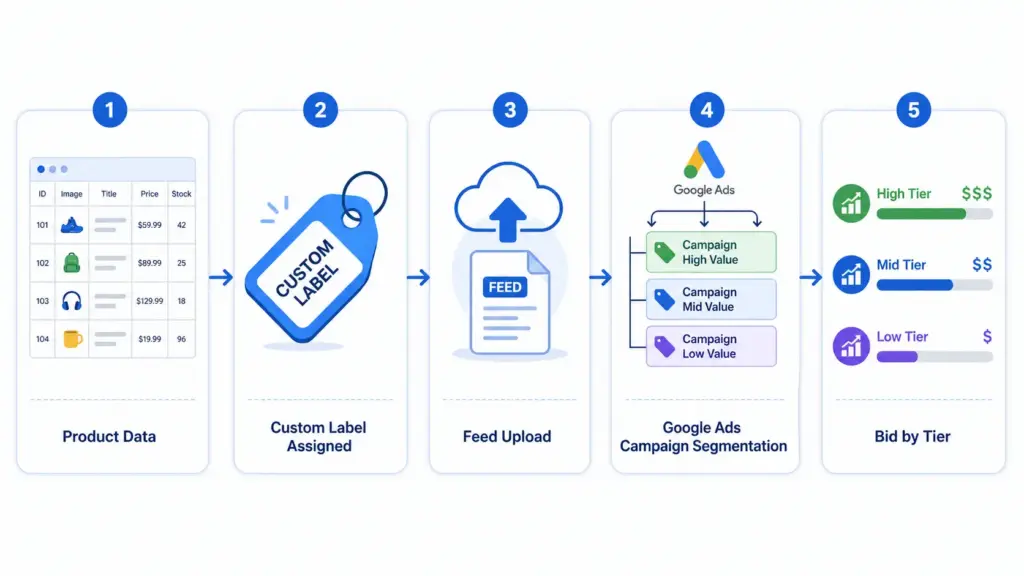
    Each label accepts a free-text value up to 100 characters. You assign values in your product feed, then use those values to create product groups inside your Shopping campaigns and set different bids per group. Learn how labels fit into the broader feed structure in the Google Shopping Feed Guide.

    The 5 Custom Labels and How to Use Each One

    LabelRecommended UseExample Values
    custom_label_0Margin tierhigh-margin, mid-margin, low-margin
    custom_label_1Seasonalityevergreen, summer-2026, clearance
    custom_label_2Performance buckettop-performer, new-product, slow-mover
    custom_label_3Sale / promotion statuson-sale, full-price, bundle
    custom_label_4Stock levelin-stock, low-stock, backorder

    You do not need to use all five. Start with margin (custom_label_0) — it produces the highest ROI impact immediately because it stops you spending high bids on products where the margin does not support it.

    Strategy 1: Bid Segmentation by Margin

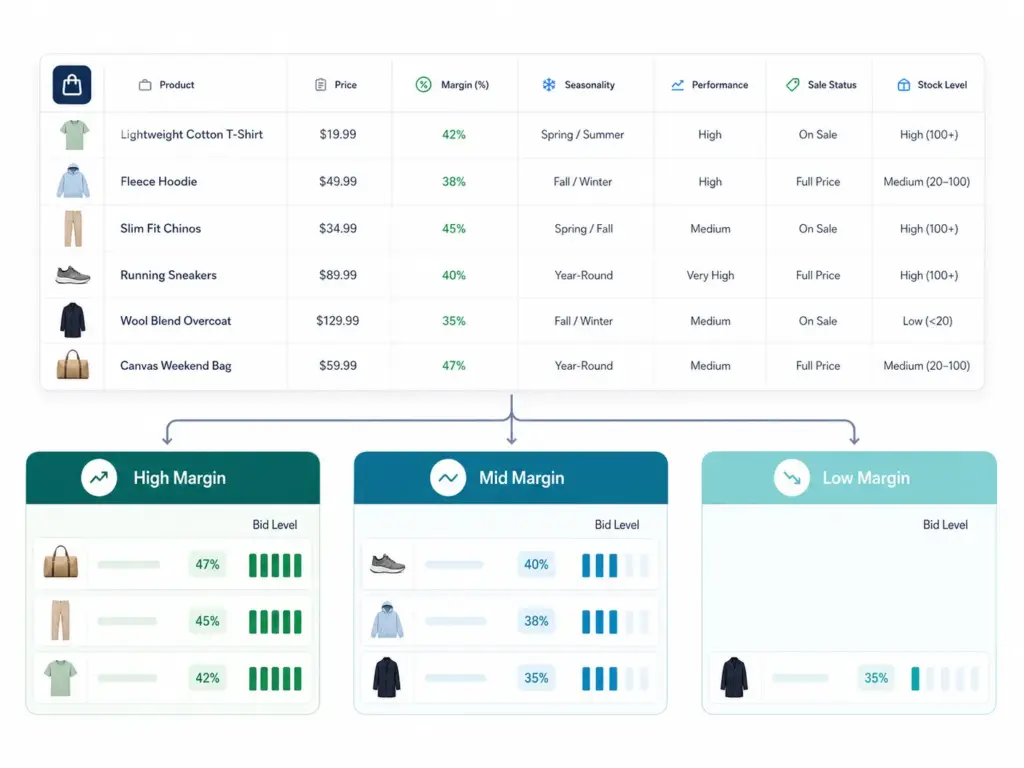
    This is the most valuable custom label strategy for most ecommerce businesses. The idea is simple: assign every product a margin tier, then bid proportionally to that margin.

    How to implement it

    1. Calculate gross margin % for each SKU (or product group)
    2. Define three to four tiers: for example, high (>50%), mid (25–50%), low (<25%)
    3. Assign the appropriate custom_label_0 value in your feed for every product
    4. In Google Ads, create separate product groups for each margin tier
    5. Set target ROAS or manual CPC bids proportionally — high-margin products get 2–3× the bid of low-margin ones

    If you manage your feed through a PIM or feed tool, add a calculated column that assigns the label value based on a margin formula. This keeps labels current as costs change without manual intervention.

    Strategy 2: Seasonality Labels

    Seasonality labels let you ramp bids up on products entering peak demand and pull them back on products going off-season — without touching your campaign architecture.

    • evergreen — products with consistent year-round demand. Steady bids.
    • peak-season — products entering high-demand period. Increase bids 30–60%.
    • clearance — end-of-season or excess stock. Lower bids but keep running to clear inventory.
    • pre-launch — new products with no performance history. Conservative bids, monitor CTR closely.

    The key advantage: you update the feed label and the bid segmentation follows automatically. No manual bid changes product by product.

    Strategy 3: Performance Segmentation

    After 30 days of Shopping data, classify products by their actual performance and bid accordingly.

    • top-performer — ROAS above target, consistent conversions. Bid aggressively.
    • new-product — less than 30 days data. Moderate bid until you have enough signal.
    • slow-mover — impressions but no conversions after 30+ days. Investigate before committing budget.
    • suppress — products you want to exclude from Shopping entirely. Set bid to £0.01.

    Review and update performance labels monthly. A new-product that converts well should graduate to top-performer within 30–45 days.

    How to Add Custom Labels to Your Feed

    Option A: Directly in your product feed file

    Add columns named custom_label_0, custom_label_1 etc. to your feed spreadsheet or data source. Assign values per row. Upload the updated feed to Google Merchant Center.

    Option B: Using a supplemental feed

    If you cannot modify your primary feed directly, use a supplemental feed containing just the ID column and your custom label columns. Merchant Center merges supplemental data onto matching product IDs. This is useful when your primary feed is managed by a platform you do not control directly.

    Option C: Rules in Merchant Center

    Under Products → Feeds → Feed Rules in Google Merchant Center, you can set conditional rules that assign custom label values based on other attributes — for example, assigning "clearance" to all products with a sale_price more than 30% below regular price. No feed editing required.

    For apparel catalogs with multiple variants, reviewing how apparel-specific feed attributes interact with your labels is worthwhile before setting up segmentation.

    Common Custom Label Mistakes

    • Using custom labels for relevance signals — Google ignores label values for matching. They are campaign management tools only.
    • Inconsistent values — "High Margin", "high-margin", and "HIGH MARGIN" are three different values in Google Ads. Pick a format and stick to it.
    • Forgetting to update labels when conditions change — A clearance product that returns to full price still carries the clearance label and its low bid.
    • Setting up labels but not creating separate product groups — Labels do nothing if all products sit in the same "All Products" group with one bid.

    What to Do Next

    Start with one label. Margin is the highest-impact first label for most stores. Assign high / mid / low to every product, create three product groups, and set bids proportionally. Run for 30 days and compare ROAS by tier.

    Before setting up labels, run your feed through the GTIN Validator to confirm your product identifiers are clean — label segmentation on a feed with GTIN errors will still underperform at any bid level.

    For teams managing large catalogs across multiple channels, maintaining custom label logic inside a PIM means labels update automatically when product data changes rather than requiring manual feed edits every time margins or seasons shift. Try the Google Shopping Feed Generator or explore the LynkPIM free plan to manage this at scale.

    Frequently Asked Questions

    What are custom labels in Google Shopping?

    Custom labels (custom_label_0 through custom_label_4) are five optional feed attributes you define yourself. Google uses them purely for campaign segmentation in Google Ads — not for product matching or relevance. Each accepts a free-text value up to 100 characters.

    How many custom labels can you use in Google Shopping?

    You can use up to five custom labels per product. You do not need to use all five — start with one, typically margin tier (custom_label_0), and expand once that segmentation is delivering clear ROAS differences between groups.

    Do custom labels affect Google Shopping relevance or matching?

    No. Custom labels are invisible to Google's matching algorithm. Relevance is determined by your title, description, and google_product_category. Labels exist solely for you to create separate bid groups — they have zero influence on which queries your products appear for.

    What is the best first custom label to set up?

    Margin tier (custom_label_0) produces the fastest ROI impact for most stores. Assign high, mid, and low values to every product, create three product groups in Google Ads, and set bids proportionally. Run for 30 days and compare ROAS by tier before adding further labels.

    Can I add custom labels without editing my main product feed?

    Yes. Use a supplemental feed containing just the product ID and custom label columns, or set up Feed Rules in Google Merchant Center to assign label values conditionally based on existing attributes — for example, assigning "clearance" to all products where sale price is more than 30% below regular price. No primary feed editing required.