Tag: Feed Optimization

  • How Product Data Quality Affects Your Google Shopping ROAS

    How Product Data Quality Affects Your Google Shopping ROAS

    How Product Data Quality Affects Your Google Shopping ROAS

    Most Google Shopping ROAS discussions focus on bids, bidding strategies, and campaign structure. These matter. But for stores with data quality problems, no bidding strategy can overcome a feed where products are disapproved, titles are vague, categories are wrong, or GTINs are invalid. Product data quality affects ROAS before a single auction is entered.

    This article covers the six data quality factors with the biggest direct ROAS impact, ranked by how much they cost you and how quickly they can be fixed.
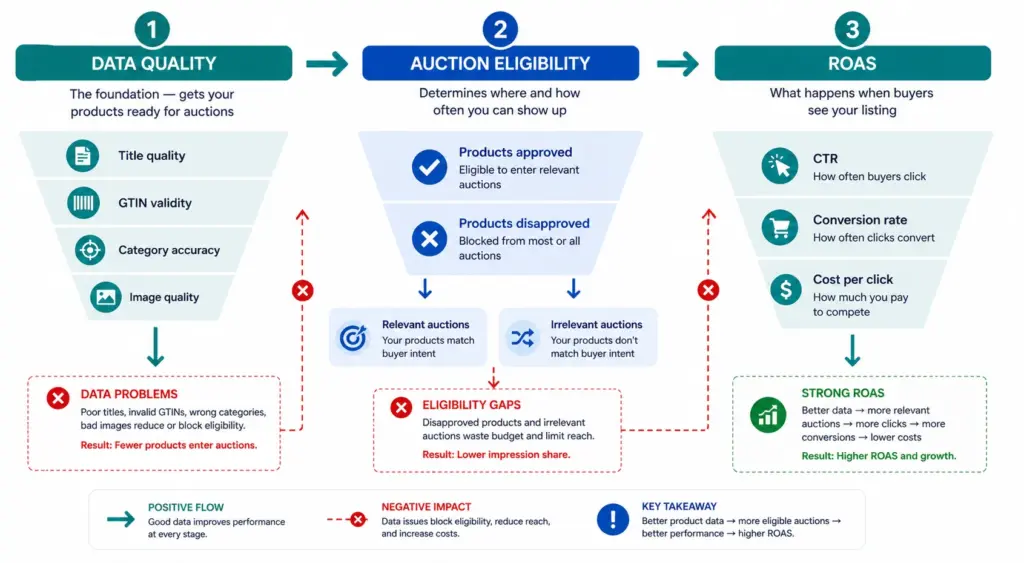
    How Product Data Affects ROAS — The Mechanism

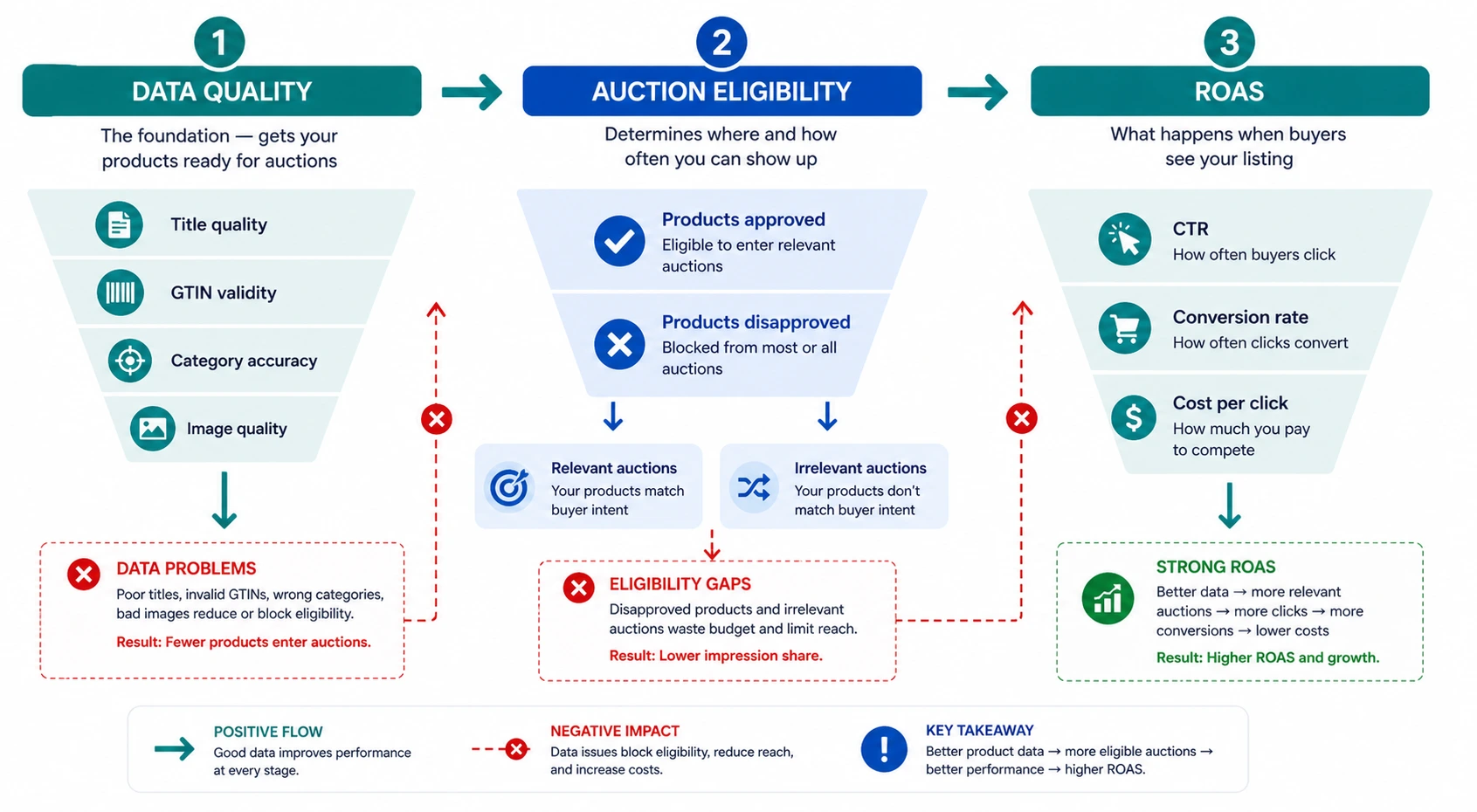
    Product data quality affects ROAS through three distinct mechanisms. Understanding which applies to which data problem helps you prioritise fixes correctly.

    • Auction eligibility: Disapproved products do not enter any auctions. Products with “Limited performance” warnings enter fewer auctions and at lower positions. GTIN errors and policy violations cause this.
    • Auction relevance: Your title and google_product_category determine which search queries your products are matched to. Vague titles and broad categories match your products to irrelevant queries — you spend budget on traffic that does not convert.
    • Click-to-conversion rate: Image quality, title specificity, and price competitiveness all affect whether a click becomes a purchase. This is the layer that most data quality guides ignore but where significant ROAS gains are available.

    Factor 1: Product Titles — The Highest-Impact Fix

    Google uses your product title as the primary signal for matching your product to search queries. A vague title matches fewer queries. A specific, well-structured title matches more relevant queries at higher relevance scores — meaning better positions at lower CPCs.

    The ROAS impact of title quality is larger than most stores expect because it affects both sides of the equation: the cost of each click (auction position) and the value of each click (title specificity means higher buyer intent).

    Title TypeQueries MatchedTypical CTRTypical Conversion Rate
    “Men’s Jacket”Broad, low-intent0.8–1.2%Low — wrong intent mix
    “Columbia Rain Jacket Men Navy L”Specific, high-intent3.5–5.2%High — buyer knows what they want

    Title formula: Brand + Gender/Age + Material + Product Type + Colour + Size for apparel. Brand + Key Spec + Product Type + Model for electronics. Check every title against this formula using the Feed Audit Checklist.

    Factor 2: GTINs — The Eligibility Gate

    Products without valid GTINs receive a “Limited performance” status in Google Merchant Center. This is not a warning you can safely ignore. Limited performance means:

    • Reduced auction eligibility — the product enters fewer auctions than it would with a valid GTIN
    • Lower relevance scores — Google cannot cross-reference the product against its product knowledge graph
    • No eligibility for Shopping promotions or special ad formats that require GTIN verification

    For branded products, fixing invalid GTINs directly restores auction eligibility. For custom or handmade products that genuinely have no manufacturer GTIN, set identifier_exists = FALSE — this removes the warning without fabricating a GTIN.

    Factor 3: Google Product Category — The Auction Pool Problem

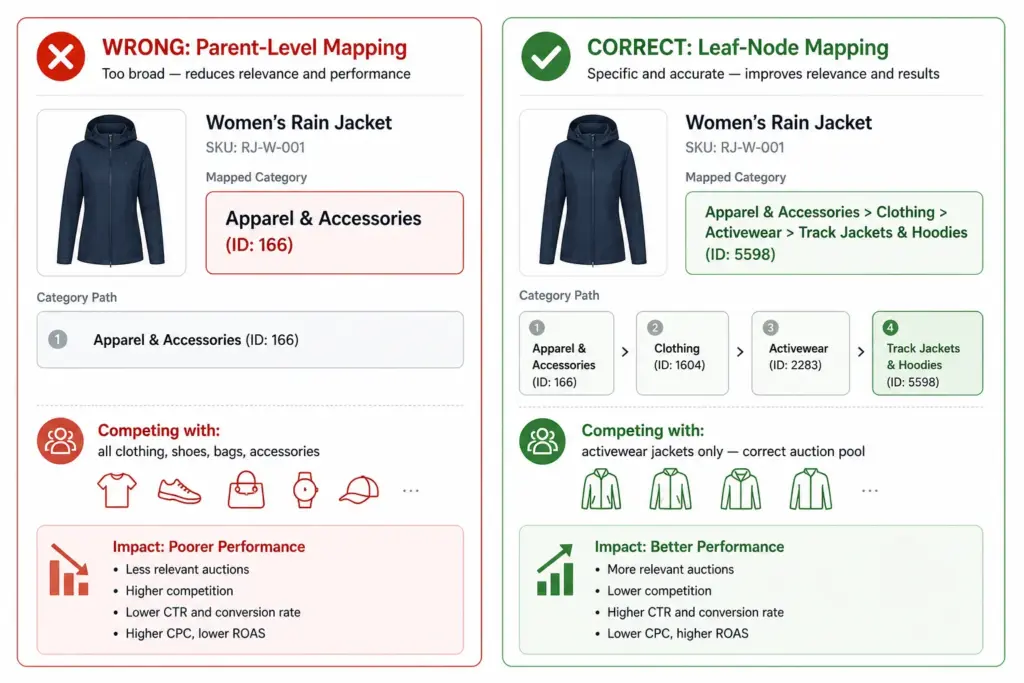
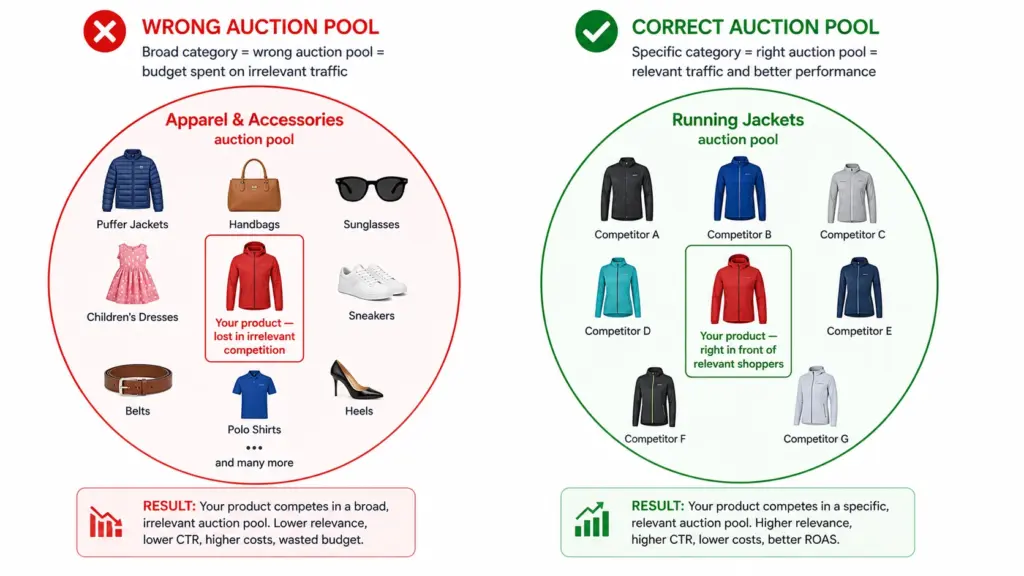
    An incorrect or overly broad google_product_category puts your product in the wrong auction pool. A running jacket in “Apparel & Accessories” competes against handbags, sunglasses, and children’s clothing — all irrelevant to your buyer. Your bids are wasted on impressions that will not convert because the query intent does not match.

    Fixing category mapping to leaf-node IDs is a one-time task per subcategory. Once mapped correctly in your feed, it applies to all products in that subcategory automatically. Full guide at Google Product Category Taxonomy.
    Factor 4: Image Quality — The CTR Multiplier

    In Google Shopping, the product image is the first thing a buyer sees. It is the primary visual decision trigger before the title or price are read. Image quality directly affects CTR, and CTR directly affects ROAS.

    • White background images consistently outperform lifestyle images for CTR in Shopping results for most product categories
    • Higher resolution images (800×800px+) render better in Shopping and reduce the pixelation that signals low-quality product listings
    • Multiple images via additional_image_link (up to 10) improve performance — Google can show different angles in different contexts
    • Colour-specific images for variants — a buyer filtering for navy gets shown the navy product, not a different colour from the same style

    Factor 5: Price and Availability Freshness

    A price mismatch disapproval removes a product from Shopping entirely — zero impressions, zero clicks, zero revenue until fixed. For stores that run frequent promotions or have fast-moving stock, stale feed data is a constant ROAS drain because it creates disapprovals that take 24–48 hours to resolve.

    The fix is structural: daily minimum feed updates, twice-daily during promotion periods, and using sale_price + sale_price_effective_date for promotions rather than changing the base price field. This prevents price mismatch disapprovals at the source.

    Factor 6: Attribute Completeness — The Long Tail Opportunity

    Products with complete optional attributes — colour, size, material, pattern, age_group, gender — match against more specific long-tail search queries. A buyer searching “navy size 12 waterproof running jacket women” only finds your product if all five of those attributes are present in your feed.

    Long-tail queries typically convert at higher rates than broad queries because they indicate more specific buying intent. Every missing optional attribute is a set of high-intent queries your product is invisible for. Run an attribute completeness audit using the Completeness Checker to identify which products are missing which attributes at scale.

    Priority Order — Where to Start
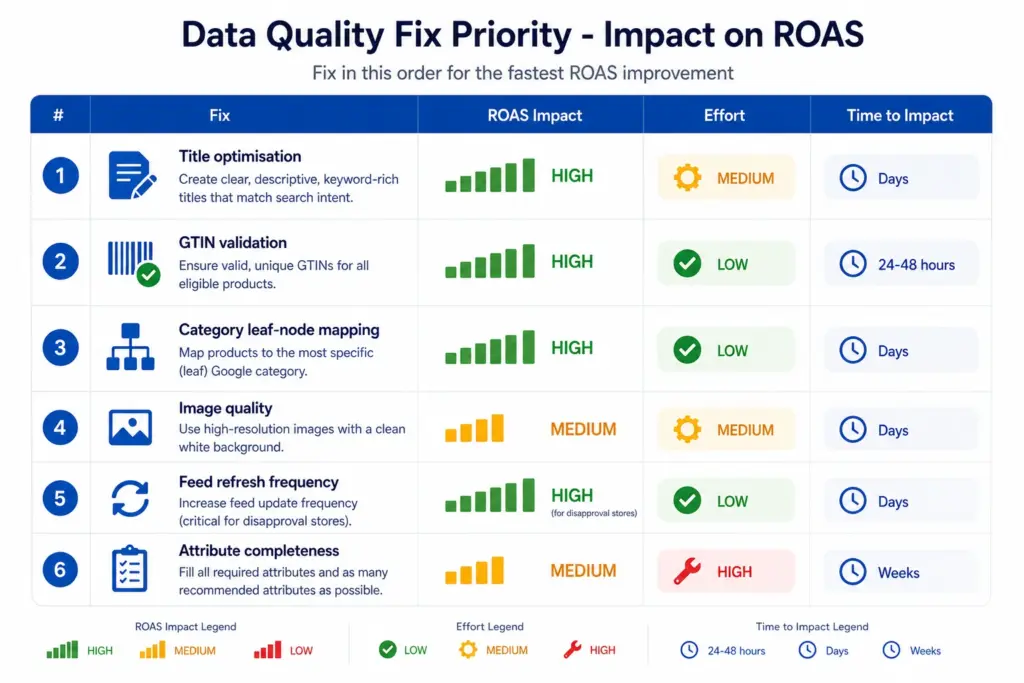
    1. Fix disapprovals first — any disapproved product is earning zero. Check Merchant Center Diagnostics before anything else. See the Fix Disapprovals guide.
    2. Optimise titles — highest impact on relevant traffic. Apply the title formula to your top 20% of products by revenue first.
    3. Validate GTINs — restore “Limited performance” products to full auction eligibility.
    4. Fix category mapping — move all products from parent categories to leaf nodes.
    5. Set up daily feed refresh — prevent price mismatch disapprovals from recurring.
    6. Complete optional attributes — unlock long-tail query matching for all products.

    Use the Catalog Health Score to benchmark your current data quality across all six factors and get a prioritised fix list specific to your catalog. For ongoing feed management that prevents these issues at source, explore the LynkPIM free plan.

    Frequently Asked Questions

    Does product data quality affect Google Shopping ROAS?

    Yes, directly — through three mechanisms: auction eligibility (disapproved products don’t appear at all), auction relevance (vague titles and broad categories match wrong queries), and click-to-conversion rate (image quality and title specificity determine whether clicks convert). All three affect ROAS before any bidding decision is made.

    Which product data fix has the biggest impact on Google Shopping ROAS?

    Title optimisation typically delivers the biggest immediate ROAS improvement for most stores. A specific, well-structured title matches more relevant search queries, improves auction relevance, increases CTR, and attracts higher-intent buyers. Apply the formula: Brand + Gender/Age + Material + Product Type + Colour + Size for apparel; Brand + Key Spec + Product Type for electronics.

    How does a missing GTIN affect Google Shopping performance?

    Products without valid GTINs receive “Limited performance” status — reduced auction eligibility, fewer impressions, and lower positions than identical products with valid GTINs. For branded products, fixing invalid GTINs directly restores full auction eligibility. For custom products with no manufacturer GTIN, set identifier_exists = FALSE to remove the warning.
  • Google Product Category Taxonomy: The Complete 2026 Guide

    Google Product Category Taxonomy: The Complete 2026 Guide

    Google Product Category Taxonomy: The Complete 2026 Guide

    Google’s product category taxonomy is one of the most impactful — and most misused — attributes in Google Shopping feeds. Every product in your feed needs a google_product_category value. Get it right and your products appear in the correct auctions for relevant searches. Get it wrong and you are competing for irrelevant traffic at the wrong price.

    This guide covers how Google’s taxonomy works, how to find the right category for any product, and the most common mapping mistakes costing stores auction performance.

    What Is Google’s Product Category Taxonomy?

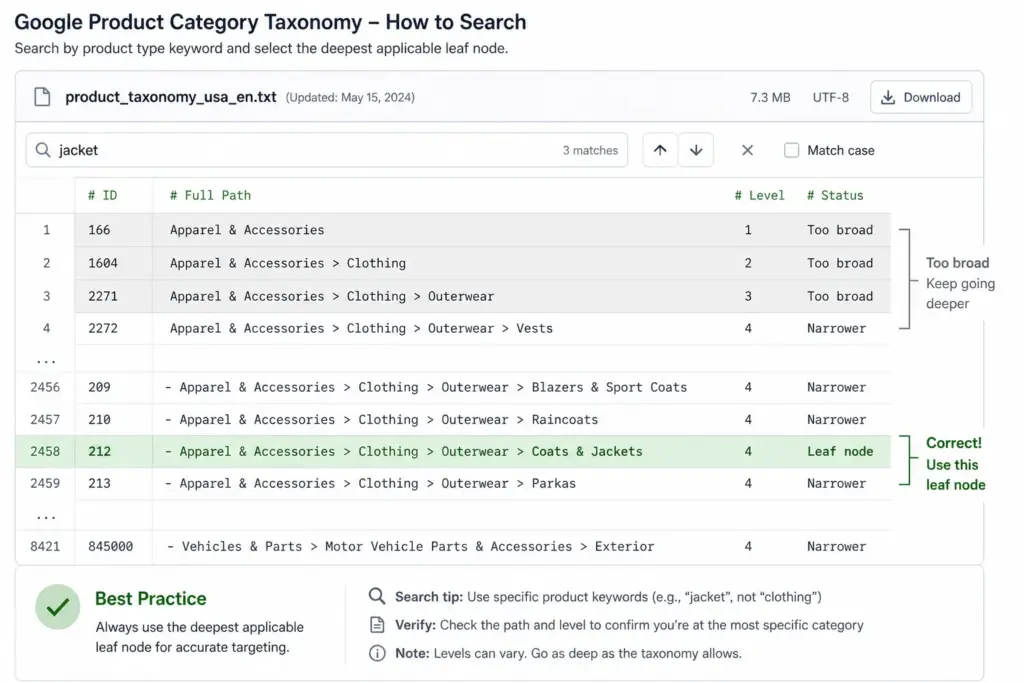
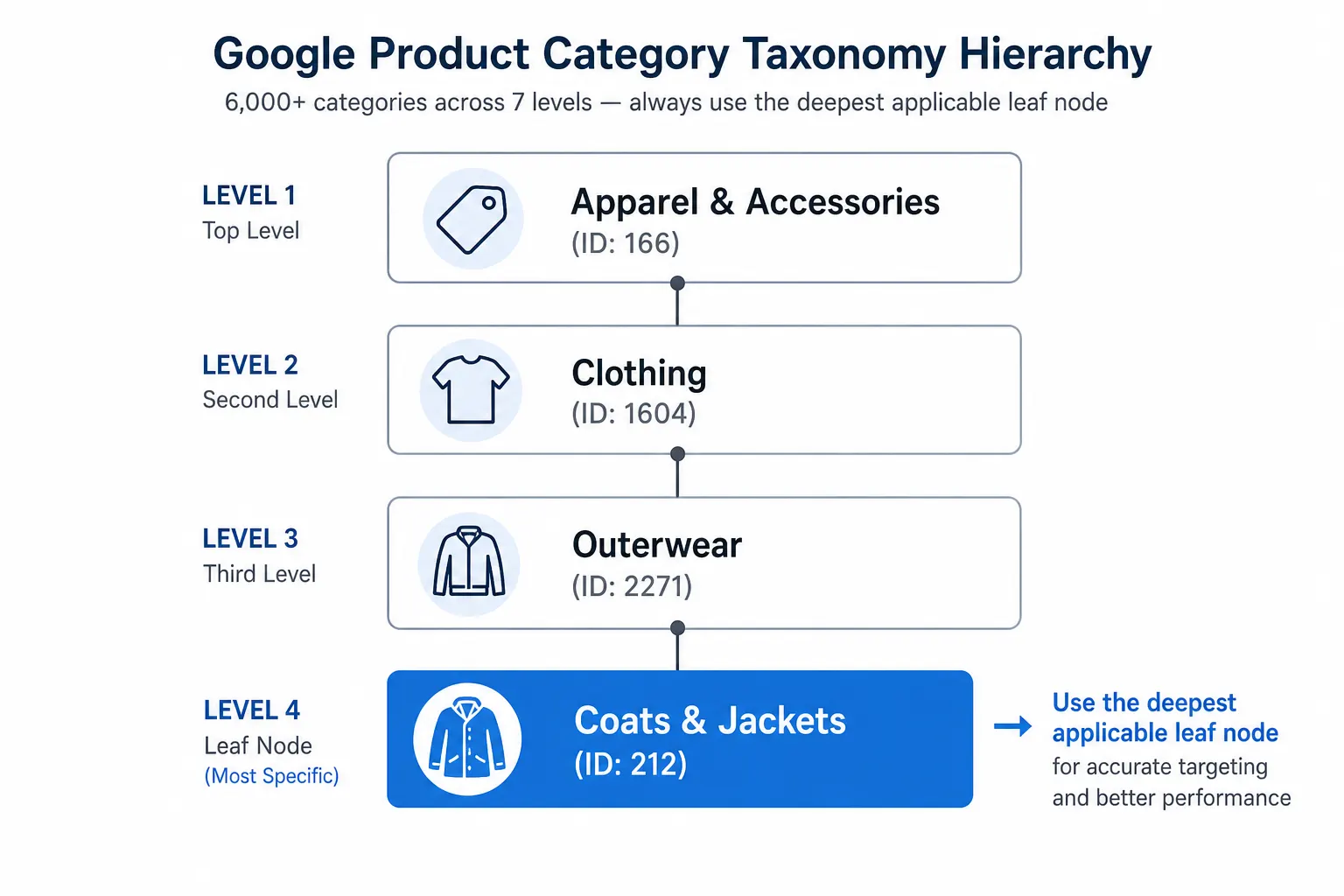
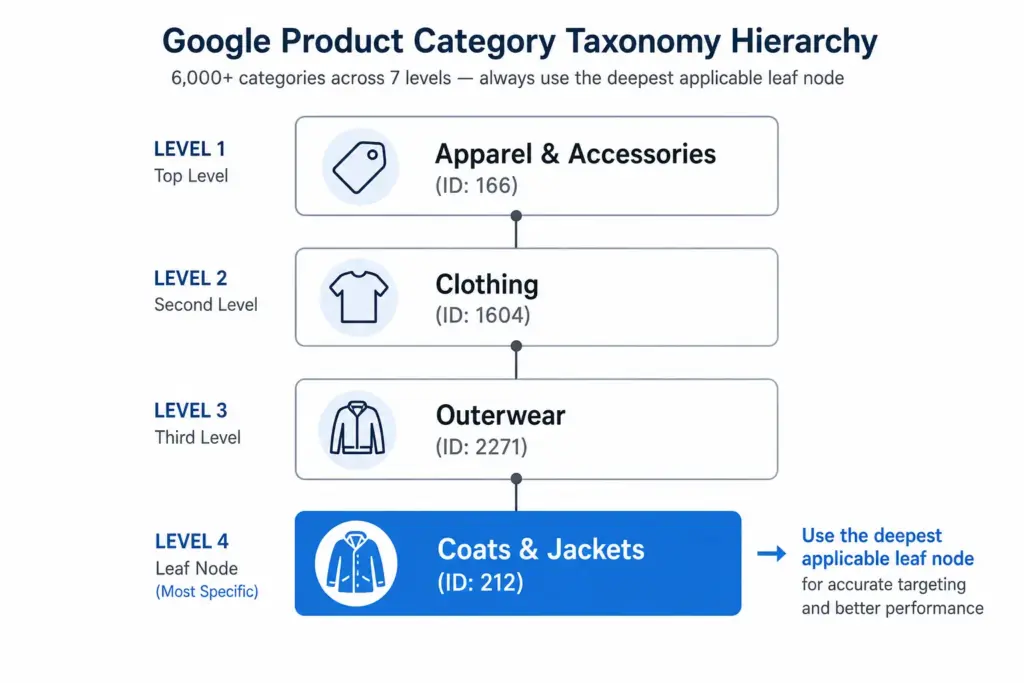
    Google’s product taxonomy is a hierarchical classification system with over 6,000 categories across up to 7 levels of depth. Every product sold through Google Shopping must be classified within this taxonomy using the google_product_category feed attribute.

    Unlike your own internal product taxonomy — which you design for your team and customers — Google’s taxonomy is fixed. You do not modify it. You map your products to it. The full taxonomy file is publicly available and updated periodically. Understanding how it relates to your own internal category structure is covered in detail in the Google Product Category vs Internal Taxonomy guide.

    How google_product_category Affects Shopping Performance

    The category value you assign determines which auction pool your product enters. Google uses it to:

    • Match products to relevant search queries — a product in the correct leaf-node category is matched to more specific searches
    • Set category-specific requirements — some categories (apparel, alcohol, healthcare) have additional required attributes that only apply once Google knows your product’s category
    • Power Shopping filters — the filter options available to buyers on Shopping results pages are partly driven by the category the product is in
    • Determine tax and shipping rules — in some markets, tax treatment is category-dependent

    The difference between a parent category and a leaf node is significant. A product mapped to “Apparel & Accessories” (ID: 166) enters a much broader auction pool than the same product mapped to “Apparel & Accessories > Clothing > Outerwear > Coats & Jackets” (ID: 212). The leaf-node product appears for more specific queries at lower CPCs and with higher relevance scores.

    The taxonomy Attribute: ID vs Text String

    Google accepts google_product_category in two formats:

    • Numeric ID: 212 — the unique identifier for that category node. Stable across taxonomy updates.
    • Full path string: Apparel & Accessories > Clothing > Outerwear > Coats & Jackets — human-readable but can break if Google renames any node in the path.

    Use the numeric ID. If Google restructures a category path or renames a node, the numeric ID continues to resolve correctly. The text path string will return an error or be ignored if the exact wording changes.

    How to Find the Right Category ID

    1. Download the official taxonomy file from google.com/basepages/producttype/taxonomy-with-ids.en-GB.txt
    2. Open it in a spreadsheet or text editor. Each row shows: ID - Full Path
    3. Search (Ctrl+F) for the most specific term describing your product — e.g. “Rain Jacket”, “Sofa”, “NVMe SSD”
    4. Review all matching rows and select the most specific leaf node that accurately describes your product
    5. Record both the ID and the full path — use the ID in your feed, keep the path in your mapping document for human reference

    Most Common google_product_category Mistakes

    MistakeImpactFix
    Using a parent category instead of leaf nodeReduced relevance, wrong auction poolAlways map to the deepest available level
    Using text path instead of numeric IDBreaks when Google renames categoriesSwitch to numeric IDs in your feed
    One category for all productsAll products compete in wrong auctionsMap per subcategory, not per store
    Mapping manually per productInconsistency, errors at scaleMap subcategory → GPC once, apply programmatically
    Never updating after taxonomy changesStale mappings, possible errorsReview taxonomy file annually

    Category Mapping by Industry — Quick Reference

    Product TypeGoogle Category IDFull Path
    Women’s running jacket5598Apparel & Accessories > Clothing > Activewear > Track Jackets & Hoodies
    Men’s leather Oxford shoes187Apparel & Accessories > Shoes > Men’s Shoes > Oxfords
    Gaming laptop328Electronics > Computers > Laptops
    True wireless earbuds3989Electronics > Audio > Headphones > In-Ear Headphones
    3-seater sofa443Furniture > Sofas & Sectionals
    King duvet set569Home & Garden > Linens & Bedding > Duvet Covers
    Ground coffee5775Food, Beverages & Tobacco > Beverages > Coffee
    NVMe SSD1723Electronics > Computers > Computer Components > Hard Drives & Storage > Solid State Drives

    product_type vs google_product_category — What’s the Difference?

    These two attributes are frequently confused. They serve completely different purposes:

    • google_product_category — uses Google’s fixed taxonomy. Affects auction relevance, Shopping matching, and category-specific attribute requirements. Required.
    • product_type — a free-form field you define using your own category naming. Does not affect Google matching. Can be used for campaign segmentation in Google Ads (similar to custom labels). Optional but recommended.

    Both can coexist in the same feed. Use google_product_category to tell Google what your product is. Use product_type to reflect your own internal category naming for campaign management purposes.

    For how to build and maintain your internal taxonomy alongside Google’s, see What Is Product Taxonomy and How to Build a Product Taxonomy From Scratch. To generate a correctly structured feed with category mapping applied, use the Google Shopping Feed Generator.

    Frequently Asked Questions

    Is google_product_category required in Google Shopping feeds?

    Yes, it is required for all products. Products submitted without it may still appear but Google auto-assigns a category — almost always a broad parent level that will underperform compared to the correct leaf-node mapping.

    Should I use the numeric ID or the text string?

    Use the numeric ID. It is stable across taxonomy updates — if Google renames or restructures a category path, the ID continues to resolve correctly. The text path string can break silently if Google changes the exact wording of any node.

    What happens if I use the wrong google_product_category?

    Wrong or overly broad categories reduce Shopping relevance — your products appear for fewer relevant queries and compete in incorrect auction pools. A jacket in “Apparel & Accessories” (parent) is in a completely different and far broader auction than the same jacket in “Apparel & Accessories > Clothing > Outerwear > Coats & Jackets” (leaf node).

    How often does Google update its product taxonomy?

    Typically 1–2 times per year. Numeric IDs remain valid across updates but text path strings may become outdated. Review the taxonomy file annually and after major Google Merchant Center announcements.

    What is the difference between google_product_category and product_type?

    google_product_category uses Google’s fixed taxonomy and directly affects auction relevance and matching. product_type is a free-form field you define using your own naming — it does not affect Google matching but can be used for campaign segmentation in Google Ads similar to custom labels.

  • Custom Labels in Google Shopping: How to Use Them for Bid Segmentation (2026 Guide)

    Custom Labels in Google Shopping: How to Use Them for Bid Segmentation (2026 Guide)

    Custom Labels in Google Shopping: How to Use Them for Bid Segmentation (2026 Guide)

    Custom labels are one of the most underused levers in Google Shopping. While most advertisers compete on the same bids across their entire catalog, smart merchants use custom labels to segment by margin, seasonality, and performance — bidding high only where it pays off.

    This guide covers exactly how to set up custom labels, which segmentation strategies deliver the most impact, and how to manage them efficiently when your catalog changes.

    What Are Custom Labels in Google Shopping?

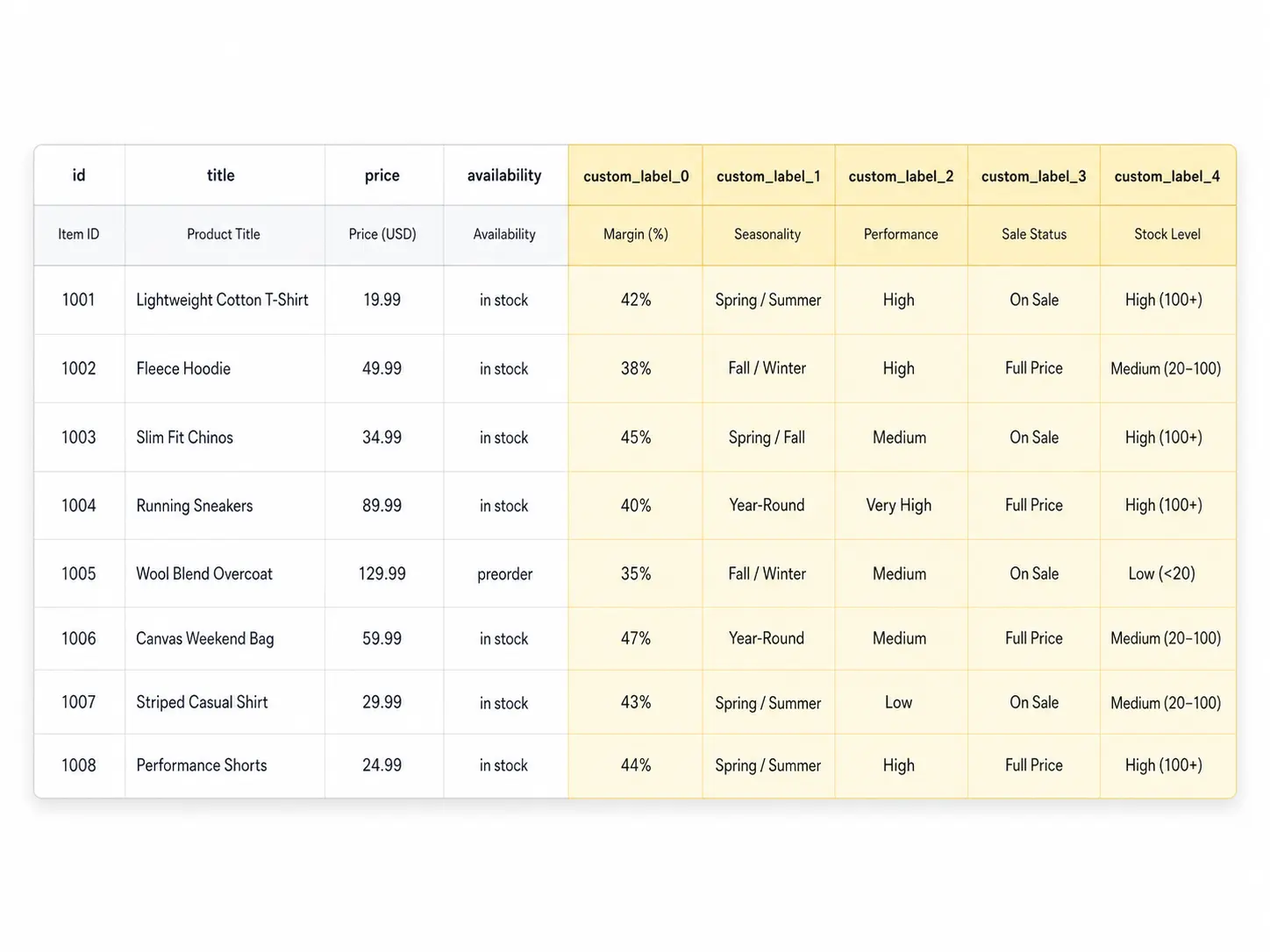
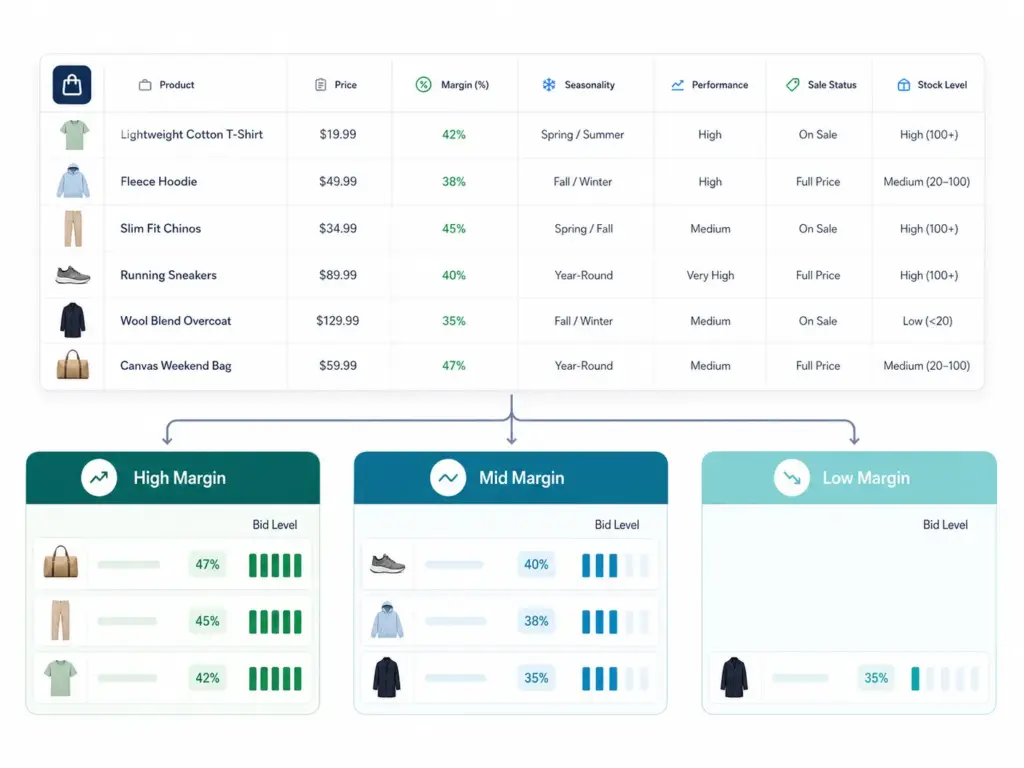
    Custom labels (custom_label_0 through custom_label_4) are five optional attributes in your Google Shopping feed that you define yourself. Google does not use them for matching or relevance — they exist purely for your campaign segmentation inside Google Ads.

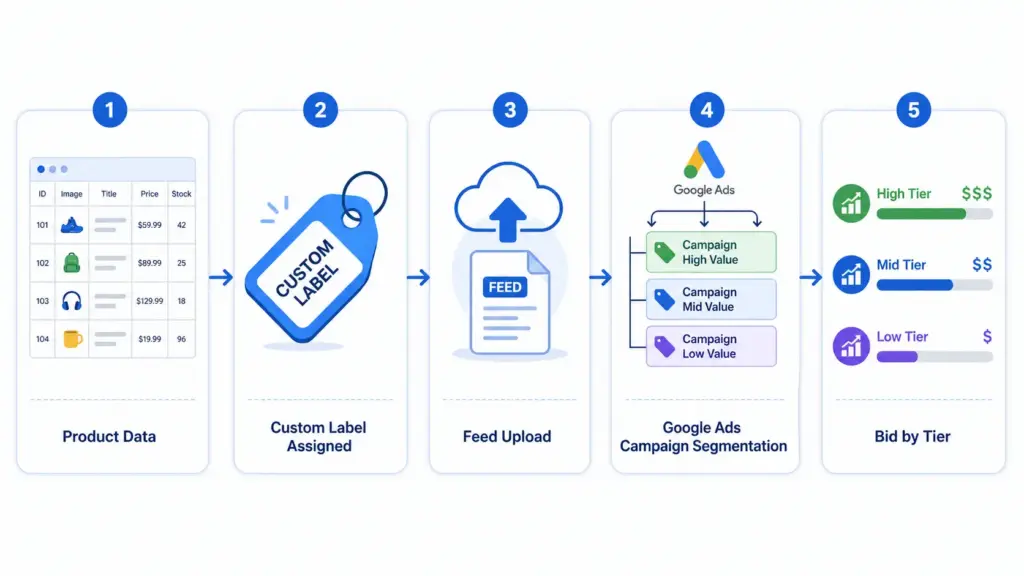
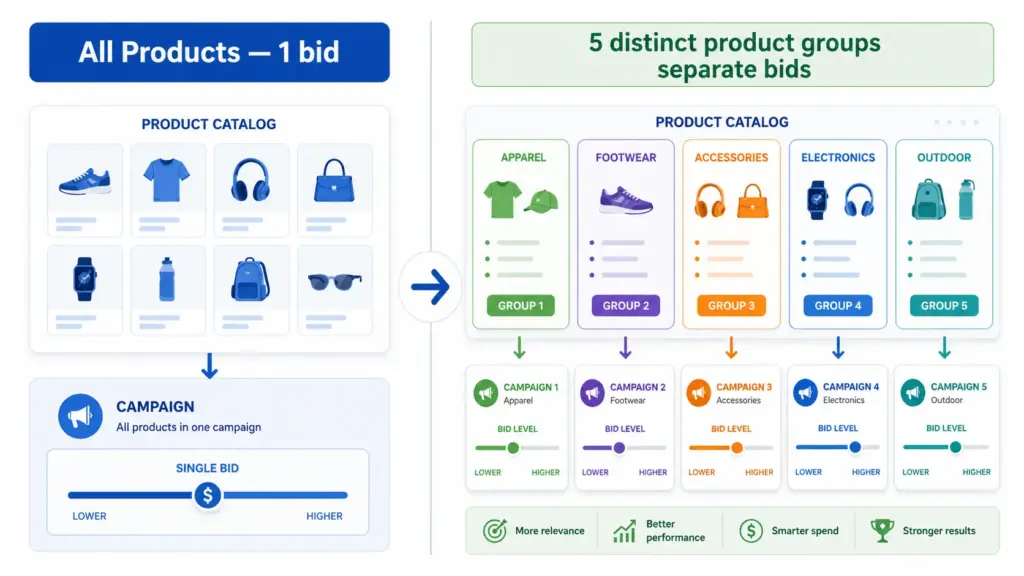
    Each label accepts a free-text value up to 100 characters. You assign values in your product feed, then use those values to create product groups inside your Shopping campaigns and set different bids per group. Learn how labels fit into the broader feed structure in the Google Shopping Feed Guide.

    The 5 Custom Labels and How to Use Each One

    LabelRecommended UseExample Values
    custom_label_0Margin tierhigh-margin, mid-margin, low-margin
    custom_label_1Seasonalityevergreen, summer-2026, clearance
    custom_label_2Performance buckettop-performer, new-product, slow-mover
    custom_label_3Sale / promotion statuson-sale, full-price, bundle
    custom_label_4Stock levelin-stock, low-stock, backorder

    You do not need to use all five. Start with margin (custom_label_0) — it produces the highest ROI impact immediately because it stops you spending high bids on products where the margin does not support it.

    Strategy 1: Bid Segmentation by Margin

    This is the most valuable custom label strategy for most ecommerce businesses. The idea is simple: assign every product a margin tier, then bid proportionally to that margin.

    How to implement it

    1. Calculate gross margin % for each SKU (or product group)
    2. Define three to four tiers: for example, high (>50%), mid (25–50%), low (<25%)
    3. Assign the appropriate custom_label_0 value in your feed for every product
    4. In Google Ads, create separate product groups for each margin tier
    5. Set target ROAS or manual CPC bids proportionally — high-margin products get 2–3× the bid of low-margin ones

    If you manage your feed through a PIM or feed tool, add a calculated column that assigns the label value based on a margin formula. This keeps labels current as costs change without manual intervention.

    Strategy 2: Seasonality Labels

    Seasonality labels let you ramp bids up on products entering peak demand and pull them back on products going off-season — without touching your campaign architecture.

    • evergreen — products with consistent year-round demand. Steady bids.
    • peak-season — products entering high-demand period. Increase bids 30–60%.
    • clearance — end-of-season or excess stock. Lower bids but keep running to clear inventory.
    • pre-launch — new products with no performance history. Conservative bids, monitor CTR closely.

    The key advantage: you update the feed label and the bid segmentation follows automatically. No manual bid changes product by product.

    Strategy 3: Performance Segmentation

    After 30 days of Shopping data, classify products by their actual performance and bid accordingly.

    • top-performer — ROAS above target, consistent conversions. Bid aggressively.
    • new-product — less than 30 days data. Moderate bid until you have enough signal.
    • slow-mover — impressions but no conversions after 30+ days. Investigate before committing budget.
    • suppress — products you want to exclude from Shopping entirely. Set bid to £0.01.

    Review and update performance labels monthly. A new-product that converts well should graduate to top-performer within 30–45 days.

    How to Add Custom Labels to Your Feed

    Option A: Directly in your product feed file

    Add columns named custom_label_0, custom_label_1 etc. to your feed spreadsheet or data source. Assign values per row. Upload the updated feed to Google Merchant Center.

    Option B: Using a supplemental feed

    If you cannot modify your primary feed directly, use a supplemental feed containing just the ID column and your custom label columns. Merchant Center merges supplemental data onto matching product IDs. This is useful when your primary feed is managed by a platform you do not control directly.

    Option C: Rules in Merchant Center

    Under Products → Feeds → Feed Rules in Google Merchant Center, you can set conditional rules that assign custom label values based on other attributes — for example, assigning "clearance" to all products with a sale_price more than 30% below regular price. No feed editing required.

    For apparel catalogs with multiple variants, reviewing how apparel-specific feed attributes interact with your labels is worthwhile before setting up segmentation.

    Common Custom Label Mistakes

    • Using custom labels for relevance signals — Google ignores label values for matching. They are campaign management tools only.
    • Inconsistent values — "High Margin", "high-margin", and "HIGH MARGIN" are three different values in Google Ads. Pick a format and stick to it.
    • Forgetting to update labels when conditions change — A clearance product that returns to full price still carries the clearance label and its low bid.
    • Setting up labels but not creating separate product groups — Labels do nothing if all products sit in the same "All Products" group with one bid.

    What to Do Next

    Start with one label. Margin is the highest-impact first label for most stores. Assign high / mid / low to every product, create three product groups, and set bids proportionally. Run for 30 days and compare ROAS by tier.

    Before setting up labels, run your feed through the GTIN Validator to confirm your product identifiers are clean — label segmentation on a feed with GTIN errors will still underperform at any bid level.

    For teams managing large catalogs across multiple channels, maintaining custom label logic inside a PIM means labels update automatically when product data changes rather than requiring manual feed edits every time margins or seasons shift. Try the Google Shopping Feed Generator or explore the LynkPIM free plan to manage this at scale.

    Frequently Asked Questions

    What are custom labels in Google Shopping?

    Custom labels (custom_label_0 through custom_label_4) are five optional feed attributes you define yourself. Google uses them purely for campaign segmentation in Google Ads — not for product matching or relevance. Each accepts a free-text value up to 100 characters.

    How many custom labels can you use in Google Shopping?

    You can use up to five custom labels per product. You do not need to use all five — start with one, typically margin tier (custom_label_0), and expand once that segmentation is delivering clear ROAS differences between groups.

    Do custom labels affect Google Shopping relevance or matching?

    No. Custom labels are invisible to Google's matching algorithm. Relevance is determined by your title, description, and google_product_category. Labels exist solely for you to create separate bid groups — they have zero influence on which queries your products appear for.

    What is the best first custom label to set up?

    Margin tier (custom_label_0) produces the fastest ROI impact for most stores. Assign high, mid, and low values to every product, create three product groups in Google Ads, and set bids proportionally. Run for 30 days and compare ROAS by tier before adding further labels.

    Can I add custom labels without editing my main product feed?

    Yes. Use a supplemental feed containing just the product ID and custom label columns, or set up Feed Rules in Google Merchant Center to assign label values conditionally based on existing attributes — for example, assigning "clearance" to all products where sale price is more than 30% below regular price. No primary feed editing required.