Tag: product data

  • PIM to Google Shopping: How to Connect Your Product Data

    PIM to Google Shopping: How to Connect Your Product Data

    PIM to Google Shopping: How to Connect Your Product Data

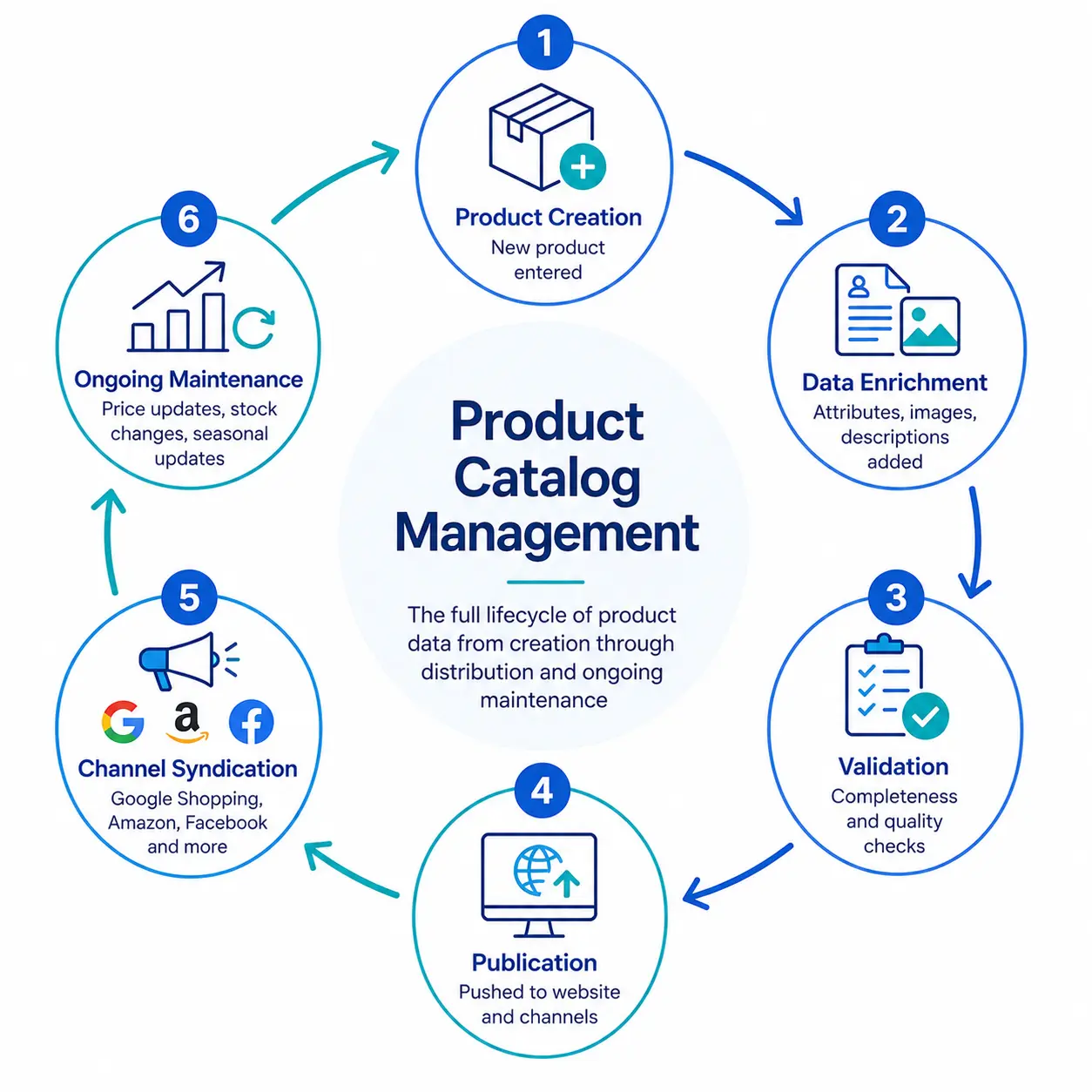
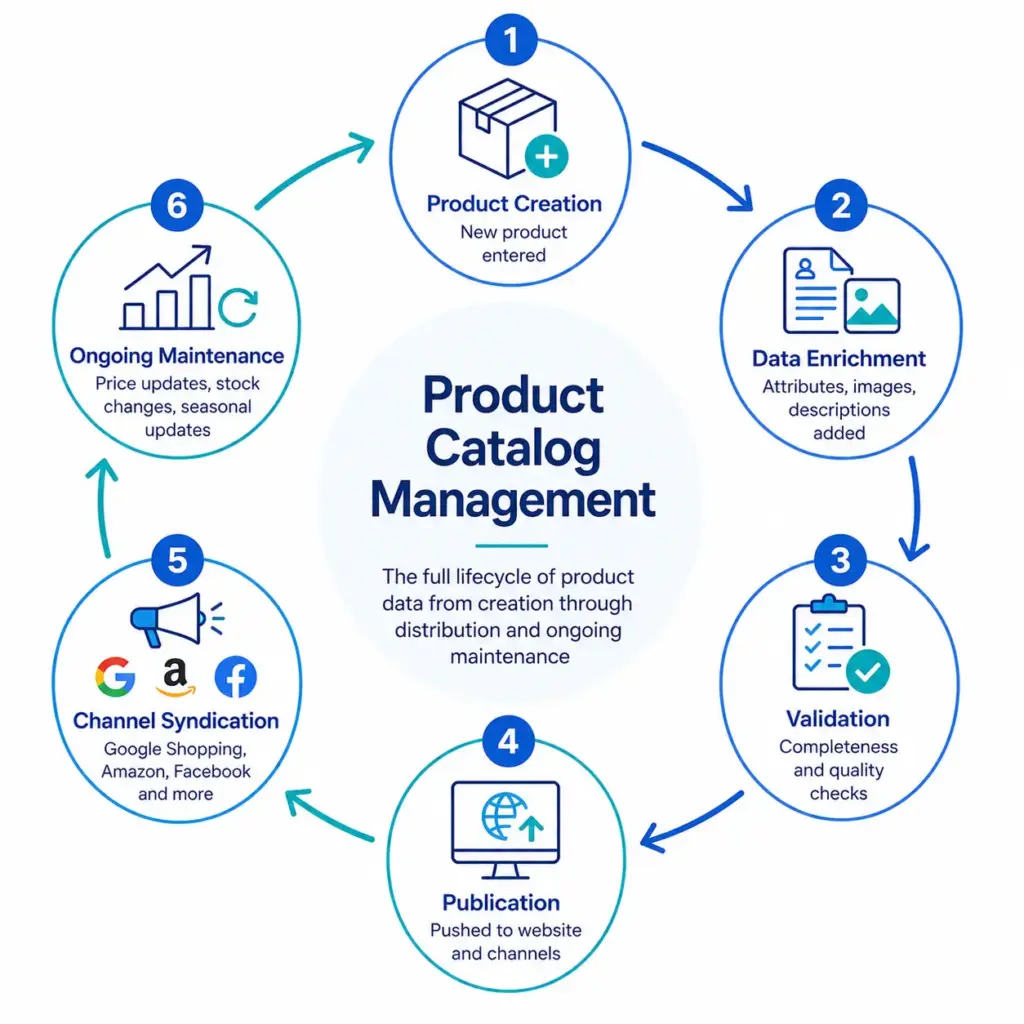
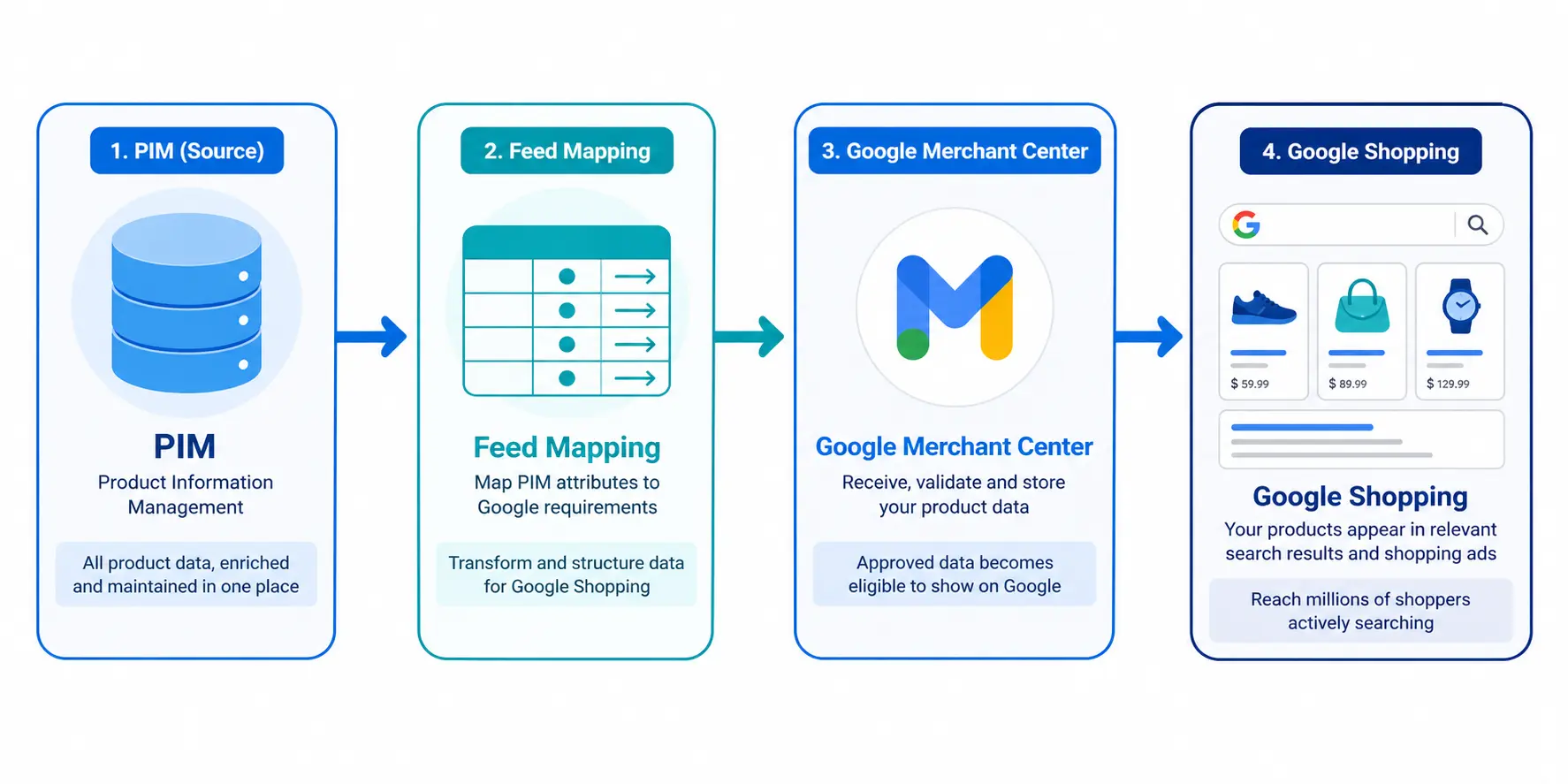
    Managing product data in a PIM and managing a Google Shopping feed are often treated as two separate problems. They are not. Your PIM is the source of truth. Google Shopping is a channel that consumes that truth. The connection between them determines whether your Shopping feed performs or constantly breaks.

    This guide covers how to build that connection correctly — from attribute mapping to feed delivery to ongoing automation.

    Why PIM-to-Shopping Connections Break

    Most PIM-to-Shopping problems come from one of three sources:

    • Attribute mismatch: Your PIM stores data under different field names than Google expects. “Product Name” in your PIM needs to become a correctly structured “title” in the feed — not just passed through as-is.
    • Missing transformation logic: Google requires assembled values like a constructed title or formatted price. If your PIM passes raw values without transformation rules, the feed output is incomplete.
    • Stale feed delivery: Prices and stock change constantly. A feed that updates weekly generates price mismatch disapprovals every time your site runs a sale or a product goes out of stock.

    For a full reference on what Google Shopping feeds require before you start mapping, the Google Shopping Feed Guide covers every required and recommended attribute.

    Step 1: Build Your Attribute Mapping Document

    Before writing a single line of integration code or configuring any connector, build a mapping document. This is a simple table: left column is your PIM field name, right column is the Google Shopping attribute it maps to.

    PIM FieldGoogle Shopping AttributeTransformation Required?
    Product ID / SKUidNo — pass through directly
    Product NametitleYes — assemble from Brand + Attributes + Type
    Long DescriptiondescriptionOptional — strip HTML tags
    Product URLlinkNo — pass through directly
    Primary Image URLimage_linkNo — ensure 800×800px minimum
    Retail PricepriceFormat as 29.99 GBP
    Sale Pricesale_priceInclude sale_price_effective_date
    Stock StatusavailabilityMap: In Stock → in stock, Out of Stock → out of stock
    EAN / BarcodegtinValidate format before passing
    ManufacturerbrandNo — pass through directly
    Google Category IDgoogle_product_categoryMust be leaf-node ID, not text string
    ColourcolorNormalise to human-readable value
    SizesizeAdd size_system attribute separately
    Parent SKUitem_group_idApply to all variants of same style

    Step 2: Set Up Title Construction in Your PIM

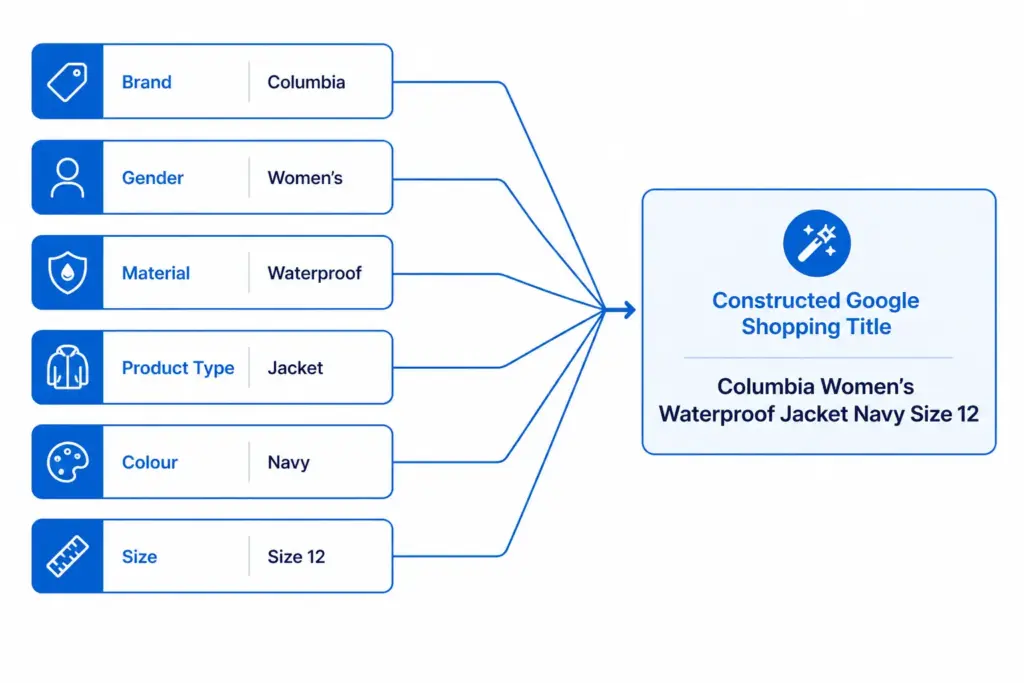
    The product title is the single most impactful attribute in a Google Shopping feed. A PIM-to-Shopping integration that just passes your PIM product name to Google as a title is almost always wrong — PIM product names are written for internal use, not for search query matching.

    Define a title construction formula in your PIM and generate the Shopping title programmatically from individual attribute fields:

    Formula: Brand + Gender + Material + Product Type + Colour + Size

    Store this as a channel-specific field in your PIM — a generated “Google Shopping Title” field that is separate from your internal product name and your website title. This allows you to optimise each independently.

    Step 3: Handle Channel-Specific Content

    One of the core advantages of a PIM over a spreadsheet is channel-specific content management. Your Google Shopping description, title, and certain attributes should differ from your website content and your Amazon content.

    • Google Shopping title: Optimised for search query matching — include all key attributes
    • Website title: Optimised for readability and brand tone — may be shorter or styled differently
    • Amazon title: Follows Amazon’s own title requirements — different format again
    • Description: Google Shopping descriptions are indexed but rarely shown. Focus on keyword density. Website descriptions should read naturally for humans.

    Without channel-specific fields in your PIM, teams either use the same content everywhere (suboptimal) or maintain separate spreadsheets per channel (which defeats the purpose of having a PIM).

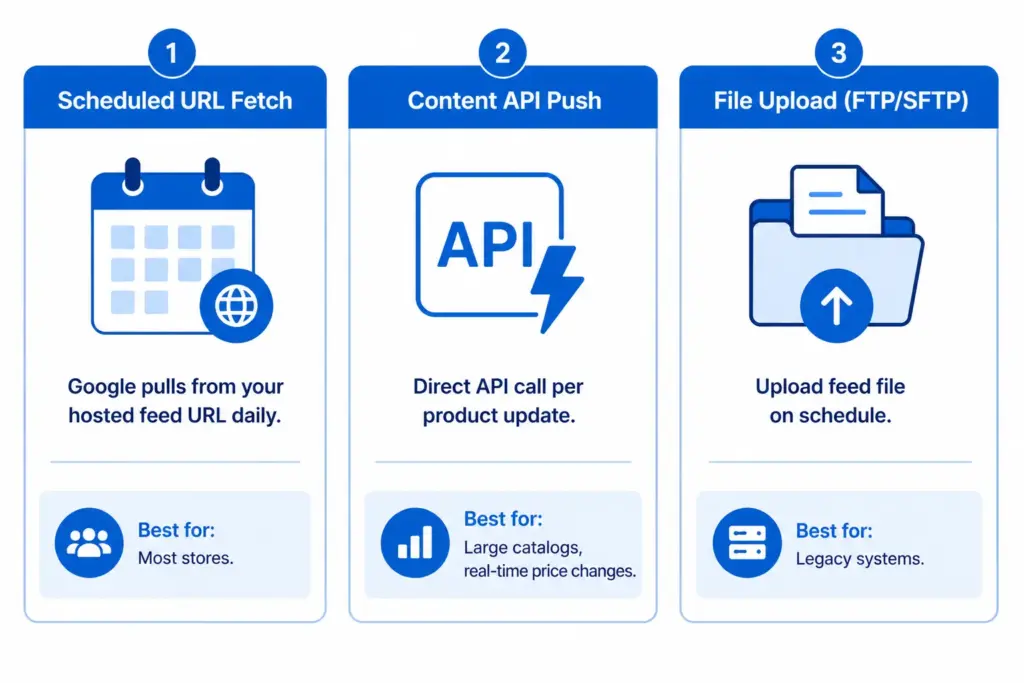
    Step 4: Choose Your Feed Delivery Method

    Option A: Scheduled URL Fetch (recommended for most stores)

    Your PIM generates a feed file (XML or TSV) at a hosted URL. You register this URL in Google Merchant Center and set a fetch schedule — Google pulls a fresh copy at your specified frequency. Daily is the minimum; twice daily is better for stores with frequent price or stock changes.

    Option B: Google Content API

    Your PIM pushes product data directly to Google via the Content API, updating individual products as they change rather than uploading the full catalog on a schedule. This is the right approach for catalogs over 50,000 SKUs or stores with real-time price changes that cannot wait for a daily feed cycle.

    Option C: Manual or FTP file upload

    Export a feed file from your PIM and upload it to Merchant Center on a schedule via FTP/SFTP. Slower and more manual than option A, but workable for smaller catalogs with infrequent changes. Not recommended if your prices or stock change daily.

    The Google Shopping Feed Generator handles feed file generation and delivery setup without custom development. For supplemental feed use cases — like adding custom labels without modifying your primary feed — see the Supplemental Feeds guide.

    Step 5: Set Up Feed Refresh Frequency

    Feed freshness is one of the most common causes of Shopping disapprovals for stores that have otherwise clean feeds. Google requires that your feed reflects current prices and availability. When your site runs a flash sale or a product goes out of stock, your feed must update to match.

    • Price and availability: Update at minimum daily. Twice daily for stores with frequent promotions.
    • Product content (titles, descriptions, images): Weekly updates are sufficient — these rarely change.
    • New products: Submit immediately on launch via supplemental feed or Content API, rather than waiting for the next full feed cycle.

    Step 6: Validate and Monitor

    After your first feed submission, go directly to Merchant Center Diagnostics. It shows exactly which products are disapproved, which have warnings, and what attribute is causing each issue. Work through disapprovals first — these products are not appearing in Shopping at all. Then address warnings — these products appear but with limited performance.

    Run GTINs through the GTIN Validator before submission — invalid GTINs are the most common single cause of mass disapprovals on first feed submissions.

    Set up email alerts in Merchant Center for feed processing errors so you are notified when a feed fetch fails rather than discovering it a week later when performance drops.

    Ready to streamline your PIM-to-Shopping workflow? Check where your current product data setup stands with the PIM Readiness Score — free, 5 minutes. Or start building and exporting feeds directly with the Feed Generator tool.

    Frequently Asked Questions

    Can I connect any PIM to Google Shopping?

    Yes. Any PIM that can export a structured data file (XML, TSV, CSV) or call an API can be connected to Google Shopping. The key requirement is that your PIM can map its internal field names to Google’s required feed attributes and apply transformation rules where needed — particularly for title construction and value normalisation.

    How often should my Google Shopping feed update?

    At minimum daily for price and availability fields. Stores with frequent promotions or high-velocity stock changes should update twice daily. Product content fields like titles, descriptions, and images can update weekly — these change infrequently enough that daily updates add overhead without benefit.

    What is the difference between a primary feed and a supplemental feed?

    A primary feed contains all core product data. A supplemental feed adds or overrides specific attributes on top of the primary feed without replacing it. Supplemental feeds are useful for adding custom labels, overriding prices for specific markets, or adding attributes you cannot modify in your primary data source. Full details in the Supplemental Feeds guide.

    Do I need a developer to connect my PIM to Google Shopping?

    Not necessarily. If your PIM has a built-in Google Shopping connector or can export a correctly formatted feed file, no development is required. The LynkPIM Feed Generator handles feed generation and hosted delivery without custom development — no coding required.

    What happens if my PIM product titles are not optimised for Google Shopping?

    Unoptimised titles reduce Shopping relevance — your products appear in fewer auctions and at lower positions than competitors with complete titles. Google matches your title against search queries, so a title like “Men’s Jacket” loses every specific query to a competitor with “Columbia Waterproof Rain Jacket Men Navy Size L”. Title optimisation is the single highest-impact feed improvement for most stores.

  • Custom Labels in Google Shopping: How to Use Them for Bid Segmentation (2026 Guide)

    Custom Labels in Google Shopping: How to Use Them for Bid Segmentation (2026 Guide)

    Custom Labels in Google Shopping: How to Use Them for Bid Segmentation (2026 Guide)

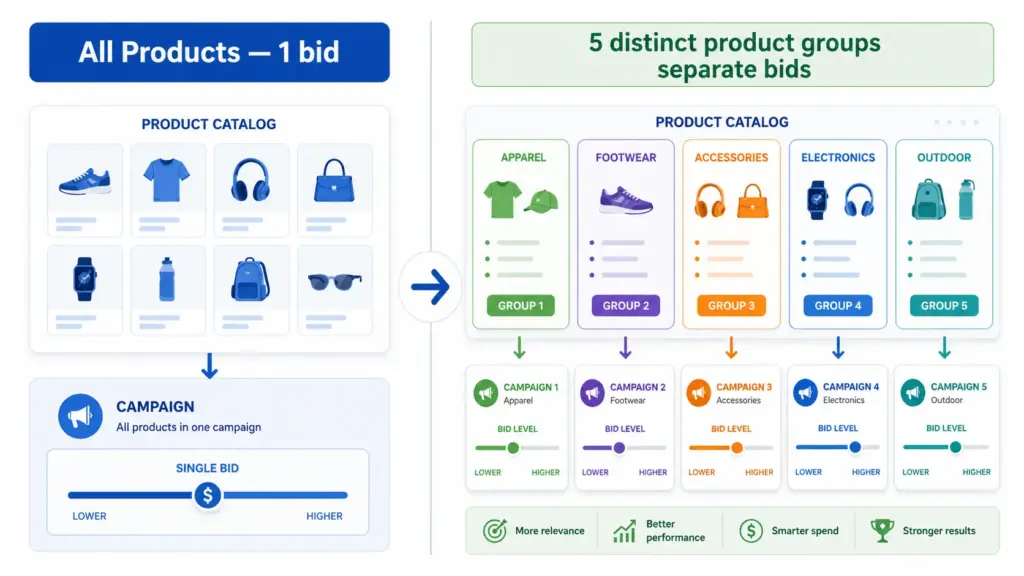
    Custom labels are one of the most underused levers in Google Shopping. While most advertisers compete on the same bids across their entire catalog, smart merchants use custom labels to segment by margin, seasonality, and performance — bidding high only where it pays off.

    This guide covers exactly how to set up custom labels, which segmentation strategies deliver the most impact, and how to manage them efficiently when your catalog changes.

    What Are Custom Labels in Google Shopping?

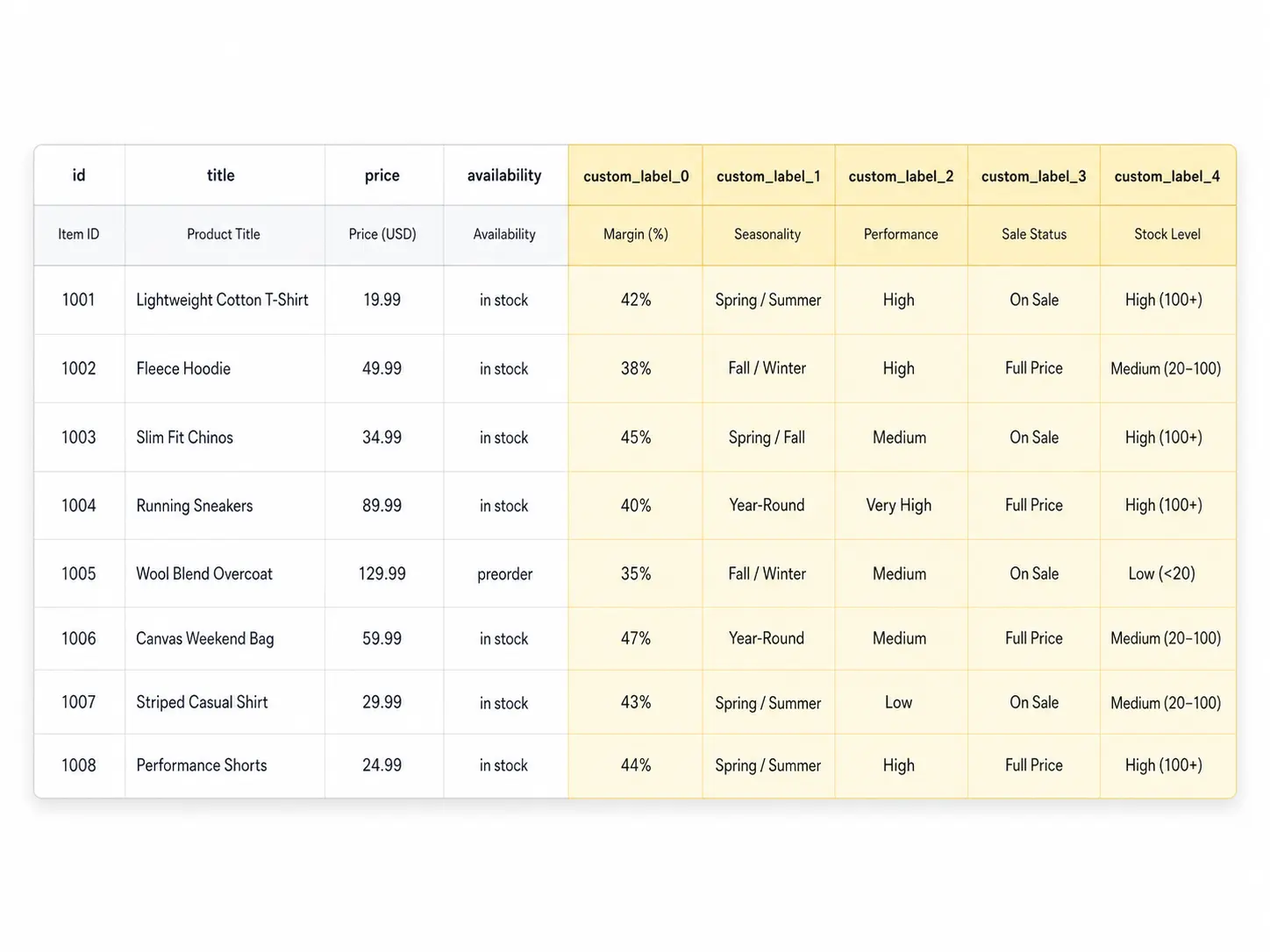
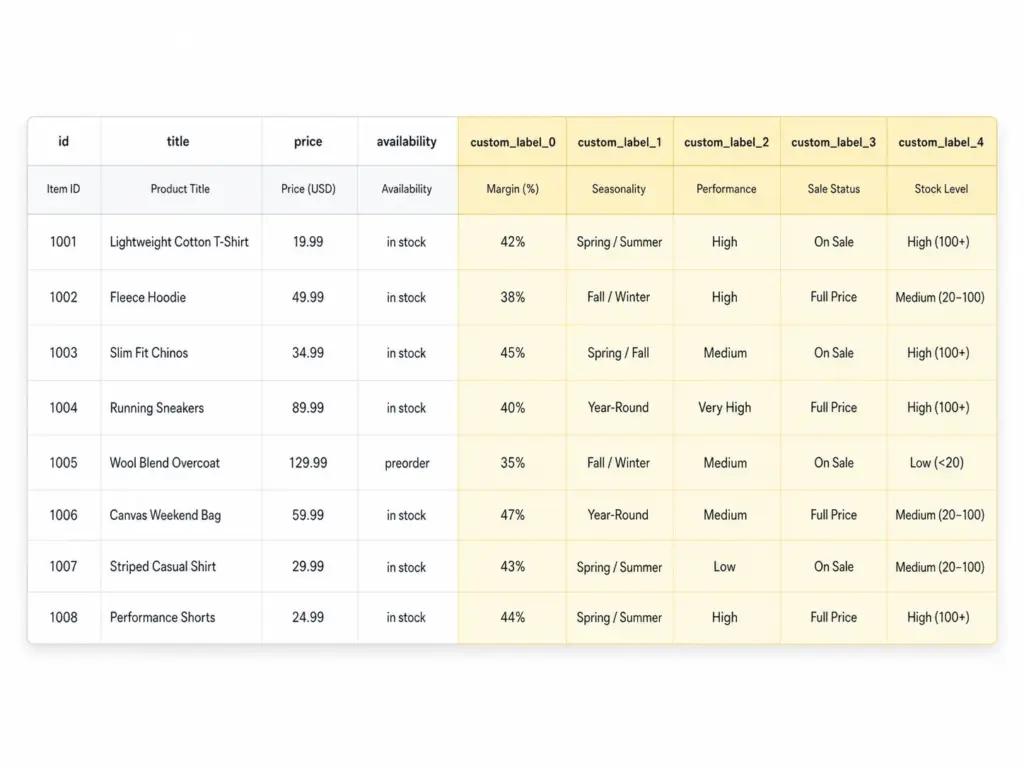
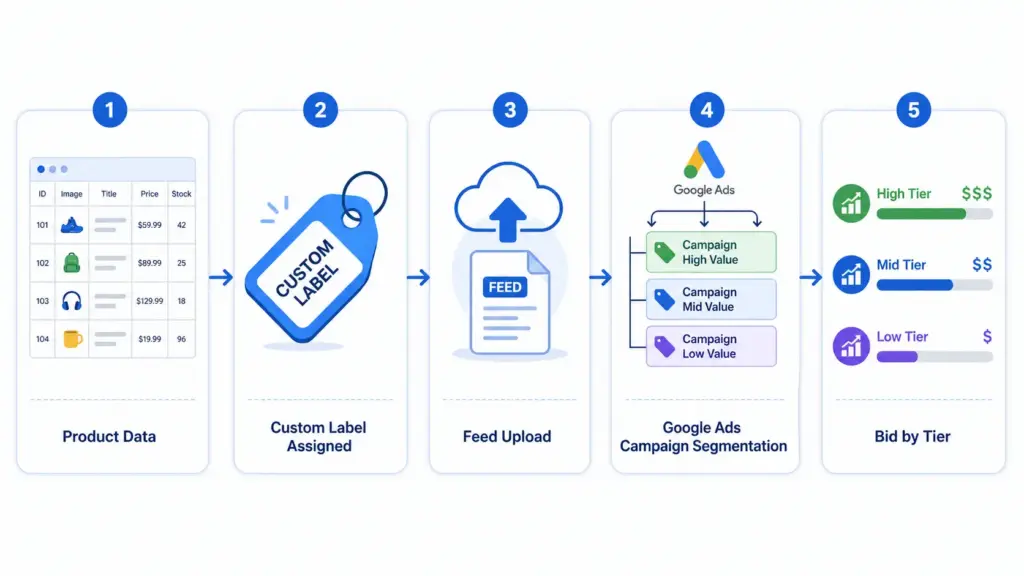
    Custom labels (custom_label_0 through custom_label_4) are five optional attributes in your Google Shopping feed that you define yourself. Google does not use them for matching or relevance — they exist purely for your campaign segmentation inside Google Ads.

    Each label accepts a free-text value up to 100 characters. You assign values in your product feed, then use those values to create product groups inside your Shopping campaigns and set different bids per group. Learn how labels fit into the broader feed structure in the Google Shopping Feed Guide.

    The 5 Custom Labels and How to Use Each One

    LabelRecommended UseExample Values
    custom_label_0Margin tierhigh-margin, mid-margin, low-margin
    custom_label_1Seasonalityevergreen, summer-2026, clearance
    custom_label_2Performance buckettop-performer, new-product, slow-mover
    custom_label_3Sale / promotion statuson-sale, full-price, bundle
    custom_label_4Stock levelin-stock, low-stock, backorder

    You do not need to use all five. Start with margin (custom_label_0) — it produces the highest ROI impact immediately because it stops you spending high bids on products where the margin does not support it.

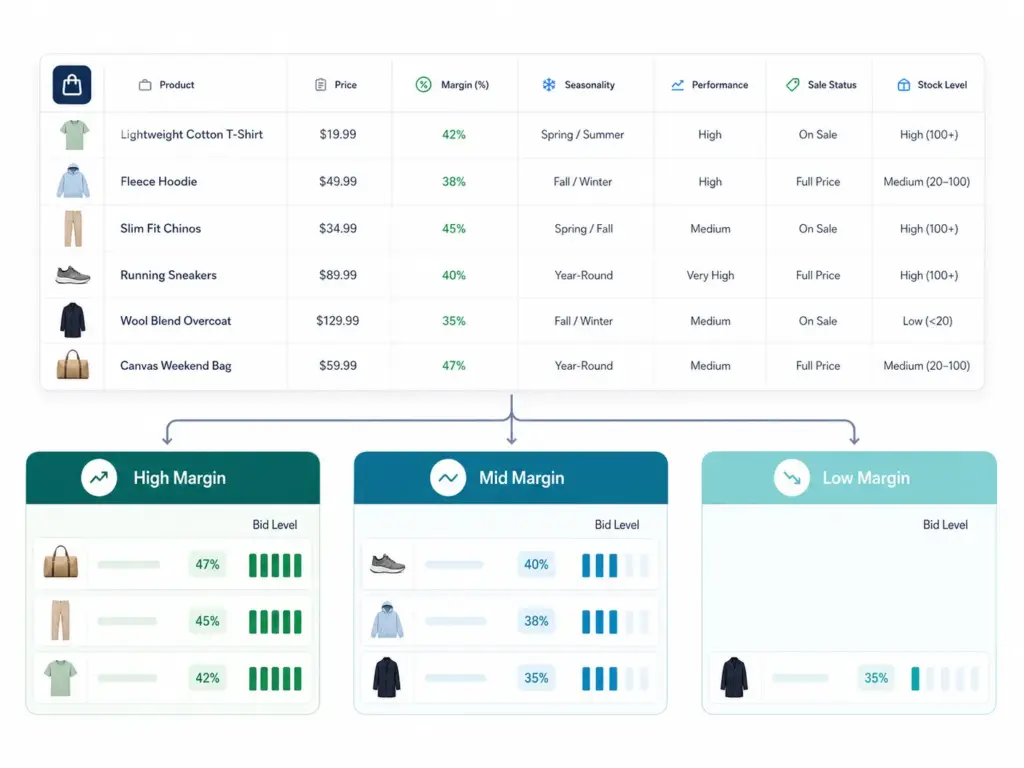
    Strategy 1: Bid Segmentation by Margin

    This is the most valuable custom label strategy for most ecommerce businesses. The idea is simple: assign every product a margin tier, then bid proportionally to that margin.

    How to implement it

    1. Calculate gross margin % for each SKU (or product group)
    2. Define three to four tiers: for example, high (>50%), mid (25–50%), low (<25%)
    3. Assign the appropriate custom_label_0 value in your feed for every product
    4. In Google Ads, create separate product groups for each margin tier
    5. Set target ROAS or manual CPC bids proportionally — high-margin products get 2–3× the bid of low-margin ones

    If you manage your feed through a PIM or feed tool, add a calculated column that assigns the label value based on a margin formula. This keeps labels current as costs change without manual intervention.

    Strategy 2: Seasonality Labels

    Seasonality labels let you ramp bids up on products entering peak demand and pull them back on products going off-season — without touching your campaign architecture.

    • evergreen — products with consistent year-round demand. Steady bids.
    • peak-season — products entering high-demand period. Increase bids 30–60%.
    • clearance — end-of-season or excess stock. Lower bids but keep running to clear inventory.
    • pre-launch — new products with no performance history. Conservative bids, monitor CTR closely.

    The key advantage: you update the feed label and the bid segmentation follows automatically. No manual bid changes product by product.

    Strategy 3: Performance Segmentation

    After 30 days of Shopping data, classify products by their actual performance and bid accordingly.

    • top-performer — ROAS above target, consistent conversions. Bid aggressively.
    • new-product — less than 30 days data. Moderate bid until you have enough signal.
    • slow-mover — impressions but no conversions after 30+ days. Investigate before committing budget.
    • suppress — products you want to exclude from Shopping entirely. Set bid to £0.01.

    Review and update performance labels monthly. A new-product that converts well should graduate to top-performer within 30–45 days.

    How to Add Custom Labels to Your Feed

    Option A: Directly in your product feed file

    Add columns named custom_label_0, custom_label_1 etc. to your feed spreadsheet or data source. Assign values per row. Upload the updated feed to Google Merchant Center.

    Option B: Using a supplemental feed

    If you cannot modify your primary feed directly, use a supplemental feed containing just the ID column and your custom label columns. Merchant Center merges supplemental data onto matching product IDs. This is useful when your primary feed is managed by a platform you do not control directly.

    Option C: Rules in Merchant Center

    Under Products → Feeds → Feed Rules in Google Merchant Center, you can set conditional rules that assign custom label values based on other attributes — for example, assigning "clearance" to all products with a sale_price more than 30% below regular price. No feed editing required.

    For apparel catalogs with multiple variants, reviewing how apparel-specific feed attributes interact with your labels is worthwhile before setting up segmentation.

    Common Custom Label Mistakes

    • Using custom labels for relevance signals — Google ignores label values for matching. They are campaign management tools only.
    • Inconsistent values — "High Margin", "high-margin", and "HIGH MARGIN" are three different values in Google Ads. Pick a format and stick to it.
    • Forgetting to update labels when conditions change — A clearance product that returns to full price still carries the clearance label and its low bid.
    • Setting up labels but not creating separate product groups — Labels do nothing if all products sit in the same "All Products" group with one bid.

    What to Do Next

    Start with one label. Margin is the highest-impact first label for most stores. Assign high / mid / low to every product, create three product groups, and set bids proportionally. Run for 30 days and compare ROAS by tier.

    Before setting up labels, run your feed through the GTIN Validator to confirm your product identifiers are clean — label segmentation on a feed with GTIN errors will still underperform at any bid level.

    For teams managing large catalogs across multiple channels, maintaining custom label logic inside a PIM means labels update automatically when product data changes rather than requiring manual feed edits every time margins or seasons shift. Try the Google Shopping Feed Generator or explore the LynkPIM free plan to manage this at scale.

    Frequently Asked Questions

    What are custom labels in Google Shopping?

    Custom labels (custom_label_0 through custom_label_4) are five optional feed attributes you define yourself. Google uses them purely for campaign segmentation in Google Ads — not for product matching or relevance. Each accepts a free-text value up to 100 characters.

    How many custom labels can you use in Google Shopping?

    You can use up to five custom labels per product. You do not need to use all five — start with one, typically margin tier (custom_label_0), and expand once that segmentation is delivering clear ROAS differences between groups.

    Do custom labels affect Google Shopping relevance or matching?

    No. Custom labels are invisible to Google's matching algorithm. Relevance is determined by your title, description, and google_product_category. Labels exist solely for you to create separate bid groups — they have zero influence on which queries your products appear for.

    What is the best first custom label to set up?

    Margin tier (custom_label_0) produces the fastest ROI impact for most stores. Assign high, mid, and low values to every product, create three product groups in Google Ads, and set bids proportionally. Run for 30 days and compare ROAS by tier before adding further labels.

    Can I add custom labels without editing my main product feed?

    Yes. Use a supplemental feed containing just the product ID and custom label columns, or set up Feed Rules in Google Merchant Center to assign label values conditionally based on existing attributes — for example, assigning "clearance" to all products where sale price is more than 30% below regular price. No primary feed editing required.

  • PIM vs Spreadsheets: When Excel Becomes a Liability (2026)

    Almost every growing product team starts in a spreadsheet.

    TL;DR: Then the catalog grows. More people touch it. More channels get added. More suppliers send files in their own format. Variants multiply. Launches get slower. And one day you realize the spreadsheet is

    Usually Excel. Sometimes Google Sheets. And at the beginning, that choice is completely reasonable. You have a manageable catalog, a small team, maybe one sales channel, and the spreadsheet feels fast, flexible, and familiar.

    Then the catalog grows. More people touch it. More channels get added. More suppliers send files in their own format. Variants multiply. Launches get slower. And one day you realize the spreadsheet is no longer helping you control product data — it is forcing your team to work around it.

    This is the real PIM vs spreadsheets conversation. Not the dramatic vendor version. The practical one.

    If you are new to PIM as a category, start with What Is PIM? The 2026 Guide for Ecommerce Brands & Retailers or the simpler PIM Basics hub first.

    TL;DR

    • Spreadsheets are fine for small, simple catalogs with limited contributors and one main channel.
    • They break down when variants, approvals, attribute consistency, and multichannel publishing start to matter.
    • The biggest spreadsheet cost is not the file itself. It is the repeated manual work, hidden errors, and lack of operational control.
    • A PIM does not just “store product data.” It gives you structure, validation, workflow, ownership, and controlled output.
    • You do not need a PIM on day one. But once your spreadsheet starts creating friction every week, it is usually already late in the decision cycle.

    Why spreadsheets feel right at first

    Because they are easy to start with.

    You can create columns quickly. Anyone on the team already knows the basic interface. You do not need implementation planning just to get products listed. For an early-stage catalog, spreadsheets are often the shortest path from “we need to organize this” to “we have something usable.”

    That is exactly why so many teams stay with them longer than they should. The early convenience hides the long-term operational cost.

    Even Google Sheets supports dropdowns and data validation, which can absolutely help teams behave more consistently for a while. But those controls are still light compared with category-level rules, approval states, inheritance logic, auditability, and governed channel output. Google’s own documentation shows how basic dropdown and validation controls work — useful, but still limited for scaled catalog operations.

    When spreadsheets stop being a tool and start being infrastructure

    This is the shift most teams miss.

    A spreadsheet is fine when it is just a working file. It becomes risky when it quietly turns into the system behind your catalog. That usually happens when the file is doing all of these jobs at once:

    • master product list
    • attribute store
    • supplier import file
    • launch tracker
    • channel export base
    • approval workflow substitute
    • data-quality checklist

    Once one file is trying to be all of that, you are no longer using a spreadsheet for convenience. You are depending on it as operational infrastructure.

    8 signs your product catalog has outgrown its spreadsheet

    1. You have more than one “master” file

    This is usually where the trouble becomes visible first. One file is “the latest version.” Another is the version for Amazon. Another is the “clean one.” Someone has a local backup “just in case.”

    If your team has to ask which file is current, you do not have a reliable operating model anymore. You have negotiation.

    That is why single source of truth matters so much in product operations.

    2. One product update means fixing the same fact in multiple places

    A size correction comes in from the supplier. Easy enough. Then someone updates the spreadsheet. Then Shopify. Then the marketplace file. Then a PDF sheet. Then maybe a feed export.

    The issue is not only time. It is that repeated manual work creates repeated opportunities for mismatch.

    3. Variant management is becoming a flat-row mess

    Variants are where spreadsheets start feeling especially unnatural. A product family with 5 colors and 6 sizes becomes 30 rows. Then you add separate barcodes, variant images, pack sizes, or localized copy and the structure becomes fragile very quickly.

    Flat rows are not impossible. They are just the wrong model for parent-child product relationships.

    For the structural side of this, go next to Product Data Modeling for PIM.

    4. Nothing stops anyone from editing anything

    This is where teams start relying on unwritten rules.

    “Don’t change the green columns.” “Ask before editing that tab.” “Only marketing should touch that field.” Those may sound harmless, but they are not actual controls. They are social agreements trying to do the job of system logic.

    Once more than a few people are involved, that becomes a governance problem, not just a spreadsheet problem.

    5. Your attribute values are full of near-duplicates

    This is one of the most common catalog-quality problems: Cotton, cotton, 100% Cotton, pure cotton, cotton fabric. Technically different values. Operationally the same thing. And that small inconsistency causes bigger downstream problems in filters, feeds, exports, and reporting.

    Controlled values are one of the first places where spreadsheet flexibility stops being an advantage and starts becoming a quality risk.

    6. Pre-launch cleanup has become a recurring ritual

    If every launch depends on somebody manually checking missing images, incomplete attributes, and formatting issues before products go live, that is not a healthy workflow. It is a workaround for missing validation.

    At that point, the team is doing quality control by memory and panic instead of by system design.

    7. New team members take too long to onboard

    When the logic of the catalog lives in tribal knowledge instead of in the system, onboarding becomes slow and risky. New people need the “real explanation” behind tabs, colors, exceptions, formulas, and naming conventions. And every time someone leaves, part of that operating knowledge leaves with them.

    8. Your catalog is growing, but launches are getting slower

    This is often the clearest sign of all. Growth should make your processes more disciplined, not more chaotic. If the catalog is bigger but every launch is taking longer than it did last year, the problem is usually not effort alone. It is that the underlying workflow no longer scales cleanly.

    The hidden costs of spreadsheet-based catalog management

    Most teams do not calculate these costs because they do not appear as a single line item. They show up in fragments.

    • repeated copy-paste work across channels
    • slow launches caused by manual review
    • listing errors that reach live channels
    • broken filters or inconsistent faceting
    • team time lost to clarifying which version is correct
    • supplier updates that require cleanup before they can be used
    • SEO and feed fields that drift because nobody owns them clearly

    This is the “spreadsheet tax.” It is real, even when it does not look dramatic in one single week.

    What a PIM changes in practice

    The biggest difference is not that a PIM stores your product data in a nicer interface. The real difference is that it gives the catalog rules.

    • one governed product record instead of multiple competing files
    • structured attributes instead of free-for-all entry
    • variant relationships that make sense
    • required-field checks before publishing
    • approval steps instead of accidental live edits
    • channel-specific output from one maintained record
    • change visibility and auditability

    If you are comparing categories, this is also where it helps to understand PIM vs MDM vs DAM vs PXM. Most teams stuck in spreadsheets do not need broader enterprise MDM first. They need better product-data operations first.

    Spreadsheet vs PIM at the operational level

    Capability Spreadsheet PIM
    Single source of truth Possible in theory, fragile in practice Designed for governed product truth
    Controlled attribute values Light validation only Structured values and stronger rule enforcement
    Variant relationships Usually flat rows Parent-child model with clearer inheritance
    Approval workflow Mostly manual and social Built into the operating process
    Completeness checks Manual review or formulas Category- and channel-aware validation
    Channel output Often separate files per destination One maintained record, multiple controlled outputs
    Auditability Limited Better change tracking and accountability
    Scaling with catalog growth Gets heavier and more fragile Better suited for structured scale

    The honest case for staying with spreadsheets

    Not every team should switch immediately.

    If you have a small catalog, one main channel, very few variants, and one or two people managing product data, a spreadsheet may still be the right tool. There is no prize for introducing more software before the need is real.

    In that case, the smarter move is to make your spreadsheet cleaner while you still can:

    • standardize column naming
    • use dropdowns where possible
    • define controlled values in a reference sheet
    • separate product families from variant-level data as clearly as you can
    • document required fields for each category
    • decide who owns which fields

    Those habits will still help you later, even if you eventually move to PIM.

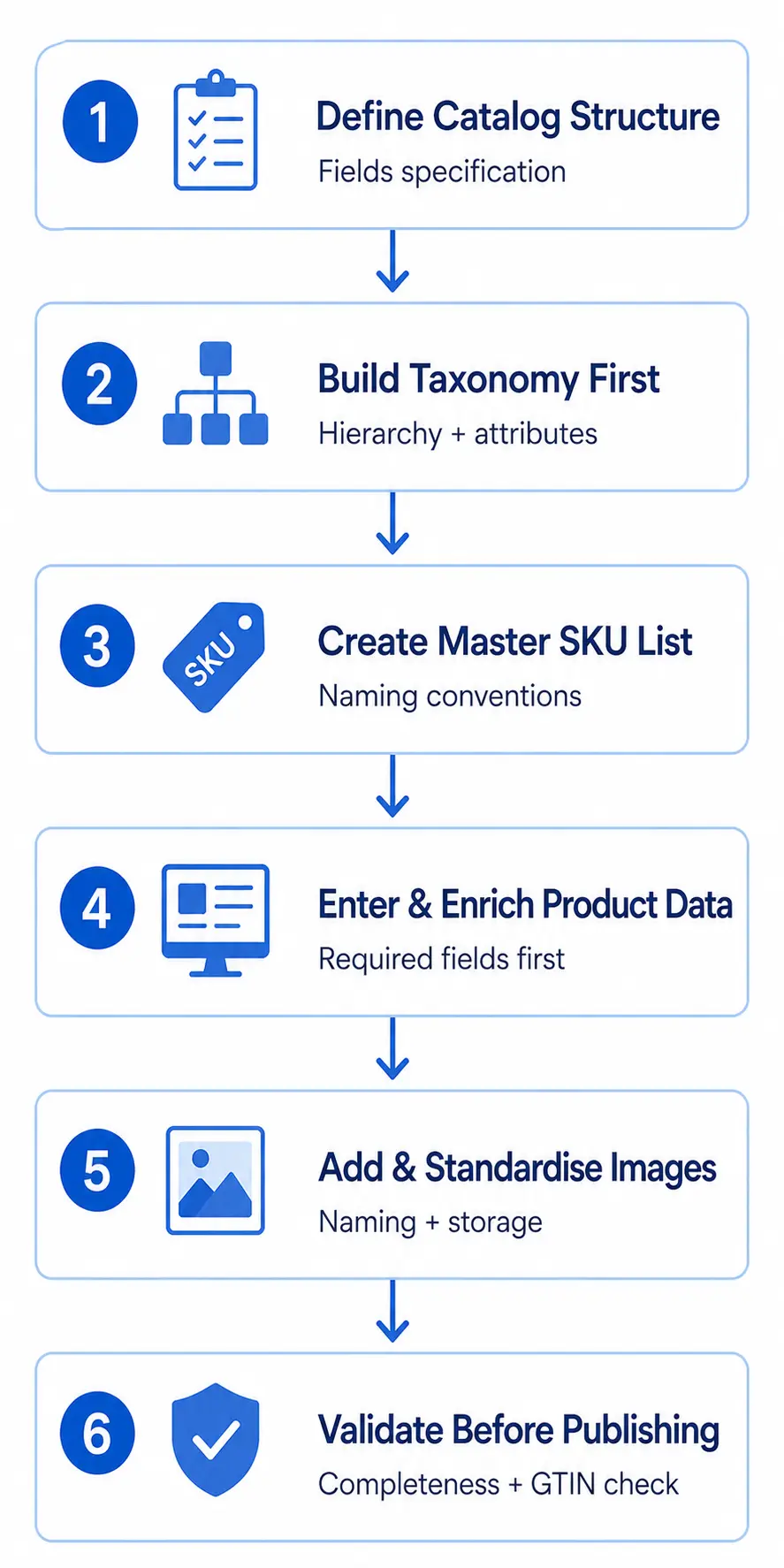
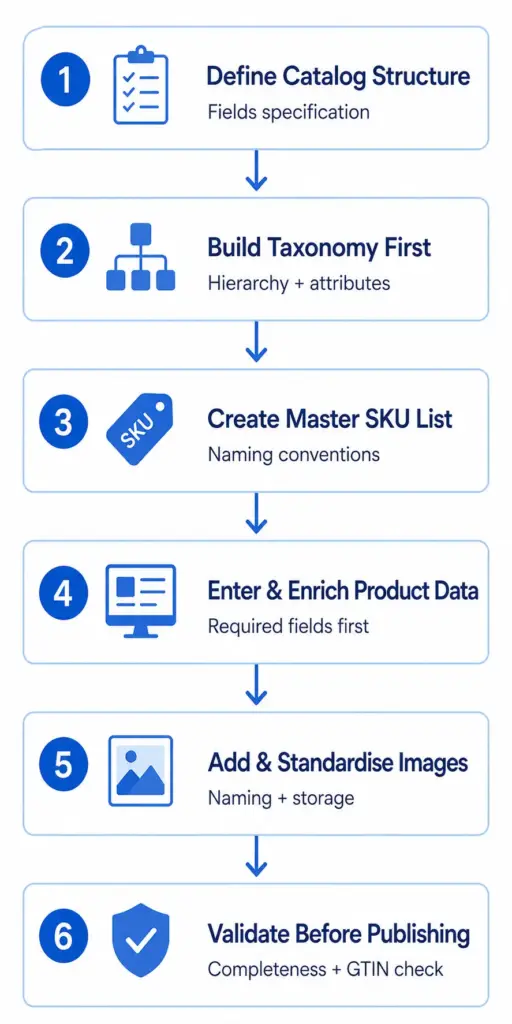
    How to move from spreadsheet chaos to a cleaner PIM transition

    The best migrations do not start with software screens. They start with structure.

    1. Decide what the master product record should contain.
    2. Clean up taxonomy and category naming.
    3. Define core attributes and required fields.
    4. Separate parent-level and variant-level data logically.
    5. Standardize identifiers like SKU, GTIN, MPN, and supplier references where applicable.
    6. Identify which fields differ by channel.
    7. Define who owns enrichment, approval, and publishing.

    For identifiers specifically, it helps to align with official guidance. GS1 defines GTIN as the global identifier for trade items, and Google Merchant Center explains how identifiers like GTIN, MPN, and brand help channels understand products correctly. See GS1’s GTIN overview and Google Merchant Center’s unique product identifier guidance.

    And for the structural side, this is the next best page: Product Data Modeling for PIM.

    Where LynkPIM fits

    LynkPIM is for the team that has already crossed the line where spreadsheets are no longer “simple.” It gives you a place to centralize product records, govern attributes, model categories and variants properly, enforce consistency, and publish out to channels with more control.

    The goal is not to make your workflow feel heavier. It is to remove the repeated manual work and hidden fragility that spreadsheets create once your operation becomes more complex.

    If your pain is more technical or B2B-specific, read PIM for B2B Ecommerce. If your pain is more foundational, go to PIM Glossary or PIM Basics.

    You can also send readers toward the practical next step with the PIM Readiness Assessment and Catalog Health Score.

    Final takeaway

    Spreadsheets are not the enemy. They are just easy to outgrow without noticing.

    The right question is not “Are spreadsheets bad?” The better question is “Are we now asking a spreadsheet to do the work of a governed product-data system?”

    If the answer is yes, the issue is no longer preference. It is operating risk. And that is usually the point where a PIM stops being a nice-to-have and starts becoming the cleaner way to run the catalog.

    FAQs

    Can’t I just keep using Google Sheets with add-ons?

    You can extend a spreadsheet further than most teams expect. But add-ons do not usually solve the deeper problems around governed workflows, variant structure, controlled publishing, and category-aware completeness.

    What’s the real difference between a spreadsheet and a PIM?

    A spreadsheet is a flexible file. A PIM is an operating system for product information. The key difference is not storage. It is control, structure, and repeatability.

    At what SKU count should I consider a PIM?

    There is no perfect number. Complexity matters more than count. A few hundred SKUs with variants, multiple channels, and multiple contributors can justify PIM earlier than a larger but simpler catalog.

    Will a PIM make the team less flexible?

    It usually removes the wrong kind of flexibility. You lose uncontrolled editing and inconsistent field entry, but you gain cleaner structure, faster publishing, and fewer repeated mistakes.

    What should I do before migrating from spreadsheets?

    Clean taxonomy, define attributes, standardize identifiers, separate parent and variant logic, and decide field ownership. Those steps make implementation much smoother.