How to Fix Disapproved Products in Google Merchant Center (2026 Guide)
A disapproved product in Google Merchant Center is completely invisible in Google Shopping — it does not appear in any auction, regardless of your bid. Every disapproval is lost revenue until it is fixed. This guide covers the most common disapproval reasons in 2026, how to diagnose them in Merchant Center Diagnostics, and how to fix each one.
Step 1: Find Your Disapprovals in Merchant Center Diagnostics
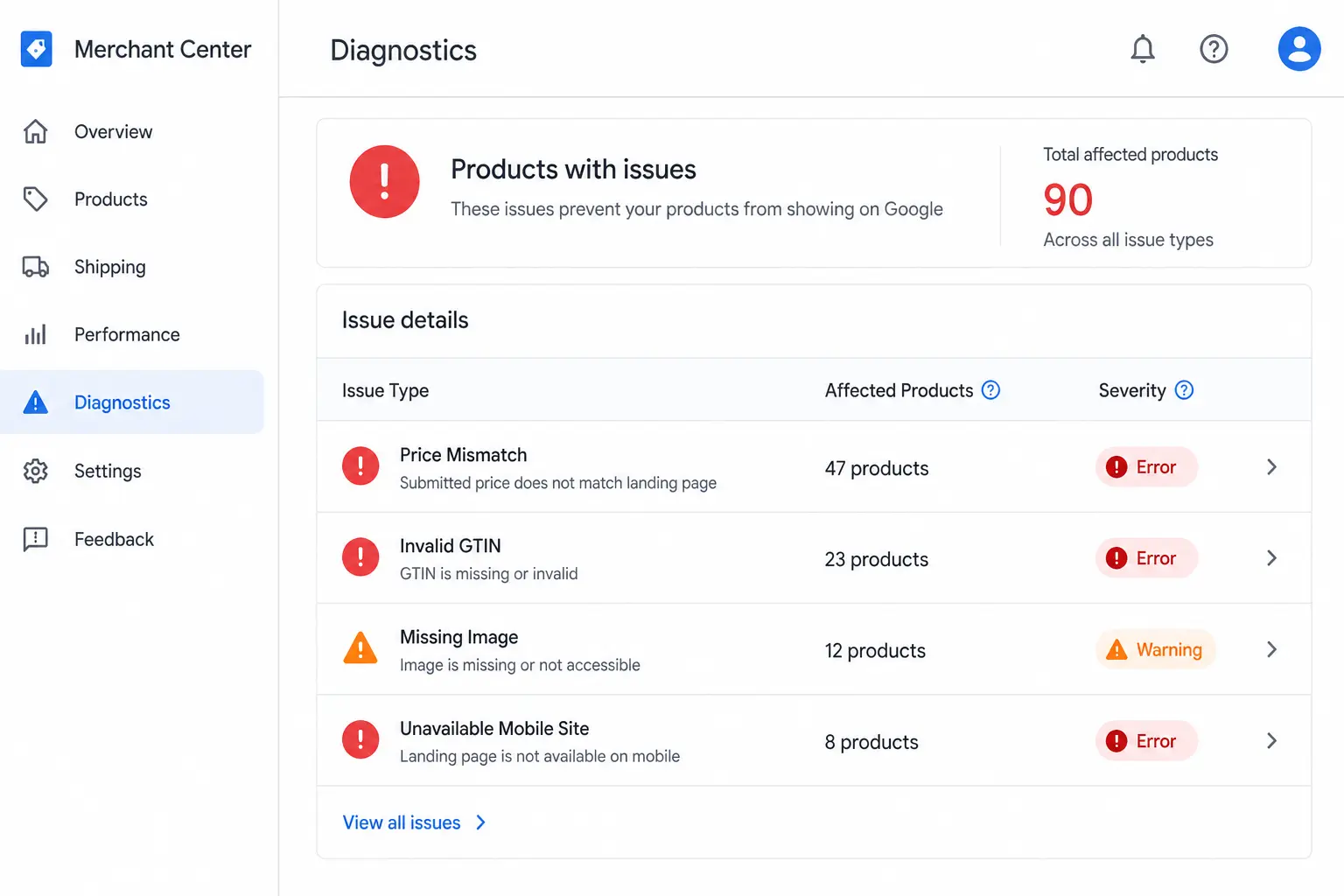
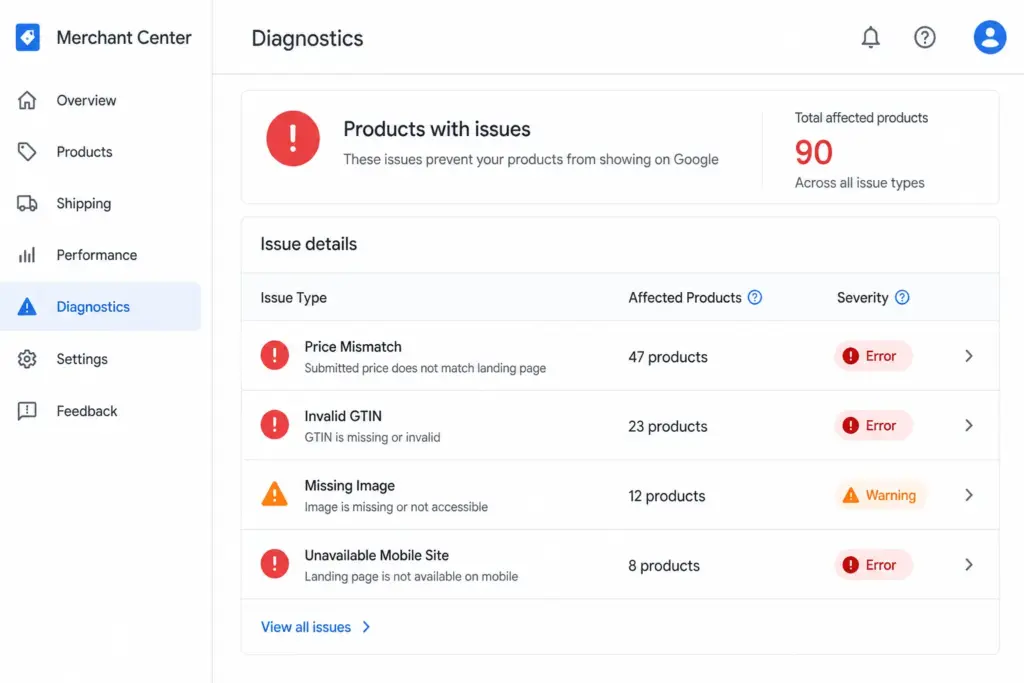
Every disapproval and warning in your Merchant Center account is visible in one place: Products → Diagnostics. This is your starting point for every feed fix. Do not attempt to diagnose issues from inside your feed file — always check Diagnostics first.
The Diagnostics tab shows:
- Every active issue grouped by type
- The number of products affected by each issue
- The severity — Error (disapproved) vs Warning (limited performance)
- A link to see exactly which products are affected
Fix errors first — these products are completely absent from Shopping. Warnings are second priority — these products appear but underperform. For a complete reference on feed attribute requirements before you fix, see the Google Shopping Feed Guide.
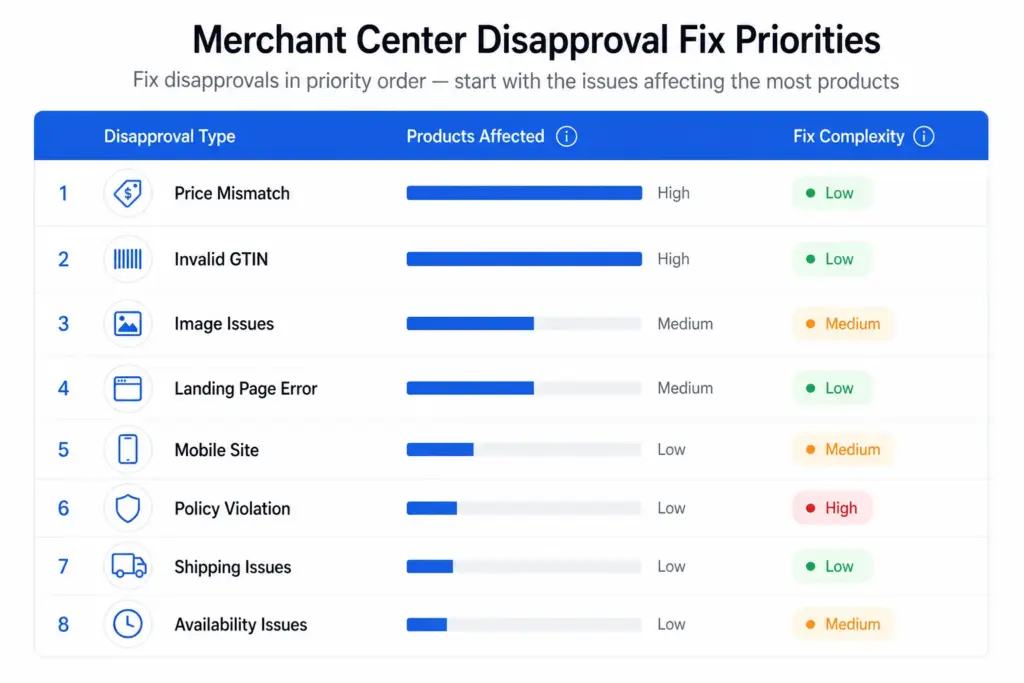
The 8 Most Common Disapproval Reasons and How to Fix Each
1. Price Mismatch
What it means: The price in your feed does not match the price on the product landing page. Google crawls your landing pages and compares them against your feed. Even a 1p discrepancy triggers a disapproval.
Common causes: Flash sales or promotions that updated the website price but not the feed. Manual feed updates that were delayed. Currency or tax display differences between feed and page.
Fix: Update your feed to match the current landing page price. Set your feed to fetch at least daily — twice daily during promotion periods. Use sale_price and sale_price_effective_date attributes for promotions rather than changing the price field.
2. Invalid or Missing GTIN
What it means: Your product has an invalid GTIN (wrong check digit, wrong length, test/placeholder value) or is missing a GTIN that should exist.
Fix: Validate all GTINs before submitting using the GTIN Validator. For custom or handmade products with no GTIN, set identifier_exists to FALSE — do not leave the GTIN field blank. Full GTIN requirements are covered in the GTIN compliance guide.
3. Image Not Meeting Requirements
What it means: Your product image is too small (below 100×100px for non-apparel, 250×250px for apparel), contains a watermark or promotional text, uses a placeholder image, or shows a white square instead of the product.
Fix: Replace with a clean product image — minimum 800×800px recommended. No overlays, no text, no borders. Image must show the actual product, not a lifestyle image for Shopping ads (lifestyle can be used as additional images via additional_image_link).
4. Landing Page Not Working
What it means: Google cannot crawl your landing page — it returns a 404, requires login, redirects to a different product, or loads incorrectly on mobile.
Fix: Verify the link URL in your feed returns a 200 status, loads correctly on mobile, and matches the specific product (not a category page or homepage). If the product has been deleted, remove it from your feed.
5. Unavailable Mobile Site
What it means: Google’s mobile crawler cannot access your landing page. Often caused by a separate mobile site (m.yoursite.com) returning errors, or a responsive site that breaks on mobile crawler user agent strings.
Fix: Test your landing page URLs using Google’s Mobile-Friendly Test. Ensure your server is not blocking Googlebot-Image or mobile crawler user agents. If you have a separate mobile domain, ensure it is live and returning 200s.
6. Mismatched Value (Price, Availability, Condition)
What it means: A feed attribute value does not match what Google finds on the landing page — most commonly availability (feed says “in stock”, page says “out of stock”) or condition (feed says “new”, page indicates “refurbished”).
Fix: Ensure availability updates in your feed match real-time stock status on your site. Set up automated feed updates triggered by stock changes rather than scheduled batch updates.
7. Prohibited or Restricted Content
What it means: Your product falls into a Google Shopping policy-restricted category — alcohol, pharmaceuticals, adult products, gambling products — without the required account-level policy compliance setup.
Fix: Review Google Merchant Center’s shopping policies for restricted verticals. Apply for restricted product programme access if eligible. Some categories are prohibited entirely and cannot be fixed.
8. Incorrect Tax or Shipping Setup
What it means: Your Merchant Center account does not have tax and shipping configured for the target country, or your shipping settings conflict with what is shown on the landing page.
Fix: Go to Merchant Center → Settings → Shipping and Tax. Configure shipping settings for every country you are targeting. Ensure stated delivery times match what is shown at checkout on your site.
How to Prevent Disapprovals Recurring
- Daily feed updates minimum — price and availability changes must propagate to your feed within 24 hours
- Validate GTINs before submission — run every GTIN through the GTIN Validator before uploading a new feed
- Set up Merchant Center email alerts — Merchant Center can email you when feed processing errors occur. Turn this on under Settings → Notifications
- Monitor Diagnostics weekly — new disapprovals can appear when Google re-crawls your landing pages and finds discrepancies
- Use sale_price for promotions — never change your regular
pricefield for a promotion. Usesale_price+sale_price_effective_dateso the price reverts automatically
For teams managing large catalogs where feed errors appear regularly, the root cause is almost always data quality at the source — inconsistent pricing, stale stock status, or GTIN errors that need fixing in your product data before they reach the feed. The Feed Generator and LynkPIM free plan help you manage feed quality upstream before issues reach Merchant Center.
Frequently Asked Questions
How long does it take for Google to approve products after fixing a disapproval?
Data-related disapprovals (price mismatch, missing attributes) are typically resolved within 24–48 hours of submitting the corrected feed. Policy-related disapprovals that require a manual review request typically take 1–3 business days after submitting the review request in Merchant Center Diagnostics.
What is the difference between a disapproved product and a product with limited performance?
A disapproved product is not shown in Google Shopping at all — it has been rejected and will not appear in any auction. A product with limited performance is shown but with reduced visibility and auction eligibility, typically due to missing recommended attributes like GTIN or brand. Fix disapprovals first — they represent complete loss of visibility.
What is the most common reason products are disapproved in Merchant Center?
Price mismatch — where the price in the feed does not match the price on the landing page — is the most common data-related disapproval cause for most ecommerce stores. Invalid or missing GTINs are the second most common. Both are entirely preventable with daily feed updates and GTIN validation before submission.
Can I request a review after fixing a policy disapproval?
Yes. After fixing the issue that caused a policy disapproval, go to Products > Diagnostics in Merchant Center and use the Request Review button for the relevant issue. Google will review your account and products within 1–3 business days. Do not request review before fixing the underlying issue — repeated reviews without resolution can escalate the restriction.
Leave a Reply