Blog

  • Product Taxonomy for Home Goods and Furniture: The Complete Guide

    Product Taxonomy for Home Goods and Furniture: The Complete Guide

    Product Taxonomy for Home Goods and Furniture: The Complete Guide

    Home goods and furniture present a taxonomy challenge that is distinct from fashion or electronics. Products are large, physical, and often customisable. Customers search by room, by style, by material, and by dimension — sometimes all at once. A sofa is not just a sofa: it is a 3-seater, right-hand-facing, grey velvet, Scandi-style corner sofa with a specific width that must fit through a standard doorframe.

    This guide covers how to build a home goods taxonomy that handles all of those dimensions without becoming unmanageable.

    Room-Based vs Type-Based Hierarchy: Which to Choose

    The first decision in home goods taxonomy is whether to organise by room or by product type at the top level. Both approaches appear in the market. Both have genuine pros and cons.

    Room-Based (Living Room, Bedroom, Kitchen)Type-Based (Sofas, Beds, Tables)
    Customer navigationIntuitive for browsing by project (“doing up my bedroom”)Intuitive for specific product search (“I need a sofa”)
    Cross-room productsProblem — a side table works in bedroom AND living roomNo problem — side tables are just side tables
    Google Shopping mappingDifficult — Google organises by type, not roomEasy — maps directly to Google taxonomy
    SEORoom keywords have high volume but low commercial intentType + material + size keywords have high commercial intent
    VerdictWorks for editorial/inspiration contentBetter for ecommerce catalog and feed performance

    The recommended approach: use type-based categories as your primary taxonomy structure and add room as a filterable attribute on each product. This gives customers both navigation paths without creating structural problems for products that belong in multiple rooms. For a full comparison of hierarchy approaches, see Flat vs Hierarchical Taxonomy.

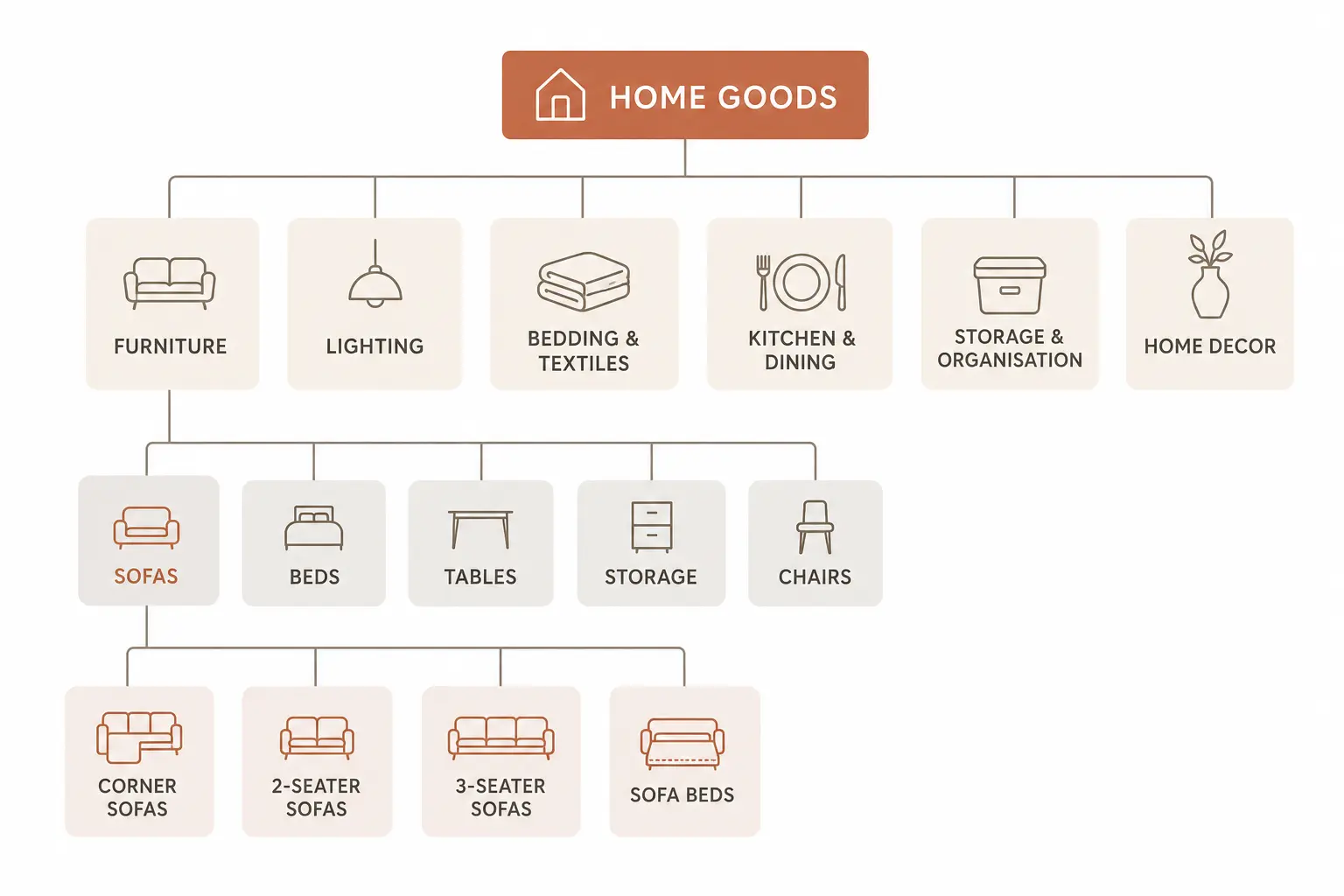
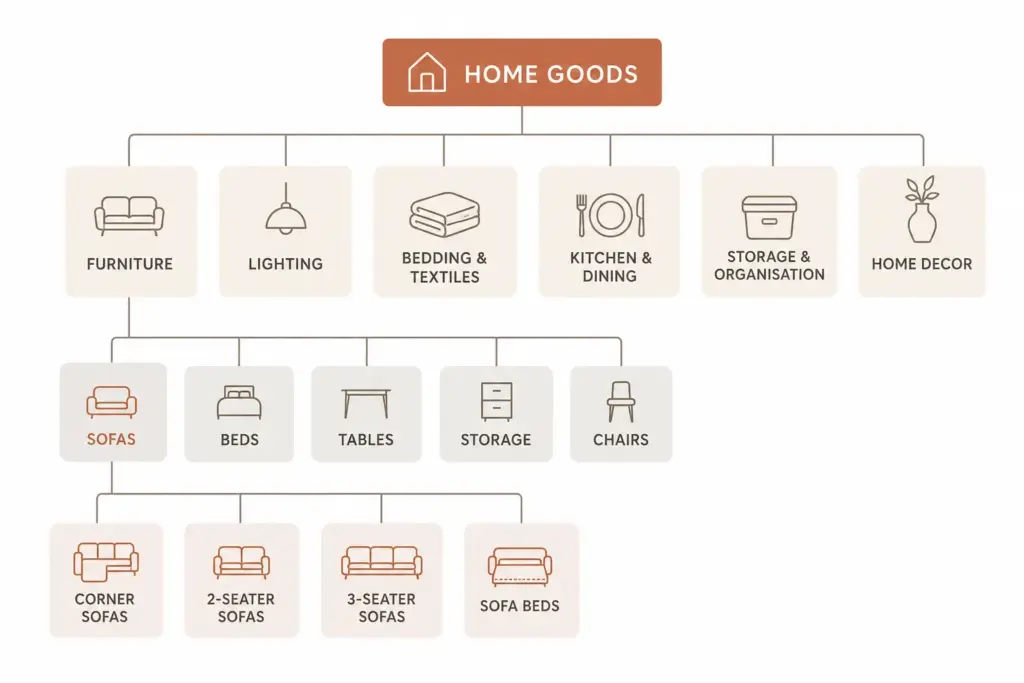
    Recommended Top-Level Structure for Home Goods

    Level 1Level 2 ExamplesLevel 3 Examples
    FurnitureSofas, Beds, Tables, Storage, Chairs, WardrobesCorner Sofas, 2-Seater Sofas, Sofa Beds
    LightingCeiling Lights, Floor Lamps, Table Lamps, Wall LightsPendant Lights, Chandeliers, Spotlights
    Bedding & TextilesDuvet Sets, Pillowcases, Throws, Curtains, RugsKing Duvet Sets, Blackout Curtains
    Kitchen & DiningCookware, Tableware, Kitchen Storage, AppliancesNon-stick Pans, Dinner Sets, Knife Blocks
    Storage & OrganisationShelving, Boxes & Baskets, Hooks, Drawer OrganisersFloating Shelves, Wicker Storage Baskets
    Home DecorMirrors, Vases, Picture Frames, Candles, ArtworkWall Mirrors, Full-Length Mirrors
    OutdoorGarden Furniture, Outdoor Lighting, Planters, BBQsGarden Dining Sets, Garden Sofas

    Attribute Sets for Home Goods

    Furniture (Sofas, Tables, Chairs, Beds)

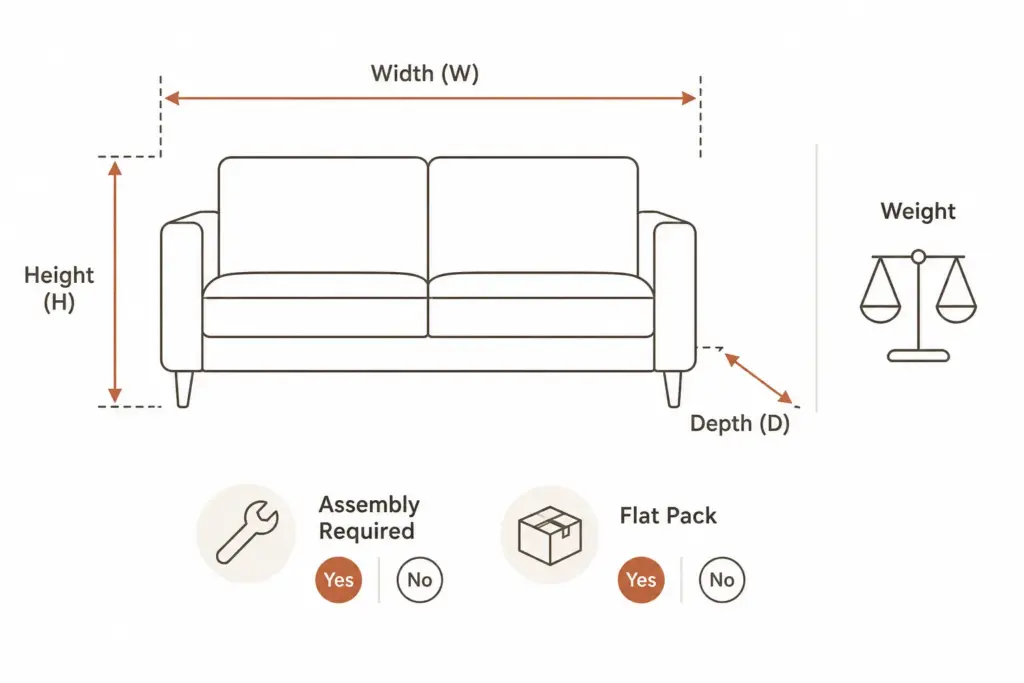
    • Required: Brand, Colour, Material (primary), Dimensions (W × H × D in cm), Weight (kg), Assembly required (yes/no)
    • Recommended: Frame material, Leg material, Interior style, Room (Living Room / Bedroom / etc.), Maximum load (kg), Flat pack (yes/no), Number of seats (sofas/chairs)
    • Google category: Furniture → [specific type] e.g. Furniture > Sofas & Sectionals

    Lighting

    • Required: Brand, Colour/Finish, Fitting type (E27, B22, GU10 etc.), IP rating (for outdoor/bathroom), Material
    • Recommended: Bulb included (yes/no), Bulb type, Max wattage, Dimmable (yes/no), Height (cm), Shade diameter (cm), Interior style
    • Google category: Furniture > Lamps & Lighting > [specific type]

    Bedding & Textiles

    • Required: Brand, Colour, Size (Single / Double / King / Super King), Material composition, Care instructions
    • Recommended: Thread count (sheets), Tog rating (duvets), Pattern, Weave type, Hypoallergenic (yes/no)
    • Google category: Home & Garden > Linens & Bedding > [specific type]

    Dimension Attributes — Non-Negotiable for Furniture

    Dimension data is the most common missing attribute in home goods feeds, and it is the attribute customers are most likely to abandon without when making a buying decision. Furniture customers need to know if a sofa fits their space before they buy. A sofa listing without dimensions loses that sale before it begins.

    • Width, Height, Depth: In centimetres. Required for all furniture and large home goods.
    • Seat height: For chairs and sofas — critical for accessibility and ergonomics.
    • Weight: In kilograms. Important for customer planning and delivery expectations.
    • Assembly required: Yes / No — customers plan their time around this.
    • Flat pack: Yes / No — relevant for customers with size-restricted access (e.g. lifts, narrow staircases).

    Material Management in Home Goods

    Material naming in home goods has the same problem as colour naming in fashion. Marketing names (“Smoked Oak”, “Brushed Concrete Effect”, “Warm Walnut”) are meaningful to buyers but problematic for site filters and Google Shopping.

    Use a two-field approach: store the marketing material name for product copy and an additional normalised material value for filtering and feed submission:

    • Smoked Oak → Oak
    • Brushed Concrete Effect → Concrete / MDF
    • Warm Walnut Veneer → Walnut
    • Hammered Antique Brass → Brass

    Without normalised material values, your filter “Shop by Material” becomes unusable — customers cannot find all oak products because they appear under fifteen different marketing material names.

    Style as a Filterable Attribute

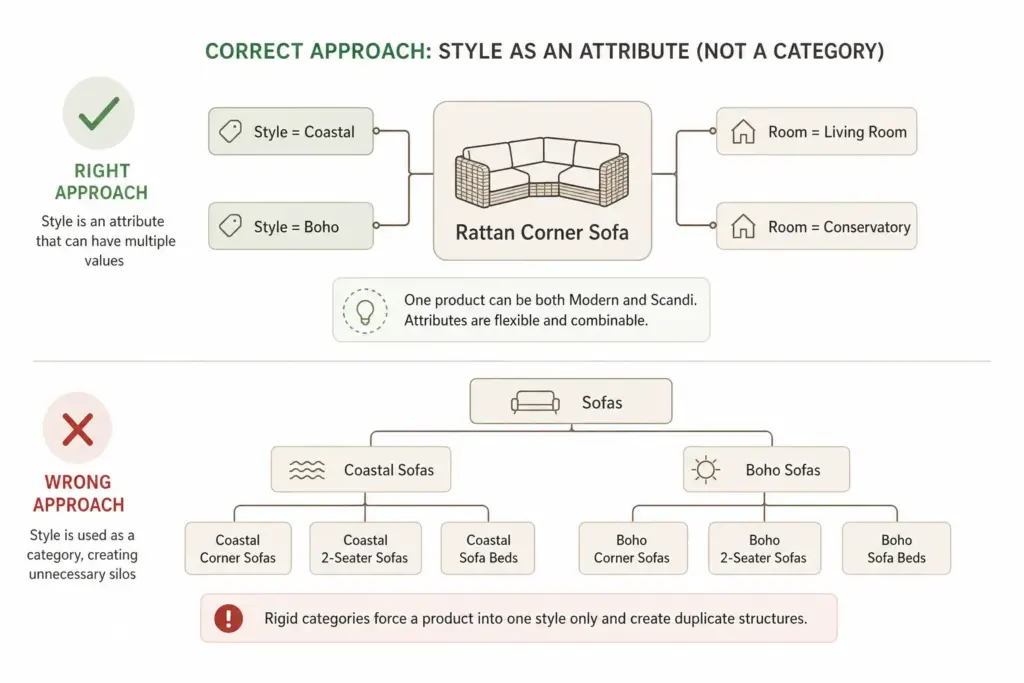
    Interior style — Modern, Scandinavian, Industrial, Traditional, Coastal, Maximalist — is a genuine purchase driver for home goods customers. But style should be a filterable attribute, not a category. Here is why:

    • A product can have multiple applicable styles — a rattan sofa is both Coastal and Boho
    • Style trends change — “Cottagecore” did not exist as a search term five years ago; you cannot build permanent category structure on trends
    • Style categories create structural debt — “Industrial Living Room Furniture” and “Scandinavian Living Room Furniture” as subcategories double your category maintenance without adding navigational value

    Assign style values as multi-value attributes and surface them as filters. A product can carry two or three style tags and appear in all relevant filter results without duplicating the product record.

    Google Product Category Mapping for Home Goods

    ProductCorrect Google Category
    3-seater sofaFurniture > Sofas & Sectionals
    King size bed frameFurniture > Beds & Bed Frames
    Pendant ceiling lightFurniture > Lamps & Lighting > Ceiling Lights & Fans
    King duvet setHome & Garden > Linens & Bedding > Duvet Covers
    Non-stick frying panKitchen & Dining > Cookware > Frying Pans & Skillets
    Floating shelfFurniture > Shelving > Wall Shelves & Ledges

    Once your home goods taxonomy is structured, managing dimension attributes and material values at scale benefits significantly from a PIM that enforces attribute completeness before products are published. Take the PIM Readiness Score to identify your current gaps, or download the free Taxonomy Template — including the Home Goods & Furniture tab — at lynkpim.app.

    For a broader framework applicable across all industries before diving into home-specific requirements, see How to Build a Product Taxonomy From Scratch.

    Frequently Asked Questions

    Should a home goods taxonomy be room-based or product-type-based?

    Product-type-based is recommended for the primary taxonomy structure. Room should be a filterable attribute on each product, not a top-level category. This avoids the structural problem of cross-room products and maps far more cleanly to Google’s product taxonomy — which organises by type, not by room.

    What dimension attributes are required for furniture?

    Width, Height, and Depth in centimetres are required for all furniture and large home goods. Additionally include Weight (kg), Assembly Required (yes/no), and Flat Pack (yes/no). Seat height is strongly recommended for chairs and sofas as it is a key purchase decision factor.

    How should interior style be handled in a home goods taxonomy?

    Style should be a multi-value filterable attribute, not a permanent category. One product can carry multiple style tags — Coastal and Boho, for example — and appear in all relevant filter results without duplicating the product record. Creating style-named categories creates structural debt that becomes difficult to manage when interior trends shift.

    What Google product category should I use for sofas?

    Use the leaf-node: Furniture > Sofas & Sectionals. Avoid parent categories like “Furniture” alone. The more specific your Google product category, the better your Shopping feed relevance and the more accurately Google matches your products to buyer queries.

    How should material be managed in a home goods taxonomy?

    Use a two-field approach: marketing material name (Smoked Oak, Warm Walnut Veneer) for customer-facing copy, and a normalised material value (Oak, Walnut) for feed attributes and site filters. Without normalised values, your “Shop by Material” filter becomes a list of marketing names rather than a useful browsing tool.

  • Supplemental Feeds in Google Merchant Center: What They Are and When to Use Them

    Supplemental Feeds in Google Merchant Center: What They Are and When to Use Them

    Supplemental Feeds in Google Merchant Center: What They Are and When to Use Them

    Most Google Shopping guides focus on primary feeds — the main data source that contains all your product information. Supplemental feeds are less discussed but solve a very specific and common problem: what do you do when you need to add or change attributes in your feed without being able to modify your primary data source?

    This guide covers exactly what supplemental feeds are, the most valuable use cases, and how to set one up correctly.

    What Is a Supplemental Feed?

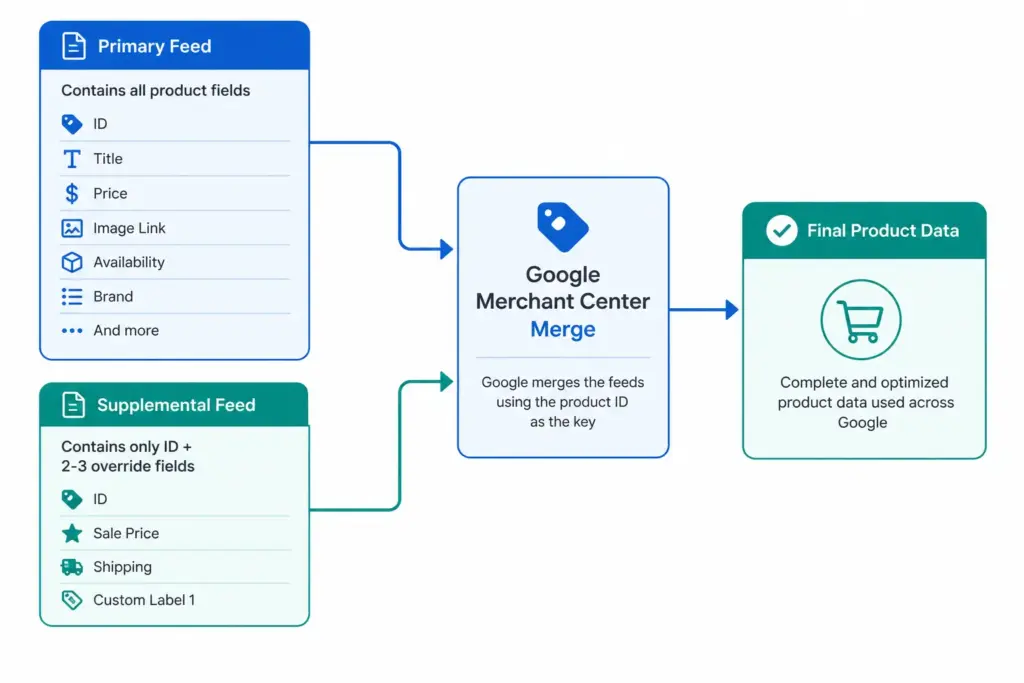
    A supplemental feed is a secondary data source in Google Merchant Center that adds or overrides specific product attributes on top of an existing primary feed. It does not replace the primary feed — it merges with it, using the product ID as the matching key.

    You can have multiple supplemental feeds attached to one primary feed. Each supplemental feed only needs to contain the product ID column and the specific attributes you want to add or change.

    For foundational context on how primary feeds work, the Google Shopping Feed Guide covers the complete attribute set before you layer supplemental data on top.

    Primary Feed vs Supplemental Feed — Key Differences

    Primary FeedSupplemental Feed
    ContainsAll required product attributesOnly attributes being added or overridden
    Required?Yes — at least one requiredNo — optional
    Can stand alone?YesNo — must link to a primary feed
    Update frequencyDaily minimum for price/availabilityDepends on use case
    Override behaviourBase dataOverwrites primary feed value for the same attribute
    Multiple allowed?Yes (one per target country/language)Yes — multiple supplemental feeds per primary

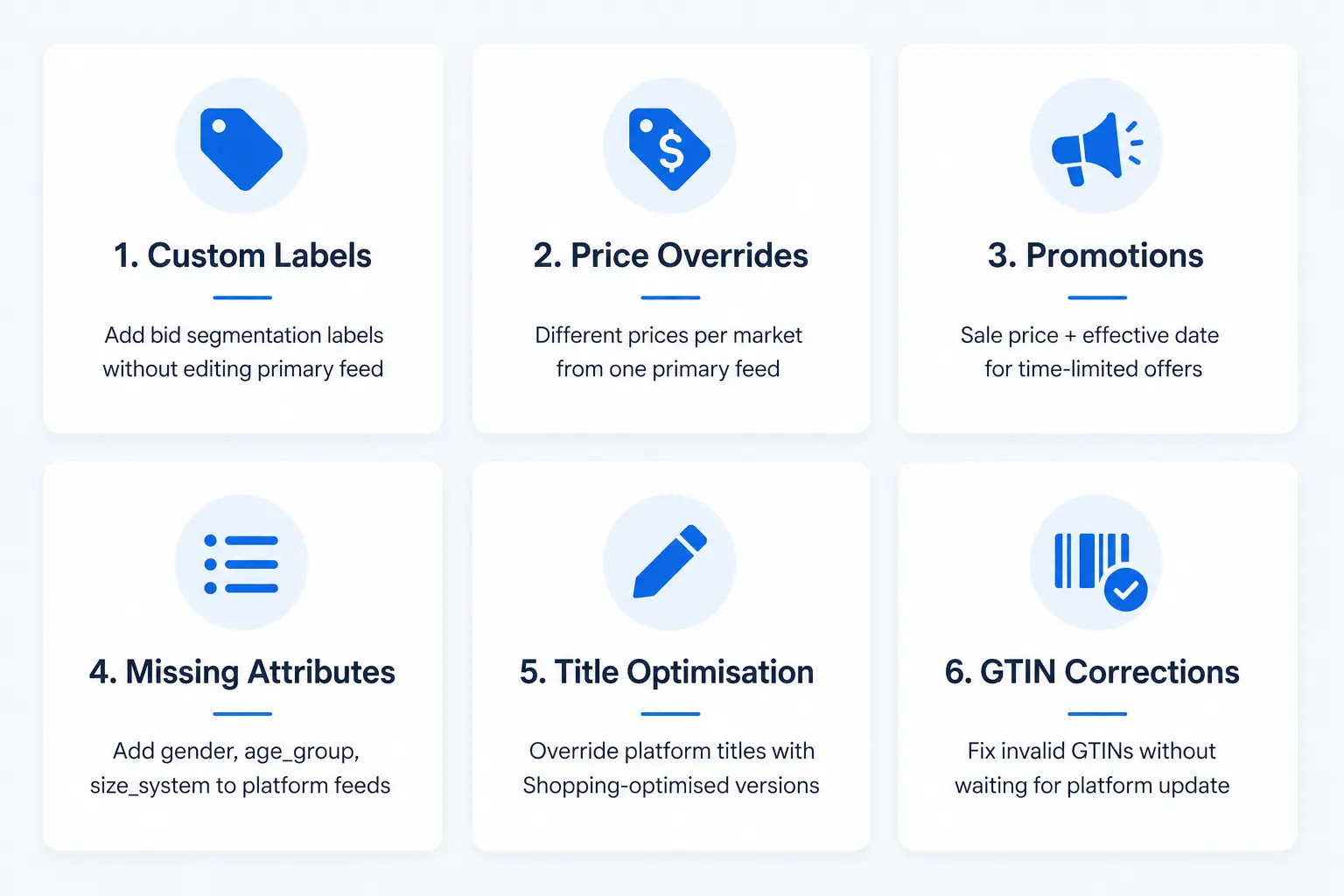
    The 6 Most Valuable Supplemental Feed Use Cases

    1. Adding Custom Labels Without Editing Your Primary Feed

    This is the most common supplemental feed use case. You want to add custom_label_0 through custom_label_4 values for bid segmentation, but your primary feed is generated by your ecommerce platform and you cannot add columns to it.

    Solution: Create a supplemental feed in Google Sheets with two columns — id and custom_label_0. Assign label values per product. Merchant Center merges the labels onto matching product IDs from your primary feed. No primary feed changes required. For the full custom labels strategy, see the Custom Labels guide.

    2. Price Overrides for Specific Markets

    If you run the same primary feed across multiple target countries but need different prices per market, a supplemental feed per market containing id and price allows you to override prices without duplicating your entire primary feed.

    3. Promotion and Sale Price Management

    When you run a time-limited promotion, rather than modifying your primary feed, create a supplemental feed containing id, sale_price, and sale_price_effective_date. Upload it for the promotion period and remove or update it when the promotion ends. Cleaner than modifying your primary feed and easier to manage as a scheduled operation.

    4. Adding Missing Attributes to Platform-Generated Feeds

    Ecommerce platforms like Shopify and WooCommerce generate basic Shopping feeds, but often omit attributes like age_group, gender, size_system, or product_type. A supplemental feed lets you add these without switching your primary feed source or installing additional plugins.

    5. Title and Description Optimisation

    If your primary feed generates product titles from your ecommerce platform’s product names (which are written for website display, not Shopping), a supplemental feed can override the title field with Shopping-optimised versions — without changing your website product names.

    6. Correcting GTIN Issues on Specific Products

    If a subset of your products has invalid or missing GTINs in your primary feed, you can supply correct GTIN values via supplemental feed while you fix the underlying data issue in your PIM or platform. First validate your GTINs with the GTIN Validator to confirm which ones need correcting.

    How to Set Up a Supplemental Feed in Merchant Center

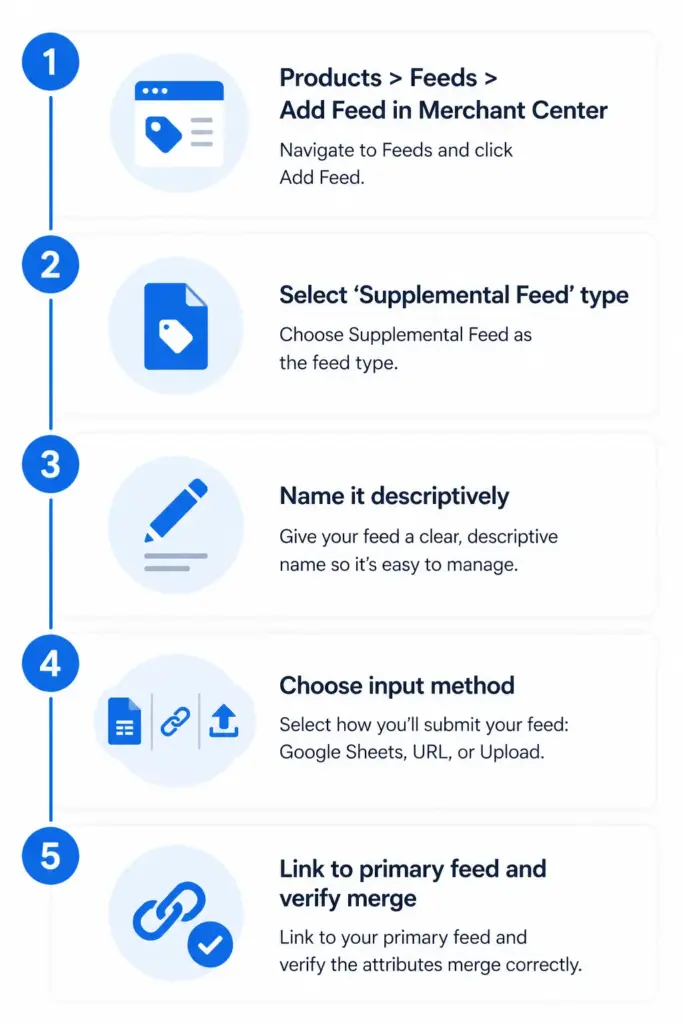
    1. In Google Merchant Center, go to Products → Feeds → + (Add Feed)
    2. Select Supplemental feed as the feed type
    3. Give it a descriptive name — e.g. “Custom Labels — Margin Tier” or “Promotion Sale Prices May 2026”
    4. Choose input method: Google Sheets (easiest for manual management), scheduled fetch from a URL, or file upload
    5. Select which primary feed this supplemental feed applies to
    6. Build your feed file — include only id column plus the attributes you are adding or overriding
    7. Submit and verify — check individual product pages in Merchant Center to confirm supplemental attributes are applied

    Supplemental Feed Rules and Limitations

    • Supplemental feeds cannot add products — only modify or supplement existing products from the primary feed
    • If a supplemental feed supplies the same attribute as the primary feed, the supplemental value wins
    • There is no limit on the number of supplemental feeds per primary feed, but keep them organised with clear naming conventions
    • Supplemental feeds must use the same product IDs as the primary feed — mismatched IDs result in no merge
    • Google Sheets supplemental feeds update when you edit the sheet — useful for quick manual changes during promotions

    For stores managing supplemental feed logic across multiple channels and markets, keeping these overrides centralised in a PIM rather than scattered across multiple Merchant Center supplemental feed files is significantly easier to maintain. See how the PIM to Google Shopping integration handles this at scale, or try the Feed Generator to build and manage your feeds from one place.

    Frequently Asked Questions

    Can a supplemental feed add new products to Google Shopping?

    No. Supplemental feeds can only modify or add attributes to products that already exist in your primary feed. New products must first be included in the primary feed before a supplemental feed can reference them.

    What happens if supplemental and primary feeds supply the same attribute?

    The supplemental feed value overwrites the primary feed value for that attribute on all matching products. This is the intended behaviour — it is how supplemental feeds override titles, prices, or other fields you cannot change in your primary source.

    How many supplemental feeds can I have in Merchant Center?

    There is no published hard limit. In practice, keep supplemental feeds organised with descriptive names — “Custom Labels March 2026”, “Sale Prices Bank Holiday” — and consolidate overlapping feeds where possible. Multiple supplemental feeds affecting the same products in contradictory ways can be difficult to troubleshoot.

    Can I use a Google Sheet as a supplemental feed?

    Yes. Google Sheets is one of the supported input methods for supplemental feeds in Merchant Center. It is the easiest option for manually managed data like custom labels or promotion prices — edits to the sheet reflect in the feed without requiring any file export or upload step.

    What is the minimum a supplemental feed needs to contain?

    At minimum the id column (matching product IDs from your primary feed) plus at least one additional attribute you are adding or overriding. A file with only IDs and no additional attributes will merge successfully but have no visible effect on your product data.

  • PIM to Google Shopping: How to Connect Your Product Data

    PIM to Google Shopping: How to Connect Your Product Data

    PIM to Google Shopping: How to Connect Your Product Data

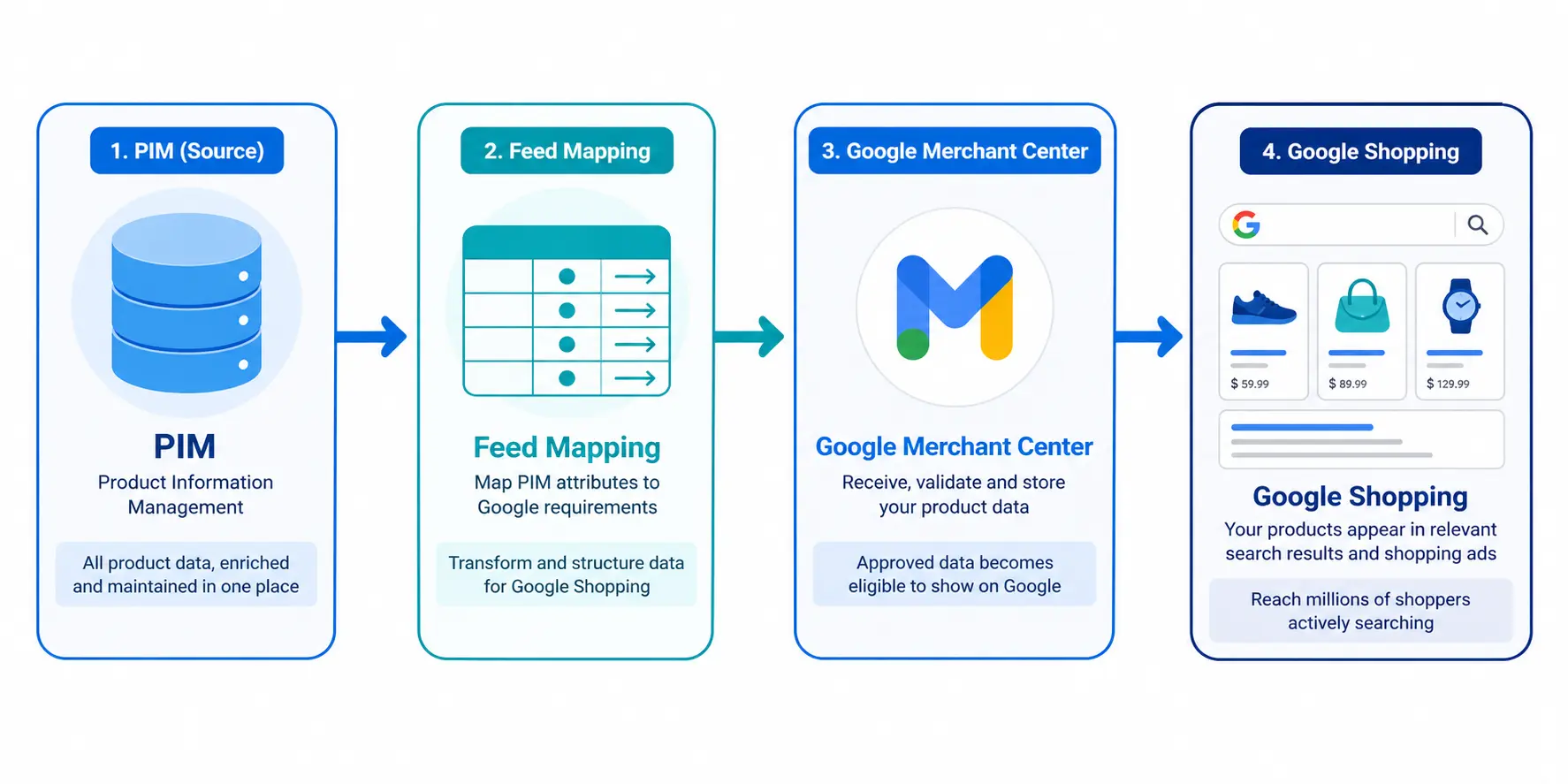
    Managing product data in a PIM and managing a Google Shopping feed are often treated as two separate problems. They are not. Your PIM is the source of truth. Google Shopping is a channel that consumes that truth. The connection between them determines whether your Shopping feed performs or constantly breaks.

    This guide covers how to build that connection correctly — from attribute mapping to feed delivery to ongoing automation.

    Why PIM-to-Shopping Connections Break

    Most PIM-to-Shopping problems come from one of three sources:

    • Attribute mismatch: Your PIM stores data under different field names than Google expects. “Product Name” in your PIM needs to become a correctly structured “title” in the feed — not just passed through as-is.
    • Missing transformation logic: Google requires assembled values like a constructed title or formatted price. If your PIM passes raw values without transformation rules, the feed output is incomplete.
    • Stale feed delivery: Prices and stock change constantly. A feed that updates weekly generates price mismatch disapprovals every time your site runs a sale or a product goes out of stock.

    For a full reference on what Google Shopping feeds require before you start mapping, the Google Shopping Feed Guide covers every required and recommended attribute.

    Step 1: Build Your Attribute Mapping Document

    Before writing a single line of integration code or configuring any connector, build a mapping document. This is a simple table: left column is your PIM field name, right column is the Google Shopping attribute it maps to.

    PIM FieldGoogle Shopping AttributeTransformation Required?
    Product ID / SKUidNo — pass through directly
    Product NametitleYes — assemble from Brand + Attributes + Type
    Long DescriptiondescriptionOptional — strip HTML tags
    Product URLlinkNo — pass through directly
    Primary Image URLimage_linkNo — ensure 800×800px minimum
    Retail PricepriceFormat as 29.99 GBP
    Sale Pricesale_priceInclude sale_price_effective_date
    Stock StatusavailabilityMap: In Stock → in stock, Out of Stock → out of stock
    EAN / BarcodegtinValidate format before passing
    ManufacturerbrandNo — pass through directly
    Google Category IDgoogle_product_categoryMust be leaf-node ID, not text string
    ColourcolorNormalise to human-readable value
    SizesizeAdd size_system attribute separately
    Parent SKUitem_group_idApply to all variants of same style

    Step 2: Set Up Title Construction in Your PIM

    The product title is the single most impactful attribute in a Google Shopping feed. A PIM-to-Shopping integration that just passes your PIM product name to Google as a title is almost always wrong — PIM product names are written for internal use, not for search query matching.

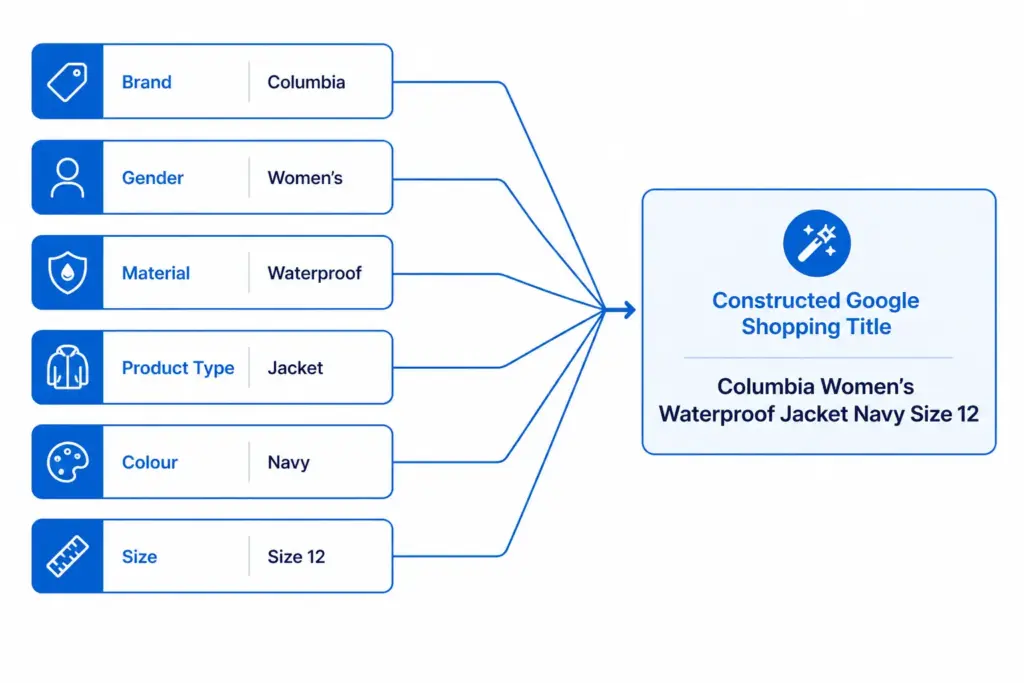
    Define a title construction formula in your PIM and generate the Shopping title programmatically from individual attribute fields:

    Formula: Brand + Gender + Material + Product Type + Colour + Size

    Store this as a channel-specific field in your PIM — a generated “Google Shopping Title” field that is separate from your internal product name and your website title. This allows you to optimise each independently.

    Step 3: Handle Channel-Specific Content

    One of the core advantages of a PIM over a spreadsheet is channel-specific content management. Your Google Shopping description, title, and certain attributes should differ from your website content and your Amazon content.

    • Google Shopping title: Optimised for search query matching — include all key attributes
    • Website title: Optimised for readability and brand tone — may be shorter or styled differently
    • Amazon title: Follows Amazon’s own title requirements — different format again
    • Description: Google Shopping descriptions are indexed but rarely shown. Focus on keyword density. Website descriptions should read naturally for humans.

    Without channel-specific fields in your PIM, teams either use the same content everywhere (suboptimal) or maintain separate spreadsheets per channel (which defeats the purpose of having a PIM).

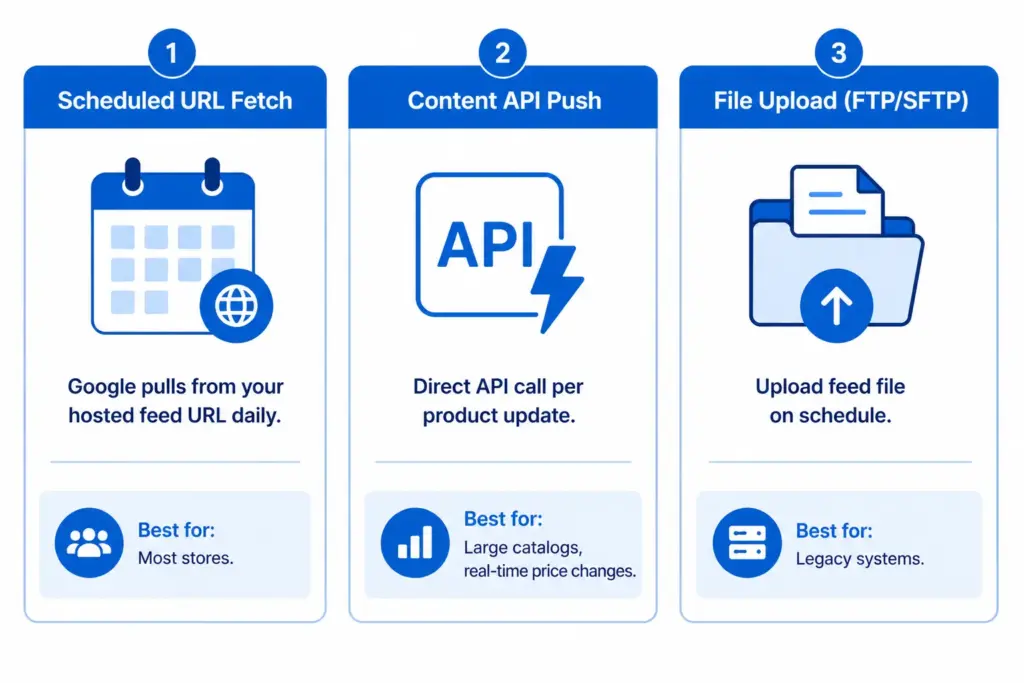
    Step 4: Choose Your Feed Delivery Method

    Option A: Scheduled URL Fetch (recommended for most stores)

    Your PIM generates a feed file (XML or TSV) at a hosted URL. You register this URL in Google Merchant Center and set a fetch schedule — Google pulls a fresh copy at your specified frequency. Daily is the minimum; twice daily is better for stores with frequent price or stock changes.

    Option B: Google Content API

    Your PIM pushes product data directly to Google via the Content API, updating individual products as they change rather than uploading the full catalog on a schedule. This is the right approach for catalogs over 50,000 SKUs or stores with real-time price changes that cannot wait for a daily feed cycle.

    Option C: Manual or FTP file upload

    Export a feed file from your PIM and upload it to Merchant Center on a schedule via FTP/SFTP. Slower and more manual than option A, but workable for smaller catalogs with infrequent changes. Not recommended if your prices or stock change daily.

    The Google Shopping Feed Generator handles feed file generation and delivery setup without custom development. For supplemental feed use cases — like adding custom labels without modifying your primary feed — see the Supplemental Feeds guide.

    Step 5: Set Up Feed Refresh Frequency

    Feed freshness is one of the most common causes of Shopping disapprovals for stores that have otherwise clean feeds. Google requires that your feed reflects current prices and availability. When your site runs a flash sale or a product goes out of stock, your feed must update to match.

    • Price and availability: Update at minimum daily. Twice daily for stores with frequent promotions.
    • Product content (titles, descriptions, images): Weekly updates are sufficient — these rarely change.
    • New products: Submit immediately on launch via supplemental feed or Content API, rather than waiting for the next full feed cycle.

    Step 6: Validate and Monitor

    After your first feed submission, go directly to Merchant Center Diagnostics. It shows exactly which products are disapproved, which have warnings, and what attribute is causing each issue. Work through disapprovals first — these products are not appearing in Shopping at all. Then address warnings — these products appear but with limited performance.

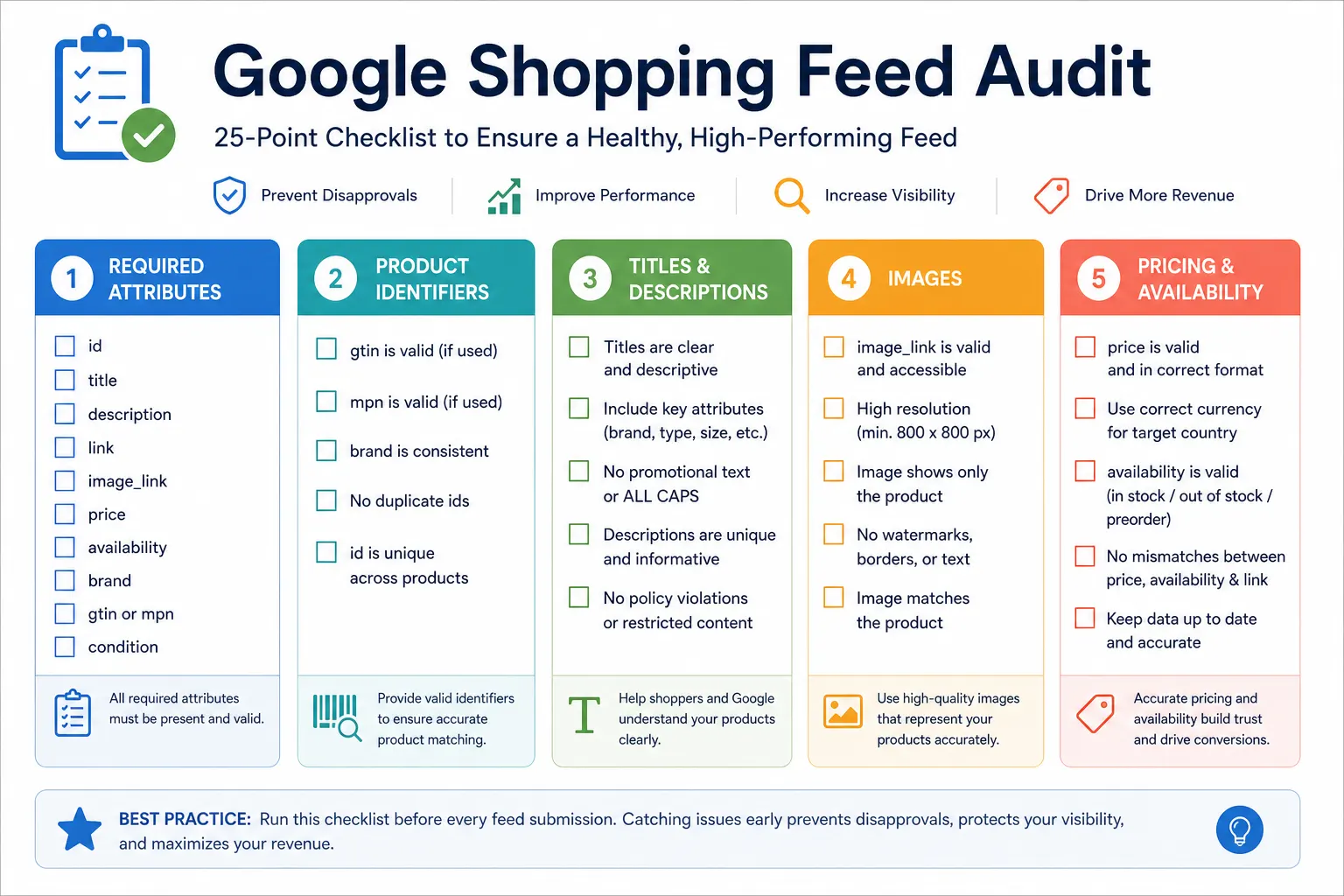
    Run GTINs through the GTIN Validator before submission — invalid GTINs are the most common single cause of mass disapprovals on first feed submissions.

    Set up email alerts in Merchant Center for feed processing errors so you are notified when a feed fetch fails rather than discovering it a week later when performance drops.

    Ready to streamline your PIM-to-Shopping workflow? Check where your current product data setup stands with the PIM Readiness Score — free, 5 minutes. Or start building and exporting feeds directly with the Feed Generator tool.

    Frequently Asked Questions

    Can I connect any PIM to Google Shopping?

    Yes. Any PIM that can export a structured data file (XML, TSV, CSV) or call an API can be connected to Google Shopping. The key requirement is that your PIM can map its internal field names to Google’s required feed attributes and apply transformation rules where needed — particularly for title construction and value normalisation.

    How often should my Google Shopping feed update?

    At minimum daily for price and availability fields. Stores with frequent promotions or high-velocity stock changes should update twice daily. Product content fields like titles, descriptions, and images can update weekly — these change infrequently enough that daily updates add overhead without benefit.

    What is the difference between a primary feed and a supplemental feed?

    A primary feed contains all core product data. A supplemental feed adds or overrides specific attributes on top of the primary feed without replacing it. Supplemental feeds are useful for adding custom labels, overriding prices for specific markets, or adding attributes you cannot modify in your primary data source. Full details in the Supplemental Feeds guide.

    Do I need a developer to connect my PIM to Google Shopping?

    Not necessarily. If your PIM has a built-in Google Shopping connector or can export a correctly formatted feed file, no development is required. The LynkPIM Feed Generator handles feed generation and hosted delivery without custom development — no coding required.

    What happens if my PIM product titles are not optimised for Google Shopping?

    Unoptimised titles reduce Shopping relevance — your products appear in fewer auctions and at lower positions than competitors with complete titles. Google matches your title against search queries, so a title like “Men’s Jacket” loses every specific query to a competitor with “Columbia Waterproof Rain Jacket Men Navy Size L”. Title optimisation is the single highest-impact feed improvement for most stores.

  • Google Shopping vs Facebook Catalogue: Which Is Right for Your Store?

    Google Shopping vs Facebook Catalogue: Which Is Right for Your Store?

    Google Shopping vs Facebook Catalogue: Which Is Right for Your Store?

    Google Shopping and Facebook Catalogue both use product feeds to serve ads automatically at scale. That similarity leads many ecommerce teams to treat them as interchangeable. They are not. They serve fundamentally different buyer intent levels, require different product data, and deliver different results depending on what your store sells and where your buyers are in the purchase journey.

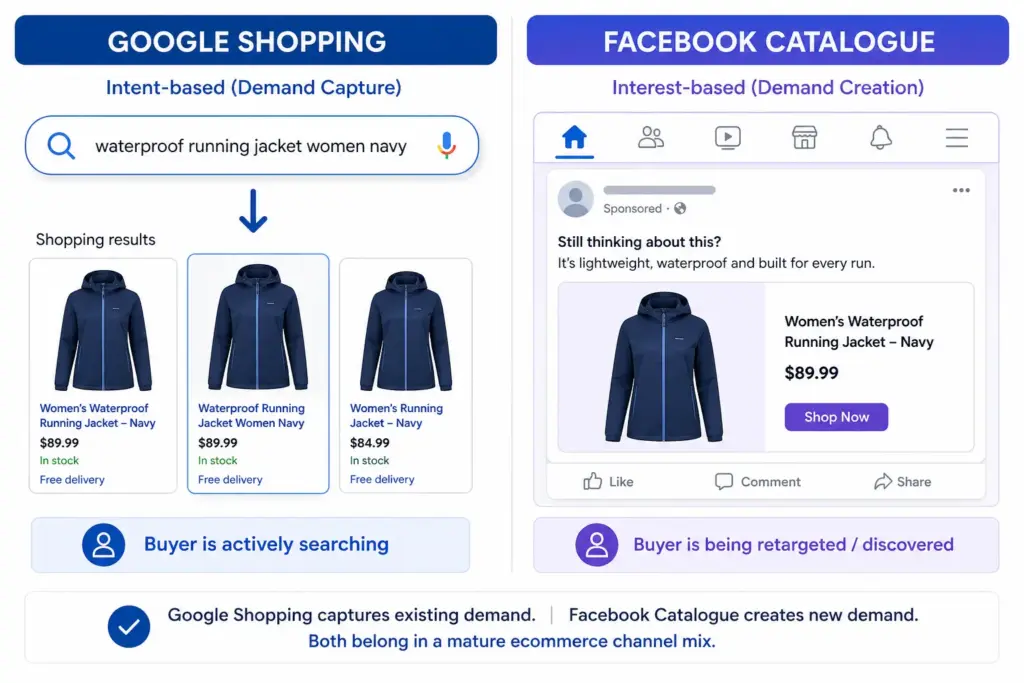
    The Core Difference: Intent vs Interest

    The most important distinction between these two channels is the buyer’s state of mind when they see your product.

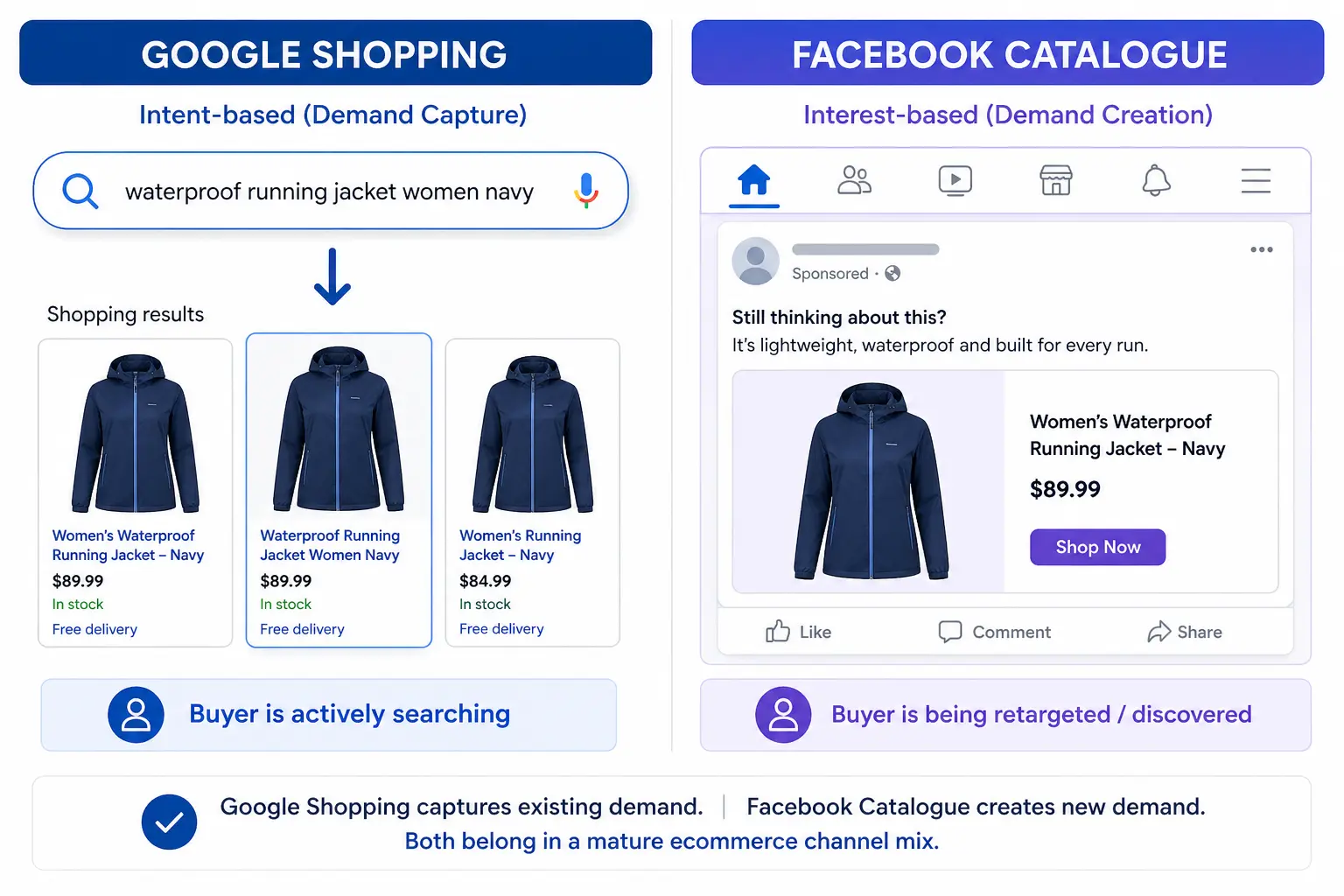
    • Google Shopping: The buyer has typed a search query. They are actively looking for a product. Your ad appears because your product data matched their search. This is high-intent, lower-funnel — the buyer already knows what they want.
    • Facebook Catalogue: The buyer has not searched for anything. Meta is showing your product based on their interests, demographics, or because they previously visited your site (retargeting). This is interest-based or behavioural, higher-funnel — you are reaching people who might want your product.

    This distinction drives everything else — the ROAS you can expect, the product data that matters most, the creative requirements, and which products perform best on each channel.

    Head-to-Head Comparison

    Google ShoppingFacebook Catalogue
    Buyer intentHigh — actively searchingLow to medium — browsing or retargeted
    Funnel stageLower funnel (consideration / purchase)Upper to mid funnel (awareness / retargeting)
    TargetingKeyword/query matchingAudience-based (interests, demographics, retargeting)
    Feed formatTSV/XML → Google Merchant CenterCSV/TSV/XML → Meta Business Manager
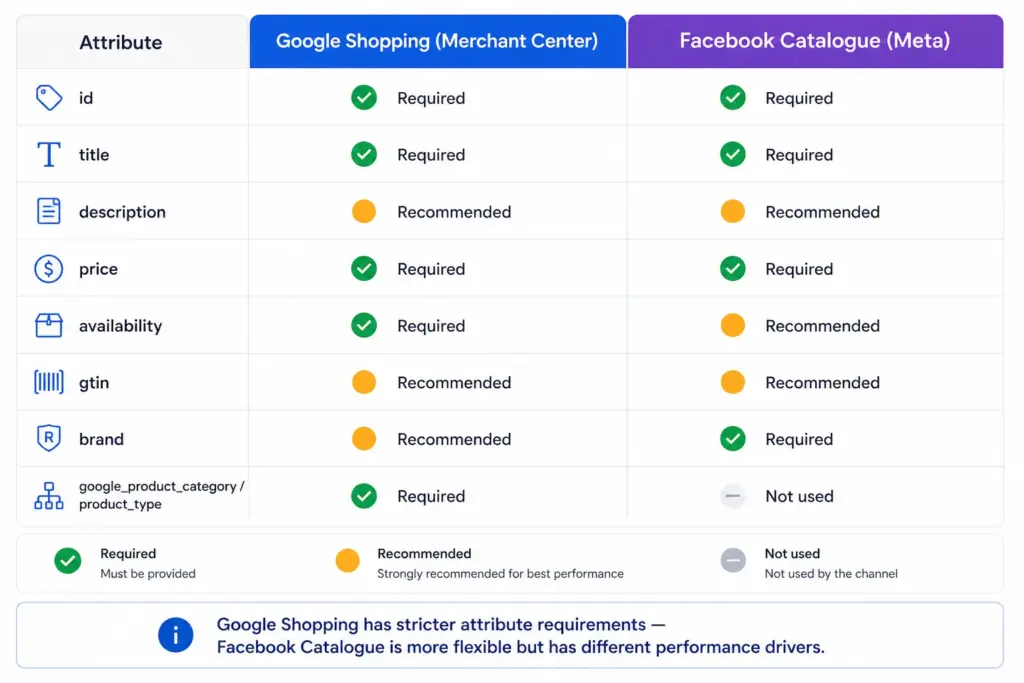
    Required attributesStrict — GTIN, brand, google_product_category, imageFlexible — id, title, description, link, image_link, price, availability
    GTIN required?Yes (for branded products)Recommended but not required
    Title importanceCritical — matched against search queriesHigh — shown in ad unit but not query-matched
    Image requirementsWhite background preferred, 800×800px minLifestyle images perform well, 600×600px min
    Typical ROASHigher for branded/specific searchesHigher for retargeting, lower for prospecting
    Best forProducts with active search demandVisually appealing products, retargeting, new audience discovery

    Feed Requirements: What’s Different

    Google Shopping feed (Merchant Center)

    Google has strict required attribute rules. Missing or incorrect attributes result in product disapprovals. The most important attributes for performance are title (matched against search queries), google_product_category (determines auction relevance), gtin (required for branded products), and image_link (white background, 800×800px minimum). Full requirements in the Google Shopping Feed Guide.

    Facebook Catalogue feed (Meta Business Manager)

    Facebook’s minimum requirements are simpler: id, title, description, availability, condition, price, link, image_link. Field names differ from Google — Facebook uses availability values of “in stock” / “out of stock” (no underscore, unlike Google’s in_stock).

    For Facebook Catalogue, the description field and image_link are the highest-impact attributes for ad performance. Facebook shows these prominently in Dynamic Product Ads — unlike Google where the description is rarely displayed to the buyer.

    Which Products Perform Better on Each Channel

    Google Shopping works best for:

    • Products with clear, searchable names — “Nike Air Max 270”, “stainless steel French press 1 litre”
    • Products solving a specific problem — “waterproof hiking boots women wide fit”
    • High-consideration purchases where buyers research before buying
    • Branded products where buyers are searching for the brand specifically

    Facebook Catalogue works best for:

    • Visually appealing products where the image sells the product — clothing, home decor, jewellery, food
    • Retargeting — showing products to visitors who viewed but did not buy
    • New product discovery for audiences who match your buyer profile
    • Lower consideration purchases with strong impulse appeal
    • Products that don’t have high search volume but have strong visual appeal

    Should You Use Both?

    Yes, for most ecommerce stores. Google Shopping and Facebook Catalogue are complementary — they cover different parts of the buyer journey. Google captures buyers who are already searching. Facebook reaches buyers before they start searching, and retargets those who didn’t convert from Google.

    The practical challenge is maintaining two separate feed formats from one product data source. Managing Google and Facebook feeds from a single PIM means your titles, descriptions, images, and pricing are consistent across both channels without duplicate maintenance effort. The Multi-Channel Feed Optimizer handles both feed formats from one place, as does the LynkPIM free plan.

    Frequently Asked Questions

    What is the main difference between Google Shopping and Facebook Catalogue?

    Google Shopping shows products to people actively searching for them — high intent, lower funnel. Facebook Catalogue shows products to people based on interests, behaviour, and retargeting — interest-based, higher funnel. Both use product feeds but serve different stages of the buyer journey.

    Do Google Shopping and Facebook Catalogue use the same product feed?

    No. They use different feed formats with different required attributes and different field names. Google Shopping uses TSV or XML submitted to Google Merchant Center. Facebook Catalogue uses CSV, TSV, or XML submitted to Meta Business Manager. Managing both from a single source of truth prevents inconsistencies.

    Which is better for ecommerce — Google Shopping or Facebook Catalogue?

    Both serve different purposes and most successful ecommerce stores use both. Google Shopping captures existing demand — buyers already searching. Facebook Catalogue creates demand — reaching buyers who fit your target profile but haven’t started searching yet. If you can only run one, Google Shopping typically delivers higher immediate ROAS because of the intent signal.

    Does Facebook Catalogue require GTINs?

    Facebook does not require GTINs for catalogue products but strongly recommends them. Products with GTINs benefit from Meta’s product matching capabilities which can improve Dynamic Ad performance. The gtin field is recommended but not mandatory — unlike Google Shopping where GTINs are required for branded products.

  • How to Fix Disapproved Products in Google Merchant Center (2026 Guide)

    How to Fix Disapproved Products in Google Merchant Center (2026 Guide)

    How to Fix Disapproved Products in Google Merchant Center (2026 Guide)

    A disapproved product in Google Merchant Center is completely invisible in Google Shopping — it does not appear in any auction, regardless of your bid. Every disapproval is lost revenue until it is fixed. This guide covers the most common disapproval reasons in 2026, how to diagnose them in Merchant Center Diagnostics, and how to fix each one.

    Step 1: Find Your Disapprovals in Merchant Center Diagnostics

    Every disapproval and warning in your Merchant Center account is visible in one place: Products → Diagnostics. This is your starting point for every feed fix. Do not attempt to diagnose issues from inside your feed file — always check Diagnostics first.

    The Diagnostics tab shows:

    • Every active issue grouped by type
    • The number of products affected by each issue
    • The severity — Error (disapproved) vs Warning (limited performance)
    • A link to see exactly which products are affected

    Fix errors first — these products are completely absent from Shopping. Warnings are second priority — these products appear but underperform. For a complete reference on feed attribute requirements before you fix, see the Google Shopping Feed Guide.

    The 8 Most Common Disapproval Reasons and How to Fix Each

    1. Price Mismatch

    What it means: The price in your feed does not match the price on the product landing page. Google crawls your landing pages and compares them against your feed. Even a 1p discrepancy triggers a disapproval.

    Common causes: Flash sales or promotions that updated the website price but not the feed. Manual feed updates that were delayed. Currency or tax display differences between feed and page.

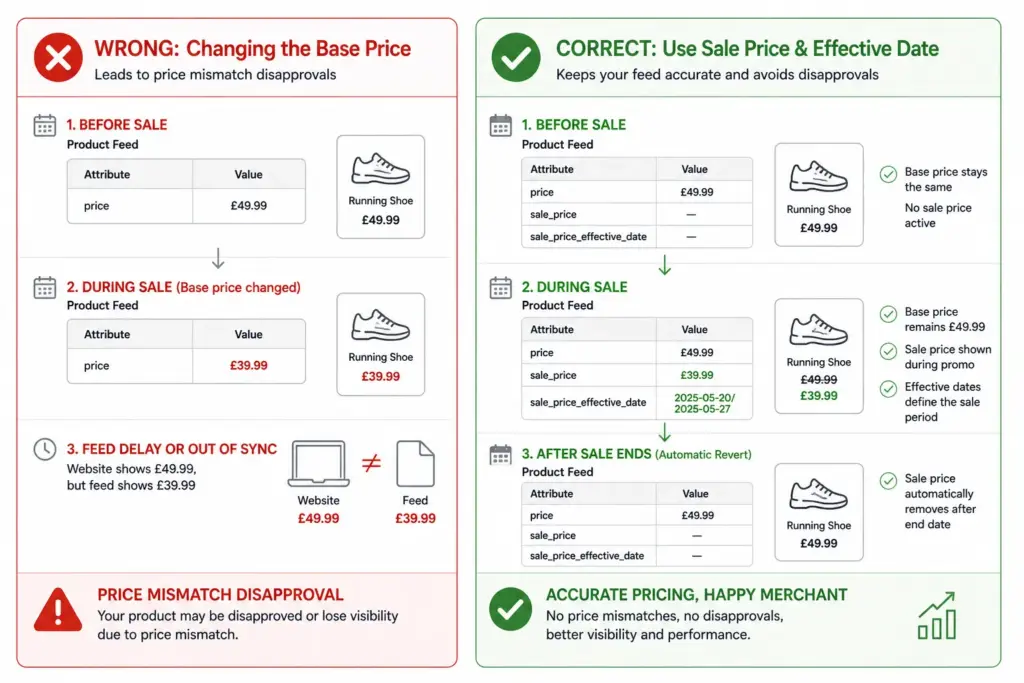
    Fix: Update your feed to match the current landing page price. Set your feed to fetch at least daily — twice daily during promotion periods. Use sale_price and sale_price_effective_date attributes for promotions rather than changing the price field.

    2. Invalid or Missing GTIN

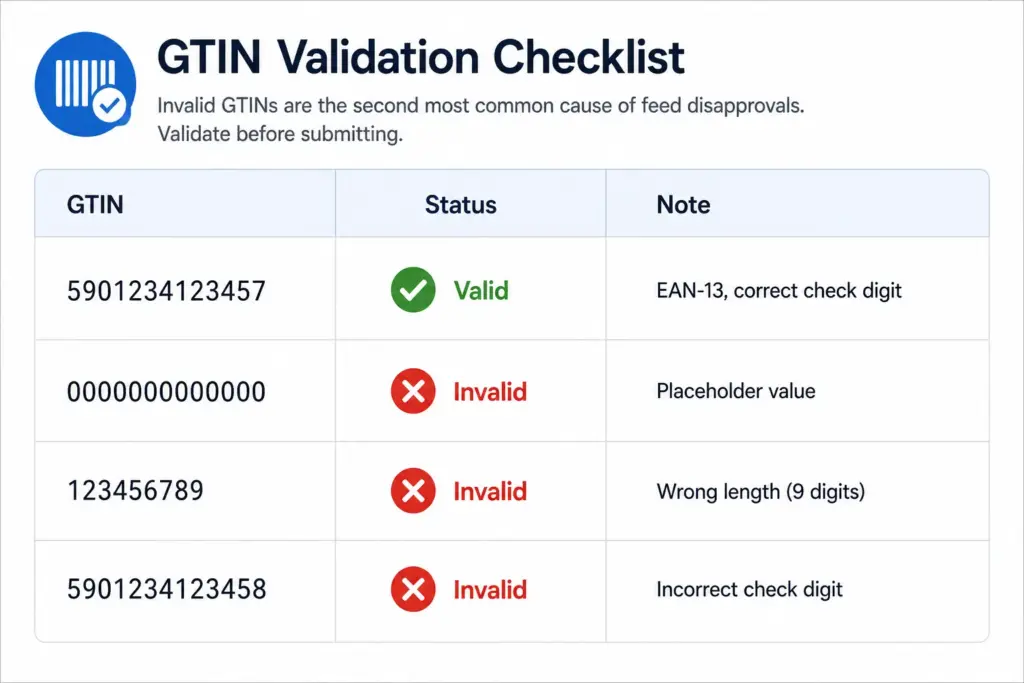
    What it means: Your product has an invalid GTIN (wrong check digit, wrong length, test/placeholder value) or is missing a GTIN that should exist.

    Fix: Validate all GTINs before submitting using the GTIN Validator. For custom or handmade products with no GTIN, set identifier_exists to FALSE — do not leave the GTIN field blank. Full GTIN requirements are covered in the GTIN compliance guide.

    3. Image Not Meeting Requirements

    What it means: Your product image is too small (below 100×100px for non-apparel, 250×250px for apparel), contains a watermark or promotional text, uses a placeholder image, or shows a white square instead of the product.

    Fix: Replace with a clean product image — minimum 800×800px recommended. No overlays, no text, no borders. Image must show the actual product, not a lifestyle image for Shopping ads (lifestyle can be used as additional images via additional_image_link).

    4. Landing Page Not Working

    What it means: Google cannot crawl your landing page — it returns a 404, requires login, redirects to a different product, or loads incorrectly on mobile.

    Fix: Verify the link URL in your feed returns a 200 status, loads correctly on mobile, and matches the specific product (not a category page or homepage). If the product has been deleted, remove it from your feed.

    5. Unavailable Mobile Site

    What it means: Google’s mobile crawler cannot access your landing page. Often caused by a separate mobile site (m.yoursite.com) returning errors, or a responsive site that breaks on mobile crawler user agent strings.

    Fix: Test your landing page URLs using Google’s Mobile-Friendly Test. Ensure your server is not blocking Googlebot-Image or mobile crawler user agents. If you have a separate mobile domain, ensure it is live and returning 200s.

    6. Mismatched Value (Price, Availability, Condition)

    What it means: A feed attribute value does not match what Google finds on the landing page — most commonly availability (feed says “in stock”, page says “out of stock”) or condition (feed says “new”, page indicates “refurbished”).

    Fix: Ensure availability updates in your feed match real-time stock status on your site. Set up automated feed updates triggered by stock changes rather than scheduled batch updates.

    7. Prohibited or Restricted Content

    What it means: Your product falls into a Google Shopping policy-restricted category — alcohol, pharmaceuticals, adult products, gambling products — without the required account-level policy compliance setup.

    Fix: Review Google Merchant Center’s shopping policies for restricted verticals. Apply for restricted product programme access if eligible. Some categories are prohibited entirely and cannot be fixed.

    8. Incorrect Tax or Shipping Setup

    What it means: Your Merchant Center account does not have tax and shipping configured for the target country, or your shipping settings conflict with what is shown on the landing page.

    Fix: Go to Merchant Center → Settings → Shipping and Tax. Configure shipping settings for every country you are targeting. Ensure stated delivery times match what is shown at checkout on your site.

    How to Prevent Disapprovals Recurring

    • Daily feed updates minimum — price and availability changes must propagate to your feed within 24 hours
    • Validate GTINs before submission — run every GTIN through the GTIN Validator before uploading a new feed
    • Set up Merchant Center email alerts — Merchant Center can email you when feed processing errors occur. Turn this on under Settings → Notifications
    • Monitor Diagnostics weekly — new disapprovals can appear when Google re-crawls your landing pages and finds discrepancies
    • Use sale_price for promotions — never change your regular price field for a promotion. Use sale_price + sale_price_effective_date so the price reverts automatically

    For teams managing large catalogs where feed errors appear regularly, the root cause is almost always data quality at the source — inconsistent pricing, stale stock status, or GTIN errors that need fixing in your product data before they reach the feed. The Feed Generator and LynkPIM free plan help you manage feed quality upstream before issues reach Merchant Center.

    Frequently Asked Questions

    How long does it take for Google to approve products after fixing a disapproval?

    Data-related disapprovals (price mismatch, missing attributes) are typically resolved within 24–48 hours of submitting the corrected feed. Policy-related disapprovals that require a manual review request typically take 1–3 business days after submitting the review request in Merchant Center Diagnostics.

    What is the difference between a disapproved product and a product with limited performance?

    A disapproved product is not shown in Google Shopping at all — it has been rejected and will not appear in any auction. A product with limited performance is shown but with reduced visibility and auction eligibility, typically due to missing recommended attributes like GTIN or brand. Fix disapprovals first — they represent complete loss of visibility.

    What is the most common reason products are disapproved in Merchant Center?

    Price mismatch — where the price in the feed does not match the price on the landing page — is the most common data-related disapproval cause for most ecommerce stores. Invalid or missing GTINs are the second most common. Both are entirely preventable with daily feed updates and GTIN validation before submission.

    Can I request a review after fixing a policy disapproval?

    Yes. After fixing the issue that caused a policy disapproval, go to Products > Diagnostics in Merchant Center and use the Request Review button for the relevant issue. Google will review your account and products within 1–3 business days. Do not request review before fixing the underlying issue — repeated reviews without resolution can escalate the restriction.

  • Flat vs Hierarchical Product Taxonomy: Which Is Right for Your Catalog?

    Flat vs Hierarchical Product Taxonomy: Which Is Right for Your Catalog?

    Flat vs Hierarchical Product Taxonomy: Which Is Right for Your Catalog?

    The structure of your product taxonomy determines how your catalog scales, how your site filters work, and how well your products map to Google Shopping categories. Flat and hierarchical are the two fundamental structural approaches — and choosing the wrong one for your catalog size and complexity creates problems that get harder to fix the longer they go unaddressed.

    What Is a Flat Taxonomy?

    A flat taxonomy has a single level of categories. Products sit directly under a top-level category with no subcategories beneath it. The entire catalog structure is one layer deep.

    Example: A small accessories store with a flat taxonomy might have: Bags, Scarves, Hats, Belts, Sunglasses, Jewellery. Every product sits directly under one of those six categories. There are no subcategories — “Bags” is not further divided into Handbags, Crossbody Bags, Clutches, Tote Bags.

    Flat taxonomies are easy to set up and easy to understand at a glance. They work well when the catalog is small and products within each category are genuinely similar enough that no further subdivision adds value.

    What Is a Hierarchical Taxonomy?

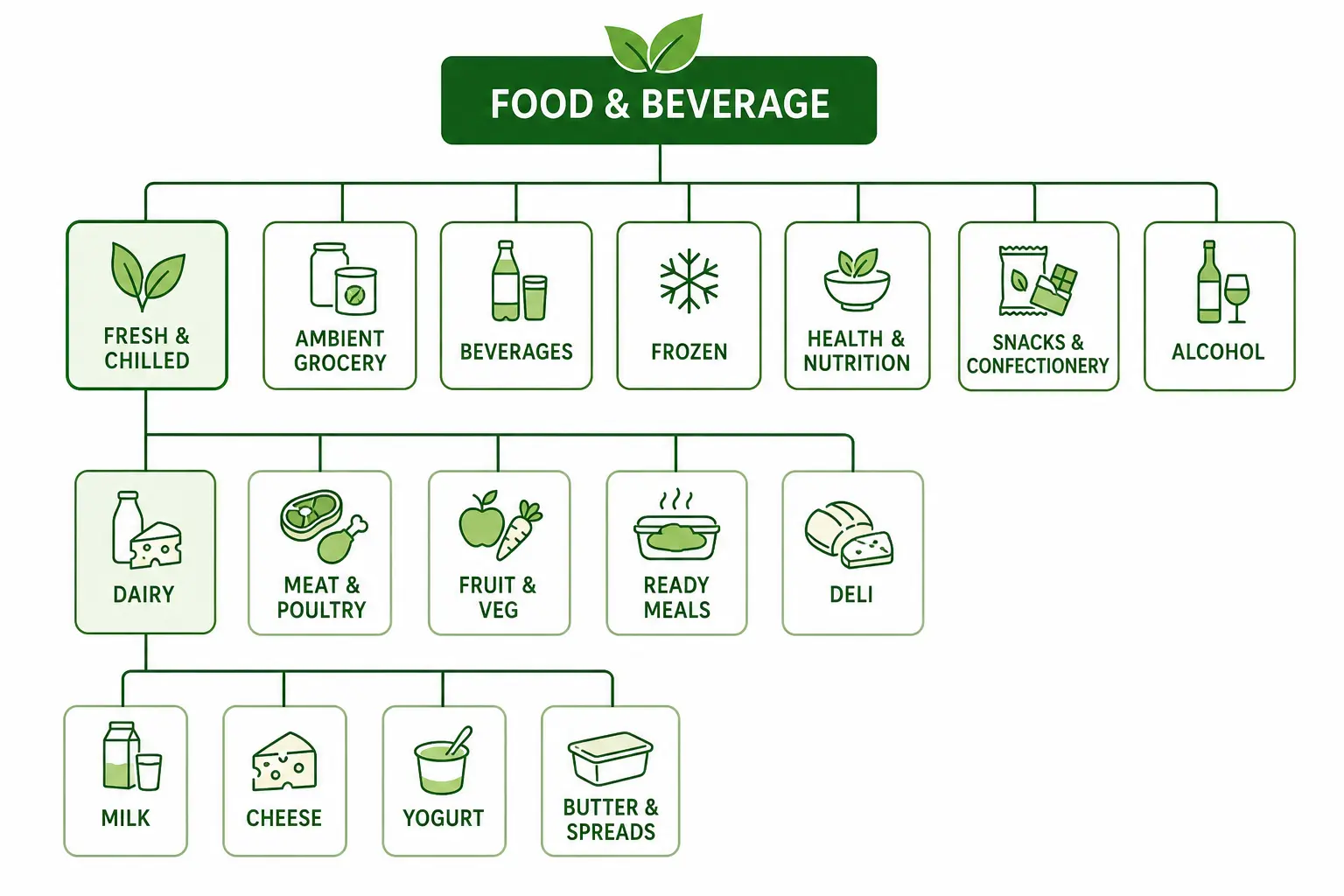
    A hierarchical taxonomy has multiple nested levels. Categories contain subcategories, which may contain further subcategories, down to the most specific product type level.

    Example: The same accessories store with a hierarchical taxonomy: Bags > Handbags > Leather Handbags. Or Bags > Crossbody Bags. Each level adds specificity — and with it, the ability to filter, map to Google’s taxonomy precisely, and manage products by type without the entire “Bags” category becoming unnavigable.

    Head-to-Head Comparison

    Flat TaxonomyHierarchical Taxonomy
    StructureOne level — all categories at the same depthMultiple levels — categories contain subcategories
    Best forCatalogs under ~200 products, narrow rangeAny catalog with 200+ products or multiple product types
    NavigationSimple — works when categories are few and clearMore complex but enables breadcrumb navigation and drill-down filtering
    Filter accuracyLimited — attributes apply across entire categoryHigh — attributes defined per subcategory, filters are specific
    Google category mappingImprecise — top-level categories rarely match Google leaf nodesPrecise — subcategories map directly to Google taxonomy leaf nodes
    ScalabilityPoor — adding products creates category bloatHigh — hierarchy absorbs new product types without structural change
    MaintenanceLow initially, high as catalog growsHigher upfront, lower long-term
    Channel mappingDifficult — manual per-product mapping often requiredSystematic — subcategory maps once to each channel

    When Flat Taxonomy Works

    Flat taxonomies are appropriate in a small number of specific situations:

    • Catalog under 200 SKUs with a genuinely narrow product range where subcategories would be redundant
    • Single-category specialty stores — a store that sells only coffee beans, only yoga mats, or only one type of product doesn’t need a hierarchy
    • Early-stage stores planning to restructure as the catalog grows — a flat structure is a valid starting point if you know it will be replaced

    In all other cases, the limitations of flat taxonomy become apparent quickly as the catalog grows. The most damaging limitation is Google Shopping performance — flat taxonomy categories rarely correspond to Google’s taxonomy leaf nodes, resulting in products being assigned to broad parent categories that hurt auction relevance.

    When Hierarchical Taxonomy Is Required

    Hierarchical taxonomy becomes necessary when any of these conditions are true:

    • Your catalog has more than 200 products
    • You sell across multiple product types that require different attribute sets
    • You need accurate Google Shopping category mapping below the parent level
    • Your site needs faceted filtering (filter by colour, size, material etc.)
    • You sell across multiple channels that each have their own taxonomy
    • Your team needs to manage products by type for buying, merchandising, or reporting

    For most ecommerce stores, the answer is hierarchical. The question is not whether to use hierarchical taxonomy but how many levels and how specifically to define subcategories. For the full build process, see How to Build a Product Taxonomy From Scratch.

    The Google Shopping Argument for Hierarchical Taxonomy

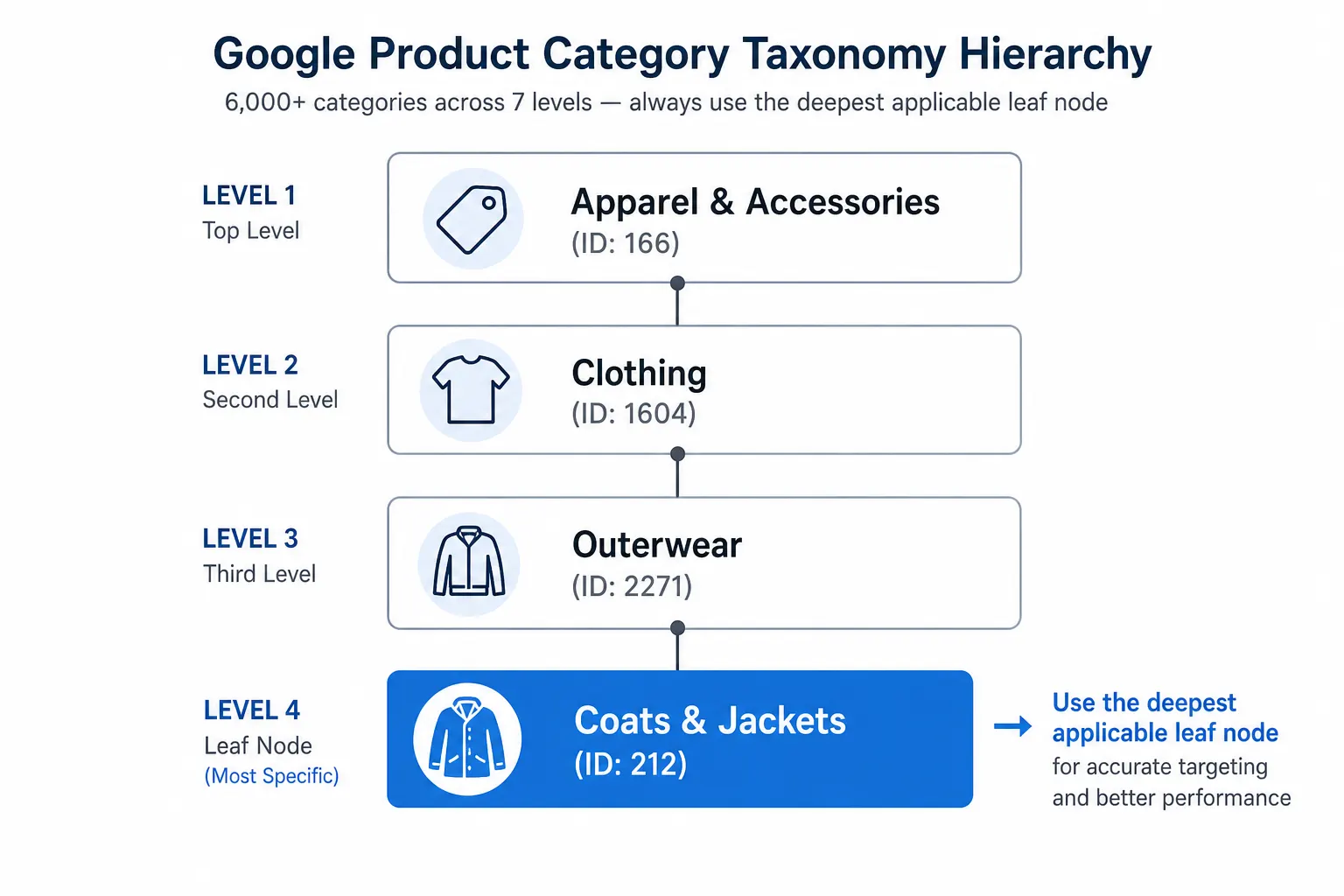
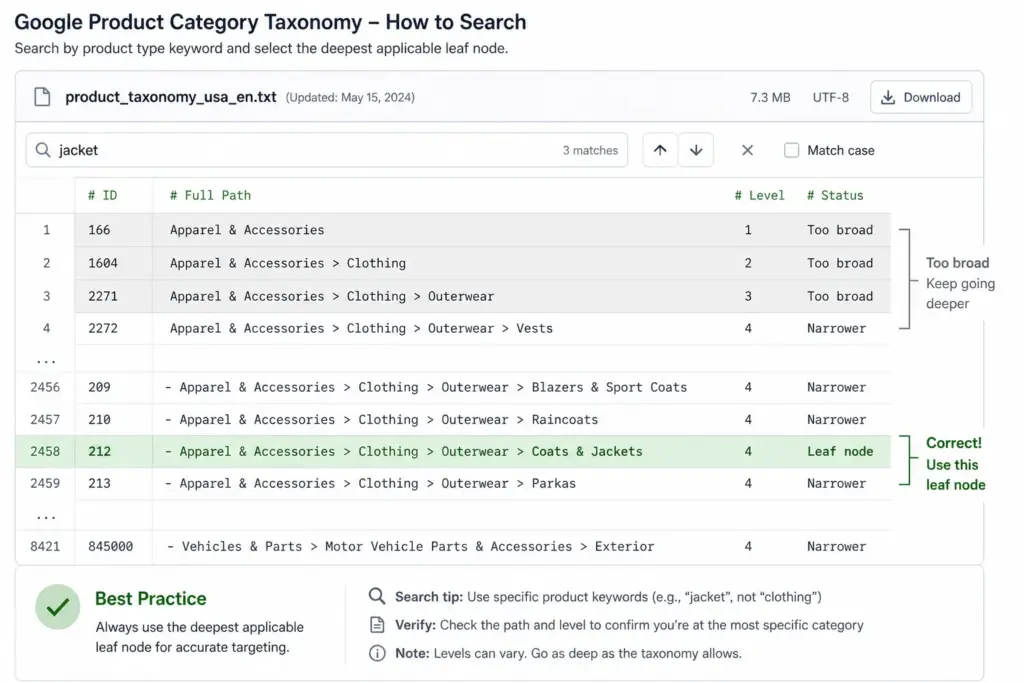
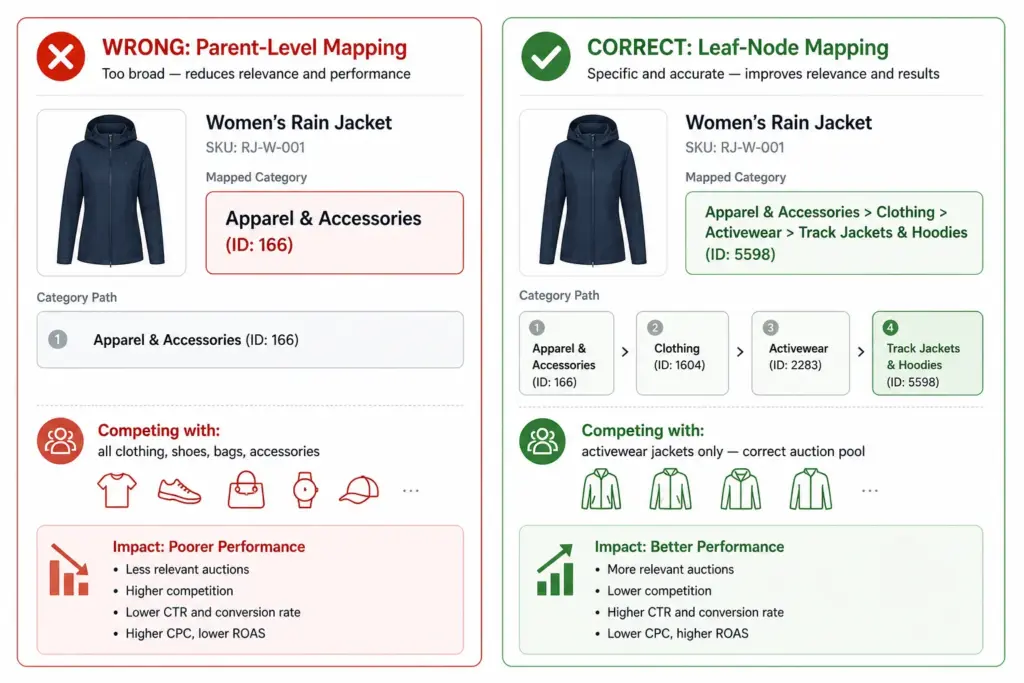
    Google’s product taxonomy has over 6,000 categories. It goes 5–7 levels deep in most categories. A flat internal taxonomy maps to Google’s parent-level categories at best — “Clothing” instead of “Apparel & Accessories > Clothing > Activewear > Track Jackets & Hoodies”.

    The difference in Shopping performance between a product mapped to a parent category and one mapped to the correct leaf node can be significant — better relevance matching means your products appear for more specific search queries at lower CPCs. If Google Shopping is a meaningful channel for you, hierarchical taxonomy is not optional.

    Migrating from Flat to Hierarchical

    If your catalog currently has a flat structure and you are outgrowing it, migration is straightforward in principle — though it requires careful execution to avoid breaking navigation and losing indexed URLs.

    1. Design the new hierarchical structure before touching anything live
    2. Remap every product to its new subcategory in a staging environment
    3. Set up 301 redirects from old category URLs to new subcategory URLs
    4. Update your feed’s google_product_category values to the new leaf-node mapping
    5. Update your sitemap and request GSC re-indexing after going live

    Rankings may dip briefly after migration as Google recrawls the new structure. This is normal and temporary — the long-term gains in navigation, filtering, and channel performance outweigh the short-term disruption.

    For industry-specific guidance on what a hierarchical structure should look like in practice, see the fashion taxonomy guide and electronics taxonomy guide. Take the PIM Readiness Score to identify where your current taxonomy structure has gaps.

    Frequently Asked Questions

    What is a flat product taxonomy?

    A flat taxonomy has a single level of categories with no subcategories. Every product sits directly under a top-level category. Simple to set up but breaks down as catalog size grows — filters become unwieldy, Google category mapping becomes imprecise, and category pages become unmanageable.

    What is a hierarchical product taxonomy?

    A hierarchical taxonomy has multiple nested levels — typically Department > Category > Subcategory > Product Type. Products sit at the most specific level. This structure scales to any catalog size and enables precise Google category mapping and deep attribute-based filtering.

    When should you use a flat taxonomy?

    Flat taxonomies work for small catalogs under 200 products with a genuinely narrow product range where subcategories would be redundant. Specialty retailers with a single product type can use a flat structure effectively. For most ecommerce stores with varied product ranges, hierarchical is the right choice.

    Can you migrate from flat to hierarchical taxonomy?

    Yes. The process requires designing the new hierarchy, remapping products to new subcategories, setting up 301 redirects from old category URLs, updating feed category mapping, and requesting GSC re-indexing. Rankings may dip briefly during migration but recover as Google processes the new structure — and long-term performance gains are significant.

  • What Is Product Taxonomy? Definition, Examples and Why It Matters

    What Is Product Taxonomy? Definition, Examples and Why It Matters

    What Is Product Taxonomy? Definition, Examples and Why It Matters

    Product taxonomy is the classification system that organises your products into a structured hierarchy. It determines how products are grouped, named, and navigated — on your website, inside your catalog management system, and across every sales channel you use.

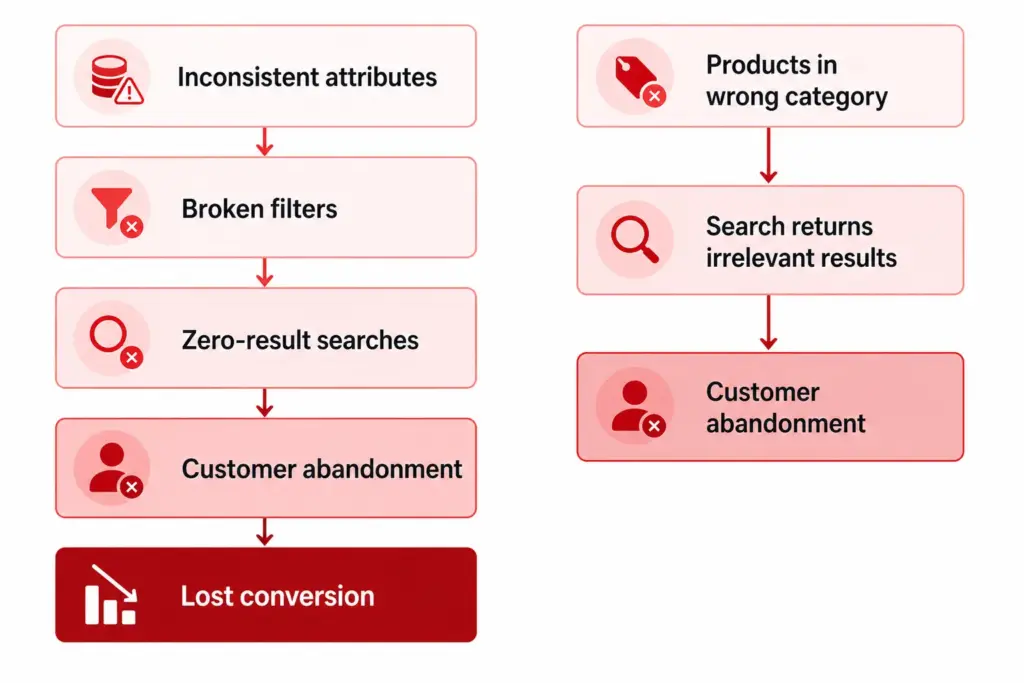
    Get it right and customers find products faster, your Google Shopping feed performs better, and your team can manage thousands of SKUs without chaos. Get it wrong and you end up with inconsistent categories, broken filters, and channel mapping errors that cost you sales daily.

    Product Taxonomy Definition

    A product taxonomy is a hierarchical system for classifying products into groups based on shared characteristics. The word comes from the Greek taxis (arrangement) and nomos (law or method) — it is, literally, the rules by which products are arranged.

    In practical ecommerce terms, a product taxonomy answers three questions for every product in your catalog:

    1. What type of product is this? (Product Type / Subcategory)
    2. What category does it belong to? (Category)
    3. What department does that category sit under? (Department)

    Those three questions map to the three levels every functional taxonomy needs: Department → Category → Subcategory.

    A Simple Product Taxonomy Example

    LevelNameExample
    Level 1 — DepartmentClothingClothing, Footwear, Accessories
    Level 2 — CategoryMen’s ClothingMen’s, Women’s, Kids’
    Level 3 — SubcategoryMen’s JacketsJackets, Trousers, Shirts, Knitwear
    Level 4 — Product TypeMen’s Rain JacketsRain Jackets, Leather Jackets, Puffer Jackets

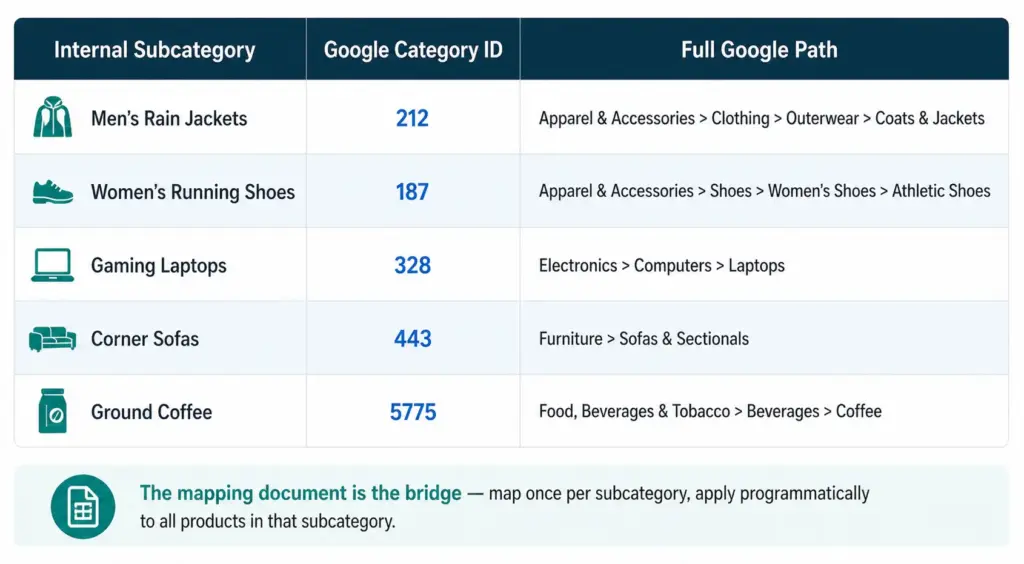
    Every product in the catalog sits at the most specific level — Level 3 or Level 4 — not at the top. A product is never just “Clothing”. It is always “Men’s Rain Jackets” or “Women’s Running Shoes”.

    Taxonomy vs Categories vs Attributes — What’s the Difference?

    These three terms are often used interchangeably but they are distinct concepts.

    • Taxonomy — the overall classification system and its rules. The framework.
    • Categories — the individual nodes within the taxonomy. Men’s Jackets is a category.
    • Attributes — the properties of a product within its category. Colour, Size, Material, Brand are attributes of a product in Men’s Jackets.

    Taxonomy tells you where the product lives. Attributes describe what the product is. Both are necessary. A product without a taxonomy position cannot be found by browsing. A product without attributes cannot be filtered or matched to specific search queries.

    Why Product Taxonomy Matters for Ecommerce

    1. Site navigation and search

    Your taxonomy is the structure your site navigation and filters are built on. If your taxonomy is flat or inconsistent, your filters do not work. Customers searching for “blue running shoes women size 7” cannot filter to that result if Colour, Activity, Gender, and Size are not structured attributes on products in the correct subcategory.

    2. Google Shopping performance

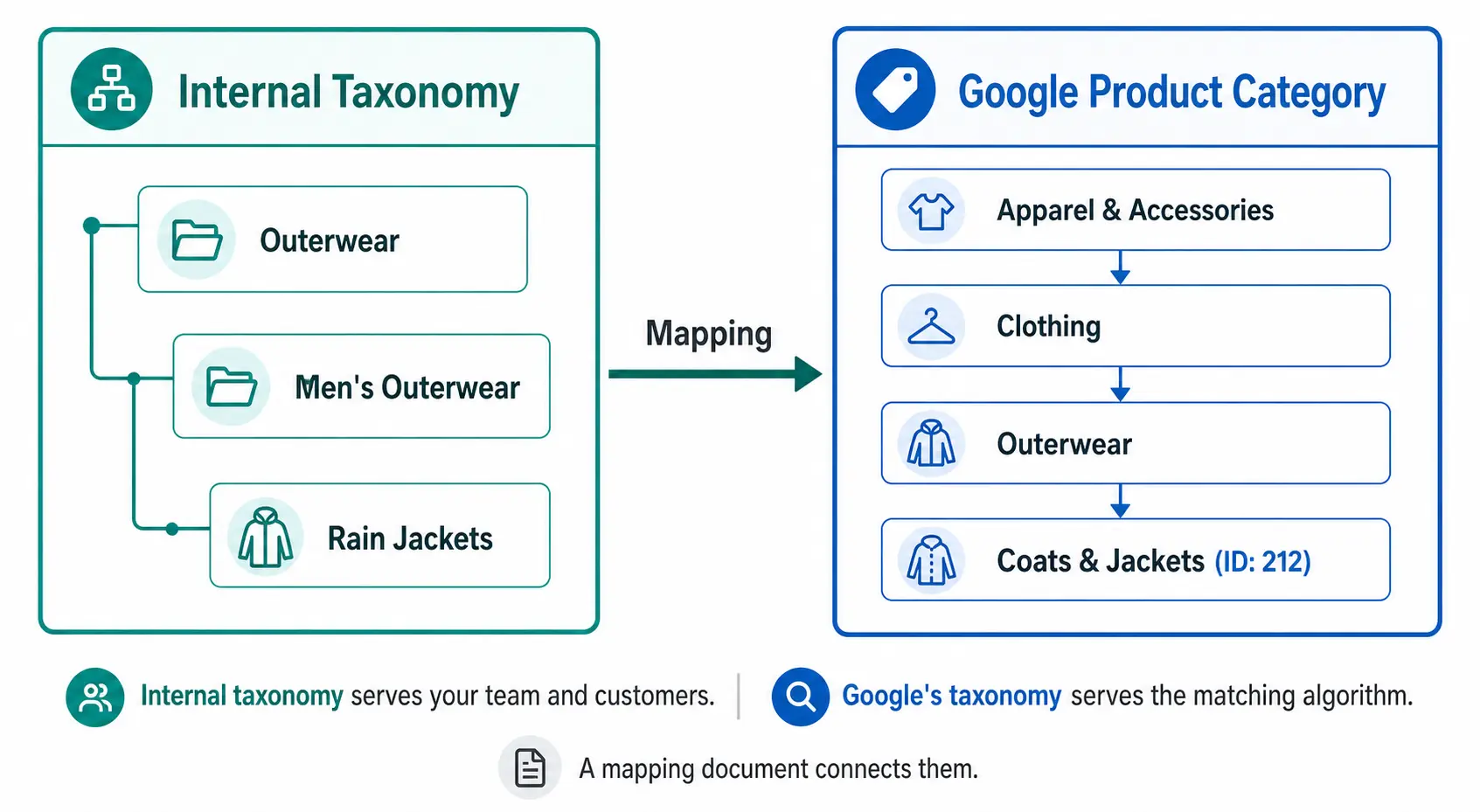
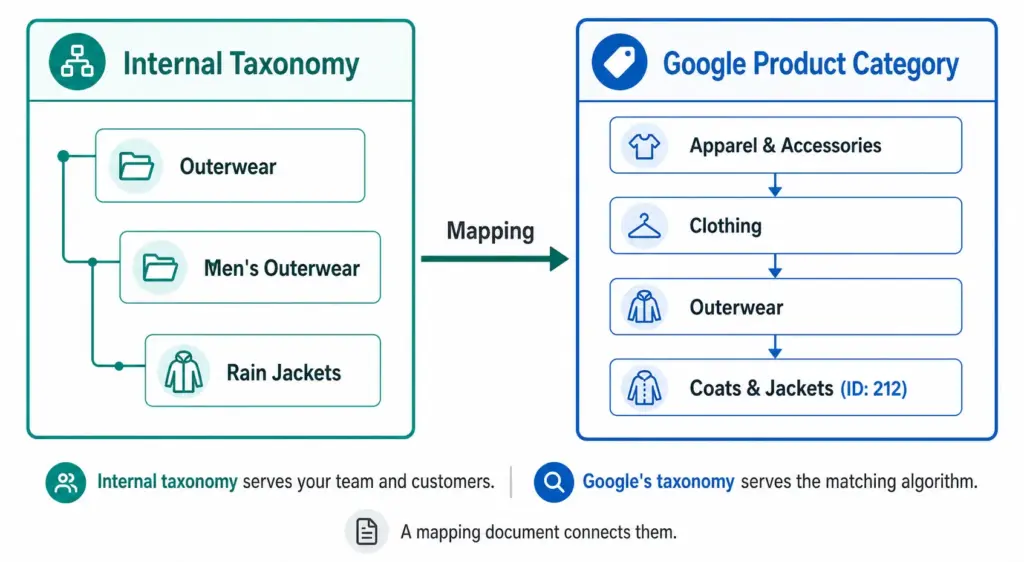
    Google Shopping requires a google_product_category value for every product. This value must map to Google’s own taxonomy at the most specific level available. A jacket submitted as “Apparel & Accessories” instead of “Apparel & Accessories > Clothing > Outerwear > Coats & Jackets” loses relevance in every Shopping auction it enters. Your taxonomy must map to Google’s.

    3. Channel feed mapping

    Every major channel — Google Shopping, Amazon, Facebook Catalogue, retail marketplaces — has its own category taxonomy. Your internal taxonomy needs to translate cleanly to each one. A well-structured internal taxonomy makes this mapping straightforward. A chaotic one makes it a manual monthly project.

    4. Internal catalog management

    A consistent taxonomy means your team can find, update, and report on products by category without ambiguity. Without it, “running shoes” might live under “Athletic Footwear”, “Sports”, “Men’s Sports”, and “Women’s Running” in the same catalog — making bulk updates, seasonal campaigns, and channel exports all harder than they need to be.

    Flat vs Hierarchical Taxonomy

    Two structural approaches exist for product taxonomy. For most ecommerce stores with more than a few hundred products, the difference matters significantly. The full comparison is covered in the Flat vs Hierarchical Taxonomy guide, but the key distinction is:

    • Flat taxonomy: One level of categories, no subcategories. Simple but breaks down above ~200 products. Filters become unwieldy and Google category mapping becomes imprecise.
    • Hierarchical taxonomy: Multiple nested levels. Scales to any catalog size. Enables precise Google category mapping and deep attribute-based filtering.

    Product Taxonomy in Practice — Real Examples

    Across industries the hierarchy principle stays the same but the depth and attribute requirements differ significantly. A fashion taxonomy needs colour normalisation, size system declarations, and seasonal attribute management. An electronics taxonomy needs technical specification attributes and compatibility data. A home goods taxonomy needs dimension attributes and material normalisation. Each industry guide is linked below.

    How to Build Your Product Taxonomy

    The full step-by-step build process is covered in How to Build a Product Taxonomy From Scratch — from auditing your products through to Google category mapping and documentation. The short version:

    1. Define what your taxonomy needs to do — navigation, channel mapping, or both
    2. Audit your existing products before designing any categories
    3. Design 5–12 top-level departments
    4. Build at minimum three levels of hierarchy
    5. Define attribute sets per subcategory
    6. Map every subcategory to a Google product category leaf node
    7. Document the rules

    Before building, take the PIM Readiness Score to identify where your current product data governance has gaps. The free Taxonomy Template at lynkpim.app gives you a pre-built starting point for 5 industries.

    Frequently Asked Questions

    What is product taxonomy in ecommerce?

    Product taxonomy is the hierarchical classification system used to organise products into categories, subcategories, and product types. It defines the structure that powers site navigation, search filters, channel feeds, and internal catalog management.

    What is the difference between product taxonomy and product attributes?

    Taxonomy defines where a product sits in the hierarchy — Men’s Clothing > Jackets. Attributes define the properties of that product within its category — Colour: Navy, Size: L, Material: Nylon. Taxonomy organises the catalog structure; attributes describe individual products within it.

    Why does product taxonomy matter for Google Shopping?

    Google Shopping requires a google_product_category value for every product in your feed, mapped to Google’s own taxonomy at the most specific leaf-node level. Broad or incorrect category values reduce relevance matching and hurt Shopping auction performance — your products appear for fewer relevant queries and at lower positions.

    How many levels should a product taxonomy have?

    A minimum of three levels: Department (Level 1), Category (Level 2), and Subcategory (Level 3). Larger catalogs benefit from a fourth level (Product Type). More than four levels rarely adds value and increases maintenance complexity without meaningful benefit to navigation or channel mapping.

    What is the difference between a flat and hierarchical product taxonomy?

    A flat taxonomy has one level of categories with no subcategories — simple but breaks down above ~200 products. A hierarchical taxonomy has multiple nested levels that scale to any catalog size, enable precise Google category mapping, and support deep attribute-based filtering. For the full comparison see Flat vs Hierarchical Taxonomy.

  • Product Taxonomy for Electronics: Handling Complex Variants at Scale

    Product Taxonomy for Electronics: Handling Complex Variants at Scale

    Product Taxonomy for Electronics: Handling Complex Variants at Scale

    Electronics catalogs present a different set of taxonomy challenges than fashion or general merchandise. The variant complexity is not size and colour — it is processor speed, RAM configuration, storage tier, connectivity standard, and compatibility matrix. Customers buying a laptop know exactly what specs they need. Your taxonomy either surfaces those specs in filters or loses the sale.

    What Makes Electronics Taxonomy Complex

    • Technical specification depth: A single laptop model can have 12+ relevant attributes. All need to be captured, validated, and filterable.
    • Rapid product obsolescence: New chipsets and standards appear constantly. Your taxonomy needs to accommodate new attributes without breaking existing products.
    • Compatibility dependencies: Accessories are valid only for specific parent products. A charger is not just a charger — it is a charger for a specific voltage, connector type, and device family.
    • High-consideration buying: Electronics customers compare on specifications more than any other category. Incomplete data does not just affect discoverability — it directly prevents conversion.

    For the foundational taxonomy build process before getting into electronics-specific requirements, see How to Build a Product Taxonomy From Scratch.

    Recommended Top-Level Structure for Electronics

    Level 1Level 2 ExamplesLevel 3 Examples
    Computers & LaptopsLaptops, Desktops, Tablets, All-in-OnesGaming Laptops, Business Laptops, Ultrabooks
    Smartphones & WearablesSmartphones, Smartwatches, Fitness TrackersAndroid Phones, iPhones, Budget Smartphones
    AudioHeadphones, Speakers, Soundbars, DACsOver-ear, In-ear, True Wireless, Studio Headphones
    TV & Home CinemaTVs, Projectors, Streaming DevicesOLED TVs, QLED TVs, Smart TVs, 4K TVs
    Cameras & PhotographyDSLRs, Mirrorless, Action Cameras, LensesFull-frame Mirrorless, APS-C Mirrorless
    GamingConsoles, Controllers, Gaming Monitors, HeadsetsPlayStation, Xbox, PC Gaming Peripherals
    Components & StorageCPUs, GPUs, RAM, SSDs, HDDs, MotherboardsDDR5 RAM, NVMe SSDs, PCIe 5.0 SSDs
    Cables & AccessoriesCables, Cases, Chargers, Mounts, BatteriesUSB-C Cables, MagSafe Accessories, Power Banks

    Attribute Sets for Key Electronics Categories

    Laptops

    • Required: Brand, Processor family, Processor model, RAM (GB), Storage capacity (GB), Storage type (SSD/HDD/NVMe), Screen size (inches), Operating system
    • Recommended: Screen resolution, GPU, Battery life (hours), Weight (kg), Ports, Connectivity (Wi-Fi standard, Bluetooth), Colour, Use case (gaming / business / ultrabook)

    Smartphones

    • Required: Brand, Model, Storage (GB), RAM (GB), Colour, Operating system, Screen size (inches), Network (5G/4G)
    • Recommended: Processor, Camera resolution (MP), Battery capacity (mAh), SIM type, Refresh rate (Hz), Water resistance (IP rating)

    Headphones

    • Required: Brand, Type (over-ear / in-ear / on-ear / true wireless), Connection (wired / wireless / Bluetooth), Colour
    • Recommended: Driver size, Frequency response, Noise cancellation type, Battery life, Impedance, Microphone (yes/no), Codec support (AAC, aptX, LDAC)

    Handling Variant Structures in Electronics

    Electronics variants behave differently from fashion variants. In fashion, variants of the same product differ only in size and colour — the product is the same. In electronics, different storage configurations can have meaningfully different prices, performance profiles, and target buyers.

    Variant approach (same item_group_id): All configurations of the same physical product model are variants. Customers can switch between them on the same product page. Use this when the products are the same model with configuration differences only.

    Separate product approach: When the “variant” is effectively a different product — different processor tier, different generation, meaningfully different positioning — treat as separate products. Different model generations should be separate products, not variants of each other.

    For how variant management compares across categories, the fashion taxonomy guide covers the simpler size/colour variant model as a useful contrast.

    Compatibility Attributes — The Electronics-Specific Challenge

    Accessories in electronics require compatibility data that no other category demands at the same scale. A USB-C cable not rated for Thunderbolt 4 is useless to someone buying it for a high-end laptop. A phone case for one model does not fit its larger variant.

    Build compatibility into your taxonomy as a structured attribute, not as free-text description:

    • compatible_with — a list of compatible product IDs or model references from your own catalog
    • connector_type — USB-C, USB-A, Lightning, Thunderbolt 4, HDMI 2.1 etc.
    • voltage / wattage — for chargers and power accessories
    • form_factor — for components (ATX, Micro-ATX, Mini-ITX for PC cases and motherboards)

    Structured compatibility data enables “compatible accessories” widgets on product pages — a meaningful cross-sell driver in electronics where accessory attach rates are high.

    Google Product Category Mapping for Electronics

    ProductCorrect Google Category
    Gaming laptopElectronics > Computers > Laptops
    True wireless earbudsElectronics > Audio > Headphones > In-Ear Headphones
    NVMe SSDElectronics > Computers > Computer Components > Hard Drives & Storage > Solid State Drives
    Mirrorless camera bodyCameras & Optics > Cameras > Digital Cameras
    Smart TV 65″Electronics > Video > Televisions

    Managing Rapid Product Turnover

    Electronics catalogs face a unique taxonomy maintenance challenge: product generations. A new processor standard, connectivity format, or storage type can require new attribute values across hundreds of products simultaneously.

    Build this into your taxonomy governance from the start: attribute value lists need a version-controlled update process, not ad hoc additions. When a new standard appears, update the attribute definition, update all products in that category in bulk, and document the change date.

    At scale, this requires product data tooling that can apply bulk attribute updates to entire categories. The PIM Readiness Score will show you where your current setup has gaps — and the LynkPIM free plan lets you start managing this properly without a large budget or implementation timeline.

    For a broader comparison of how taxonomy decisions differ across industries, see the Flat vs Hierarchical Taxonomy guide — the structural decision matters more for electronics than for most other categories due to the depth of specification attributes required at every level.

    Frequently Asked Questions

    Should different laptop storage configurations be variants or separate products?

    Use variants (same item_group_id) for storage, colour, and RAM configuration differences within the same physical model — customers can switch between them on the same product page. Create separate products for different processor generations or model tiers that represent meaningfully different products with different performance profiles and target buyers.

    What compatibility attributes should electronics accessories have?

    At minimum: compatible_with (list of compatible product IDs or model references), connector_type (USB-C, USB-A, Thunderbolt 4, HDMI 2.1 etc.), voltage and wattage for chargers and power accessories, and form_factor for PC components. Structured compatibility data enables “compatible accessories” widgets on product pages and reduces returns from incompatible purchases.

    How do you handle new technical standards in an electronics taxonomy?

    Treat attribute value lists as version-controlled documents. When a new standard appears — PCIe 5.0, USB4, DDR5 — update the attribute definition for the affected subcategory, bulk-update all products in that category, and document the change date. Ad hoc additions without bulk updates leave older products with stale or missing values, which hurts both filter accuracy and feed performance.

    What Google product category should I use for NVMe SSDs?

    Use the leaf-node category: Electronics > Computers > Computer Components > Hard Drives & Storage > Solid State Drives. Never use a parent category like “Electronics” or “Electronics > Computers” — Shopping relevance and auction performance depend on using the most specific category available for every product.

    How many required attributes does a laptop product need?

    At minimum 8 required attributes: Brand, Processor family, Processor model, RAM (GB), Storage capacity (GB), Storage type (SSD/HDD/NVMe), Screen size (inches), and Operating system. Recommended additions that significantly improve discoverability and conversion include GPU, battery life, weight, screen resolution, ports, Wi-Fi standard, and use case (gaming / business / ultrabook).

  • Product Taxonomy for Fashion Ecommerce: The Complete Industry Guide

    Product Taxonomy for Fashion Ecommerce: The Complete Industry Guide

    Product Taxonomy for Fashion Ecommerce: The Complete Industry Guide

    Fashion is the most complex product taxonomy challenge in ecommerce. No other category has the same combination of variant depth (size × colour × material), seasonal rotation, brand complexity, and the need to align with both customer search language and Google’s own category hierarchy simultaneously.

    This guide covers how to structure a fashion taxonomy that works for site navigation, Google Shopping, and internal catalog operations at the same time.

    Why Fashion Taxonomy Is Uniquely Difficult

    • High variant depth: A single jacket style can generate 40+ variants (4 colours × 5 sizes × 2 materials). Each needs proper categorisation.
    • Seasonal rotation: Categories like “Summer Dresses” need to exist, disappear, and reappear without breaking your taxonomy structure.
    • Cross-gender categorisation: Unisex products that appear in both Men’s and Women’s categories require clear rules.
    • Trend-driven additions: New product types appear faster in fashion than almost any other category — your taxonomy needs to accommodate them without restructuring.

    For the full taxonomy build process that applies to all industries before you get into fashion-specific requirements, see How to Build a Product Taxonomy From Scratch.

    Recommended Top-Level Structure for Fashion

    Level 1 (Department)Level 2 Examples (Category)Level 3 Examples (Subcategory)
    Women’s ClothingDresses, Tops, Bottoms, Outerwear, KnitwearMidi Dresses, Wrap Dresses, Formal Dresses
    Men’s ClothingShirts, Trousers, Jackets, Knitwear, ActivewearCasual Shirts, Formal Shirts, Linen Shirts
    Kids’ ClothingGirls’ Clothing, Boys’ Clothing, Baby & ToddlerSchool Uniforms, Outerwear, Swimwear
    FootwearWomen’s Shoes, Men’s Shoes, Kids’ ShoesHeels, Flats, Boots, Trainers, Sandals
    AccessoriesBags, Belts, Scarves, Hats, JewelleryHandbags, Crossbody Bags, Tote Bags
    SwimwearWomen’s Swimwear, Men’s SwimwearBikinis, One-pieces, Board Shorts
    Lingerie & NightwearBras, Underwear, Nightwear, ShapewearPadded Bras, Sports Bras, Balcony Bras

    Attribute Sets by Fashion Subcategory

    Each subcategory needs a defined attribute set. Below are the recommended required and optional attributes for key fashion categories.

    Outerwear (Jackets, Coats, Gilets)

    • Required: Brand, Colour, Size, Material, Gender, Age Group
    • Recommended: Waterproof (yes/no), Insulation type, Fill power, Packable (yes/no), Season
    • Google category: Apparel & Accessories > Clothing > Outerwear > Coats & Jackets

    Women’s Dresses

    • Required: Brand, Colour, Size, Neckline, Length, Occasion
    • Recommended: Pattern, Sleeve length, Care instructions, Season
    • Google category: Apparel & Accessories > Clothing > Dresses

    Footwear

    • Required: Brand, Colour, Size, Size system, Gender, Heel height (where applicable)
    • Recommended: Material (upper), Sole material, Closure type, Occasion, Width
    • Google category: Apparel & Accessories > Shoes > [specific shoe type]

    For the full list of apparel attributes required by Google Shopping feeds, see the Google Shopping Apparel Requirements guide.

    Managing Colour in a Fashion Taxonomy

    Colour management is where fashion taxonomy most often breaks down. Fashion brands use marketing colour names (“Dusty Rose”, “Storm Blue”) that are meaningful to buyers but problematic for Google Shopping and site search filtering.

    The solution is a two-field colour approach:

    • Marketing colour name: Used in product titles and descriptions facing customers — “Storm Blue Puffer Jacket”
    • Normalised colour value: Used for feed submission and filter attributes — “Blue”. This maps to Google’s accepted colour values and makes site filters work correctly (“Filter by: Blue, Green, Red”).

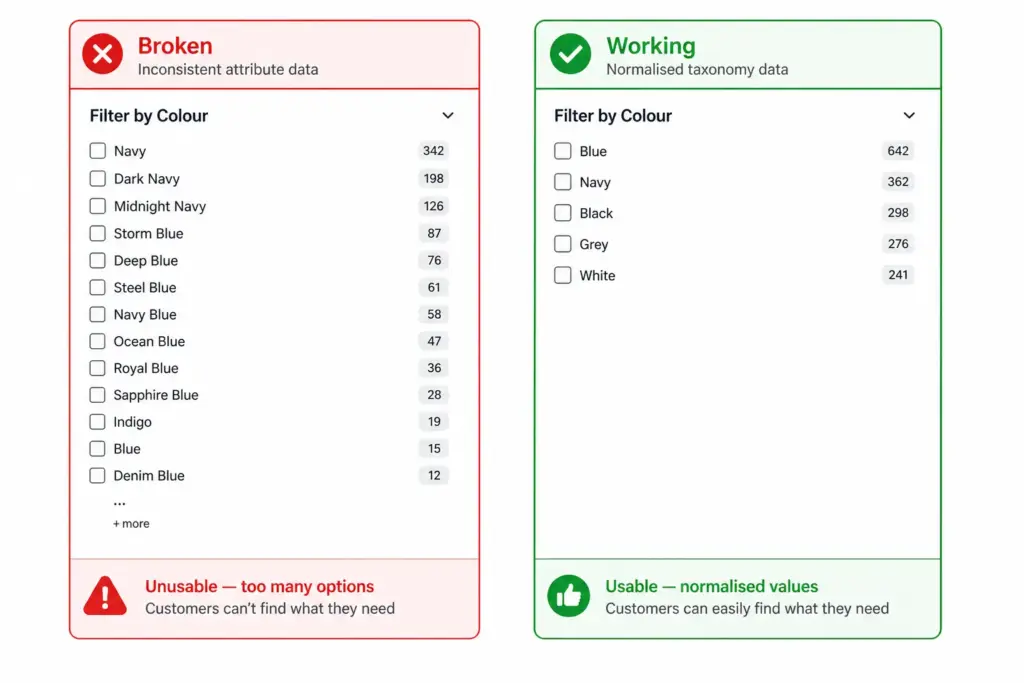
    Without normalised colour values, your “Navy”, “Dark Navy”, “Midnight Navy”, and “Storm Blue” all appear as separate filter options rather than grouping under “Blue”. Customers cannot find what they are looking for and conversion on filtered searches drops.

    Size Management and International Sizing

    Fashion brands selling internationally face size system conflicts. A UK 10 dress and a US 10 dress are different sizes. A European 40 and a US 8 are the same women’s dress size. Declare your size system in every product record using the size_system attribute.

    For brands selling across regions from a single catalog, the cleanest solution is to store size in your primary size system and maintain a size conversion reference table as a documented data standard — not as additional product fields that will create mapping errors when updated.

    Seasonal Category Management

    Fashion taxonomy needs seasonal flexibility without permanent structural changes. Two approaches work well:

    Season as an attribute, not a category: Keep “Summer Dresses” as a filter value (season = Summer) rather than a permanent subcategory. This prevents your taxonomy from accumulating dead branches as seasons pass.

    Evergreen subcategories with seasonal tags: “Dresses” is the permanent subcategory. “Summer” is a tag or attribute. Products appear in the Dresses subcategory year-round; the Summer filter surfaces them seasonally. This is the more scalable approach for catalogs with high seasonal turnover.

    Mapping Fashion Taxonomy to Google Product Categories

    Every fashion subcategory needs a Google product category mapping. Use Google’s leaf-node values (the most specific level) for best Shopping performance. The mapping should be documented and applied consistently — not manually re-entered per product.

    The difference between flat and hierarchical taxonomy structures for fashion is covered in detail in the Flat vs Hierarchical Taxonomy guide — worth reading before finalising your structure.

    Once your fashion taxonomy is structured correctly, implementing it at scale requires a system that can enforce attribute validation and apply category-level rules automatically. The PIM Readiness Score takes 5 minutes and shows you where your current product data setup has gaps.

    Download the free Product Taxonomy Template at lynkpim.app — the Fashion & Apparel tab includes the full category hierarchy, attribute set, and Google mapping pre-built for clothing, footwear, and accessories.

    Frequently Asked Questions

    How should fashion ecommerce handle seasonal categories in a product taxonomy?

    Use season as an attribute rather than a permanent category. Keep “Dresses” as the permanent subcategory and assign season = Summer as a tag or attribute value. This prevents the taxonomy from accumulating obsolete branches (Summer Dresses 2024, Summer Dresses 2025) that clog navigation and require ongoing cleanup.

    What is the two-field colour approach for fashion product data?

    Store two colour values per product: a marketing colour name for customer-facing content (Dusty Rose, Storm Blue) and a normalised colour value for feed submission and site filters (Pink, Blue). Without normalised values, multiple shades of the same colour appear as separate filter options — “Navy”, “Dark Navy”, “Midnight Navy” become three separate filter choices instead of one “Blue” group.

    How many top-level categories should a fashion taxonomy have?

    Most fashion stores work well with 6 to 8 top-level departments: Women’s Clothing, Men’s Clothing, Kids’ Clothing, Footwear, Accessories, Swimwear, and Lingerie & Nightwear. Avoid creating top-level categories for product types you carry fewer than 20 products in — use attributes and filters instead.

    How do you handle unisex products in a fashion taxonomy?

    Set gender = unisex in the product attributes and assign the product to the most appropriate department based on primary customer intent. For your Google Shopping feed, use gender = unisex and surface products in both Men’s and Women’s navigation via tags or multi-category assignment depending on your platform.

    What Google product category should I use for women’s dresses?

    Use the leaf-node value: Apparel & Accessories > Clothing > Dresses. Avoid the parent category Apparel & Accessories > Clothing — the more specific your Google product category, the better your Shopping feed relevance. For formal dresses, go one level deeper if possible.

  • How to Build a Product Taxonomy From Scratch (Step-by-Step Guide)

    How to Build a Product Taxonomy From Scratch (Step-by-Step Guide)

    How to Build a Product Taxonomy From Scratch (Step-by-Step Guide)

    Most product taxonomy problems do not start with bad intentions. They start with a spreadsheet, a growing catalog, and someone who just needed to categorise 50 products quickly. Three years later there are 3,000 products, four naming conventions, and no one knows which category rules apply where.

    Building a taxonomy properly from the start — or rebuilding one that has grown without structure — requires the same process regardless of catalog size. This guide walks through every step.

    Step 1: Define What Your Taxonomy Needs to Do

    Before you name a single category, decide what jobs your taxonomy needs to perform. Most ecommerce catalogs need it to do three things simultaneously:

    1. Power site navigation and search — customers browse by category and use filters. Your taxonomy is the structure those filters sit on.
    2. Map to channel requirements — Google Shopping, Amazon, and marketplaces have their own taxonomies. Yours needs to translate cleanly to theirs.
    3. Organise internal operations — product teams, buyers, and merchandisers use the taxonomy to find, update, and report on products.

    These three jobs sometimes conflict. A taxonomy built purely for internal operations often does not map well to how customers search. Understanding the priority before you build prevents rework. For background on what taxonomy is and why it matters, the What Is Product Taxonomy guide covers the foundations.

    Step 2: Audit Your Existing Products

    Export every SKU you have. Look at the full list before designing any categories. You are looking for:

    • Natural groupings — what products obviously belong together?
    • Edge cases — products that do not fit neatly into an obvious category
    • Volume distribution — how many products fall into each potential category?
    • Attribute patterns — what attributes do products in the same group share?

    A category with 2 products and a category with 2,000 products suggest the hierarchy is off. Aim for relative balance across categories at the same level, with narrow subcategories only where genuine product differentiation exists.

    Step 3: Design Your Top-Level Categories

    Top-level categories are your broadest groupings. For most ecommerce catalogs, 5–12 top-level categories is the right range. Too few and subcategories get unwieldy. Too many and customers cannot find their starting point.

    The test for a top-level category: a customer with no prior knowledge of your store should be able to assign a product to the correct top-level category without thinking about it. If it requires judgment, the category is too vague.

    Two approaches to defining top-level categories

    Customer-first approach: Start with how customers describe what they are looking for. Use your site search data, Google Search Console queries, and competitor category names as evidence of natural language groupings.

    Google-first approach: Start with Google’s product taxonomy at the top level. This makes channel mapping easier later and ensures your categories align with how the largest product discovery platform in the world organises products. You can always use internal-facing names that differ from the Google-facing values.
    Step 4: Define 3 Levels of Hierarchy (Minimum)

    A functional product taxonomy needs at least three levels:

    • Level 1 (Department): Clothing, Footwear, Accessories
    • Level 2 (Category): Men’s Clothing, Women’s Clothing, Kids’ Clothing
    • Level 3 (Subcategory): Men’s Jackets, Men’s Trousers, Men’s Knitwear

    For larger catalogs, Level 4 (product type) is worth adding: Men’s Jackets → Rain Jackets, Leather Jackets, Padded Jackets.

    The difference between a flat and hierarchical taxonomy matters significantly for navigation and channel mapping. The Flat vs Hierarchical Taxonomy guide covers when each structure is appropriate.

    Step 5: Define Attributes per Category

    Attributes are the product properties that apply within a category. Every category in your taxonomy needs a defined attribute set — the list of fields that must be filled for a product in that category to be considered complete.

    CategoryRequired AttributesRecommended Additions
    Men’s JacketsBrand, Colour, Size, Material, GenderWaterproof rating, Fill weight, Packable
    Running ShoesBrand, Colour, Size, Gender, Surface typeDrop height, Cushioning level, Width
    LaptopsBrand, Processor, RAM, Storage, Screen sizeBattery life, Weight, Graphics card

    Step 6: Map to Google’s Product Taxonomy

    Once your internal taxonomy is defined, create a mapping document that links each of your subcategories to its corresponding Google product category value. Use Google’s official taxonomy file to find the correct IDs. Map at the most specific level possible — leaf nodes, not parent categories.

    Step 7: Document the Rules

    A taxonomy that exists only in someone’s head is a single point of failure. Document:

    • Category definitions — what does and does not belong in each category
    • Naming conventions — title case vs sentence case, singular vs plural
    • Attribute validation rules — acceptable values for controlled attributes like colour and size
    • Exception handling — what happens to products that span categories

    The PIM Readiness Score assessment helps you identify where your current product data governance has gaps before you build on top of it. Free, takes 5 minutes.

    Step 8: Build with Iteration in Mind

    No taxonomy survives contact with a growing catalog unchanged. You will need to add categories as you expand into new product areas. You will discover edge cases your initial rules did not cover. You will probably need to split an overpopulated subcategory 18 months after launch.

    Build with this in mind: keep hierarchy levels consistent, avoid category names that are too specific, and review your taxonomy structure annually against site search data and channel performance.

    Ready to apply this? Download the free Product Taxonomy Template at lynkpim.app — pre-built for Fashion, Electronics, Home Goods, Food & Beverage, and B2B Industrial. Use it as a starting point rather than building from a blank page.

    Once your taxonomy structure is set, see how it applies to specific industries: fashion ecommerce taxonomy and electronics taxonomy both cover the unique requirements of their categories in detail.

    Frequently Asked Questions

    How many levels should a product taxonomy have?

    A minimum of three levels: Department (Level 1), Category (Level 2), and Subcategory (Level 3). Larger catalogs benefit from a fourth level (Product Type). Going beyond four levels rarely adds value and increases maintenance complexity without meaningful improvement to navigation or channel mapping.

    How often should you review and update your product taxonomy?

    Review your taxonomy structure at least once per year against site search data, channel performance data, and catalog growth. Attribute value lists for technical categories may need updating more frequently — for example when new product standards or formats appear in electronics or components.

    Should your internal taxonomy match Google’s product taxonomy?

    Not necessarily. Your internal taxonomy should reflect how your team and customers think about products. What matters is that every internal subcategory maps to the correct Google product category leaf node in your feed — the two systems can use different naming as long as the mapping document is maintained and applied consistently.

    What is the difference between a category and an attribute in product taxonomy?

    A category defines where a product sits in the hierarchy — for example, Men’s Jackets. An attribute defines a property of that product within its category — for example, Colour = Navy, Size = L, Material = Nylon. Categories organise the catalog structure; attributes describe individual products within it.

    How many top-level categories should a product taxonomy have?

    For most ecommerce catalogs, 5 to 12 top-level categories is the right range. Too few and subcategories become unwieldy. Too many and customers cannot find their starting point. The test: a customer with no prior knowledge should be able to assign any product to the correct top-level category without thinking about it.