How to Create a Google Shopping Product Feed: The Complete 2026 Guide
Google Shopping is not keyword-driven. You do not write ads and bid on search terms the way you do in Google Search. Instead, Google reads your product feed — a structured file containing your product data — and decides when, where, and how to show your products based on what is in it. Which means the quality of your product feed is not a technical detail. It is your campaign strategy.
A well-built Google Shopping product feed gets your products into the right auctions with the right information. A poorly built one gets you suppressed listings, low impression share, wasted ad spend, and a Merchant Center full of warnings you are not sure how to fix.
This guide covers everything: what a Google Shopping feed is, every required and high-impact optional attribute for 2026, how to structure your feed, the most common errors and how to fix them, and how to generate a feed without doing it manually. If you want to skip straight to generating one, the Google Shopping Feed Generator builds a properly structured feed from your product data without any technical setup.
What is a Google Shopping product feed?
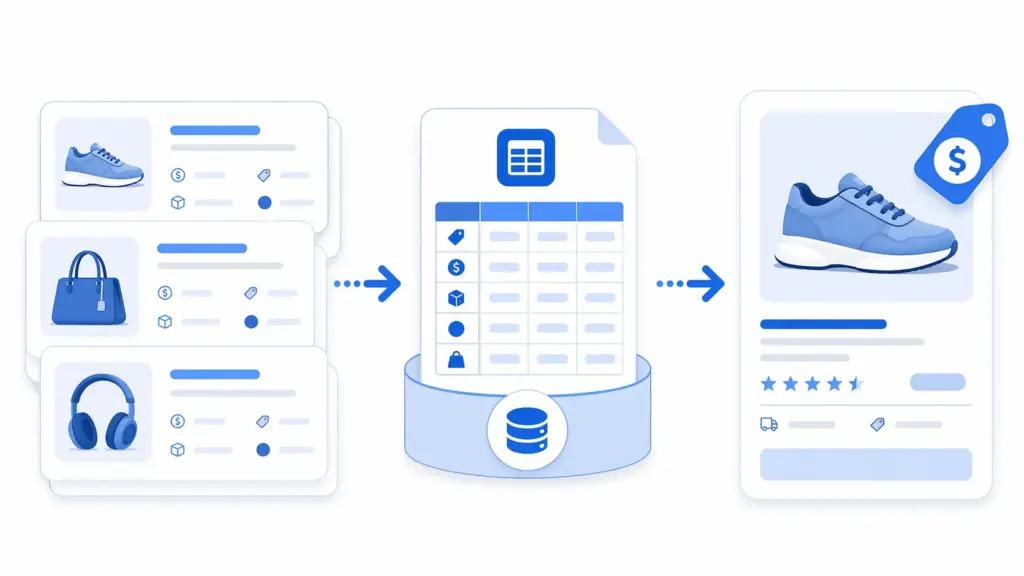
A Google Shopping product feed is a structured file — typically XML or a Google Sheets spreadsheet — that contains all the product information Google needs to display your products in Shopping results, Shopping ads, and free product listings. You submit this file to Google Merchant Center, which processes it, validates each product against Google’s product data specification, and makes approved products eligible to appear across Google Shopping surfaces.
The feed is essentially a translation layer between your internal product catalog and Google’s product knowledge system. Google uses the attributes in your feed — title, description, price, GTIN, category, images — to understand what you are selling, match it to relevant search queries, and place it in the right Shopping auctions at the right price points.
This is why product feed quality has such a direct and measurable impact on Shopping performance. Google cannot guess what is missing from your feed. If your title is vague, your category is too broad, or your GTIN is invalid, Google works with less information — and less information means worse matching, lower impression share, and higher cost per click.
Google Shopping feed: required attributes for 2026
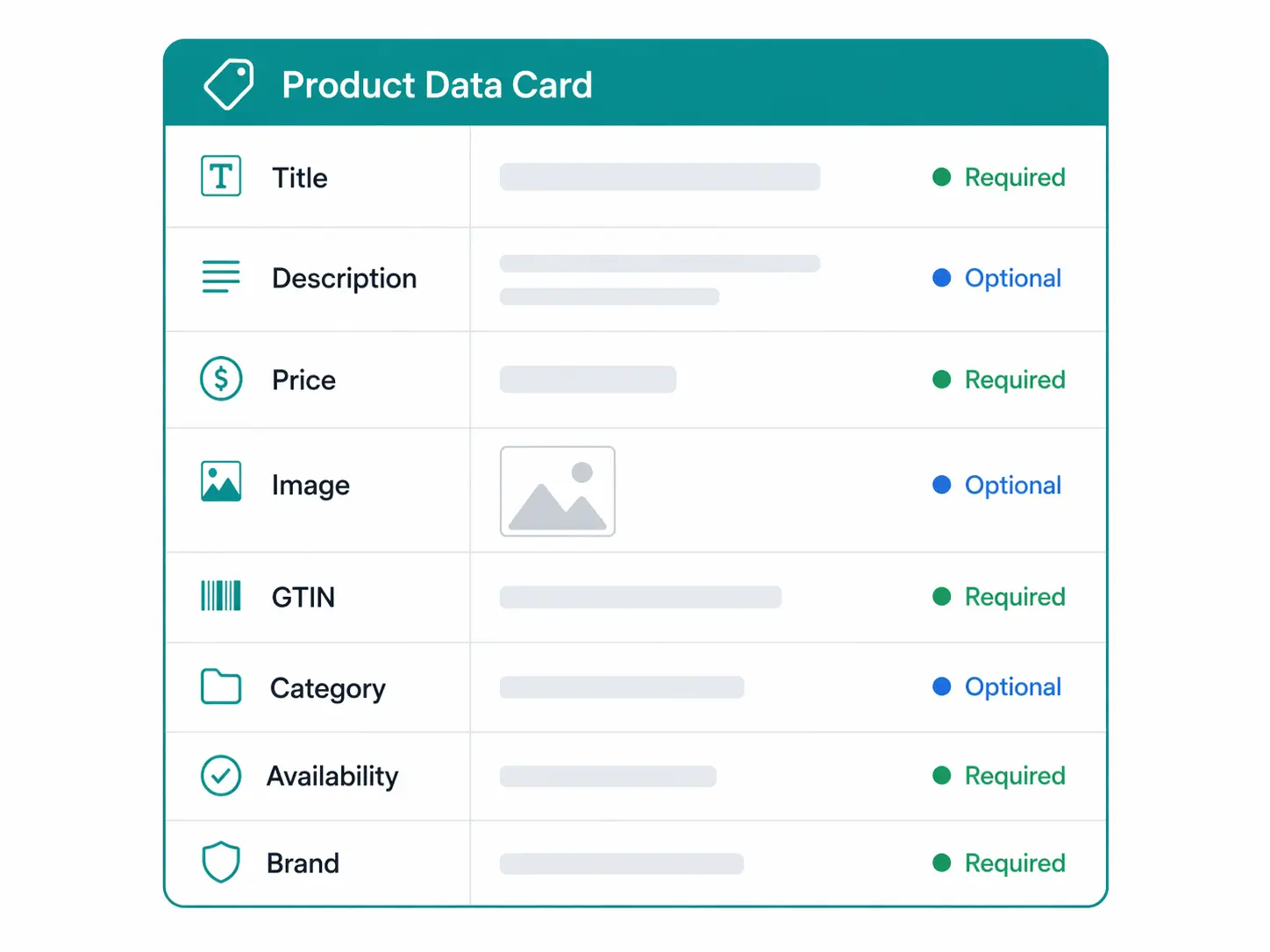
Google’s product data specification defines which attributes are required for every product, which are required for specific categories, and which are optional but recommended. Here is the complete picture for 2026.
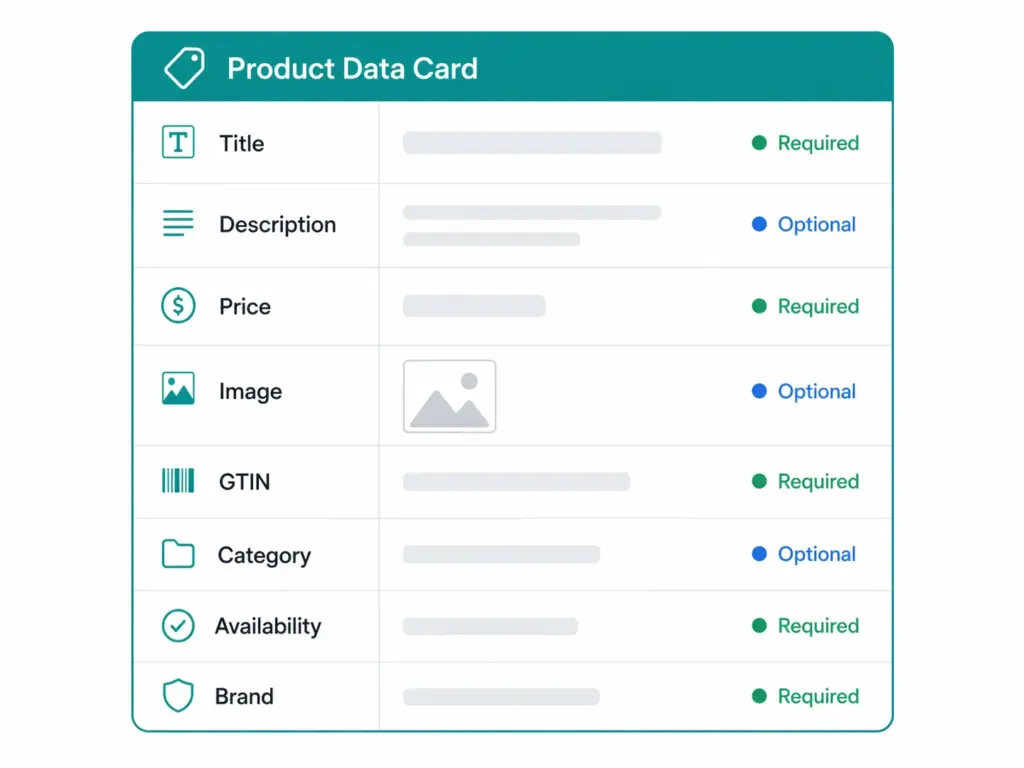
Required for all products
| Attribute | Feed name | What Google needs |
|---|---|---|
| ID | id | Your unique internal product identifier. Must be consistent across feed updates — changing IDs causes products to be treated as new listings. |
| Title | title | The product name as it will appear in Shopping results. Max 150 characters. Most important single attribute for matching to search queries. |
| Description | description | Product description. Max 5,000 characters. Used for query matching but not displayed in Shopping ads — still critical for relevance scoring. |
| Link | link | The full URL of the product page. Must match the domain verified in Merchant Center. |
| Image link | image_link | URL of the main product image. Minimum 100×100px, recommended 800×800px or larger. No watermarks, no promotional text overlaid. |
| Availability | availability | One of: in_stock, out_of_stock, preorder, backorder. Must match the availability shown on your product page. |
| Price | price | The price in your local currency including currency code. Must match the price on the landing page. Format: 24.99 GBP |
| Brand | brand | The product brand or manufacturer name. Required for most product types. Do not use your store name as the brand unless you are the manufacturer. |
| Condition | condition | One of: new, refurbished, used. |
Required for most products (strongly recommended for all)
| Attribute | Feed name | Notes |
|---|---|---|
| GTIN | gtin | Required for all products with a manufacturer-assigned GTIN. Without it, products receive “Limited performance” warnings. See the GTIN compliance guide for validation. |
| MPN | mpn | Manufacturer Part Number. Required if no GTIN exists. Helps Google identify the product through alternative matching. |
| Google product category | google_product_category | Google’s own taxonomy category ID. Not strictly required but strongly recommended — without it Google auto-assigns a category which is often too broad. |
| Identifier exists | identifier_exists | Set to false only for products that genuinely have no GTIN or MPN. Never use as a workaround for products that do have identifiers. |
Required for specific categories
| Attribute | Required for |
|---|---|
size | Apparel & Accessories |
color | Apparel & Accessories |
gender | Apparel & Accessories |
age_group | Apparel & Accessories |
item_group_id | Any product with variants — links all variants of a product together |
energy_efficiency_class | Applicable appliances sold in EU markets |
High-impact optional attributes (worth adding for every product)
These are not required but consistently improve Shopping performance when included. Treat them as required for any product where they apply:
additional_image_link— Up to 10 additional product images. Listings with multiple images consistently outperform single-image listings in Shopping.sale_price— If you run promotions, the sale price field shows a strikethrough price in Shopping results which significantly improves click-through rate.shipping— Declared shipping costs are shown directly in Shopping results. Missing shipping information can cause your listing to appear with an estimated shipping cost that may be higher than your actual rate.product_type— Your own internal category path for the product. Useful for campaign segmentation in Google Ads — lets you structure bids by your own category structure rather than Google’s taxonomy alone.custom_label_0throughcustom_label_4— Five free-form fields you define. Commonly used to flag margin tier, season, bestseller status, or clearance — information you can then use to adjust bids in Google Ads.material,pattern,size_type,size_system— All improve matching accuracy for apparel and help Google serve your product to more relevant queries.
How to write high-performing feed titles
Your product title is the most important single field in your feed for Shopping performance. Google uses it as the primary signal for query matching, and it is what shoppers read when deciding whether to click your listing. A weak title is the most common reason a well-stocked feed underperforms.
The formula that consistently works for Shopping feed titles is: Brand + Key attribute(s) + Product type + Differentiating detail
Applied in practice:
❌ Weak:    "Men's Jacket"
✅ Strong:  "Columbia Men's Watertight II Waterproof Rain Jacket — Navy, Size L"

❌ Weak:    "Laptop Stand"
✅ Strong:  "Nexstand K2 Portable Laptop Stand Adjustable Height — Aluminium, Foldable"

❌ Weak:    "Foundation"
✅ Strong:  "NARS Soft Matte Complete Foundation SPF 10 — Syracuse (Medium 3), 30ml"
Key rules: put the most important attributes first — Google truncates titles in display so the first 70 characters matter most. Include the specific product type that matches how people search (“Waterproof Rain Jacket” not just “Jacket”). Include variant-specific details (colour, size, material) in the title for variant products — this is what differentiates your listing from competing variants of the same product in the same auction.
What to avoid: promotional language (“Best Price,” “Free Shipping,” “Sale”), all-caps, excessive punctuation, and keyword stuffing. Google’s title quality filters actively penalise these patterns and may suppress listings that use them.
Google product category: how to get it right in 2026
The google_product_category attribute maps your product to Google’s own taxonomy — a hierarchical classification system with over 6,000 categories. Google updated this taxonomy significantly in January 2026, adding four new top-level categories (Smart Home & IoT, Electric Vehicles & Accessories, Sustainable Products, and AI & Robotics) and expanding Electronics and Health substantially. The compliance deadline for affected products is July 31, 2026.
You can submit either the category ID number or the full text path — both are accepted. The text path is easier to read and audit:
Text path: Apparel & Accessories > Clothing > Outerwear > Coats & Jackets
ID:        212
The key principle: always map to the most specific applicable category, not the nearest parent. A product mapped to “Apparel & Accessories” is vastly less useful to Google than one mapped to “Apparel & Accessories > Clothing > Activewear > Running Jackets.” Specificity improves relevance matching, reduces the cost of impressions that go nowhere, and is one of the factors Google’s Shopping algorithm uses to determine bid eligibility in competitive categories.
For the full picture on category mapping — including how to build your internal category structure and map it to Google’s taxonomy — the category mapping guide covers the complete approach.
Feed structure: XML vs Google Sheets vs API
Google Merchant Center accepts product feeds in three formats. Which one is right for you depends on your catalog size, how often your data changes, and your technical setup.
XML feed (recommended for most)
An XML feed is a structured file that follows the RSS 2.0 format with Google’s custom namespace. It is the most flexible format, works for any catalog size, and supports all attributes. You host the file at a URL that Merchant Center fetches on a schedule — daily is recommended for most catalogs, more frequently if your prices or availability change regularly.
A minimal valid XML feed entry looks like this:
<?xml version="1.0" encoding="UTF-8"?>
<rss version="2.0" xmlns:g="http://base.google.com/ns/1.0">
<channel>
<title>Your Store Name</title>
<link>https://yourstore.com</link>
<description>Product feed for Google Shopping</description>
<item>
<g:id>SKU-1234</g:id>
<g:title>Columbia Men's Watertight II Waterproof Rain Jacket — Navy, L</g:title>
<g:description>Lightweight packable rain jacket with seam-sealed construction...</g:description>
<g:link>https://yourstore.com/products/columbia-watertight-navy-l</g:link>
<g:image_link>https://yourstore.com/images/columbia-watertight-navy-l.jpg</g:image_link>
<g:availability>in_stock</g:availability>
<g:price>89.99 GBP</g:price>
<g:brand>Columbia</g:brand>
<g:gtin>0123456789012</g:gtin>
<g:condition>new</g:condition>
<g:google_product_category>Apparel & Accessories > Clothing > Outerwear > Coats & Jackets</g:google_product_category>
<g:color>Navy</g:color>
<g:size>L</g:size>
<g:gender>male</g:gender>
<g:age_group>adult</g:age_group>
<g:item_group_id>columbia-watertight-ii</g:item_group_id>
</item>
</channel>
</rss>Google Sheets feed
A Google Sheets feed is a spreadsheet with one column per attribute and one row per product. It is the quickest format to get started with and requires no technical setup. Google fetches the sheet directly from your Google Drive on a schedule. The main limitation is scale — Sheets feeds become slow and difficult to maintain beyond a few thousand products. They are a good starting point for small catalogs or for testing a new feed structure before moving to XML.
Content API (for developers)
The Google Content API for Shopping allows you to push individual product updates programmatically rather than uploading a full feed file. This is the right approach if you have a large catalog with frequent price or availability changes, or if you are building a PIM-to-Merchant Center integration. API updates are near-real-time, which matters for any product where price or availability changes frequently throughout the day.
Feed generators — the practical middle ground
For most ecommerce teams, writing and maintaining an XML feed manually is not realistic. The practical approach is a feed generator — a tool that takes your product data and outputs a properly structured, compliant feed automatically. The Google Shopping Feed Generator does this without requiring any coding — you provide your product data and it builds the feed in the correct format, validates the required attributes, and outputs a file ready for Merchant Center submission.
How to submit your feed to Google Merchant Center
Once your feed is built, submitting it to Merchant Center is a straightforward process:
- Create a Merchant Center account at merchants.google.com if you do not have one. Verify and claim your website domain during setup.
- Add your feed — go to Products → Feeds → Add feed. Choose your country of sale and language, then select your feed type (scheduled fetch for XML, Google Sheets, or manual upload).
- Configure fetch schedule — for XML feeds, enter the URL where your feed is hosted and set a daily fetch schedule. Google will check for updates at this URL automatically.
- Wait for processing — new feeds typically take 24–72 hours to process. During this time products show a “Pending” status. Data quality checks run during processing and may flag errors.
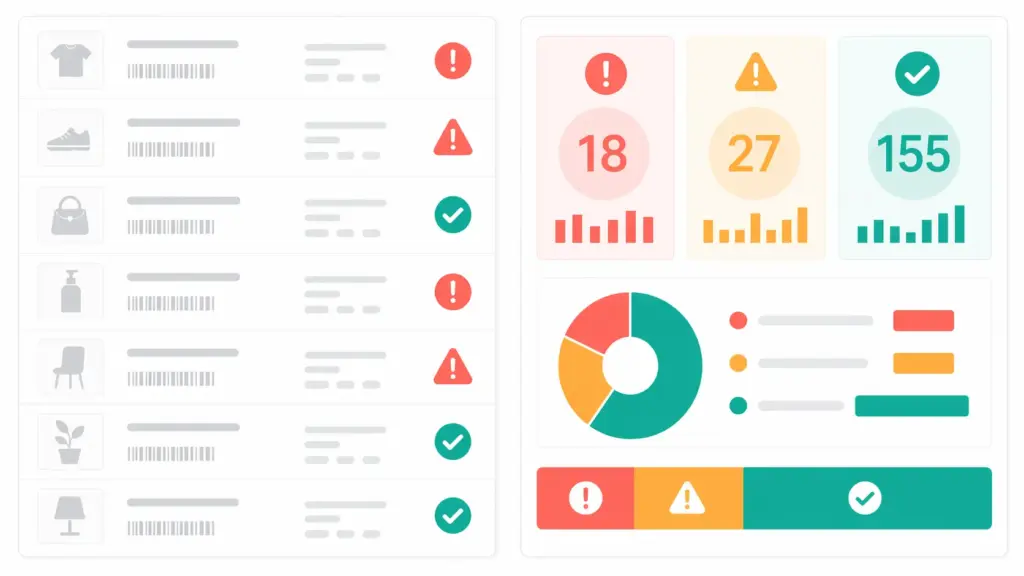
- Review Diagnostics — once processing is complete, go to Products → Diagnostics to see any errors, warnings, or item-level issues. Errors prevent products from being shown. Warnings do not block products but hurt performance. Address both.
- Link to Google Ads — to run Shopping campaigns, link your Merchant Center account to your Google Ads account via the account linking section. Without this link, your products appear only in free Shopping listings, not in paid Shopping ads.
The most common Google Shopping feed errors — and how to fix them
Missing or invalid GTIN
The single most commercially damaging feed error. Products with missing or invalid GTINs receive “Limited performance” warnings and are at a disadvantage in Shopping auctions. Fix: validate all GTINs before feed submission using the GTIN Validator, set identifier_exists = false for products that genuinely have no GTIN, and never submit placeholder or fabricated GTINs. The full guide to GTIN compliance for ecommerce covers every error type and fix.
Price mismatch between feed and landing page
Google crawls your product pages and compares the price in your feed against the price shown to customers. If they do not match — even temporarily during a sale that has not been updated in the feed — Google disapproves the product. Fix: update your feed whenever prices change, use the sale_price and sale_price_effective_date attributes for promotions rather than changing the base price field, and increase your feed fetch frequency if your prices change regularly.
Image quality issues
Images that are too small (under 100×100px for non-apparel, under 250×250px for apparel), contain promotional overlays, have watermarks, use placeholder images, or are not accessible from the URL in the feed will be rejected. Fix: use images of at least 800×800px, ensure they are hosted at a publicly accessible URL, and never use images with text, badges, or promotional overlays as your primary image.
Availability mismatch
Your feed says “in_stock” but your landing page shows the product as out of stock, or vice versa. Google crawls pages and flags mismatches. Fix: ensure your feed reflects real-time availability. For most platforms this means connecting your feed to your live inventory system rather than generating a static file. If you are managing feed updates manually, increase update frequency and build an out-of-stock alert into your process.
Promotional text in titles or descriptions
Phrases like “Free Shipping,” “Best Price,” “On Sale,” “Limited Time,” or “Buy Now” in product titles or descriptions violate Google’s editorial policy and will cause products to be disapproved. Fix: remove all promotional language from titles and descriptions. Use the promotion_id attribute and Google Merchant Promotions to communicate promotional offers — this is the correct channel for that information.
Missing required attributes for category
Apparel products without colour, size, gender, and age group. Products with variants missing item_group_id. These are category-specific requirements that products fail silently if the attributes are not included. Fix: audit which Google product categories your products map to and ensure all category-specific required attributes are populated. The Completeness Checker shows you where required fields are missing across your catalog.
Feed optimisation: what moves performance after you fix errors
Once your feed is error-free and all required attributes are populated, these are the optimisations that consistently move Shopping performance:
Title optimisation
Test different title structures for your top product categories. The Brand + Attribute + Type + Detail formula is a starting point, not a fixed rule. Some categories perform better with the product type first. Use Search Terms reports in Google Ads to find which queries are actually triggering your Shopping ads, then ensure those terms appear in your titles.
Custom labels for bid segmentation
Use the five custom label fields to classify products by margin, seasonality, or performance tier. Then in Google Ads, create separate ad groups for each label and set different bids based on the commercial value of each segment. This is one of the most impactful feed-level optimisations available — it lets you bid more aggressively on high-margin products and more conservatively on low-margin ones, using the same campaign structure.
Additional images
Products with multiple images — lifestyle shots, multiple angles, detail close-ups — consistently outperform single-image listings in Shopping. Use the additional_image_link attribute to add up to 10 images per product. Google uses these in different Shopping surfaces and in the product knowledge panel.
Feed freshness
Google favours feeds that are updated regularly. Daily fetch schedules are the minimum for most catalogs. If your inventory turns over quickly or you run frequent price promotions, twice-daily or real-time API updates will prevent the price and availability mismatches that suppress products at the worst possible moments — like when a competitor goes out of stock and you should be capturing that traffic.
For the underlying data quality that makes all of this possible — clean attributes, consistent values, valid GTINs, complete required fields — the PIM data quality guide covers the full framework. And if you want to understand whether your product data infrastructure is set up to maintain feed quality at scale, the PIM Readiness Assessment takes five minutes and shows you exactly where the gaps are.
Google Shopping feed checklist for 2026
- ☐ All required attributes populated: id, title, description, link, image_link, availability, price, brand, condition
- ☐ GTINs validated — no missing, invalid, or placeholder values
- ☐
identifier_exists = falseset for products without GTINs - ☐
google_product_categorymapped to the most specific applicable category - ☐ Google product categories updated for January 2026 taxonomy changes (deadline July 31, 2026)
- ☐ Apparel products include color, size, gender, age_group
- ☐ All variant products include item_group_id
- ☐ Product titles follow Brand + Attribute + Type + Detail format, no promotional text
- ☐ Images are minimum 800×800px, no watermarks, no overlay text
- ☐ Feed prices match prices on landing pages
- ☐ Feed availability matches real-time inventory
- ☐ Feed fetch schedule is set to daily minimum
- ☐ Google Merchant Center Diagnostics shows zero errors
- ☐ Custom labels configured for bid segmentation by margin or category
- ☐ Merchant Center linked to Google Ads account
Frequently asked questions
What is a Google Shopping product feed?
A Google Shopping product feed is a structured file — typically XML or a spreadsheet — that contains your product data in the format Google Merchant Center requires. It includes attributes like title, price, availability, images, GTIN, and product category. Google reads this file to understand what you sell and determines when to show your products in Shopping results and Shopping ads.
What format does a Google Shopping feed need to be in?
Google Merchant Center accepts XML (the recommended format for most catalogs), Google Sheets, plain text with tab-delimited values, and programmatic submission via the Content API for Shopping. XML is the most widely used format and supports all attributes. Google Sheets is the simplest option for small catalogs. The Content API is for high-frequency updates or large-scale integrations.
How often should I update my Google Shopping feed?
Daily is the minimum recommended update frequency for most catalogs. If your prices or availability change intraday — during flash sales, for example, or if you have a high-volume catalog where items sell out frequently — you should update more frequently or use the Content API for near-real-time updates. Google products expire after 30 days if not refreshed, and price or availability mismatches between your feed and landing pages will cause products to be disapproved.
Why are my Google Shopping products disapproved?
The most common reasons for product disapproval in Merchant Center are: price mismatch between feed and landing page, missing or invalid GTIN, image quality issues (too small, watermarked, or inaccessible URL), promotional text in titles or descriptions, and missing required attributes for the product’s category (such as color and size for apparel). Check the Diagnostics tab in Merchant Center for the specific reason — it lists the failing attribute and the affected products for each error type.
Do I need a GTIN for every product in my Google Shopping feed?
Yes, for any product that has a manufacturer-assigned GTIN. Products without a valid GTIN receive a “Limited performance due to missing value [GTIN]” warning and are at a disadvantage in Shopping auctions. For products that genuinely do not have a GTIN — custom goods, handmade items, private label products without GS1 registration — set identifier_exists = false. Never submit a fabricated GTIN. The GTIN Validator checks your existing GTINs against GS1 standards before you submit.
What is the item_group_id attribute and when do I need it?
The item_group_id attribute groups product variants — different sizes, colours, or other defining attributes of the same base product — together in Google’s system. All variants of the same product should share the same item_group_id. Without it, Google treats each variant as an entirely separate product and cannot display them as a single listing with variant options. This is required for any product that has multiple variants.
How do I create a Google Shopping feed without coding?
The simplest approach for most ecommerce teams is a feed generator tool. The Google Shopping Feed Generator builds a properly structured, compliant feed from your product data without any technical setup — you provide your product information and it outputs a file ready for Merchant Center submission. For teams managing product data in a PIM, feed generation is typically handled automatically as part of the channel syndication workflow.
Leave a Reply