Tag: Feed Management

  • Supplemental Feeds in Google Merchant Center: What They Are and When to Use Them

    Supplemental Feeds in Google Merchant Center: What They Are and When to Use Them

    Supplemental Feeds in Google Merchant Center: What They Are and When to Use Them

    Most Google Shopping guides focus on primary feeds — the main data source that contains all your product information. Supplemental feeds are less discussed but solve a very specific and common problem: what do you do when you need to add or change attributes in your feed without being able to modify your primary data source?

    This guide covers exactly what supplemental feeds are, the most valuable use cases, and how to set one up correctly.
    What Is a Supplemental Feed?

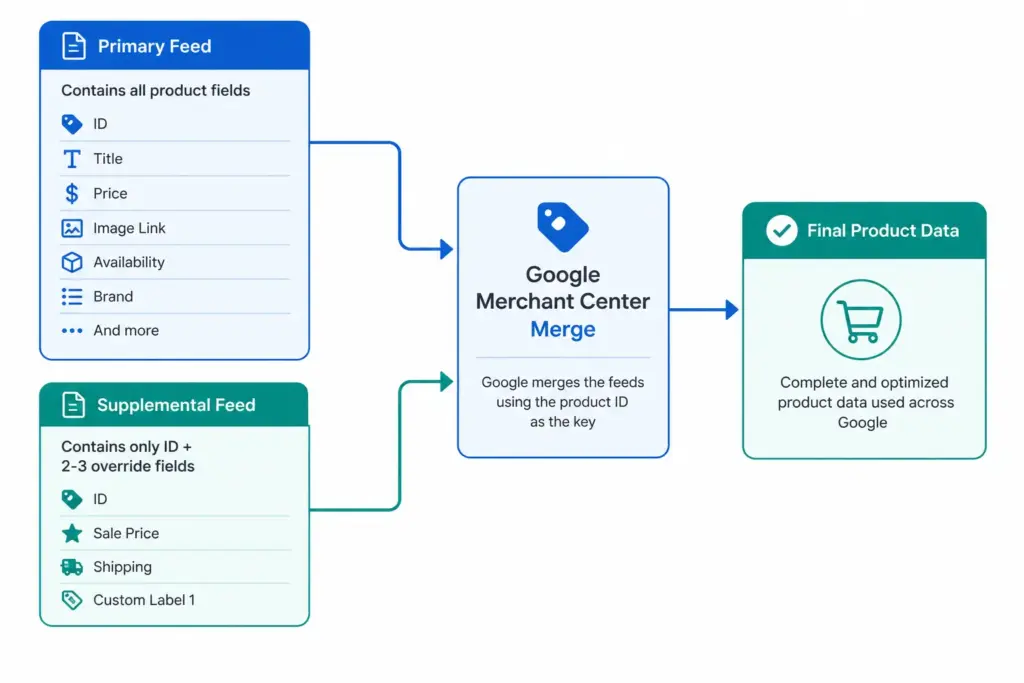
    A supplemental feed is a secondary data source in Google Merchant Center that adds or overrides specific product attributes on top of an existing primary feed. It does not replace the primary feed — it merges with it, using the product ID as the matching key.

    You can have multiple supplemental feeds attached to one primary feed. Each supplemental feed only needs to contain the product ID column and the specific attributes you want to add or change.

    For foundational context on how primary feeds work, the Google Shopping Feed Guide covers the complete attribute set before you layer supplemental data on top.

    Primary Feed vs Supplemental Feed — Key Differences

    Primary FeedSupplemental Feed
    ContainsAll required product attributesOnly attributes being added or overridden
    Required?Yes — at least one requiredNo — optional
    Can stand alone?YesNo — must link to a primary feed
    Update frequencyDaily minimum for price/availabilityDepends on use case
    Override behaviourBase dataOverwrites primary feed value for the same attribute
    Multiple allowed?Yes (one per target country/language)Yes — multiple supplemental feeds per primary

    The 6 Most Valuable Supplemental Feed Use Cases

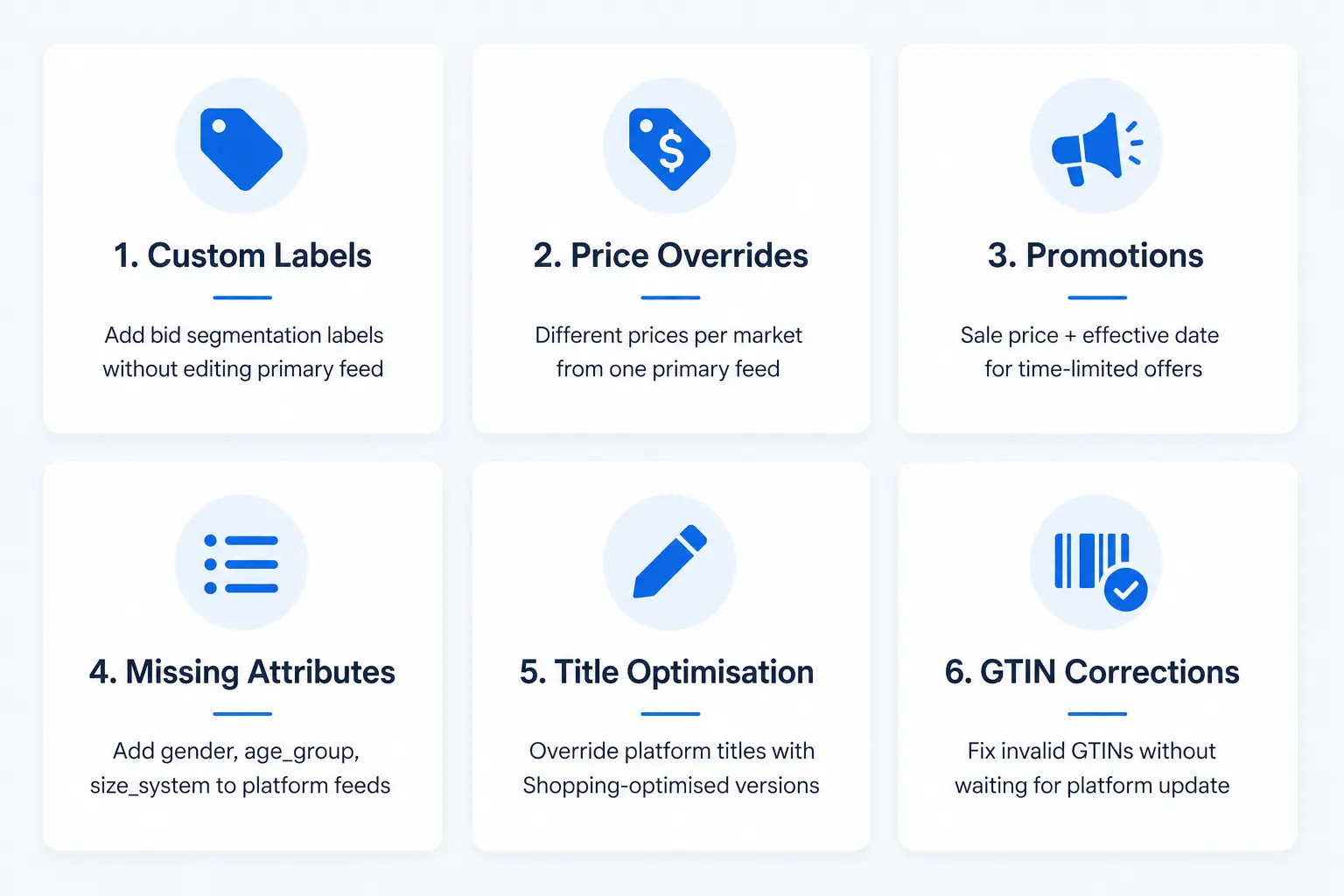
    1. Adding Custom Labels Without Editing Your Primary Feed

    This is the most common supplemental feed use case. You want to add custom_label_0 through custom_label_4 values for bid segmentation, but your primary feed is generated by your ecommerce platform and you cannot add columns to it.

    Solution: Create a supplemental feed in Google Sheets with two columns — id and custom_label_0. Assign label values per product. Merchant Center merges the labels onto matching product IDs from your primary feed. No primary feed changes required. For the full custom labels strategy, see the Custom Labels guide.

    2. Price Overrides for Specific Markets

    If you run the same primary feed across multiple target countries but need different prices per market, a supplemental feed per market containing id and price allows you to override prices without duplicating your entire primary feed.

    3. Promotion and Sale Price Management

    When you run a time-limited promotion, rather than modifying your primary feed, create a supplemental feed containing id, sale_price, and sale_price_effective_date. Upload it for the promotion period and remove or update it when the promotion ends. Cleaner than modifying your primary feed and easier to manage as a scheduled operation.

    4. Adding Missing Attributes to Platform-Generated Feeds

    Ecommerce platforms like Shopify and WooCommerce generate basic Shopping feeds, but often omit attributes like age_group, gender, size_system, or product_type. A supplemental feed lets you add these without switching your primary feed source or installing additional plugins.

    5. Title and Description Optimisation

    If your primary feed generates product titles from your ecommerce platform’s product names (which are written for website display, not Shopping), a supplemental feed can override the title field with Shopping-optimised versions — without changing your website product names.

    6. Correcting GTIN Issues on Specific Products

    If a subset of your products has invalid or missing GTINs in your primary feed, you can supply correct GTIN values via supplemental feed while you fix the underlying data issue in your PIM or platform. First validate your GTINs with the GTIN Validator to confirm which ones need correcting.
    How to Set Up a Supplemental Feed in Merchant Center

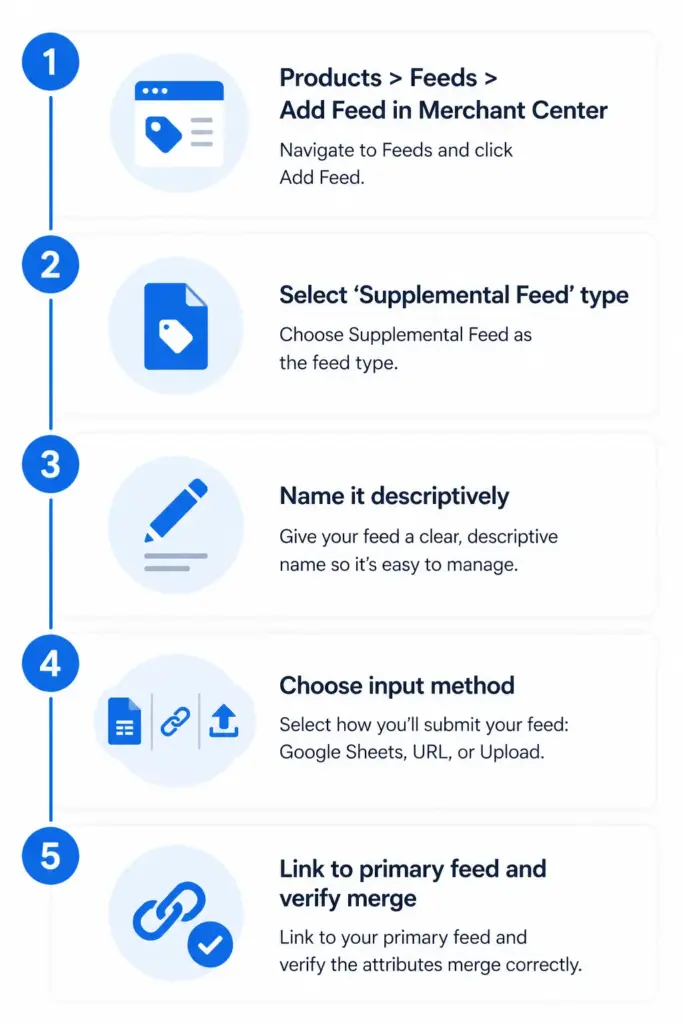
    1. In Google Merchant Center, go to Products → Feeds → + (Add Feed)
    2. Select Supplemental feed as the feed type
    3. Give it a descriptive name — e.g. “Custom Labels — Margin Tier” or “Promotion Sale Prices May 2026”
    4. Choose input method: Google Sheets (easiest for manual management), scheduled fetch from a URL, or file upload
    5. Select which primary feed this supplemental feed applies to
    6. Build your feed file — include only id column plus the attributes you are adding or overriding
    7. Submit and verify — check individual product pages in Merchant Center to confirm supplemental attributes are applied

    Supplemental Feed Rules and Limitations

    • Supplemental feeds cannot add products — only modify or supplement existing products from the primary feed
    • If a supplemental feed supplies the same attribute as the primary feed, the supplemental value wins
    • There is no limit on the number of supplemental feeds per primary feed, but keep them organised with clear naming conventions
    • Supplemental feeds must use the same product IDs as the primary feed — mismatched IDs result in no merge
    • Google Sheets supplemental feeds update when you edit the sheet — useful for quick manual changes during promotions
    For stores managing supplemental feed logic across multiple channels and markets, keeping these overrides centralised in a PIM rather than scattered across multiple Merchant Center supplemental feed files is significantly easier to maintain. See how the PIM to Google Shopping integration handles this at scale, or try the Feed Generator to build and manage your feeds from one place.

    Frequently Asked Questions

    Can a supplemental feed add new products to Google Shopping?

    No. Supplemental feeds can only modify or add attributes to products that already exist in your primary feed. New products must first be included in the primary feed before a supplemental feed can reference them.

    What happens if supplemental and primary feeds supply the same attribute?

    The supplemental feed value overwrites the primary feed value for that attribute on all matching products. This is the intended behaviour — it is how supplemental feeds override titles, prices, or other fields you cannot change in your primary source.

    How many supplemental feeds can I have in Merchant Center?

    There is no published hard limit. In practice, keep supplemental feeds organised with descriptive names — “Custom Labels March 2026”, “Sale Prices Bank Holiday” — and consolidate overlapping feeds where possible. Multiple supplemental feeds affecting the same products in contradictory ways can be difficult to troubleshoot.

    Can I use a Google Sheet as a supplemental feed?

    Yes. Google Sheets is one of the supported input methods for supplemental feeds in Merchant Center. It is the easiest option for manually managed data like custom labels or promotion prices — edits to the sheet reflect in the feed without requiring any file export or upload step.

    What is the minimum a supplemental feed needs to contain?

    At minimum the id column (matching product IDs from your primary feed) plus at least one additional attribute you are adding or overriding. A file with only IDs and no additional attributes will merge successfully but have no visible effect on your product data.
  • PIM to Google Shopping: How to Connect Your Product Data

    PIM to Google Shopping: How to Connect Your Product Data

    PIM to Google Shopping: How to Connect Your Product Data

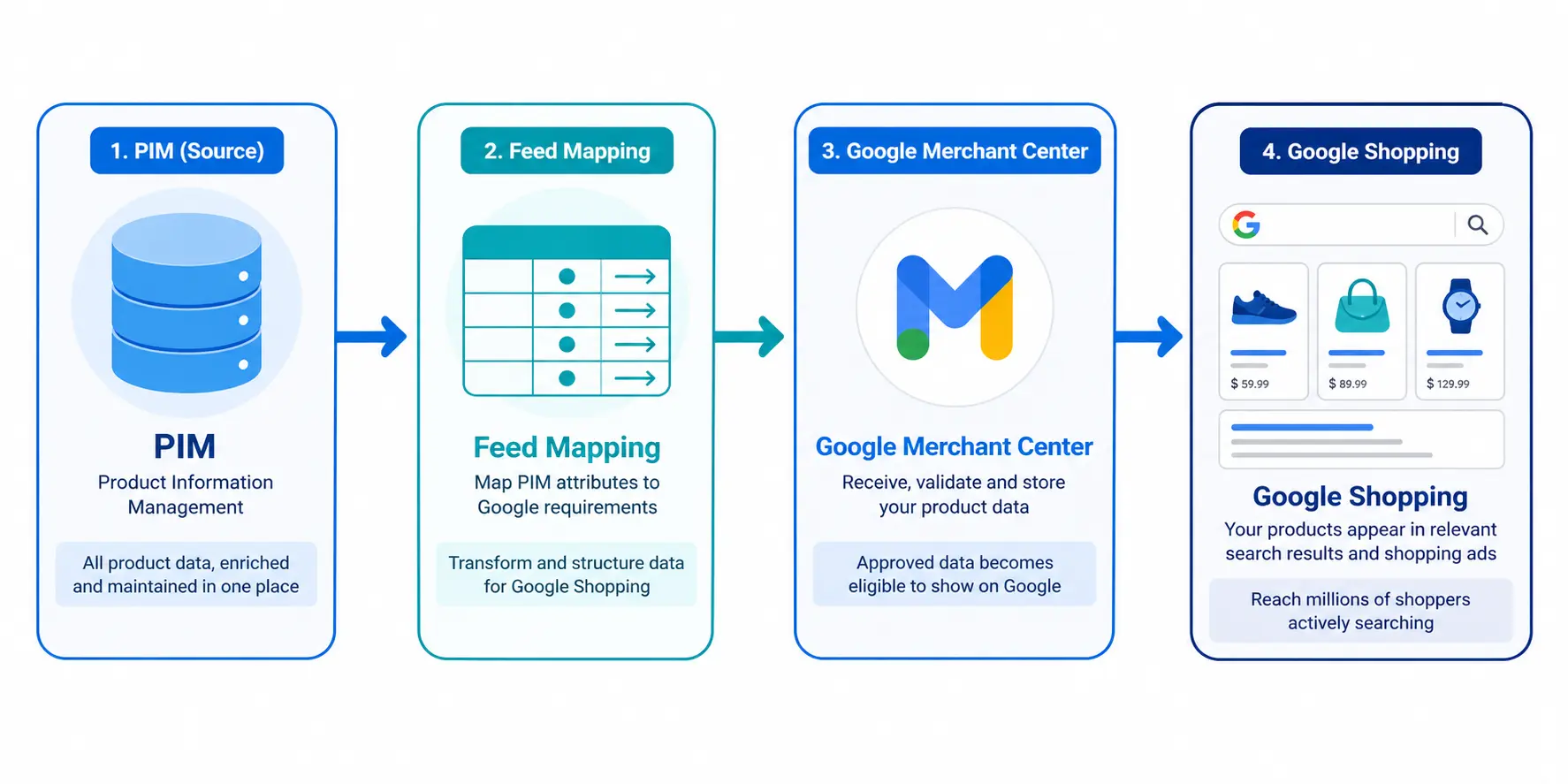
    Managing product data in a PIM and managing a Google Shopping feed are often treated as two separate problems. They are not. Your PIM is the source of truth. Google Shopping is a channel that consumes that truth. The connection between them determines whether your Shopping feed performs or constantly breaks.

    This guide covers how to build that connection correctly — from attribute mapping to feed delivery to ongoing automation.

    Why PIM-to-Shopping Connections Break

    Most PIM-to-Shopping problems come from one of three sources:

    • Attribute mismatch: Your PIM stores data under different field names than Google expects. “Product Name” in your PIM needs to become a correctly structured “title” in the feed — not just passed through as-is.
    • Missing transformation logic: Google requires assembled values like a constructed title or formatted price. If your PIM passes raw values without transformation rules, the feed output is incomplete.
    • Stale feed delivery: Prices and stock change constantly. A feed that updates weekly generates price mismatch disapprovals every time your site runs a sale or a product goes out of stock.

    For a full reference on what Google Shopping feeds require before you start mapping, the Google Shopping Feed Guide covers every required and recommended attribute.

    Step 1: Build Your Attribute Mapping Document

    Before writing a single line of integration code or configuring any connector, build a mapping document. This is a simple table: left column is your PIM field name, right column is the Google Shopping attribute it maps to.

    PIM FieldGoogle Shopping AttributeTransformation Required?
    Product ID / SKUidNo — pass through directly
    Product NametitleYes — assemble from Brand + Attributes + Type
    Long DescriptiondescriptionOptional — strip HTML tags
    Product URLlinkNo — pass through directly
    Primary Image URLimage_linkNo — ensure 800×800px minimum
    Retail PricepriceFormat as 29.99 GBP
    Sale Pricesale_priceInclude sale_price_effective_date
    Stock StatusavailabilityMap: In Stock → in stock, Out of Stock → out of stock
    EAN / BarcodegtinValidate format before passing
    ManufacturerbrandNo — pass through directly
    Google Category IDgoogle_product_categoryMust be leaf-node ID, not text string
    ColourcolorNormalise to human-readable value
    SizesizeAdd size_system attribute separately
    Parent SKUitem_group_idApply to all variants of same style

    Step 2: Set Up Title Construction in Your PIM

    The product title is the single most impactful attribute in a Google Shopping feed. A PIM-to-Shopping integration that just passes your PIM product name to Google as a title is almost always wrong — PIM product names are written for internal use, not for search query matching.

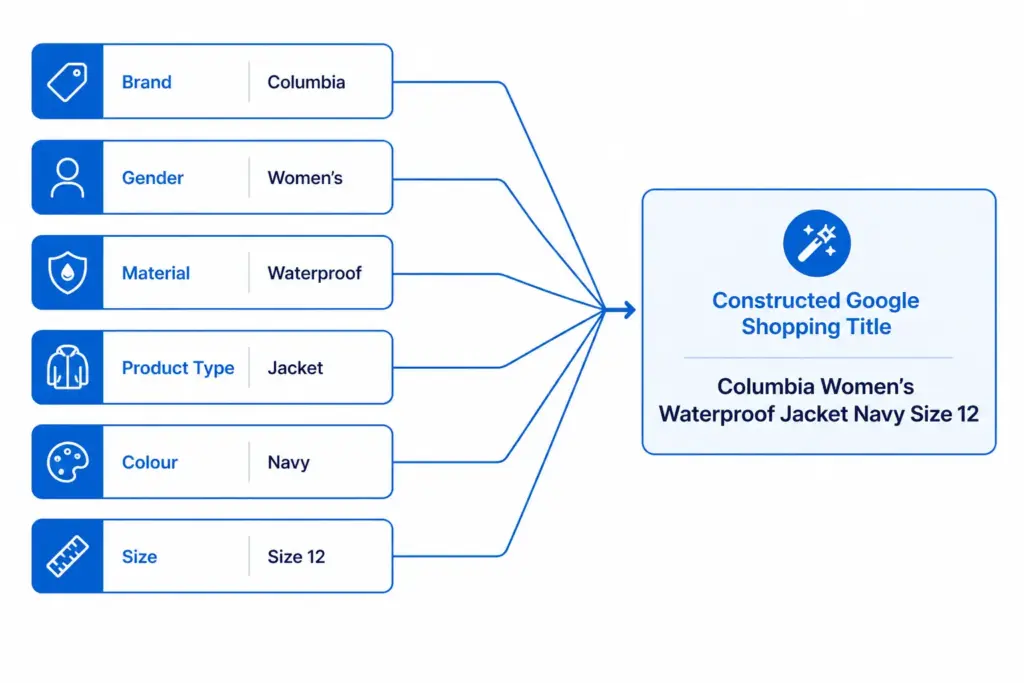
    Define a title construction formula in your PIM and generate the Shopping title programmatically from individual attribute fields:

    Formula: Brand + Gender + Material + Product Type + Colour + Size

    Store this as a channel-specific field in your PIM — a generated “Google Shopping Title” field that is separate from your internal product name and your website title. This allows you to optimise each independently.

    Step 3: Handle Channel-Specific Content

    One of the core advantages of a PIM over a spreadsheet is channel-specific content management. Your Google Shopping description, title, and certain attributes should differ from your website content and your Amazon content.

    • Google Shopping title: Optimised for search query matching — include all key attributes
    • Website title: Optimised for readability and brand tone — may be shorter or styled differently
    • Amazon title: Follows Amazon’s own title requirements — different format again
    • Description: Google Shopping descriptions are indexed but rarely shown. Focus on keyword density. Website descriptions should read naturally for humans.

    Without channel-specific fields in your PIM, teams either use the same content everywhere (suboptimal) or maintain separate spreadsheets per channel (which defeats the purpose of having a PIM).

    Step 4: Choose Your Feed Delivery Method

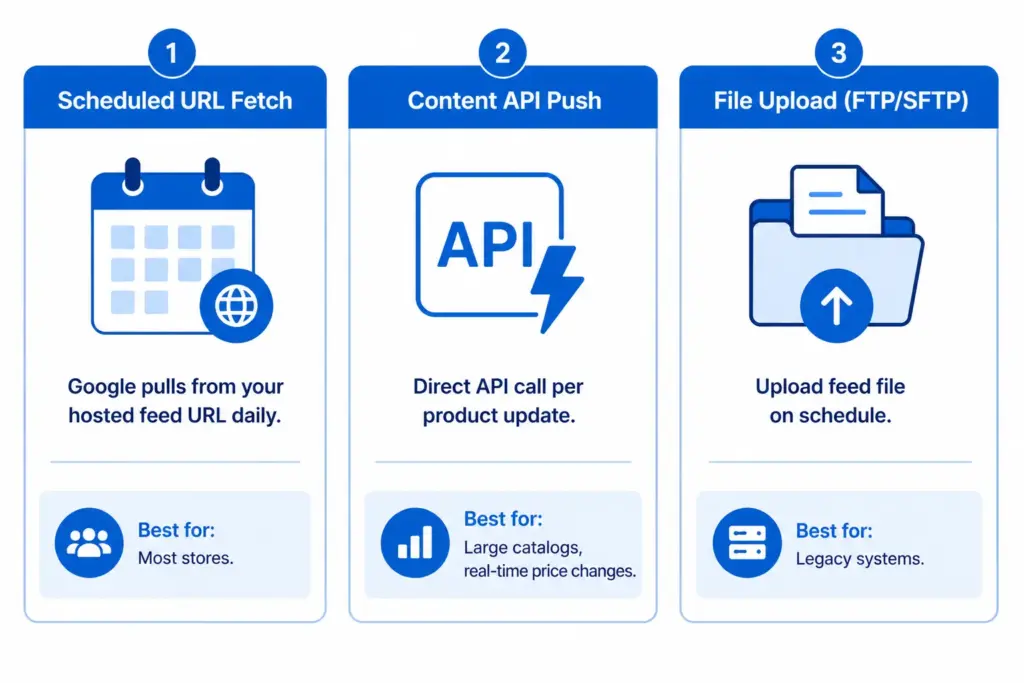
    Option A: Scheduled URL Fetch (recommended for most stores)

    Your PIM generates a feed file (XML or TSV) at a hosted URL. You register this URL in Google Merchant Center and set a fetch schedule — Google pulls a fresh copy at your specified frequency. Daily is the minimum; twice daily is better for stores with frequent price or stock changes.

    Option B: Google Content API

    Your PIM pushes product data directly to Google via the Content API, updating individual products as they change rather than uploading the full catalog on a schedule. This is the right approach for catalogs over 50,000 SKUs or stores with real-time price changes that cannot wait for a daily feed cycle.

    Option C: Manual or FTP file upload

    Export a feed file from your PIM and upload it to Merchant Center on a schedule via FTP/SFTP. Slower and more manual than option A, but workable for smaller catalogs with infrequent changes. Not recommended if your prices or stock change daily.

    The Google Shopping Feed Generator handles feed file generation and delivery setup without custom development. For supplemental feed use cases — like adding custom labels without modifying your primary feed — see the Supplemental Feeds guide.

    Step 5: Set Up Feed Refresh Frequency

    Feed freshness is one of the most common causes of Shopping disapprovals for stores that have otherwise clean feeds. Google requires that your feed reflects current prices and availability. When your site runs a flash sale or a product goes out of stock, your feed must update to match.

    • Price and availability: Update at minimum daily. Twice daily for stores with frequent promotions.
    • Product content (titles, descriptions, images): Weekly updates are sufficient — these rarely change.
    • New products: Submit immediately on launch via supplemental feed or Content API, rather than waiting for the next full feed cycle.

    Step 6: Validate and Monitor

    After your first feed submission, go directly to Merchant Center Diagnostics. It shows exactly which products are disapproved, which have warnings, and what attribute is causing each issue. Work through disapprovals first — these products are not appearing in Shopping at all. Then address warnings — these products appear but with limited performance.

    Run GTINs through the GTIN Validator before submission — invalid GTINs are the most common single cause of mass disapprovals on first feed submissions.

    Set up email alerts in Merchant Center for feed processing errors so you are notified when a feed fetch fails rather than discovering it a week later when performance drops.

    Ready to streamline your PIM-to-Shopping workflow? Check where your current product data setup stands with the PIM Readiness Score — free, 5 minutes. Or start building and exporting feeds directly with the Feed Generator tool.

    Frequently Asked Questions

    Can I connect any PIM to Google Shopping?

    Yes. Any PIM that can export a structured data file (XML, TSV, CSV) or call an API can be connected to Google Shopping. The key requirement is that your PIM can map its internal field names to Google’s required feed attributes and apply transformation rules where needed — particularly for title construction and value normalisation.

    How often should my Google Shopping feed update?

    At minimum daily for price and availability fields. Stores with frequent promotions or high-velocity stock changes should update twice daily. Product content fields like titles, descriptions, and images can update weekly — these change infrequently enough that daily updates add overhead without benefit.

    What is the difference between a primary feed and a supplemental feed?

    A primary feed contains all core product data. A supplemental feed adds or overrides specific attributes on top of the primary feed without replacing it. Supplemental feeds are useful for adding custom labels, overriding prices for specific markets, or adding attributes you cannot modify in your primary data source. Full details in the Supplemental Feeds guide.

    Do I need a developer to connect my PIM to Google Shopping?

    Not necessarily. If your PIM has a built-in Google Shopping connector or can export a correctly formatted feed file, no development is required. The LynkPIM Feed Generator handles feed generation and hosted delivery without custom development — no coding required.

    What happens if my PIM product titles are not optimised for Google Shopping?

    Unoptimised titles reduce Shopping relevance — your products appear in fewer auctions and at lower positions than competitors with complete titles. Google matches your title against search queries, so a title like “Men’s Jacket” loses every specific query to a competitor with “Columbia Waterproof Rain Jacket Men Navy Size L”. Title optimisation is the single highest-impact feed improvement for most stores.