Category: Uncategorized

  • How to Manage 1,000+ SKUs Without Losing Your Mind

    How to Manage 1,000+ SKUs Without Losing Your Mind

    How to Manage 1,000+ SKUs Without Losing Your Mind

    The point where ecommerce catalog management breaks is not 1,000 SKUs. It is usually around 300–500 SKUs — when the spreadsheet that worked fine at 100 products starts producing version control conflicts, inconsistent data, and errors that take hours to find and fix. By 1,000 SKUs, most teams are either running on a badly broken system or have already been forced to find a better approach. This guide covers what that better approach looks like.
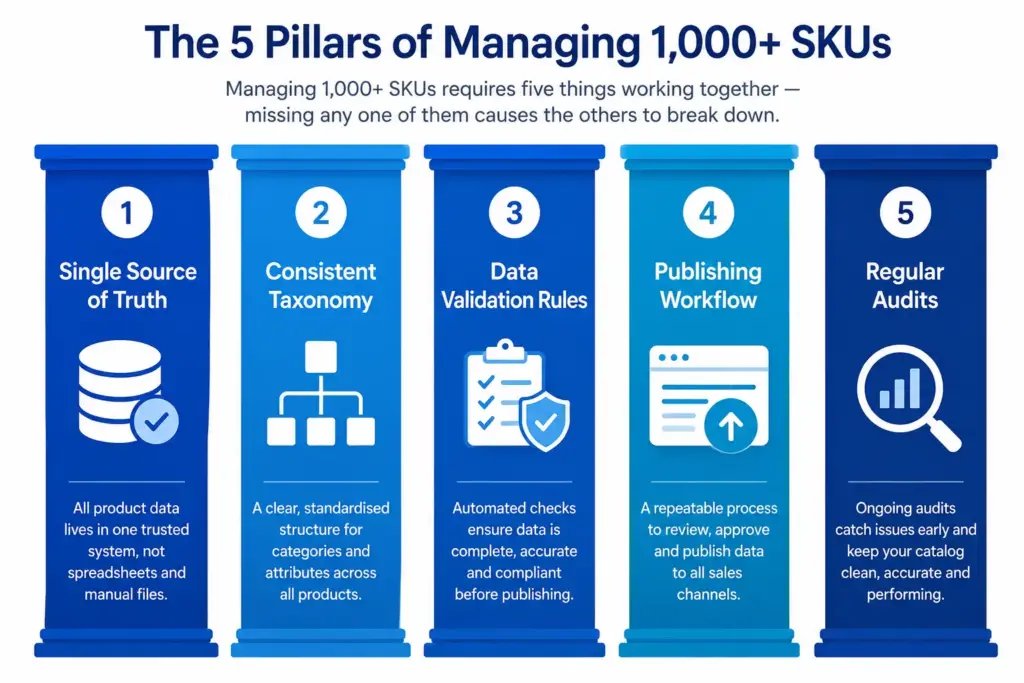
    The Single Source of Truth Problem

    Most catalog management breakdowns at scale have the same root cause: product data exists in too many places simultaneously. There is a master spreadsheet, and a Shopify product page, and a Google Shopping feed file, and a supplier data sheet, and an email from the buying team — and no one is certain which one is authoritative for any given product.

    The fix is structural: every product’s authoritative data lives in exactly one place. All other systems (Shopify, feeds, emails) are downstream consumers of that source. When a product changes in the source, everything downstream updates from it — not the other way around.

    A well-structured spreadsheet can serve as this source for catalogs under ~500 SKUs. For larger catalogs, a PIM system is necessary — not because spreadsheets cannot hold the data, but because they cannot enforce the validation rules and workflow controls that prevent data quality from degrading as the catalog grows. See What Is Product Catalog Management for context on what these systems need to do.

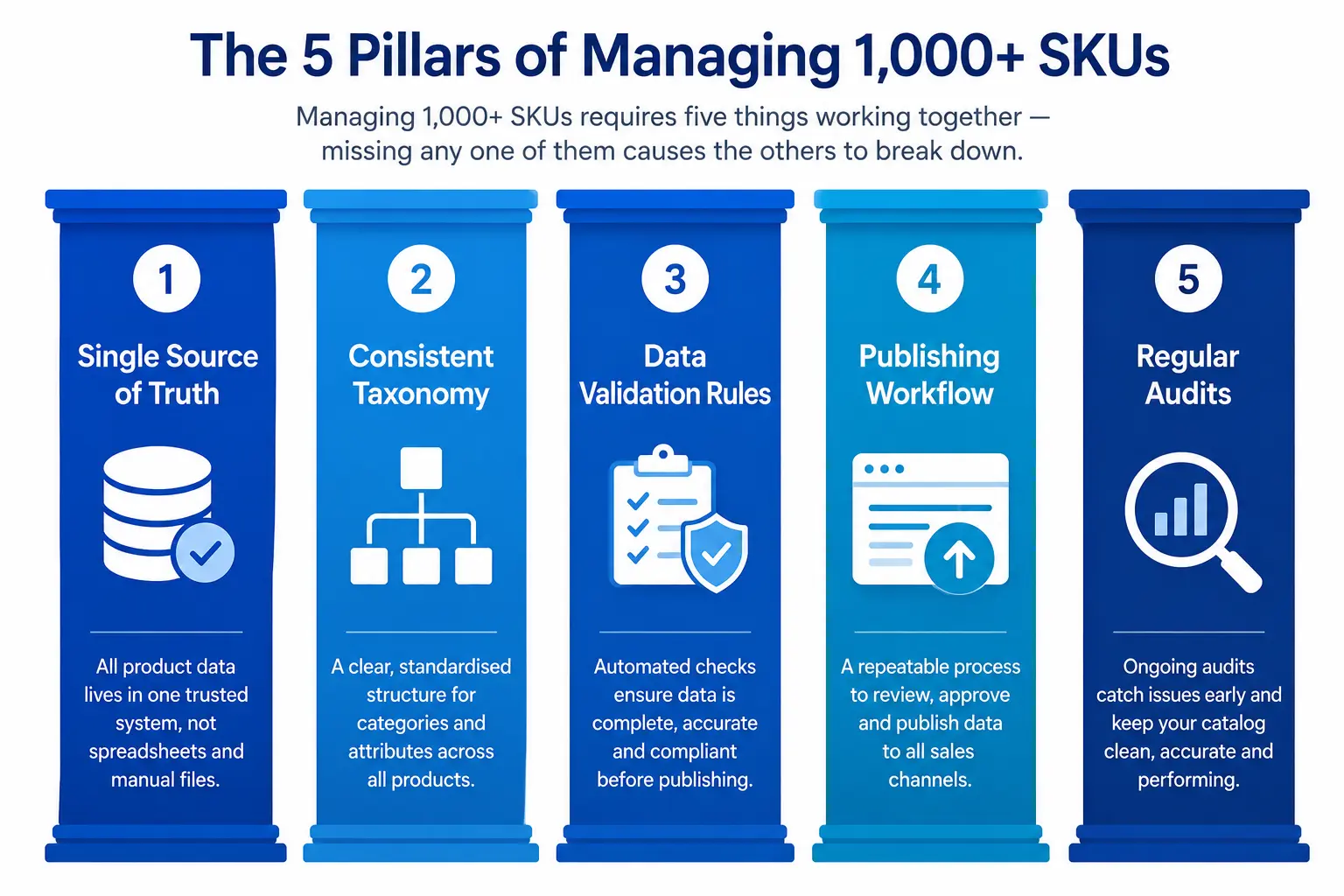
    The 5 Systems You Need at 1,000+ SKUs

    1. Centralised product data (single source of truth)

    One place where all product data lives and is edited. Updates flow from here to all channels — not from channels back to a master spreadsheet. The question “what is the correct title for product X?” has one answer and one place to find it.

    2. Enforced taxonomy and categorisation

    Every product is in the correct subcategory with the correct attribute set populated. Uncategorised products and miscategorised products both cause the same problem: they are invisible in filters and they underperform in channel feeds. At 1,000+ SKUs you need a system that flags uncategorised products rather than silently letting them accumulate.

    3. Data validation rules

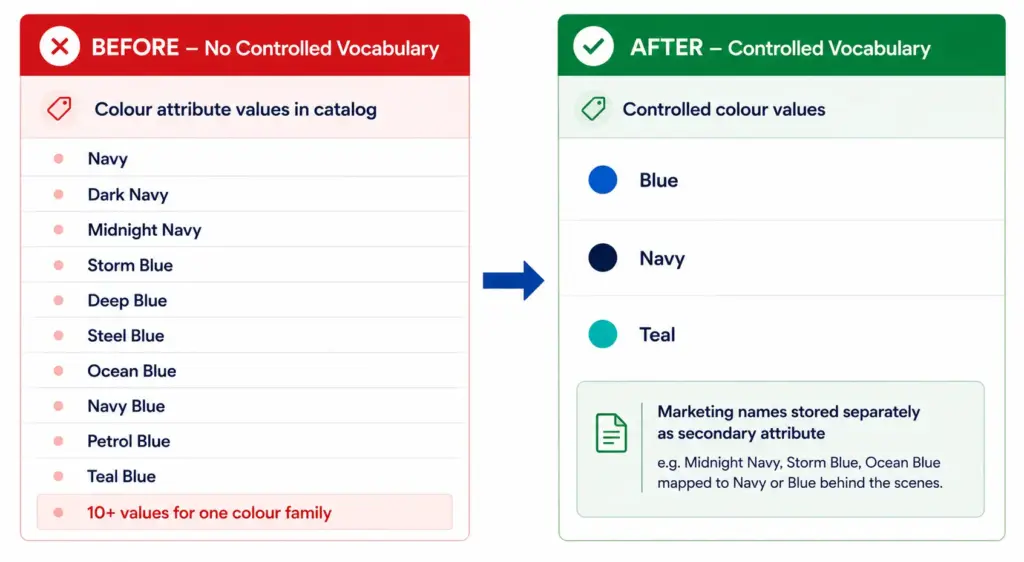
    Rules that prevent incorrect or incomplete data from being published. Required fields that must be filled before a product can go live. Controlled value lists that prevent “Navy”, “Dark Navy”, and “Midnight Blue” from all being entered as separate colour values. GTIN format validation that catches invalid barcodes before they hit Merchant Center. Without validation rules, data quality degrades with every product addition.

    4. A defined publishing workflow

    The steps a product goes through from creation to live publication: data entry → image upload → attribute enrichment → review → approval → publish to website → push to channels. A defined workflow prevents incomplete products from going live and creates accountability for each step.

    5. Regular catalog audits

    Catalog quality degrades over time without active maintenance. Run a completeness audit quarterly, a duplicate SKU check monthly, and a category assignment review whenever catalog structure changes. See How to Audit Your Product Catalog in One Weekend for the full process.

    Practical Tips for Managing Large SKU Counts

    • Use bulk operations for catalog-wide changes — updating colour values for 500 products one by one takes days. Bulk find-and-replace operations take minutes. Invest time in building bulk operation capability early.
    • Treat new product launches as projects, not tasks — a new product that needs 12 attribute fields, 5 images, and a Google Shopping title before it can go live is a multi-step project, not a single task. Assign it accordingly.
    • Separate content creation from data entry — copywriting for product descriptions and data entry for attribute fields are different skills. Don’t require your data entry team to write copy or your copywriters to understand GTIN requirements.
    • Archive rather than delete discontinued products — deleted products leave dead links and break order history. Archive discontinued SKUs so they are inactive but still findable if needed.

    The Catalog Health Score benchmarks your current catalog quality and flags where the biggest gaps are. The Completeness Checker shows exactly which products are missing which attributes across your full catalog. Start with the LynkPIM free plan to centralise product data and enforce validation rules without an enterprise implementation project.

    Frequently Asked Questions

    At what point does a spreadsheet stop working for SKU management?

    Spreadsheets typically become unmanageable around 500 SKUs with a single channel, or sooner with multiple channels or team members. The specific breaking points are: version control failures (two people edit simultaneously), formula errors that corrupt data silently, and the inability to enforce data validation rules. The symptom is usually a data incident — wrong prices going live, or products going live with missing images.

    What is the most common problem with large ecommerce catalogs?

    Inconsistent attribute values — the same property appearing under different names or with different values across different products. Navy vs Dark Navy vs Midnight Blue for the same colour. S vs Small vs SM for the same size. This accumulates gradually as different team members enter data using different conventions, and it breaks filters, reduces search accuracy, and creates channel feed errors.
  • Product Attributes in Ecommerce: How to Create Filters That Help Customers Buy

    Product Attributes in Ecommerce: How to Create Filters That Help Customers Buy

    Product Attributes in Ecommerce: How to Create Filters That Help Customers Buy

    Product attributes are the structured properties that describe what a product is and how it differs from other products — Colour, Size, Material, Brand, Processor Speed, Number of Seats, Waterproof Rating. They are the data layer that powers your site filters, your search matching, your channel feeds, and your product comparison functionality. Get them right and customers find what they need. Get them wrong and filters return empty results, searches miss matching products, and Google Shopping underperforms.

    Types of Product Attributes

    Universal attributes

    Attributes that apply to virtually every product regardless of category: Brand, Price, Colour, Material, Weight, Dimensions. These are the foundation of most filter systems and are required for channel feeds like Google Shopping.

    Category-specific attributes

    Attributes that only apply within a specific category or subcategory. Size and Size System for apparel and footwear. Processor and RAM for laptops. Number of Seats and Configuration for sofas. IP Rating and Fitting Type for lighting. These are defined in your taxonomy’s attribute set for each subcategory — they do not appear in the filter panel for irrelevant categories.

    Technical specification attributes

    Precise technical values with units: Screen Size (inches), Storage Capacity (GB), Battery Life (hours), Waterproof Rating (IP rating), Thread Standard (M6, M8), Tensile Strength (MPa). These are the primary purchase decision attributes for high-consideration products like electronics and industrial components. See the Electronics Taxonomy guide for the full attribute sets required per subcategory.

    Compliance and certification attributes

    Required for regulated products: CE Marking, ATEX certification, RoHS compliance, allergen declarations for food, organic certification for food and textiles. These are not typically filterable but are mandatory product data in the relevant categories.

    Required vs Optional Attributes — The Practical Distinction

    The traditional distinction between required and optional attributes needs a practical reframe for ecommerce. The question is not “can we publish this product without this attribute?” — technically many attributes are not hard-blocked. The question is “does missing this attribute cost us customers?”

    AttributeFormal StatusPractical Impact If Missing
    Colour (fashion)Required for Google Shopping variantsProduct invisible in colour filters, wrong image may show
    Size (fashion)Required for Google Shopping variantsProduct invisible in size filters
    Occasion (fashion)OptionalProduct invisible in “Occasion = Formal” filter searches — often high-intent
    Battery Life (laptops)OptionalInvisible to buyers filtering by battery life — significant buyer segment
    Number of Seats (sofas)OptionalInvisible in “3-seater” filter searches — primary buyer decision point

    Any attribute that drives significant filter usage should be treated as effectively required, regardless of its formal status. Run your site search and filter analytics to identify which attributes buyers filter by most — those are your de facto required attributes.

    Controlled Vocabularies — The Foundation of Working Filters

    A controlled vocabulary is a defined list of acceptable values for an attribute. Without controlled vocabularies, teams enter attribute values manually and inconsistency accumulates — “Navy”, “Dark Navy”, “Midnight Blue”, “Storm Blue”, “Deep Blue” all represent the same colour but appear as separate filter options.

    Define a controlled vocabulary for every filterable attribute before any product data is entered. For colour: 10–15 normalised values (Blue, Red, Green, Black, White, Grey, Yellow, Pink, Purple, Brown, Orange, Beige, Multi). For size: the exact size labels used on your products (XS, S, M, L, XL, XXL). For material: the primary material categories relevant to your catalog (Cotton, Polyester, Nylon, Leather, Wool, Linen, Silk).

    Attribute Completeness — The Filter Coverage Problem

    An attribute that is missing from 30% of your products means a filter on that attribute returns 30% fewer results than it should. A buyer filtering for “navy” gets an incomplete result set — products that exist in navy but are missing the colour attribute are hidden.

    Target completeness thresholds by attribute priority:

    • Required attributes: 100% target. Any product below 100% is incomplete and should not be published until fixed.
    • High-impact filter attributes: 95%+ target. Attributes that drive significant filter usage should be as close to complete as possible.
    • Recommended attributes: 80%+ target. Aim for high coverage but acknowledge that some edge-case products may not have applicable values.

    Run regular completeness audits using the Completeness Checker to monitor which attributes are falling below target thresholds as your catalog grows.

    Attribute Design Mistakes That Kill Conversion

    • Free-text attributes for filterable properties — a free-text Colour field cannot be used as a filter reliably. Filterable attributes must use controlled value lists.
    • Too many attributes per category — if a category has 30+ attributes, data entry completeness drops because teams skip fields. Keep required attributes to 8–12 per subcategory.
    • Global attributes applied to irrelevant categories — a “Number of Seats” attribute on all home goods products adds noise to furniture and lighting simultaneously. Category-specific attributes belong in category-specific attribute sets.
    • Attributes without unit standards — storing weight as “2kg”, “2 kg”, “2.0 KG”, and “2000g” in the same field breaks sorting and filtering by weight. Define units per attribute and enforce them.
    • Marketing names as attribute values — “Dusty Rose” as a colour value is correct for product copy but wrong for a filter attribute. Store marketing names separately; use normalised values for filterable attributes.

    The LynkPIM Product Data Modeling feature enforces controlled vocabularies, required attribute validation, and completeness tracking at the category level — preventing attribute quality degradation as catalogs scale. Start free at lynkpim.app/pricing. Also see Faceted Navigation and Product Taxonomy for how attributes connect directly to your filter system.

    Frequently Asked Questions

    What are product attributes in ecommerce?

    Product attributes are the structured properties that describe what a product is and how it differs from others — Colour, Size, Material, Brand, Processor Speed, Number of Seats, Waterproof Rating. They power site filters, search matching, channel feeds, and product comparison functionality. Without structured, consistent attribute data, none of these functions work reliably.

    What is the difference between required and optional product attributes?

    Required attributes are those without which a product cannot be correctly sold or displayed. Optional attributes improve discoverability and filtering. In practice, any attribute that drives significant filter usage should be treated as effectively required — missing it hides products from buyers who use that filter, regardless of its formal classification.

    Why should product attribute values use controlled vocabularies?

    Controlled vocabularies prevent inconsistent values that break filters and search. Without them, you end up with Navy, Dark Navy, Midnight Navy, Storm Blue, and Ocean Blue as separate filter options instead of a single Blue. Controlled vocabularies ensure every product with a blue attribute uses exactly the same value — making filters accurate and site search effective.

    How many attributes should each product category have?

    Most subcategories need 5–8 required attributes and 5–10 recommended attributes. More than 15–20 required attributes creates data entry burden that reduces completeness — teams start skipping fields. The right number depends on the product type and the filtering decisions buyers make in that category. Start with the attributes that drive filter usage and add more based on analytics.

  • Faceted Navigation: How Product Taxonomy Powers Your Filter System

    Faceted Navigation: How Product Taxonomy Powers Your Filter System

    Faceted Navigation: How Product Taxonomy Powers Your Filter System

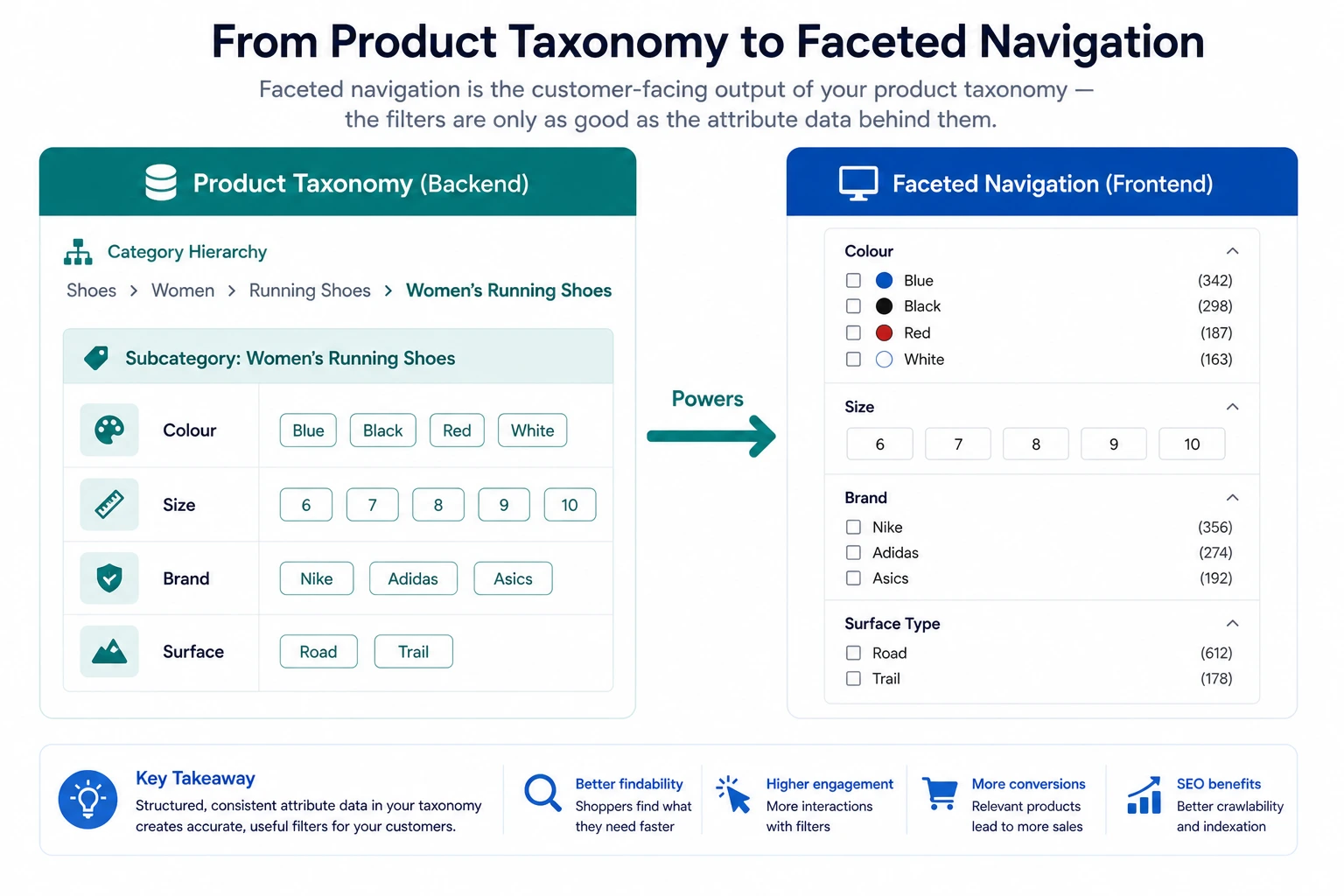
    Faceted navigation is the filter sidebar on your category pages. It is one of the highest-impact conversion tools in ecommerce — when it works. When it does not work, customers face unusable filter options, incomplete results, and irrelevant products. The difference between a working and a broken faceted navigation system almost always comes down to the quality of the product taxonomy underneath it.

    What Is Faceted Navigation?

    Faceted navigation is a multi-dimensional filtering system that allows customers to narrow a product set by applying multiple attribute filters simultaneously. Each filter dimension — colour, size, brand, material, price range — is a “facet”.

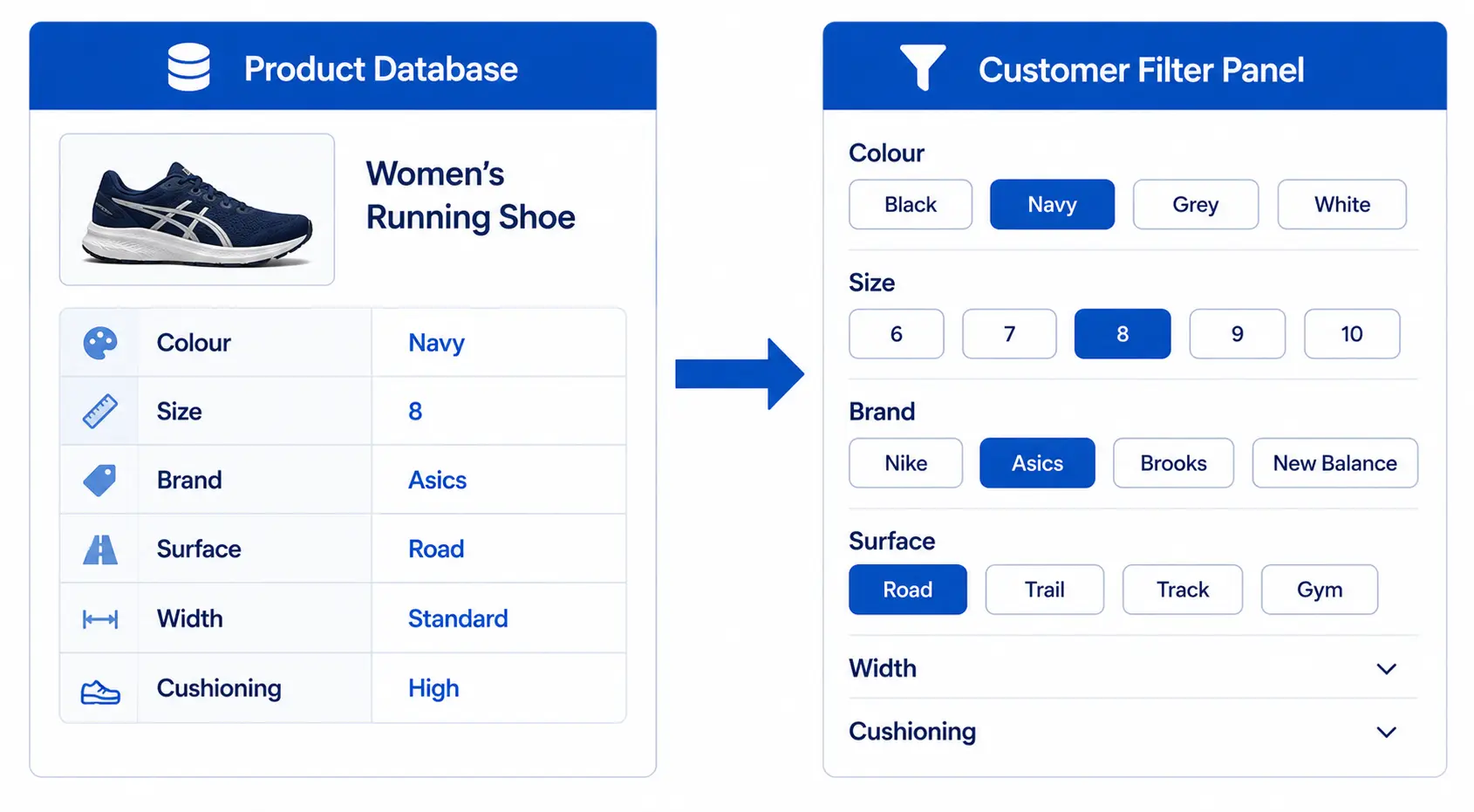
    When a customer lands on a “Women’s Running Shoes” category page and uses the filters to select: Size = 8, Colour = Black, Brand = Asics — faceted navigation returns only the products matching all three criteria simultaneously. This is fundamentally different from traditional category browsing where customers can only drill down one level at a time.

    Faceted navigation significantly increases the probability that a customer with specific requirements finds what they are looking for — which directly increases conversion rate on category pages. But it only works if the attribute data powering the filters is structured, consistent, and complete.

    The Taxonomy-Navigation Connection

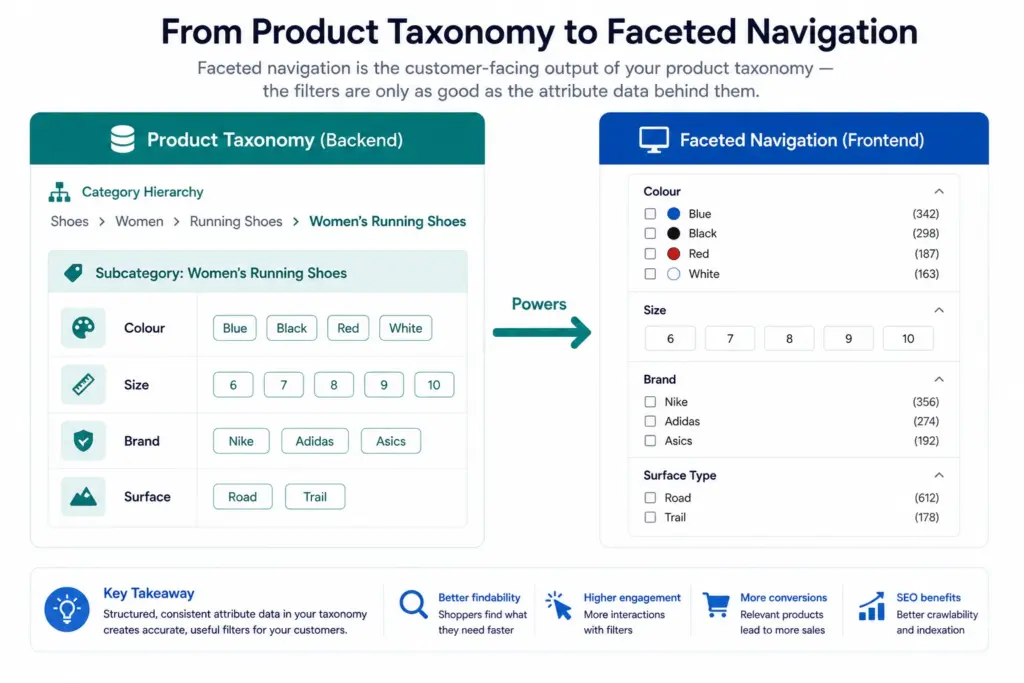
    The filter options available on any category page come directly from the attribute values assigned to products in that category. Your product taxonomy determines:

    • Which attributes exist as filters — only attributes defined in your taxonomy attribute set for that subcategory can become filters
    • Which values appear in each filter — only the distinct values present in your product data for that attribute appear as filter options
    • How many products each filter returns — if 30% of products are missing an attribute, filtering by that attribute returns an incomplete set

    This means a product taxonomy decision — what attributes to assign to a subcategory, what values to allow for each attribute — directly determines what filters customers see and how useful those filters are. For the foundation on building taxonomy correctly, see What Is Product Taxonomy and How to Build a Product Taxonomy From Scratch.

    Why Flat Taxonomy Breaks Faceted Navigation

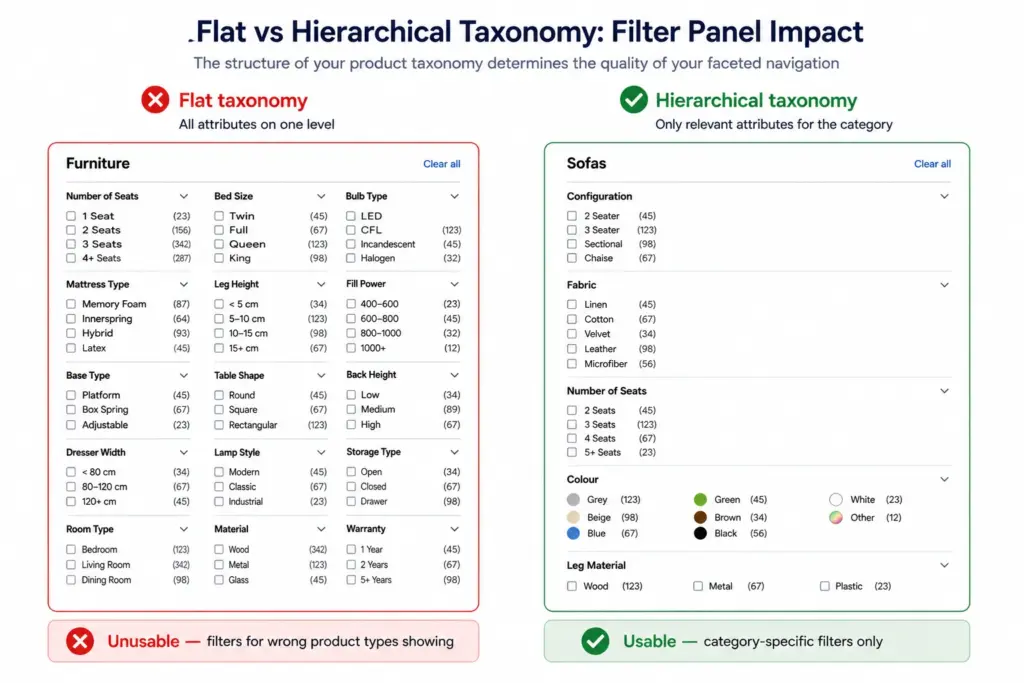
    A flat taxonomy — one level of categories with no subcategories — forces all products in a top-level category to share the same filter set. In a home goods store with a flat structure, the “Furniture” category contains sofas, dining tables, bed frames, and desk lamps. The filter panel must serve all of them simultaneously.

    The result: a filter panel that includes Number of Seats (relevant to sofas only), Bed Size (relevant to beds only), Bulb Type (relevant to lamps only), and Seating Capacity (relevant to dining tables only) — all visible at once, none relevant to all products. Customers see a confusing, cluttered filter panel and abandon filtering entirely.

    Hierarchical taxonomy solves this by enabling category-specific filter sets. Sofas get their own filter panel with Number of Seats, Configuration, and Fabric. Lighting gets its own panel with Fitting Type, Dimmable, and IP Rating. Each subcategory shows only the filters relevant to it. The Flat vs Hierarchical Taxonomy guide covers when each approach is appropriate.

    The 4 Attribute Rules for Effective Faceted Navigation

    Rule 1: Normalise attribute values

    Every attribute that becomes a filter must use controlled, consistent values. Colour cannot have 40 variations of blue — it must have one “Blue” value (plus specific shades as a secondary attribute if needed). Size cannot have “S”, “Small”, “SM”, “size S”, and “SMALL” — it must have one normalised “S” value. Unnormalised values create filter option lists that customers cannot navigate.

    Rule 2: Ensure completeness for filter attributes

    A filter attribute that is missing from 40% of products returns a result set that excludes 40% of matching products. If a customer filters by Colour = Blue and 40% of your blue products are missing the colour attribute, the filter is hiding products the customer would buy. Run completeness checks on every filter attribute — any attribute below 90% coverage is undermining your conversion rate.

    Rule 3: Define filter attributes per subcategory, not globally

    Different subcategories need different filters. Do not apply a global attribute set across all categories. Define which attributes become filters for each subcategory — this is a taxonomy design decision, not a platform configuration decision. The attribute set in your taxonomy is what drives the filter panel.

    Rule 4: Keep facet option counts manageable

    5–15 options per filter facet is the usable range for most attributes. A colour filter with 40 options is unusable. A brand filter with 200 options needs a search-within-filter feature. Use controlled attribute value lists to prevent facet option counts from growing beyond the usable range as your catalog expands.

    Common Faceted Navigation Failures and Their Taxonomy Root Causes

    SymptomRoot CauseFix
    Filter returns zero results despite products existingProducts missing the filter attributeAttribute completeness audit + bulk fill
    Colour filter has 40+ optionsUnnormalised colour valuesColour normalisation — map to controlled value list
    Filter returns wrong product typesProducts miscategorised in wrong subcategoryReclassify affected products
    Same filter appears on every category regardless of relevanceFlat taxonomy — no subcategory-specific attribute setsMigrate to hierarchical taxonomy with per-subcategory attribute definitions
    Filter option counts are highly inconsistentAttribute values assigned inconsistently across catalogControlled vocabulary enforcement + bulk standardisation

    The root cause of most faceted navigation failures is not a platform problem — it is a product data problem. The Completeness Checker identifies which attribute gaps are most significant across your catalog. The PIM Readiness Score gives you a full picture of where your taxonomy and attribute governance has gaps affecting both faceted navigation and channel performance. Also see How Bad Taxonomy Kills Your Site Search for the broader impact beyond filters.

    Frequently Asked Questions

    What is faceted navigation in ecommerce?

    Faceted navigation is a filtering system that allows customers to narrow a product set by applying multiple attribute filters simultaneously — for example, filtering shoes by Size = 8, Colour = Black, Brand = Nike, and Style = Running to show only matching products. Each filter dimension is a “facet” derived from structured product attributes in your taxonomy.

    Why does product taxonomy affect faceted navigation?

    Because the filters on any category page come directly from the attribute sets assigned to that category in your taxonomy. If your taxonomy assigns different attributes to different products in the same category, or uses inconsistent attribute values, the filter options become incomplete or unusable. The taxonomy is the data layer that faceted navigation is built on.

    What is the difference between faceted navigation and site search?

    Site search retrieves products matching a keyword query. Faceted navigation filters an existing product set by attribute values. They work together — a customer searches “running shoes” (site search), then uses facets to filter by size and colour (faceted navigation). Both depend on the same underlying product data quality, which means taxonomy problems typically affect both simultaneously.

    How many filter options should each facet display?

    5–15 options per facet is the usable range. Fewer than 5 suggests the attribute is not differentiated enough to warrant a filter. More than 15–20 options on a single facet is typically unusable — customers cannot scan that many options efficiently. Use controlled attribute value lists and normalisation to keep facet option counts manageable as your catalog grows.

  • How to Automate Your Google Shopping Feed Updates (2026 Guide)

    How to Automate Your Google Shopping Feed Updates (2026 Guide)

    How to Automate Your Google Shopping Feed Updates (2026 Guide)

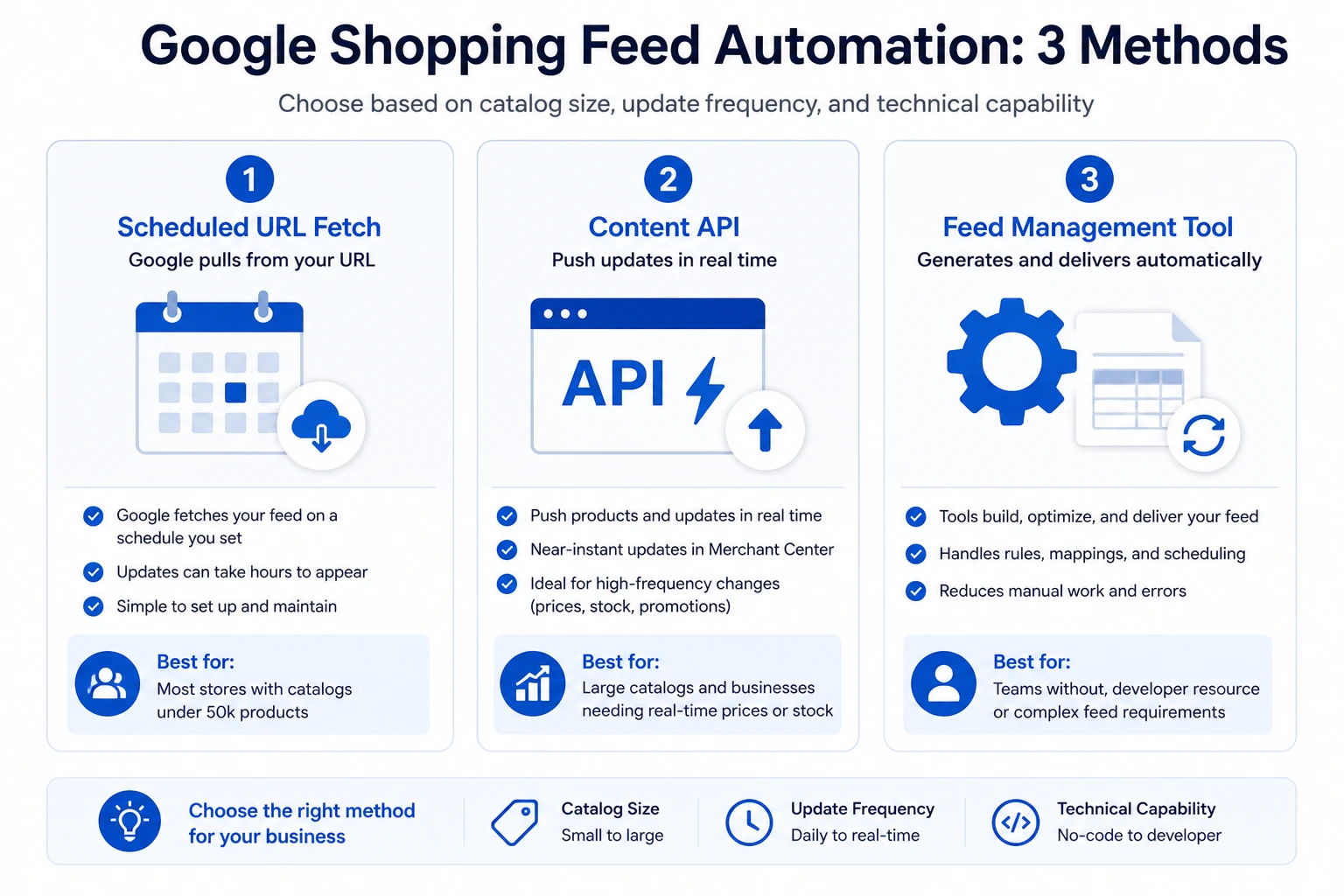
    Manual Google Shopping feed management is one of the highest-risk activities in ecommerce operations. Every time a price changes, a product goes out of stock, or a promotion goes live — and the feed is not updated within 24 hours — you risk price mismatch disapprovals that remove products from Shopping entirely. Full automation eliminates this risk.

    This guide covers every automation method available in 2026, when to use each, and how to set them up correctly.

    Why Manual Feed Updates Fail

    Manual feed management fails not because teams are careless but because the speed of change in ecommerce catalogs outpaces human update cycles. Prices change for flash sales. Stock depletes. New products launch. Promotions end. Any one of these events — if not reflected in the feed within 24 hours — creates a price mismatch or availability mismatch that Merchant Center catches during its next crawl.

    The solution is not faster manual processes. It is removing humans from the update loop entirely for routine data changes. For the context on how feeds connect to your product data source, see the PIM to Google Shopping Integration guide.

    Method 1: Scheduled URL Fetch (Recommended for Most Stores)

    Your system generates a feed file at a stable URL. Google Merchant Center fetches that URL on a schedule you configure — daily, twice daily, or more frequently. Every fetch pulls a fresh copy of your full product data.

    How to set it up

    1. In Merchant Center, go to Products → Feeds → [your primary feed] → Settings
    2. Under Fetch Schedule, set the frequency to Daily at minimum
    3. Set the fetch time to a low-traffic period — typically 2:00–4:00 AM in your primary market timezone
    4. For stores with frequent promotions or high stock turnover, set to Twice daily
    5. Save and trigger a manual fetch to confirm the URL is accessible and the feed processes without errors

    Best for: Most ecommerce stores. Works with any platform that can generate a feed file at a stable URL — Shopify, WooCommerce, Magento, custom platforms.

    Limitation: The whole feed updates at once on a schedule. If a product goes out of stock at 10am and your next fetch is at 2am, the product will show as in stock in Shopping for 16 hours. For stores with fast-moving inventory, this window creates availability mismatch risk.

    Method 2: Google Content API (Real-Time Updates)

    The Content API allows your system to push product updates to Merchant Center immediately when a product changes — no waiting for a scheduled fetch. A price change in your platform can trigger an API call that updates the product in Merchant Center within minutes.

    When to use the Content API

    • Catalogs over 50,000 products where full-feed fetches become slow or resource-heavy
    • Stores with real-time pricing (dynamic pricing, live stock-based pricing)
    • High-velocity inventory where products sell out within hours
    • Stores running multiple daily promotions that change prices frequently

    Content API setup requirements

    The Content API requires developer resource to implement — it is not a no-code option. Your platform needs to be configured to send API calls to Merchant Center when product data changes. Google’s Content API documentation is the reference for implementation. The Feed Generator handles API delivery without custom development for most store configurations.

    Method 3: Feed Management Tool (No-Code Automation)

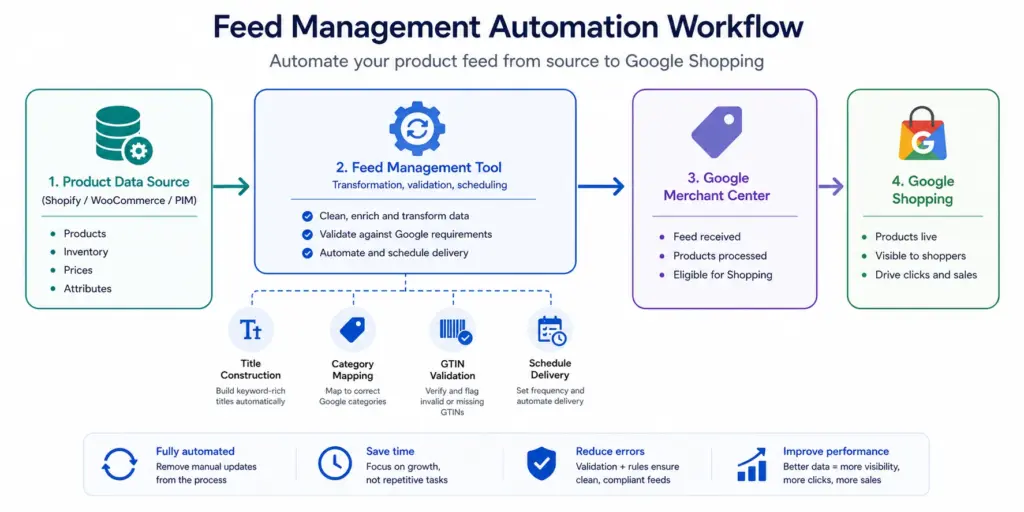
    Feed management tools sit between your product data source and Merchant Center. They pull product data from your platform or PIM, apply transformation rules (title construction, category mapping, attribute normalisation), generate the feed file, and deliver it to Merchant Center on schedule — with no manual steps after initial setup.

    Best for: Teams without developer resource, stores managing feeds across multiple channels (Google + Amazon + Facebook), and catalogs where feed transformation logic is complex enough that maintaining it manually is impractical.

    Separating Price/Availability from Content Updates

    Not all feed data needs to update at the same frequency. Treating your feed as a single monolithic file that updates everything at once is inefficient and sometimes counterproductive.

    Data TypeUpdate FrequencyDelivery Method
    Price, sale_price, availabilityDaily minimum — twice daily for promotionsPrimary feed or price-only supplemental feed
    New productsSame day as launchSupplemental feed or Content API push
    Titles, descriptionsWeeklyPrimary feed
    ImagesOn changePrimary feed
    Custom labelsWeekly or monthlyCustom label supplemental feed

    Using a supplemental feed for price and availability updates is a practical option for stores whose primary feed platform cannot be updated on a daily schedule. See the Supplemental Feeds guide for setup details.

    Setting Up Merchant Center Alerts

    Automation without monitoring is incomplete. Feed automation can fail — URLs become inaccessible, file formats break, authentication tokens expire. Set up Merchant Center email alerts so processing failures are caught within hours, not days.

    1. In Merchant Center, go to Settings → Email Preferences
    2. Enable alerts for: Feed processing errors, Product disapprovals (daily digest), Account warnings
    3. Add a shared team email address (not just a personal one) so alerts are seen even when you are out of office

    For full automation of feed generation, delivery, and monitoring from one place — including price validation before submission — the Google Shopping Feed Generator handles all three without custom development. Start with the LynkPIM free plan.

    Frequently Asked Questions

    How often should Google Shopping feeds update?

    Price and availability fields should update at minimum daily. Stores with frequent promotions or fast-moving inventory should update twice daily. Product content fields (titles, descriptions, images) can update weekly — these change infrequently and do not cause disapprovals if slightly delayed. The critical rule: your feed price must match your landing page price at all times.

    What is the difference between Scheduled URL Fetch and the Content API?

    Scheduled URL Fetch pulls a complete feed file from a hosted URL on a schedule — best for catalogs under 50,000 products with predictable update patterns. The Content API allows your system to push individual product updates to Merchant Center in real time as products change — better for large catalogs, real-time prices, or stores with unpredictable inventory movements.

    What happens if my Google Shopping feed fails to update?

    If your feed fails to fetch for more than 30 days, Google may deactivate it and your products stop appearing in Shopping. Shorter delays cause price mismatch disapprovals when your site prices change but your feed does not update. Set up Merchant Center email alerts for feed processing errors so failures are caught within hours, not days.

  • How Product Data Quality Affects Your Google Shopping ROAS

    How Product Data Quality Affects Your Google Shopping ROAS

    How Product Data Quality Affects Your Google Shopping ROAS

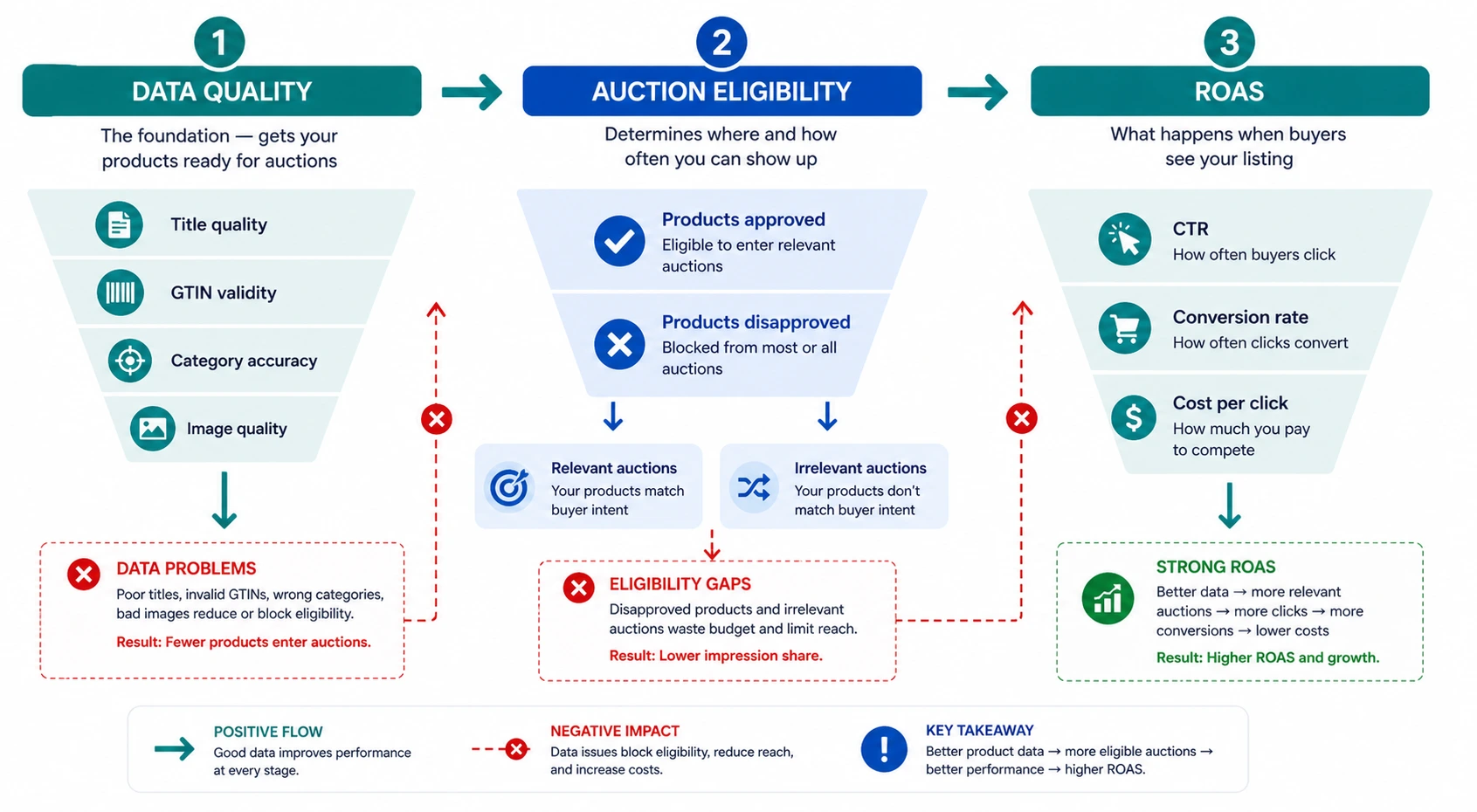
    Most Google Shopping ROAS discussions focus on bids, bidding strategies, and campaign structure. These matter. But for stores with data quality problems, no bidding strategy can overcome a feed where products are disapproved, titles are vague, categories are wrong, or GTINs are invalid. Product data quality affects ROAS before a single auction is entered.

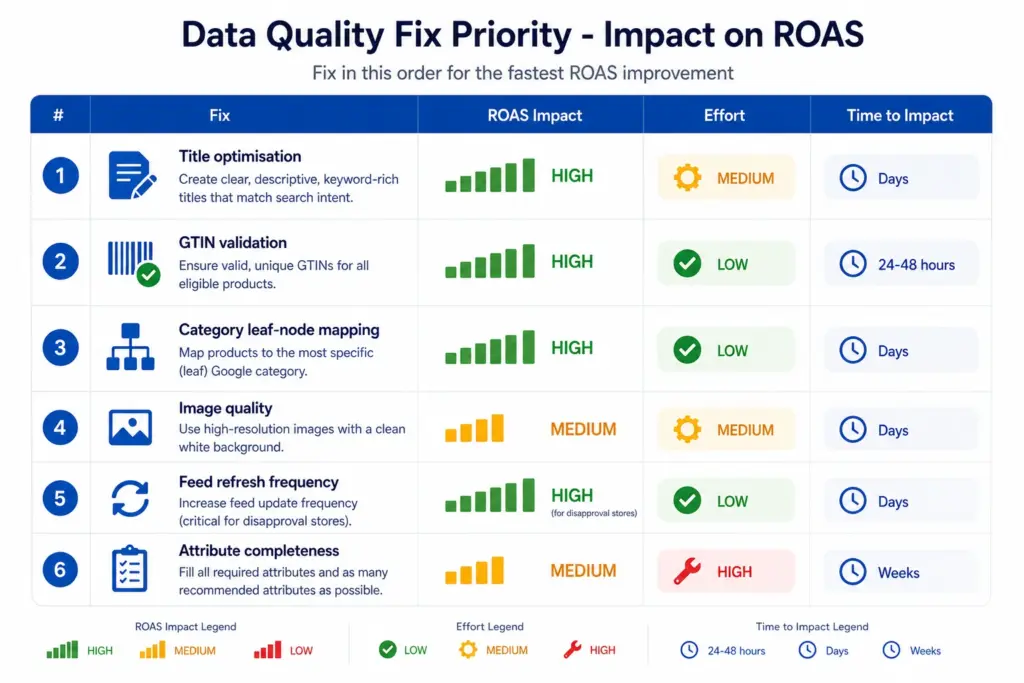
    This article covers the six data quality factors with the biggest direct ROAS impact, ranked by how much they cost you and how quickly they can be fixed.

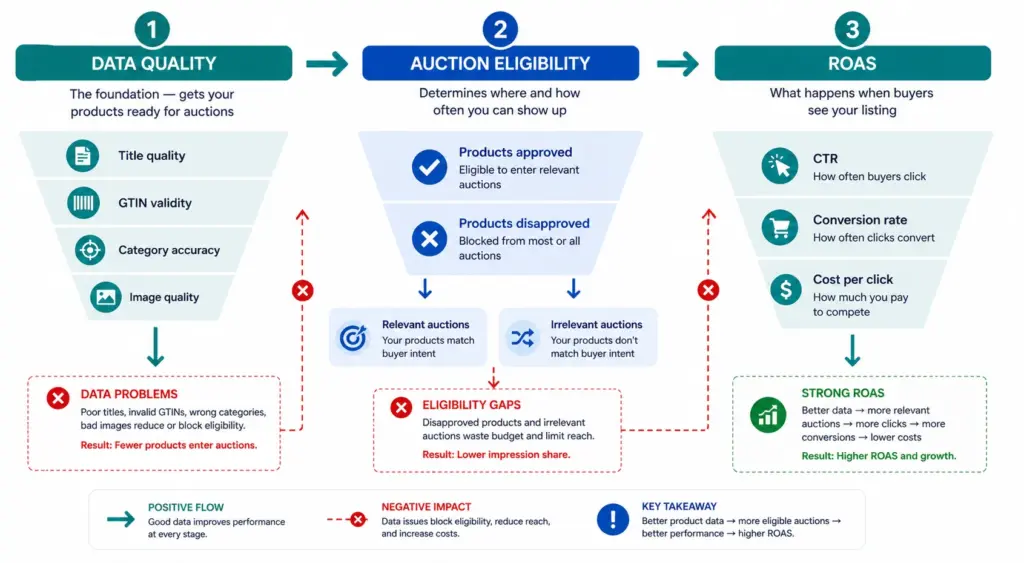
    How Product Data Affects ROAS — The Mechanism

    Product data quality affects ROAS through three distinct mechanisms. Understanding which applies to which data problem helps you prioritise fixes correctly.

    • Auction eligibility: Disapproved products do not enter any auctions. Products with “Limited performance” warnings enter fewer auctions and at lower positions. GTIN errors and policy violations cause this.
    • Auction relevance: Your title and google_product_category determine which search queries your products are matched to. Vague titles and broad categories match your products to irrelevant queries — you spend budget on traffic that does not convert.
    • Click-to-conversion rate: Image quality, title specificity, and price competitiveness all affect whether a click becomes a purchase. This is the layer that most data quality guides ignore but where significant ROAS gains are available.

    Factor 1: Product Titles — The Highest-Impact Fix

    Google uses your product title as the primary signal for matching your product to search queries. A vague title matches fewer queries. A specific, well-structured title matches more relevant queries at higher relevance scores — meaning better positions at lower CPCs.

    The ROAS impact of title quality is larger than most stores expect because it affects both sides of the equation: the cost of each click (auction position) and the value of each click (title specificity means higher buyer intent).

    Title TypeQueries MatchedTypical CTRTypical Conversion Rate
    “Men’s Jacket”Broad, low-intent0.8–1.2%Low — wrong intent mix
    “Columbia Rain Jacket Men Navy L”Specific, high-intent3.5–5.2%High — buyer knows what they want

    Title formula: Brand + Gender/Age + Material + Product Type + Colour + Size for apparel. Brand + Key Spec + Product Type + Model for electronics. Check every title against this formula using the Feed Audit Checklist.

    Factor 2: GTINs — The Eligibility Gate

    Products without valid GTINs receive a “Limited performance” status in Google Merchant Center. This is not a warning you can safely ignore. Limited performance means:

    • Reduced auction eligibility — the product enters fewer auctions than it would with a valid GTIN
    • Lower relevance scores — Google cannot cross-reference the product against its product knowledge graph
    • No eligibility for Shopping promotions or special ad formats that require GTIN verification

    For branded products, fixing invalid GTINs directly restores auction eligibility. For custom or handmade products that genuinely have no manufacturer GTIN, set identifier_exists = FALSE — this removes the warning without fabricating a GTIN.

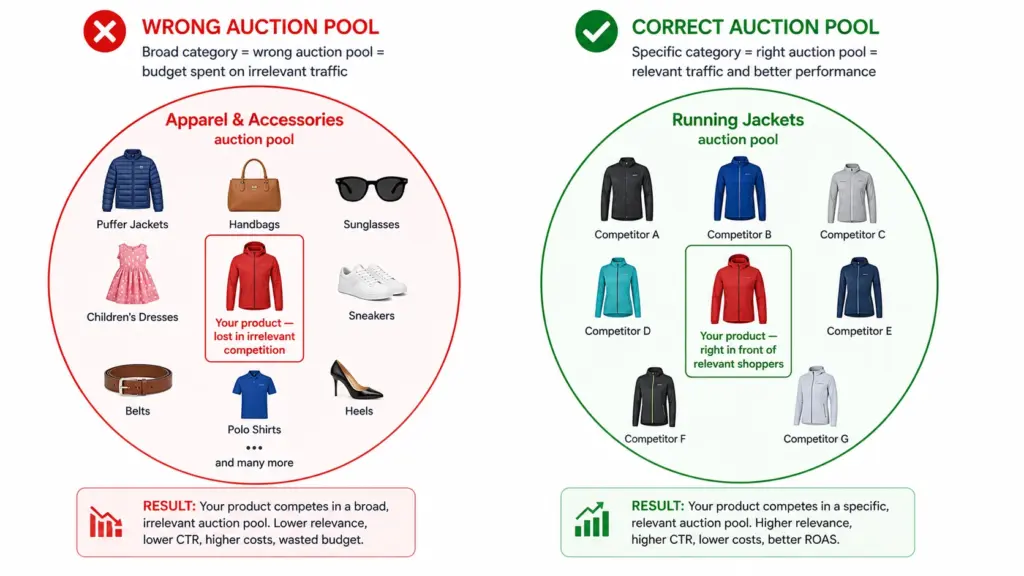
    Factor 3: Google Product Category — The Auction Pool Problem

    An incorrect or overly broad google_product_category puts your product in the wrong auction pool. A running jacket in “Apparel & Accessories” competes against handbags, sunglasses, and children’s clothing — all irrelevant to your buyer. Your bids are wasted on impressions that will not convert because the query intent does not match.

    Fixing category mapping to leaf-node IDs is a one-time task per subcategory. Once mapped correctly in your feed, it applies to all products in that subcategory automatically. Full guide at Google Product Category Taxonomy.

    Factor 4: Image Quality — The CTR Multiplier

    In Google Shopping, the product image is the first thing a buyer sees. It is the primary visual decision trigger before the title or price are read. Image quality directly affects CTR, and CTR directly affects ROAS.

    • White background images consistently outperform lifestyle images for CTR in Shopping results for most product categories
    • Higher resolution images (800×800px+) render better in Shopping and reduce the pixelation that signals low-quality product listings
    • Multiple images via additional_image_link (up to 10) improve performance — Google can show different angles in different contexts
    • Colour-specific images for variants — a buyer filtering for navy gets shown the navy product, not a different colour from the same style

    Factor 5: Price and Availability Freshness

    A price mismatch disapproval removes a product from Shopping entirely — zero impressions, zero clicks, zero revenue until fixed. For stores that run frequent promotions or have fast-moving stock, stale feed data is a constant ROAS drain because it creates disapprovals that take 24–48 hours to resolve.

    The fix is structural: daily minimum feed updates, twice-daily during promotion periods, and using sale_price + sale_price_effective_date for promotions rather than changing the base price field. This prevents price mismatch disapprovals at the source.

    Factor 6: Attribute Completeness — The Long Tail Opportunity

    Products with complete optional attributes — colour, size, material, pattern, age_group, gender — match against more specific long-tail search queries. A buyer searching “navy size 12 waterproof running jacket women” only finds your product if all five of those attributes are present in your feed.

    Long-tail queries typically convert at higher rates than broad queries because they indicate more specific buying intent. Every missing optional attribute is a set of high-intent queries your product is invisible for. Run an attribute completeness audit using the Completeness Checker to identify which products are missing which attributes at scale.

    Priority Order — Where to Start

    1. Fix disapprovals first — any disapproved product is earning zero. Check Merchant Center Diagnostics before anything else. See the Fix Disapprovals guide.
    2. Optimise titles — highest impact on relevant traffic. Apply the title formula to your top 20% of products by revenue first.
    3. Validate GTINs — restore “Limited performance” products to full auction eligibility.
    4. Fix category mapping — move all products from parent categories to leaf nodes.
    5. Set up daily feed refresh — prevent price mismatch disapprovals from recurring.
    6. Complete optional attributes — unlock long-tail query matching for all products.

    Use the Catalog Health Score to benchmark your current data quality across all six factors and get a prioritised fix list specific to your catalog. For ongoing feed management that prevents these issues at source, explore the LynkPIM free plan.

    Frequently Asked Questions

    Does product data quality affect Google Shopping ROAS?

    Yes, directly — through three mechanisms: auction eligibility (disapproved products don’t appear at all), auction relevance (vague titles and broad categories match wrong queries), and click-to-conversion rate (image quality and title specificity determine whether clicks convert). All three affect ROAS before any bidding decision is made.

    Which product data fix has the biggest impact on Google Shopping ROAS?

    Title optimisation typically delivers the biggest immediate ROAS improvement for most stores. A specific, well-structured title matches more relevant search queries, improves auction relevance, increases CTR, and attracts higher-intent buyers. Apply the formula: Brand + Gender/Age + Material + Product Type + Colour + Size for apparel; Brand + Key Spec + Product Type for electronics.

    How does a missing GTIN affect Google Shopping performance?

    Products without valid GTINs receive “Limited performance” status — reduced auction eligibility, fewer impressions, and lower positions than identical products with valid GTINs. For branded products, fixing invalid GTINs directly restores full auction eligibility. For custom products with no manufacturer GTIN, set identifier_exists = FALSE to remove the warning.